12 Best pdf editor for mac free You Should Know
Discover the top 12 best pdf editor for mac free strategies and tips. Complete guide with actionable insights.
Finding the best PDF editor for Mac free of charge can be a frustrating process. You need to annotate a research paper, sign a contract, or rearrange pages in a report, but every tool seems to hide its essential features behind a paywall or a clunky interface. This guide cuts through the noise to help you find the right solution for your specific needs, whether you're a student, a professional, or anyone who regularly interacts with PDF documents.
We have evaluated a dozen of the top free and freemium PDF editors available for macOS, from powerful built-in tools like Apple's Preview to versatile web-based platforms like Sejda and Canva. Each review provides a straightforward analysis of what the tool does best, complete with direct download links and screenshots to guide your decision. We break down the key features, including text editing, annotation capabilities, page management, and OCR functionality, so you can quickly compare your options.
This article is designed to be a comprehensive resource. We detail the pros and cons of each editor, identify its ideal use case, and provide an honest assessment of its limitations. You will learn not just which editor to choose, but why it's the right fit for your workflow. Beyond basic viewing and annotation, many robust PDF editors for Mac also allow you to learn how to create editable PDF forms for various purposes. Our goal is to equip you with a clear, scannable comparison that saves you time and helps you manage your documents more efficiently without spending a dime.
1. Apple Preview
Often overlooked, Apple Preview is the most accessible and surprisingly capable best free PDF editor for mac. It comes pre-installed on every Mac, making it the default choice for quick viewing and essential markups without needing to download or pay for anything. Its core strength lies in its seamless integration with macOS and its completely offline, privacy-focused operation. You don't need an account or an internet connection to use it.
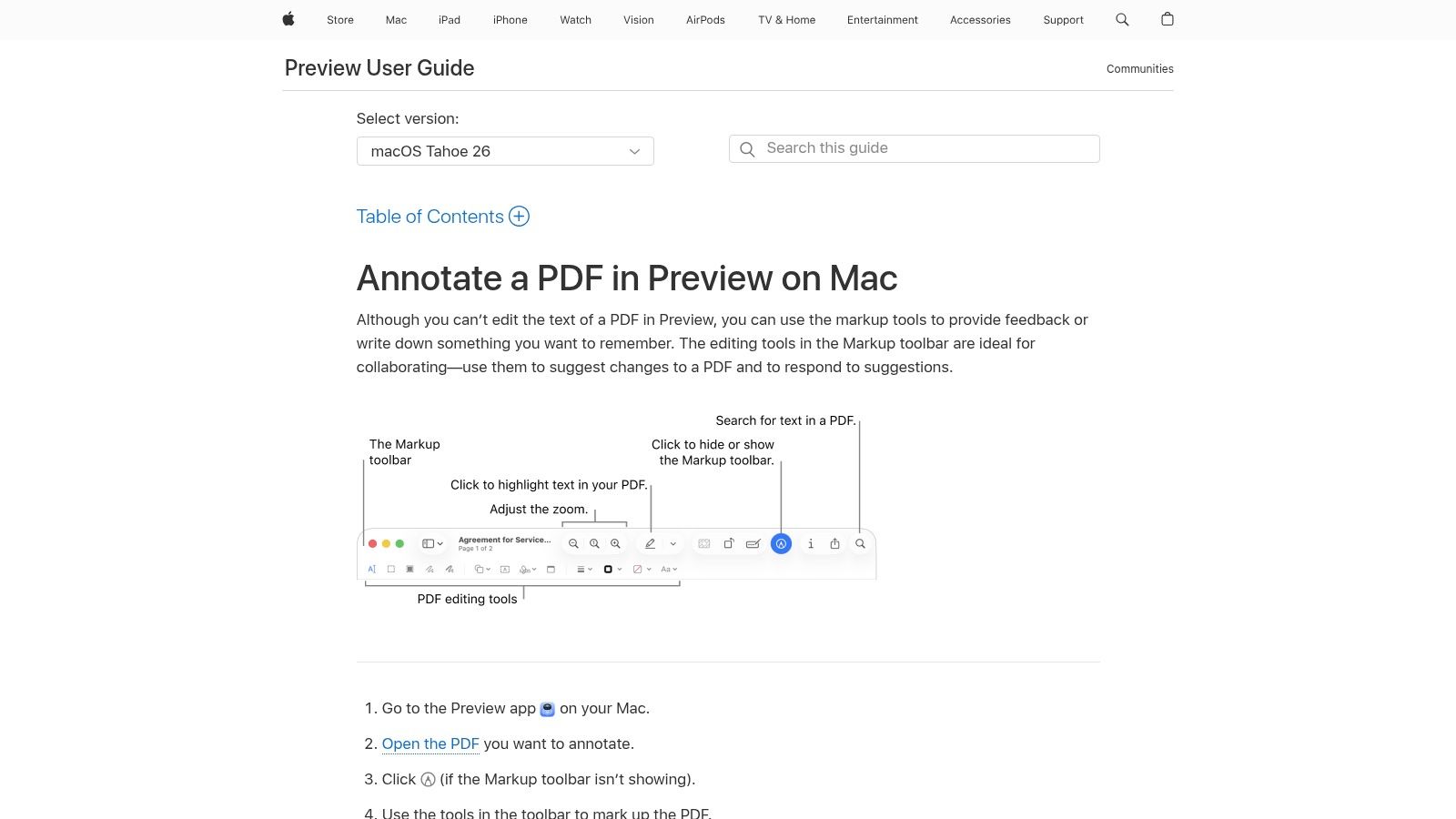
While it doesn't allow for editing the original text of a PDF, its annotation and page management tools are robust for most everyday tasks. For students, professionals, or anyone needing to review documents, Preview provides a fast and efficient workflow. Its clean, familiar interface ensures there's virtually no learning curve.
Key Features & Use Cases
- Annotation & Markup: Add highlights, underlines, notes, shapes, and freehand drawings directly onto a document. This is perfect for students annotating research papers or professionals providing feedback on a draft.
- Signatures & Form Filling: Easily create and store a digital version of your signature to sign contracts or agreements. You can also quickly fill out PDF forms, a common task for applications and official paperwork. To master this, you can learn more about filling PDF forms on a Mac.
- Page Management: Merge multiple PDFs into one document, delete unnecessary pages, or reorder them by simply dragging and dropping thumbnails in the sidebar.
- Redaction: For sensitive documents, Preview's redaction tool allows you to permanently black out text or images, ensuring confidential information stays private.
Verdict
| Pros | Cons |
|---|---|
| Completely free and pre-installed on macOS | Cannot edit existing PDF text |
| Fast, lightweight, and works entirely offline | No OCR for scanned documents |
| Strong privacy with no data sent to the cloud | Limited to basic annotation |
| Excellent for signing and form-filling | Lacks advanced editing features |
Best for: Users who need a quick, secure, and free tool for basic PDF tasks like signing documents, annotating reports, filling forms, and simple page organization.
Learn more at the official Apple Support page
2. Adobe Acrobat Reader
As the original creator of the PDF format, Adobe offers the industry-standard free viewer, Acrobat Reader. While it's often seen as just a viewer, it provides some of the most reliable and high-fidelity tools for reviewing and commenting, making it a powerful best free PDF editor for mac for collaborative workflows. It ensures that documents appear exactly as intended, which is crucial for professional and official contexts.
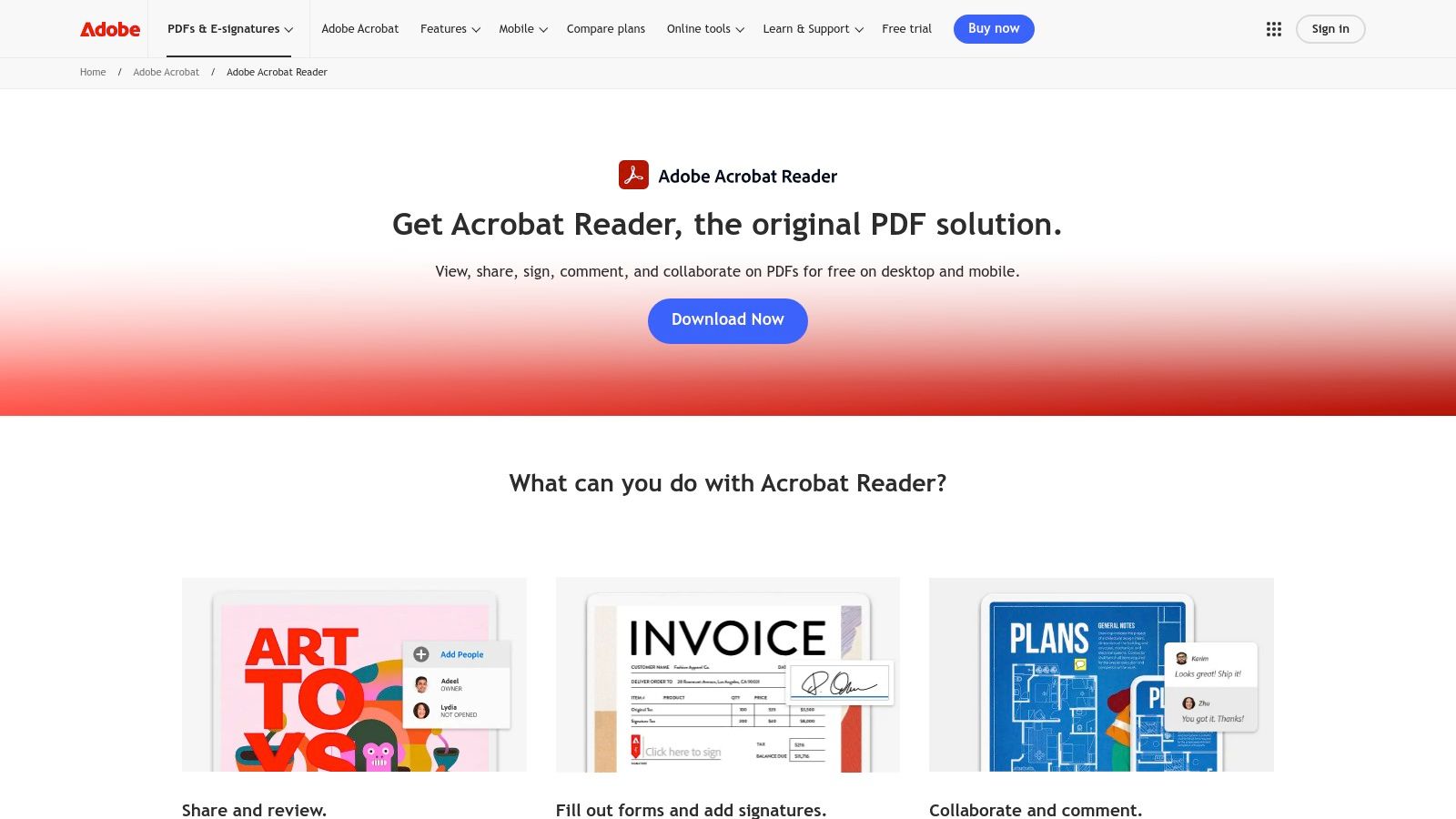
Unlike lightweight alternatives, Acrobat Reader is built for robust professional use. Its commenting and form-filling capabilities are second to none in the free category. While true text editing is reserved for the paid Acrobat Pro, the free version is perfect for anyone needing to provide detailed feedback, fill out complex forms, or securely sign documents with a trusted tool.
Key Features & Use Cases
- Robust Commenting Tools: Add sticky notes, highlight text, use drawing tools, and provide specific feedback with a comprehensive set of annotation options. This is ideal for formal document review cycles in business or academia.
- Advanced Form Filling & Signing: Reliably fill out interactive and non-interactive PDF forms. The "Fill & Sign" feature lets you add text and e-signatures to any document, even those not designed as forms.
- Connected Experience: Integrates with Adobe Document Cloud, allowing you to store and access your PDFs from any device. You can also share files and track when they are opened or commented on.
- High-Fidelity Viewing: Renders PDFs with perfect accuracy, ensuring that complex layouts, fonts, and graphics display exactly as the creator intended, which is essential for print-ready or official documents.
Verdict
| Pros | Cons |
|---|---|
| Industry-standard rendering for compatibility | Cannot edit existing PDF text or images |
| Excellent commenting and markup features | The app can feel heavier than other tools |
| Superior form-filling and e-signature tools | Pushes frequent upsells for the Pro version |
| Free and available on all major platforms | Requires an account for cloud features |
Best for: Professionals and students who need a reliable, high-compatibility tool for reviewing documents, providing detailed feedback, and handling complex forms and digital signatures.
Download it from the official Adobe website
3. Foxit (Reader / Editor)
Foxit is a well-known name in the PDF industry, offering a powerful alternative to Adobe's suite. For Mac users, Foxit provides two main products: the free Foxit PDF Reader and the subscription-based Foxit PDF Editor. The Reader is a capable tool for viewing, annotating, and signing documents, making it a strong contender for the best free PDF editor for mac if your needs are limited to reviewing and commenting. It offers a professional, feature-rich interface that feels more robust than basic viewers.
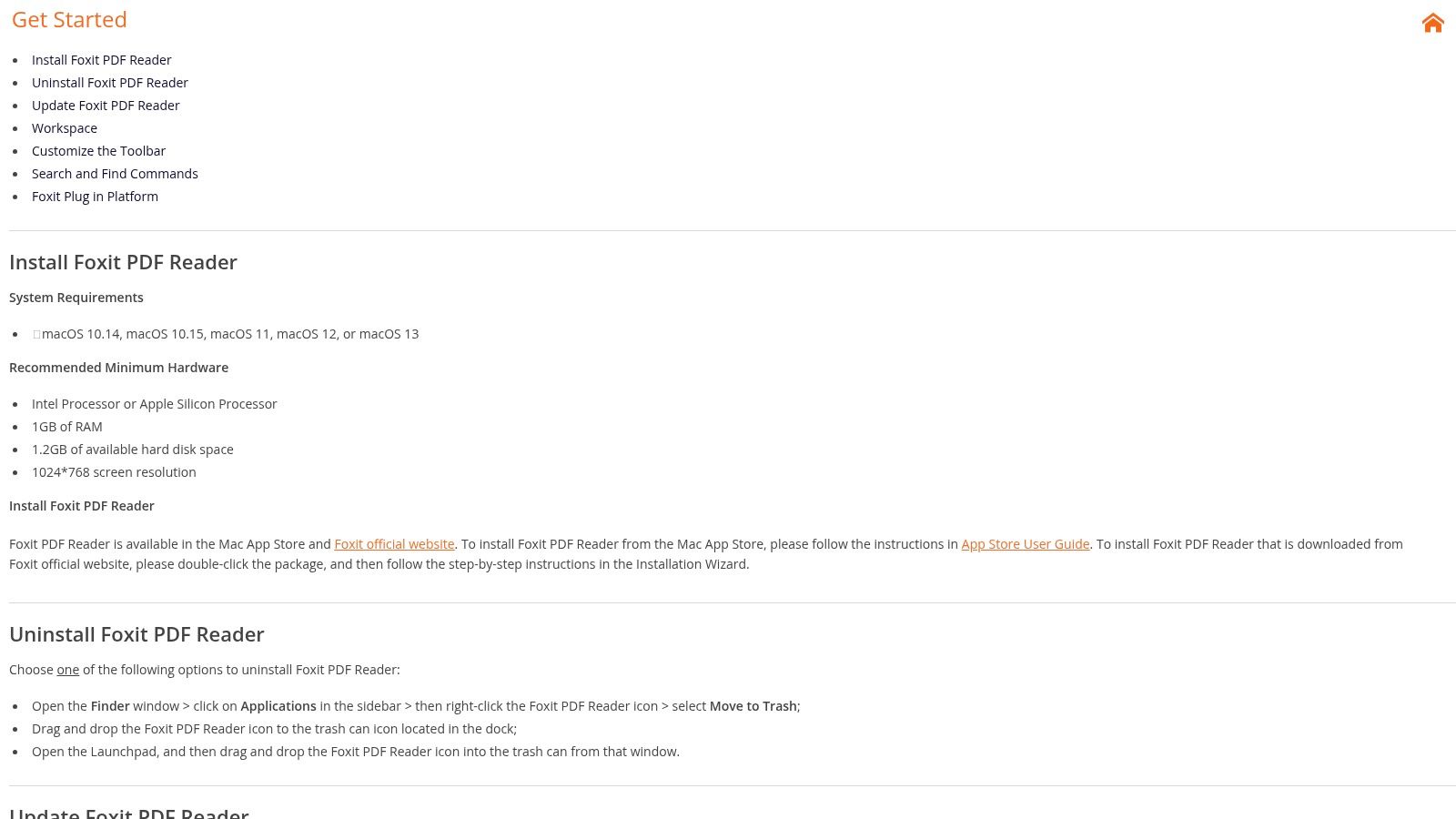
While the free Reader covers essential annotation and form-filling tasks, true text and image editing capabilities are reserved for the paid Editor. This can be confusing, as many advanced features are visible but locked behind a paywall, prompting users to upgrade. However, for those who primarily need a reliable and fast tool for commenting and collaboration, the free version delivers excellent performance on both Intel and Apple Silicon Macs.
Key Features & Use Cases
- Advanced Viewing & Commenting: The free Reader provides extensive annotation tools, including notes, highlights, drawing tools, and standard stamps. This is ideal for professionals collaborating on reports or students marking up lecture slides.
- Form Filling & Signing: Reliably fill out interactive PDF forms and sign documents with your own digital signature, a crucial feature for business and administrative tasks.
- Security Features: The free version includes security tools like Trust Manager, allowing you to control which actions and data transmissions are permitted for safer document handling.
- Professional Editing (Paid): The paid Editor unlocks advanced functionality like editing existing text and images, OCR for scanned documents, PDF creation, and conversion to other formats.
Verdict
| Pros | Cons |
|---|---|
| Free Reader is powerful for annotation/viewing | Most editing features require a paid subscription |
| Lighter and faster than some competitors | Feature split between Reader/Editor is confusing |
| Professional, feature-rich user interface | Free version constantly prompts for paid upgrades |
| Good security features in the free version | OCR and conversion are premium-only features |
Best for: Users who need a professional-grade PDF viewer and annotation tool for free and might consider upgrading to a full-featured editor in the future.
Learn more at the official Foxit Mac Reader page
4. PDF Expert (Readdle)
PDF Expert is a highly polished and powerful application often considered a top-tier best free PDF editor for mac for those who prioritize speed and a superior user interface. The free version serves as an excellent PDF reader and annotator, offering a smooth and responsive experience for reviewing documents. Its strength lies in its clean design and intuitive controls, which make navigating and marking up files effortless.
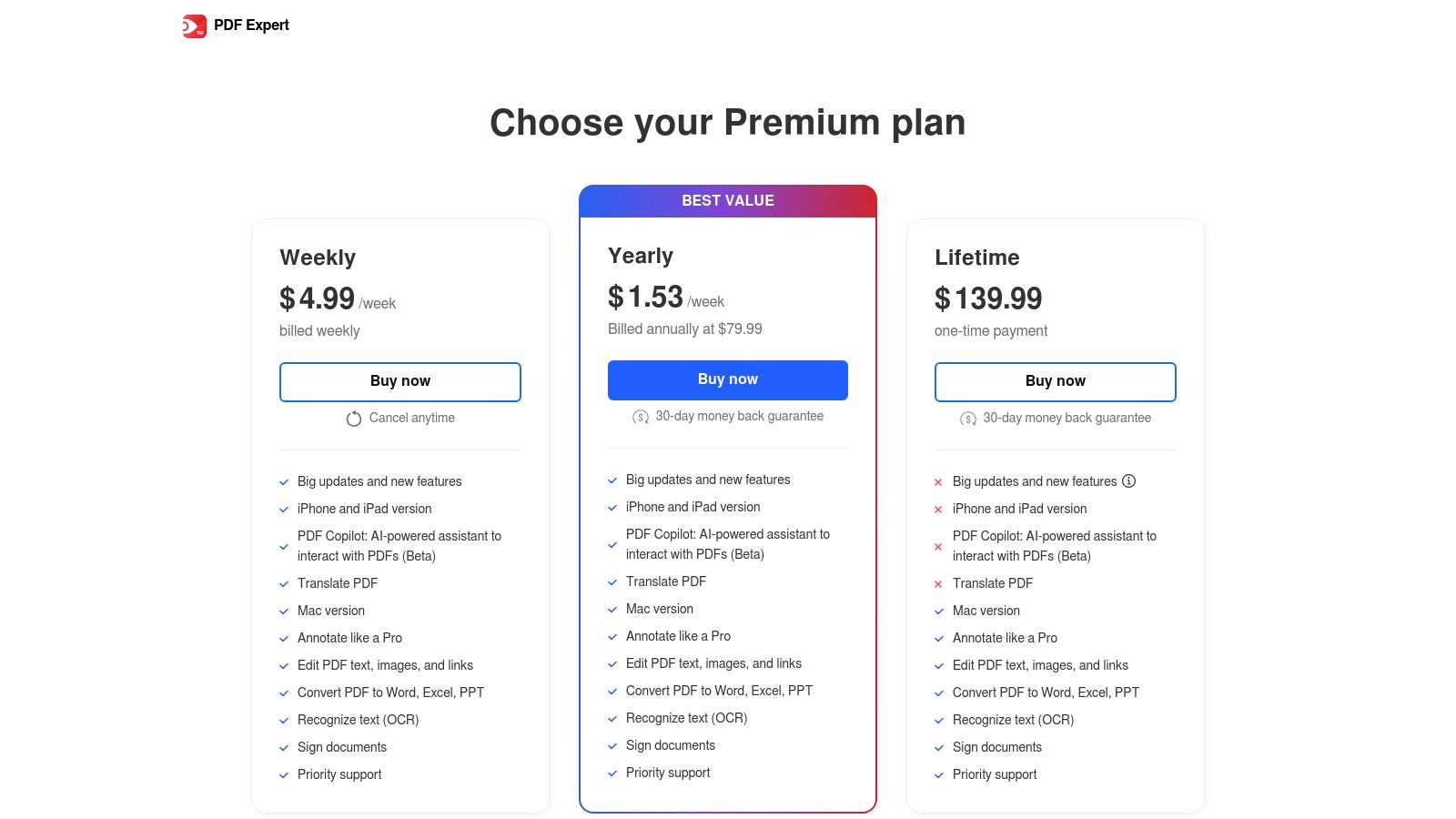
While the free tier is limited to reading, annotating, and filling forms, it performs these tasks exceptionally well. For users who eventually need more power, PDF Expert offers a seamless upgrade path to its premium version, which unlocks the ability to edit original text and images. This freemium model allows users to get comfortable with the interface before committing to advanced features.
Key Features & Use Cases
- Annotation Tools: The free version provides a comprehensive suite of tools for highlighting, drawing, and adding notes, making it ideal for students marking up lecture slides or professionals collaborating on reports.
- Reading Experience: Offers multiple viewing modes, smooth scrolling, and a robust search function that make it one of the best PDF readers available on macOS.
- Premium Editing (Paid): The paid version allows you to directly edit original PDF text, replace images, and redact sensitive content. If you often face protected files, you can find out how to edit a read-only PDF with tools like these.
- Cross-Device Sync (Paid): Seamlessly syncs your documents and edits across Mac, iPhone, and iPad for a consistent workflow on the go.
Verdict
| Pros | Cons |
|---|---|
| Exceptionally fast and fluid user interface | Core editing features are behind a paywall |
| High-quality annotation and reading tools free | Requires macOS 12 or newer for latest version |
| Polished, professional-grade design | The free version is primarily a reader/annotator |
| Clear upgrade path for advanced features | No OCR functionality in the free tier |
Best for: Users who value a premium reading and annotation experience and are willing to pay for advanced editing features within the same polished ecosystem.
Learn more at the official PDF Expert page
5. Sejda PDF
Sejda PDF offers a powerful and security-conscious toolkit available as both a web platform and a dedicated desktop app for Mac. It stands out for its straightforward interface and transparent free usage limits, making it a reliable choice for users who need more than basic annotation but aren't ready for a paid subscription. The platform’s commitment to privacy is a key benefit, with files automatically deleted from their servers after two hours.
Unlike many free tools, Sejda allows for direct text editing within a PDF, which is a significant advantage for correcting typos or updating information. The desktop app, available for both Intel and Apple Silicon Macs, provides the added benefit of offline processing. While the free tier has daily caps on tasks and file sizes, they are clearly stated, so there are no surprises.
Key Features & Use Cases
- Direct Text Editing: Edit, add, or delete existing text in a PDF document. This is ideal for making quick corrections to reports, resumes, or invoices without needing the source file.
- Comprehensive Toolkit: Access over 30 PDF tools, including merging, splitting, compressing, converting, and rotating pages. It serves as an all-in-one solution for common document management tasks.
- Form Filling & Creation: Not only can you fill out existing PDF forms, but you can also create new fillable forms from scratch, a useful feature for small businesses or administrative professionals.
- Security & Redaction: Permanently remove sensitive information with the redaction tool. The desktop app ensures all processing is done locally on your Mac, enhancing privacy.
Verdict
| Pros | Cons |
|---|---|
| Allows direct editing of existing PDF text | Free usage is limited (e.g., 3 tasks per hour) |
| Clean interface with web and offline desktop app | OCR feature is limited in the free version |
| No watermarks added on free documents | Larger files or frequent use requires a paid plan |
| Strong privacy-focused policies | Some advanced features are behind the paywall |
Best for: Users who occasionally need to edit the actual text in a PDF or perform a wide variety of tasks but can work within clearly defined daily limits.
Learn more at the official Sejda website
6. Smallpdf
Smallpdf is a comprehensive online suite that positions itself as an all-in-one solution for PDF management. While not exclusively a desktop app, its powerful web-based tools make it a go-to best free PDF editor for mac for users who need more than basic annotation. It boasts a massive library of over 20 distinct tools, covering everything from editing and converting to compressing and signing documents, all within a clean, user-friendly browser interface.

The platform is ideal for users who occasionally need powerful features without committing to a paid software installation. Its biggest draw is the sheer breadth of its functionality, which is easily accessible from any Mac with an internet connection. Security is also a key focus, with ISO 27001 certification and GDPR compliance, providing peace of mind when handling sensitive documents online.
Key Features & Use Cases
- Comprehensive Tool Suite: Access a wide range of functions including converting PDFs to and from Word, Excel, and JPG; merging and splitting documents; and compressing large files for easier sharing.
- PDF Editing & Signing: The editor allows you to add text, images, shapes, and freehand drawings. The eSign tool facilitates creating and requesting legally binding electronic signatures.
- Cloud Integration: Directly connect with Google Drive and Dropbox to import and save your files, creating a seamless workflow between your cloud storage and the editor.
- Cross-Platform Accessibility: As a web-based service, it works on any operating system, including macOS. Mobile apps are also available for editing on the go.
Verdict
| Pros | Cons |
|---|---|
| Huge collection of over 20 online PDF tools | Free usage is limited to two documents per day |
| Clean, intuitive, and easy-to-navigate interface | Advanced features like OCR require a Pro subscription |
| Strong security and data privacy (ISO certified) | Requires an internet connection to function |
| Integrates directly with popular cloud services | Files are uploaded to their servers for processing |
Best for: Users who need a versatile, all-in-one online tool for occasional, varied PDF tasks beyond simple annotation and don't mind a daily usage limit.
Learn more at the official Smallpdf page
7. PDF Candy
PDF Candy stands out as a comprehensive, web-based toolbox, offering an extensive suite of over 90 different utilities. It’s a strong contender for the best free PDF editor for mac if you frequently need to perform a wide variety of PDF manipulations beyond simple annotation. This online platform handles everything from editing and converting to merging, compressing, and signing, making it a versatile, one-stop shop for quick, single-purpose tasks. Its main draw is the sheer volume of tools available without needing an account.
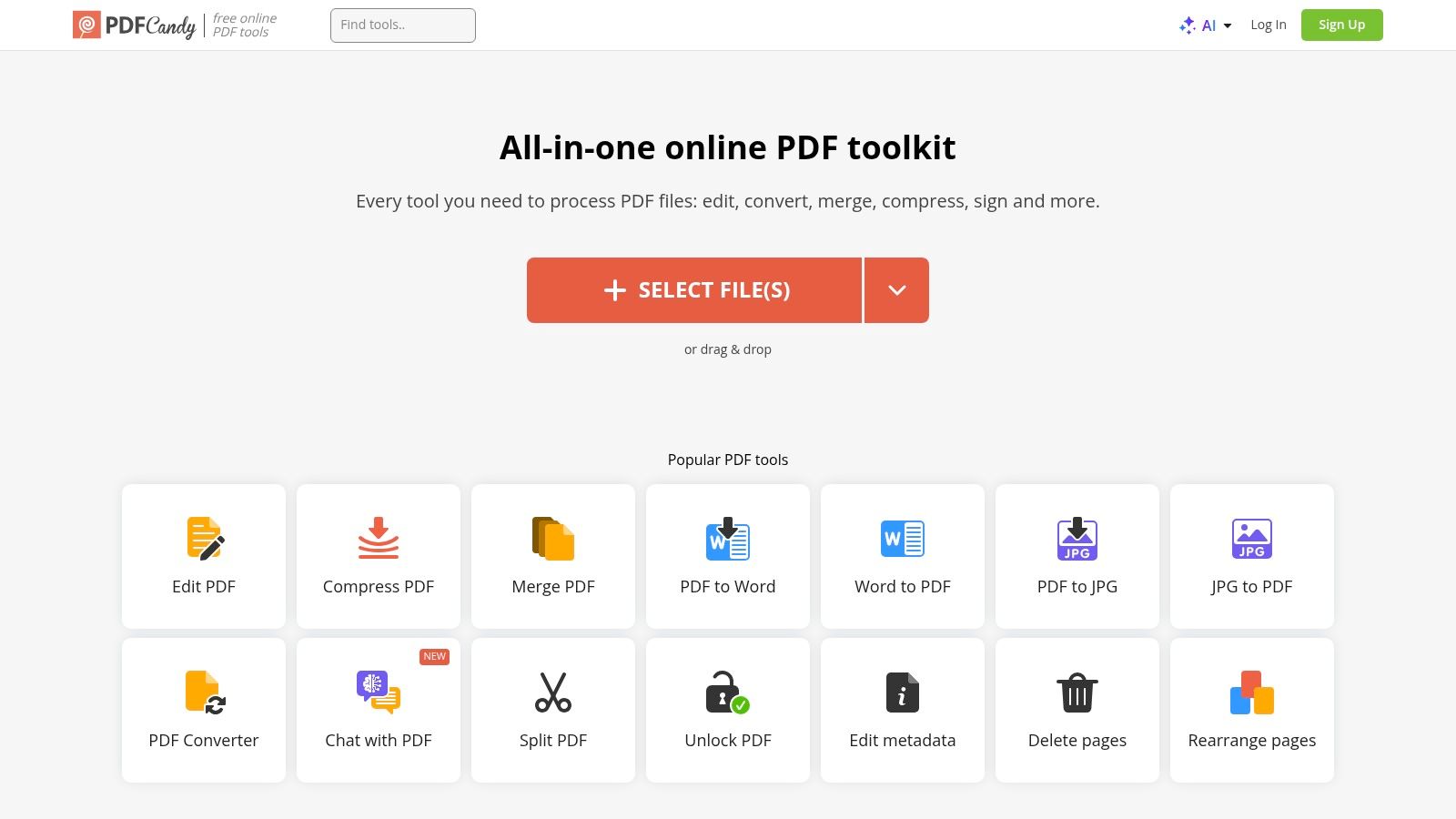
While the free version is powerful, it operates on a freemium model. Users are limited to one task per hour, which is perfect for occasional, one-off jobs but can be a bottleneck for larger projects. For those who need more, optional desktop apps and paid plans are available to remove these limits and increase file size caps. The platform's GDPR-focused policies ensure files are only temporarily retained, adding a layer of security.
Key Features & Use Cases
- Massive Tool Collection: Access over 90 tools, including niche functions like adding watermarks, protecting files with a password, unlocking PDFs, and converting from almost any format.
- PDF Editing & Conversion: Perform basic text edits, add images, and convert PDFs to Word, Excel, JPG, and many other formats with impressive accuracy. This is ideal for repurposing content from a PDF.
- File Management: Easily merge, split, compress, or reorder pages within a document. Its compression tool is particularly effective for reducing file sizes for email attachments.
- OCR Capability: The built-in Optical Character Recognition (OCR) tool can extract text from scanned documents or images, turning them into editable and searchable PDFs.
Verdict
| Pros | Cons |
|---|---|
| Immense collection of over 90 PDF tools | Free version has an hourly task limit |
| No software installation required for web use | Requires an internet connection to function |
| Simple interface for quick, single-use tasks | Advanced features are often behind a paywall |
| Includes useful OCR functionality | Uploading files to a server has privacy implications |
Best for: Users who need a wide variety of specialized PDF tools for occasional tasks and don't mind the hourly limit of the free online version.
Learn more at the official PDF Candy website
8. LibreOffice (Draw)
LibreOffice Draw is part of a powerful, open-source office suite that offers a surprisingly effective best free PDF editor for mac. While not a dedicated PDF editor, its Draw component can import and manipulate PDF files as vector graphics, allowing for a deeper level of editing than many annotators. It operates completely offline, ensuring your documents remain private, and is backed by a large community.
This tool is particularly useful when a PDF is more of a layout or design document. It treats elements like text boxes, images, and shapes as individual objects that you can move, resize, or delete. While it can struggle with reflowing large paragraphs of text in complex documents, it excels at making direct tweaks to form layouts, diagrams, and other graphic-heavy PDFs without altering the core content.
Key Features & Use Cases
- Object-Based Editing: Modify vector objects, images, and some embedded PDF text by treating them as individual elements. This is ideal for adjusting diagrams, updating a logo in a letterhead, or repositioning elements on a form.
- Export to PDF with Options: After editing, you can export the file back to PDF format, with control over image compression, security settings, and other advanced options to optimize the final document.
- Fully Offline & Multilingual: As a desktop application, it requires no internet connection, providing a secure editing environment. It also offers extensive language support for its interface and documentation.
- Form and Diagram Creation: Use its comprehensive drawing tools to create or modify complex forms and technical diagrams from scratch, then export them as professional-quality PDFs.
Verdict
| Pros | Cons |
|---|---|
| 100% free and open-source software | Not ideal for editing text-heavy PDFs |
| Strong for editing diagrams and vector layouts | Interface can be less intuitive than dedicated editors |
| Works completely offline for total privacy | The installer file is quite large |
| Powerful export controls | Can break complex document layouts |
Best for: Users needing to make structural or graphical changes to a PDF, like adjusting layouts, editing diagrams, or creating forms, who prefer a free, offline, open-source solution.
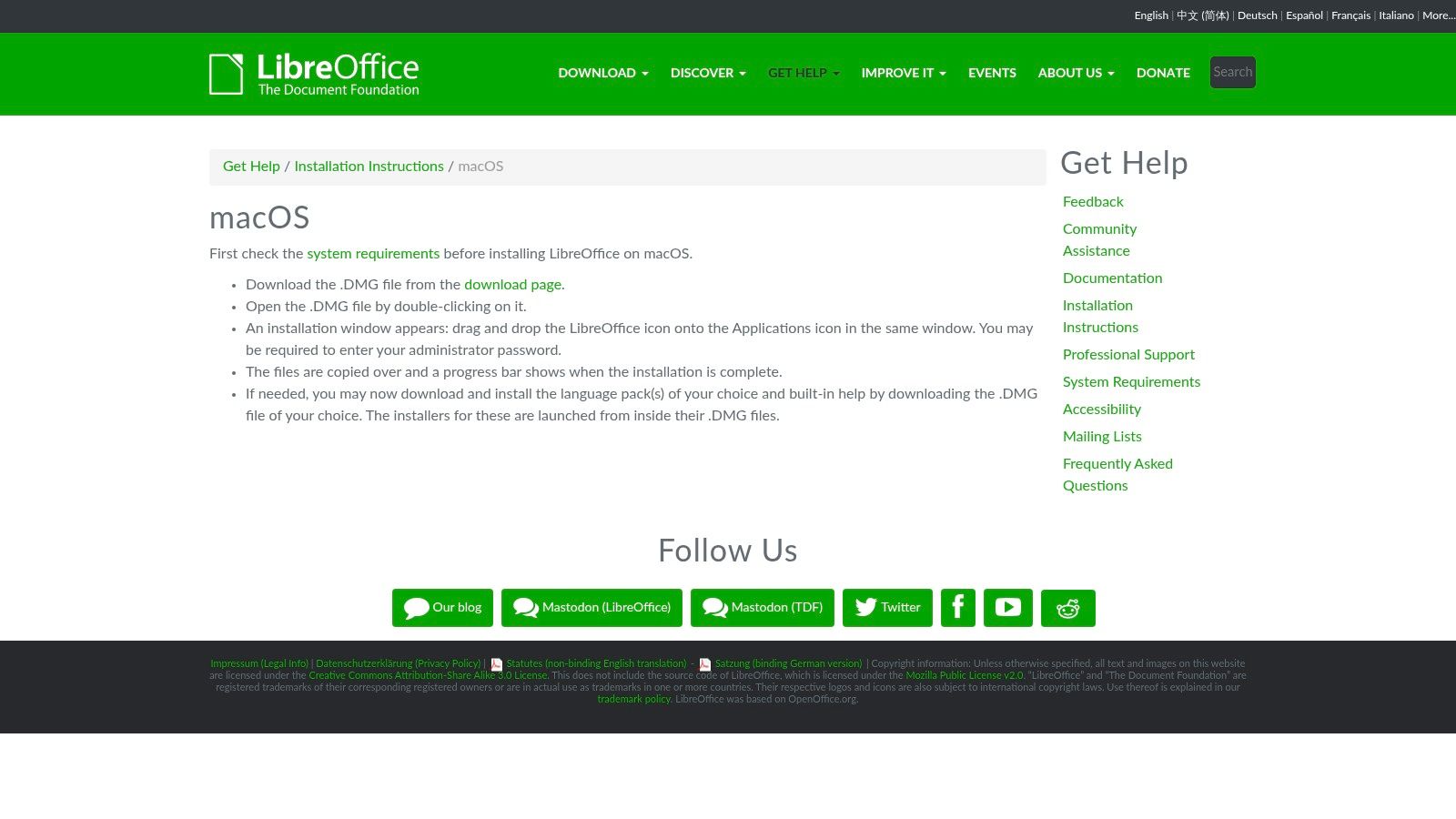
Learn more at the official LibreOffice installation guide
9. ONLYOFFICE Desktop Editors
ONLYOFFICE Desktop Editors is a comprehensive office suite, not just a PDF tool, that positions itself as a powerful and best free PDF editor for Mac for users who need more than just viewing. It offers a unique strength in its ability to convert PDFs into editable formats like DOCX, making it ideal for repurposing content. Its familiar tabbed interface, reminiscent of modern web browsers, allows for efficient multitasking across multiple documents.
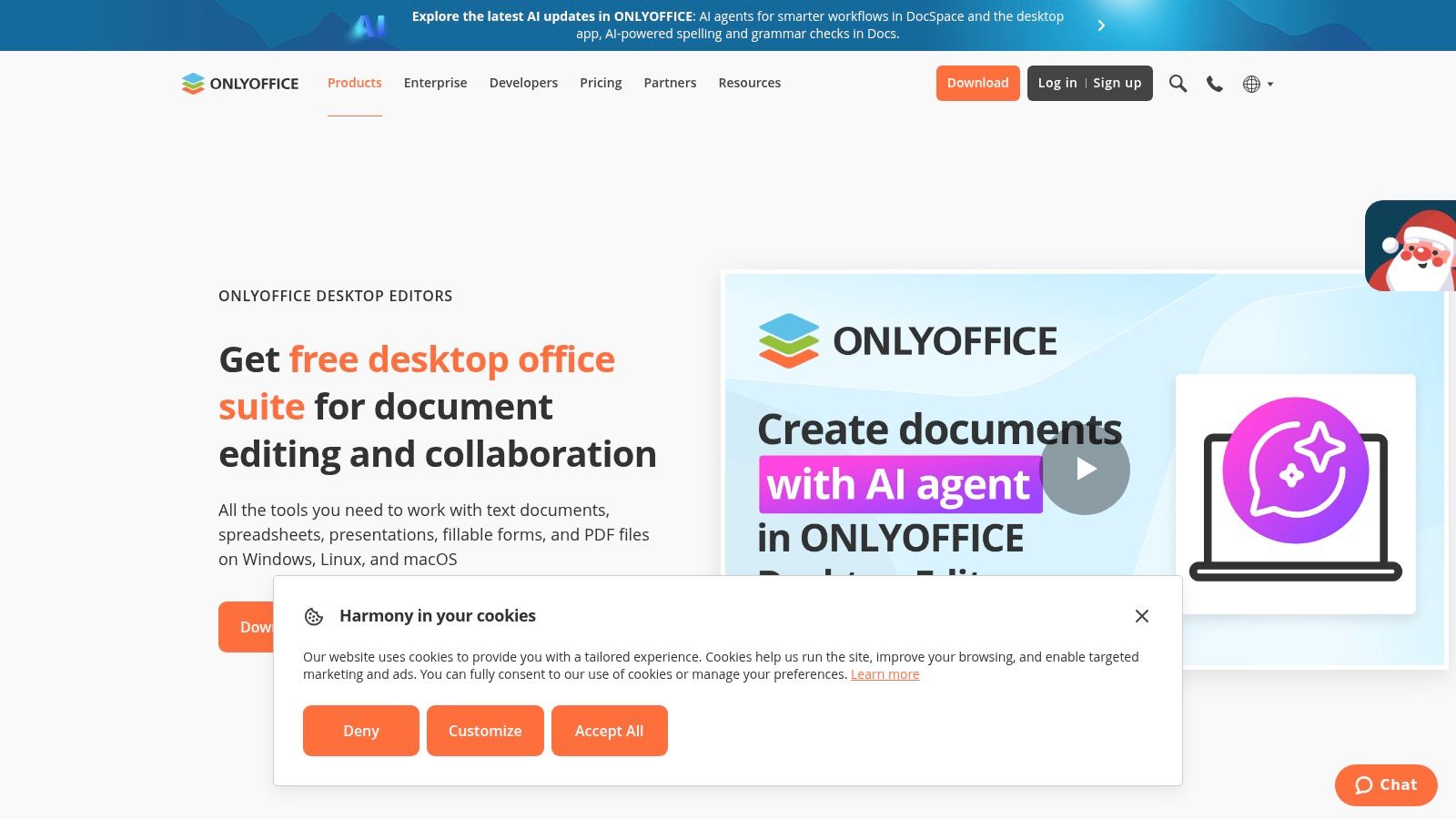
While its primary function is as a full-fledged document, spreadsheet, and presentation editor, its PDF capabilities are robust and integrated. This makes it an excellent choice for users who want an all-in-one solution without juggling separate applications for different file types. It operates completely offline and is free for personal use on macOS, Windows, and Linux.
Key Features & Use Cases
- PDF Conversion: Convert PDF files into fully editable Word documents (DOCX). This is invaluable for professionals who need to update old reports or students who want to extract text from academic papers for their notes.
- Annotation & Form Filling: Includes standard markup tools like highlighting, underlining, and adding text boxes. It also supports filling out interactive PDF forms, which is useful for applications and official documents.
- Tabbed Interface: Manage multiple PDFs and other office documents in a single window using tabs. This feature is a significant productivity booster for researchers or anyone working with numerous source files simultaneously.
- Cross-Platform Parity: Offers a consistent user experience and feature set across macOS, Windows, and Linux, making it easy to switch between different operating systems without a learning curve.
Verdict
| Pros | Cons |
|---|---|
| Powerful PDF to editable DOCX conversion | PDF-specific features are not as deep as dedicated editors |
| Completely free for personal desktop use | The interface can feel complex for simple PDF-only tasks |
| All-in-one office suite (docs, sheets, slides) | Larger application size compared to single-purpose PDF tools |
| Consistent cross-platform experience | Advanced collaboration requires separate cloud integration |
Best for: Users who frequently need to convert PDFs into editable documents and want a single, powerful office suite to handle all their document-related tasks, from editing reports to annotating PDFs.
Learn more at the official ONLYOFFICE website
10. Skim
Skim is a free, open-source PDF reader and note-taker built specifically for academic use, making it an excellent best free PDF editor for mac for researchers and students. While it does not edit the original text of a PDF, its strength lies in its powerful and extensive annotation tools, which are designed to streamline reading and studying scientific papers or lengthy documents. It's lightweight, fast, and completely free.
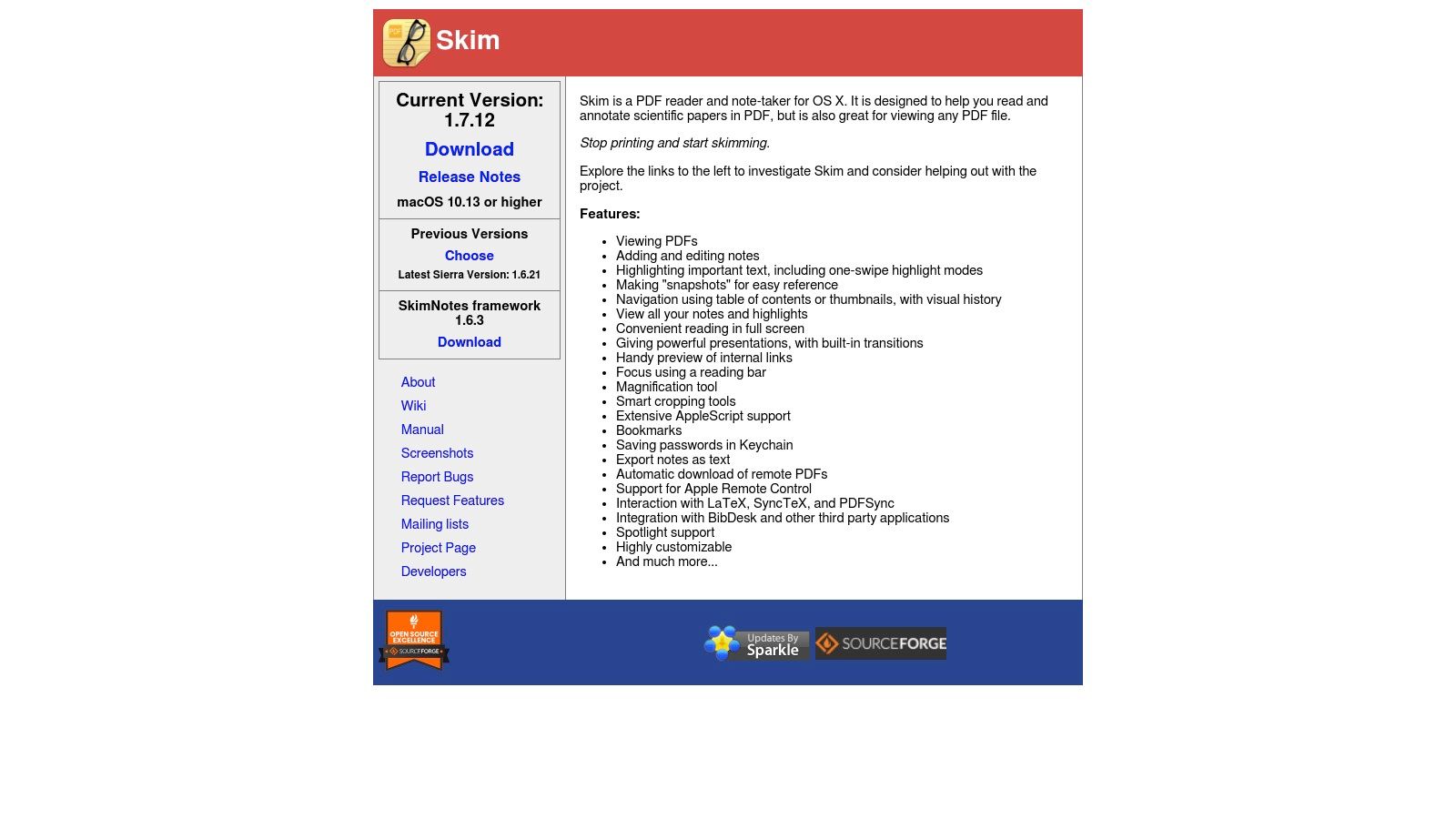
Unlike general-purpose PDF viewers, Skim includes features tailored for academia, such as BibDesk integration, snapshots for easy reference, and a presentation mode with transitions. Its clean, uncluttered interface keeps the focus on the content, helping users to read, annotate, and organize their notes efficiently without the distractions of a complex, feature-heavy application.
Key Features & Use Cases
- Advanced Annotation: Go beyond basic markups with anchored notes, various highlight colors, and separate notes export. This is perfect for academics organizing literature reviews or students creating study guides from their readings. You can master the basics by learning how to highlight a PDF effectively.
- Reading & Presentation Tools: Use the single-page or two-page view, create "snapshots" of document sections for quick reference, and leverage a built-in presentation mode for lectures or meetings.
- Academic Integration: Skim works seamlessly with LaTeX and BibDesk, allowing users to easily view and interact with PDF files generated from their academic writing workflow.
- Search & Organization: Full-text search capabilities and bookmarking make navigating long and complex documents simple, saving valuable research time.
Verdict
| Pros | Cons |
|---|---|
| Completely free and open-source | Cannot edit or change existing PDF text |
| Optimized for academic research and reading | Interface feels dated compared to modern apps |
| Lightweight, fast, and highly customizable | No OCR capabilities for scanned documents |
| Excellent note-taking and export features | Lacks form-filling or signing tools |
Best for: Students, academics, and researchers who need a powerful tool for reading, annotating, and taking notes on scholarly articles and long-form documents.
Learn more at the official Skim website
11. Google Docs (via Drive)
Google Docs offers a clever workaround for editing PDF content, positioning it as a unique, web-based contender for the best free PDF editor for mac. Instead of annotating the original file, it converts a PDF into an editable Google Doc. This process excels at extracting and modifying core text, which is a major limitation for many other free tools. It's completely browser-based, requiring only a Google account and an internet connection.
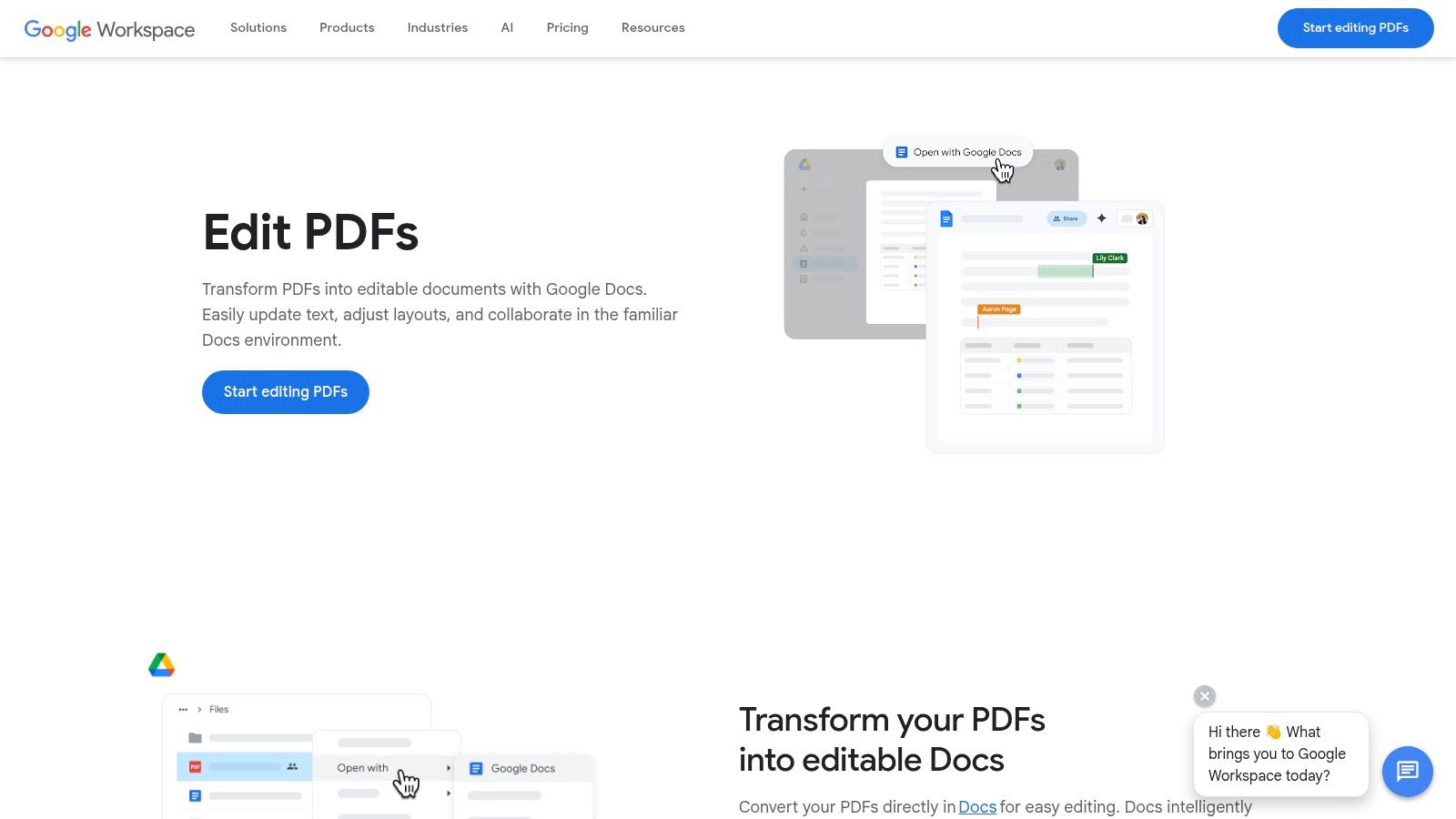
The primary strength of this method lies in its collaborative capabilities. Once converted, the document benefits from Google's full suite of real-time editing, commenting, and version history features, making it ideal for team projects. However, the conversion process is not always perfect, and complex layouts with images and tables may lose their original formatting.
Key Features & Use Cases
- PDF to Text Conversion: Upload a PDF to Google Drive and open it with Google Docs to transform it into an editable text document. This is ideal for repurposing content or making significant text changes to a document you don't have the source file for.
- Real-time Collaboration: Multiple users can edit the document simultaneously, leave comments, and suggest changes. This is invaluable for teams drafting reports or students working on a group assignment.
- Full Editing Suite: Access all standard word processing tools, including font changes, paragraph formatting, and adding images or tables to the converted content.
- Export Options: Once edits are complete, you can download the document as a new PDF or in other formats like DOCX, preserving your changes in a standard format.
Verdict
| Pros | Cons |
|---|---|
| Excellent for editing the core text of a PDF | Conversion can severely alter complex layouts |
| Completely free with a Google account | Requires an internet connection to work |
| Powerful real-time collaboration features | Not suitable for signing or form-filling |
| No software installation required | Can struggle with image-heavy or formatted documents |
Best for: Users who need to edit the actual text within a PDF and collaborate with others, especially when the original document's formatting is not a critical concern.
Learn more at the official Google Workspace page
12. Canva PDF Editor
Canva takes a unique, design-first approach to PDF editing, making it a standout best free PDF editor for mac for those focused on visual documents. Instead of traditional markup, Canva imports your PDF and deconstructs it into editable elements like text boxes, images, and shapes. This allows you to completely redesign layouts, change fonts, and add graphics from its vast library, transforming a static document into a vibrant new creation. It's entirely browser-based, requiring no downloads.
While it doesn't offer technical features like redaction or OCR, its strength lies in creative control. If you need to update a resume, refresh a marketing flyer, or add visual flair to a report, Canva’s intuitive drag-and-drop interface is exceptionally powerful. The free version is highly capable, though premium templates and assets are reserved for Pro subscribers.
Key Features & Use Cases
- Full Design Customization: Import a PDF and treat it like a Canva template. Edit existing text, replace images, change background colors, and add new graphical elements. This is perfect for updating marketing materials or personalizing a resume.
- Extensive Asset Library: Access a huge collection of free stock photos, icons, illustrations, and fonts to enhance your document's visual appeal.
- Template Integration: Apply professionally designed templates to your imported PDF pages to give them an instant, polished makeover.
- Multiple Export Options: Once your edits are complete, you can download the file as a high-quality PDF, PNG, JPG, or even convert it into an online presentation.
Verdict
| Pros | Cons |
|---|---|
| Excellent for design-centric PDF edits | Not a traditional editor; no redaction or OCR |
| Intuitive and user-friendly interface | Requires an internet connection and an account |
| Generous free tier with a vast asset library | Premium assets and features require Canva Pro |
| Great for redesigning visual documents | Can struggle with complex, text-heavy layouts |
Best for: Users who need to make creative and visual edits to PDFs, such as updating resumes, flyers, reports, and presentations, rather than performing technical annotations or form-filling.
Learn more at the official Canva page
12 Best Free PDF Editors for Mac — Feature Comparison
| Tool | Core features | UX / Performance | Best for | Unique selling point | Price / Limits |
|---|---|---|---|---|---|
| Apple Preview | Annotation, redaction, page management, signatures | Fast native app; offline; privacy-friendly | Mac users needing quick markup & redaction | Preinstalled local processing; no account needed | Free (macOS only); no OCR or original text edit |
| Adobe Acrobat Reader | View, comment, form fill, e-sign (editing/OCR paid) | Industry-standard rendering; heavier app | Professional reviews, forms, compatibility-sensitive workflows | Strong compatibility and review/share workflows | Free basic; editing/OCR require Acrobat subscription |
| Foxit (Reader / Editor) | Reader: annotate/form fill; Editor: edit, OCR, convert (paid) | Lighter footprint than many; professional feature set (paid) | Users who want pro PDF features with performance | Modular Reader vs Editor; faster alternative to large suites | Free Reader; Editor subscription for advanced tools |
| PDF Expert (Readdle) | Annotations (free); edit text/images, OCR, convert (Premium) | Polished, very fast; cross-device (Mac/iOS) | Mac/iOS users needing smooth editing & OCR | User-friendly UI with reliable paid OCR/conversion | Free tier; Premium subscription for full editing/OCR |
| Sejda PDF | Edit, merge/split, compress, redaction; web + desktop | Clean UI; privacy-minded; offline desktop option | Users needing secure redaction and simple toolkit | No watermarks in free tier; transparent task limits | Free with daily/file caps; Pro removes limits |
| Smallpdf | 30+ tools: edit, convert, sign, compress; integrations | Cloud-native; reliable; certified security | Cloud workflows and diverse PDF tasks | Broad toolset with cloud integrations and AI tools | Free limited use; Pro unlocks unlimited tools & AI |
| PDF Candy | 90+ web tools for edit, convert, merge, compress | Quick for single tasks; many niche utilities | Users needing many one-off PDF utilities | Very large tool library for niche tasks | Free with hourly limits; paid plans increase caps |
| LibreOffice (Draw) | Edit vector objects, some text edits, export to PDF | Offline, open-source; less polished for PDFs | Users needing free offline layout/diagram edits | 100% free, community-supported editing/export | Free; not ideal for complex text-heavy PDFs |
| ONLYOFFICE Desktop Editors | View/annotate/fill PDFs; convert to editable formats | Cross-platform; tabbed interface for many files | Office users who convert PDFs to editable docs | Free office suite with good PDF conversion focus | Free desktop; optional paid cloud/collab services |
| Skim | Highlights, notes, bookmarks, presentation mode | Lightweight, fast; research-oriented UI | Academics and long-form reading/annotation workflows | Tailored for research with LaTeX/BibDesk support | Free; no original PDF text editing |
| Google Docs (via Drive) | Convert PDF → editable Doc; collaboration | Browser-based real-time collaboration; conversion may alter layout | Collaborative text edits and reflowing document content | Real-time collaboration, comments, version history | Free with Google account; conversion can change formatting |
| Canva PDF Editor | Import/edit PDFs; templates, design assets, export | Extremely easy for design-centric edits | Marketing/design teams redesigning PDFs | Large asset/template library for visual redesigns | Free tier usable; Pro for premium assets and brand kits |
Final Thoughts
Navigating the landscape of PDF editors on a Mac can feel overwhelming, but the key takeaway is that you don't need expensive software to handle the vast majority of your document tasks. Our comprehensive exploration has shown that the best PDF editor for Mac free of charge often depends entirely on your specific, moment-to-moment needs. There is no single "best" tool, but rather a "best fit" for your workflow.
We've seen how Apple's built-in Preview app is a powerhouse for everyday annotation and signing, serving as an excellent starting point for most Mac users. For those who need more advanced features like form-filling or reliable commenting within a familiar interface, Adobe Acrobat Reader remains a solid, industry-standard choice. Meanwhile, for users who need to perform more substantial edits, like altering existing text or images, open-source solutions like LibreOffice Draw and ONLYOFFICE provide surprisingly robust, albeit less intuitive, capabilities.
Key Takeaways for Choosing Your Free PDF Editor
The crucial lesson is to think in terms of tasks, not just tools. Before you download another application, ask yourself what you need to accomplish.
- For Quick Annotations and Signatures: Stick with what's already on your Mac. Apple Preview is fast, integrated, and more than capable for highlighting, adding notes, and signing documents. Skim is a fantastic, lightweight alternative specifically for academic reading and note-taking.
- For Occasional, Heavy-Duty Edits: Online tools are your best friends. Sejda, Smallpdf, and PDF Candy offer powerful, one-off editing, converting, and page management features without requiring installation. Just be mindful of their daily usage limits and the privacy implications of uploading sensitive documents.
- For Full-Fledged, Offline Editing: If you need to treat a PDF like a word document and are willing to navigate a steeper learning curve, an open-source office suite is the answer. LibreOffice Draw offers granular control over every element on the page, making it the most powerful free option for deep editing.
- For Collaborative and Cloud-Based Work: Don't overlook Google Docs. Its ability to convert PDFs into editable text is invaluable for collaborative review and content extraction, making it a surprisingly effective part of a modern PDF workflow.
Implementing Your PDF Workflow
Ultimately, the most effective strategy is often a hybrid one. You might use Preview for 90% of your daily tasks but keep Sejda bookmarked for that one time you need to reorder pages in a large report. For professionals, students, and researchers handling a high volume of documents, this ad-hoc approach can become a bottleneck. As your document library grows, managing versions, tracking changes, and ensuring secure storage becomes paramount. Beyond specific PDF editors, a holistic approach to managing digital files often involves implementing comprehensive document management solutions to create a more organized and efficient system.
The journey to find the best free PDF editor for Mac is one of experimentation. We encourage you to try two or three tools from this list that align with your primary use cases. Use one for a week, then switch to another. You’ll quickly discover which interface feels most natural and which feature set truly saves you time. Your perfect tool is out there, and with the options we’ve covered, you’re now fully equipped to find it without spending a dime.
Once you've edited your document, the next step is often understanding its core message quickly. Instead of manually reading through pages of dense text, let PDF Summarizer do the heavy lifting for you. Our AI-powered tool extracts key insights, answers your questions, and provides concise summaries in seconds, supercharging your research and analysis workflow. Try PDF Summarizer today and see how much time you can save.
Relevant articles

Discover the top 8 research plan examples strategies and tips. Complete guide with actionable insights.