How to Edit a Read Only PDF A Practical Guide
Stuck with a locked file? Learn how to edit a read only PDF with proven methods for permission-locked and scanned documents using simple, effective tools.
Trying to edit a PDF that won't cooperate feels like running into a digital brick wall. We've all been there—you just need to fix a typo, update a number, or add your signature, but the file is locked down tight.
The good news is there's usually a way through. The key is to figure out why it’s read-only in the first place.
Why Your PDF Is Read-Only and What to Do About It
So, you’ve got a stubborn PDF. Before you can find the right tool for the job, you need to play detective. A "read-only" file isn't just one single problem; it's a symptom that usually points to one of two very different causes. Each requires its own specific solution.
The Two Types of Read-Only PDFs
Figuring out which kind of locked PDF you're dealing with is the most important first step. It'll save you a ton of time and frustration by pointing you toward the right method from the get-go.
- Permission-Protected PDFs: The creator of this file has deliberately added security restrictions. Sometimes you need a password just to open it (a user password). Other times, you can open it just fine, but you need a separate owner password to make changes like editing, copying text, or printing. You see this a lot with official documents, contracts, and reports where maintaining the document's integrity is non-negotiable.
- Image-Based (Scanned) PDFs: This kind of PDF is basically just a picture of a document. Imagine a scanned receipt, a photo of a textbook page, or an old form. Your computer sees the whole thing as one flat image, not as individual letters and words. You can't just click and type because, to the software, there's no text there to edit.
This flowchart breaks down the decision-making process into a simple visual guide.
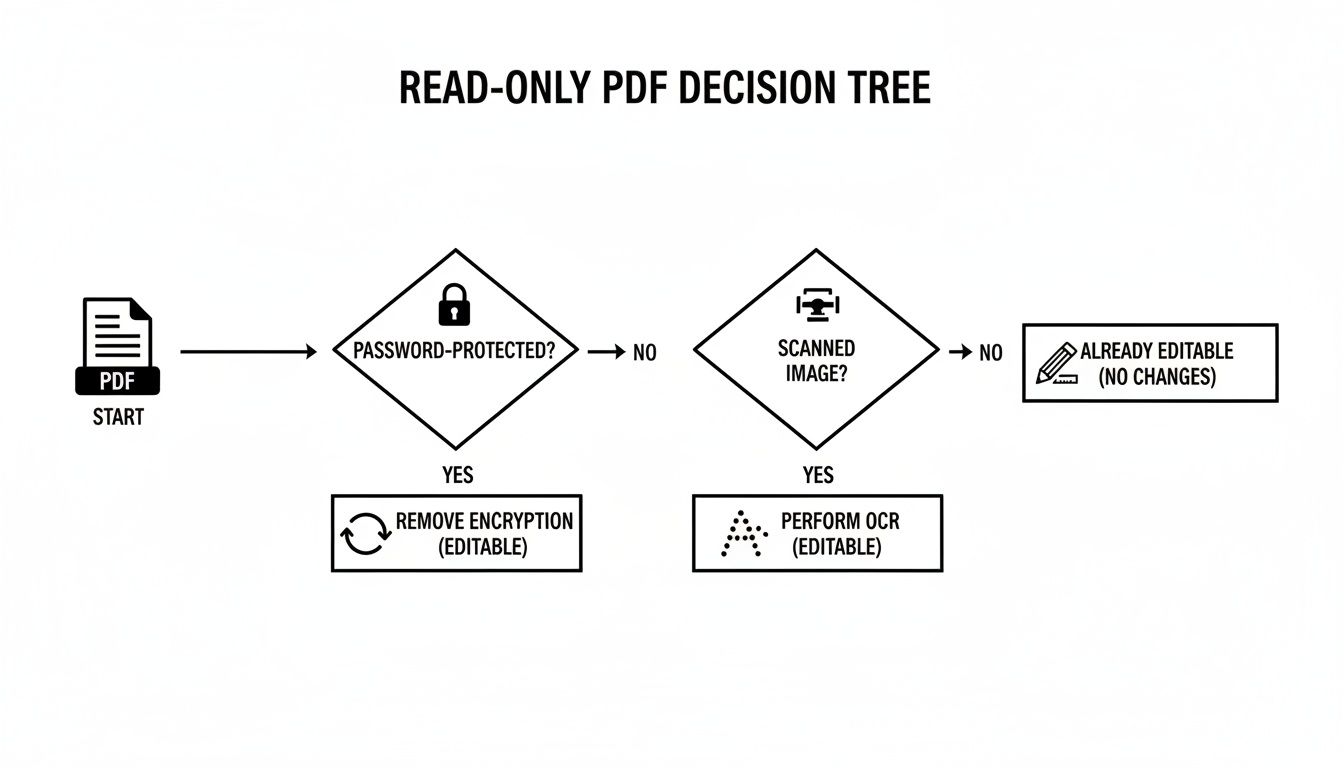
As you can see, the first question is always whether the file is password-protected or just an image. Your answer sends you down one of two very different solution paths.
A Quick Diagnostic Table
Feeling stuck? Use this table to quickly match what you're seeing with the most likely cause and the best solution covered in this guide.
Diagnosing Your Read-Only PDF and Finding the Right Fix
| Symptom | Likely Cause | Your Go-To Solution |
|---|---|---|
| A pop-up asks for a password as soon as you open the file. | Open Password is required. | You'll need the password. If you don't have it, your options are limited without crossing ethical lines. |
| You can open and view the PDF, but all editing/printing tools are greyed out. | It’s locked with an Owner (Permissions) Password. | Use a trusted PDF editor or an online tool to remove the editing restrictions (password may be required). |
| You can't select or copy any text; your cursor just draws a box. | It's a Scanned (Image-Based) PDF. | Run it through an OCR (Optical Character Recognition) tool to convert the image into real, editable text. |
| You've tried everything, and nothing works. | It could be a corrupted file or have very complex, non-standard security. | Try opening it in a different PDF reader or converting it to another format like Word as a last-ditch effort. |
This should help you pinpoint the exact issue and jump to the right section for actionable steps.
A Quick Word on Legal and Ethical Editing
Before we jump into the "how-to," let's cover the "should you?" Just because you can technically remove a restriction doesn't always mean you should.
Always make sure you have the right to edit the document. Modifying things like copyrighted materials, legal contracts you aren't a party to, or secure company files without permission can land you in serious trouble. Many organizations have detailed information security policies that explain why certain documents are locked. When in doubt, ask for an unlocked version from the original creator.
My Two Cents: Just because the lock on the door is easy to pick doesn't mean you should go inside. Always respect the creator's intent and stick to editing documents you own or have clear permission to change.
The demand for PDF editing is massive—Adobe alone handles around 400 billion PDFs every year. And a significant chunk of users, about 16%, are specifically trying to convert those PDFs into editable formats like Microsoft Word. This guide gives you the technical skills, but using them responsibly is all on you.
Dealing with Permission-Restricted PDFs
Ever opened a PDF, ready to make a quick edit, only to find all the tools are grayed out? Or maybe a password prompt stops you cold? You've likely run into a permission-restricted file. The creator intentionally added a layer of security to prevent unauthorized changes, and it's the most common reason a PDF acts "read-only."
The good news is that this is often a straightforward fix, as long as you have the right credentials. The first step is to figure out exactly what kind of lock you're dealing with.
First, Check the PDF's Security Properties
Before you go hunting for complicated solutions, a quick peek at the file's properties will tell you almost everything you need to know. This simple check confirms whether a password is the culprit and reveals exactly what is and isn't allowed.
Here’s how you can check using the free Adobe Acrobat Reader:
- Open the PDF in question.
- Head to File > Properties (or use the shortcut Ctrl+D on Windows, Cmd+D on Mac).
- Click on the Security tab.
Look under the "Document Restrictions Summary." You'll see a list of actions like Printing, Content Copying, and Changing the Document. If they're marked "Not Allowed," you’ve found your problem.
This diagnostic step is crucial. It stops you from wasting time trying to fix something that isn't broken. For instance, if the properties show editing is allowed but you still can't select text, your issue is probably a scanned document, which needs a completely different approach (we'll cover OCR later).
The Easy Way: Unlocking with the Owner Password
If you have the owner password (sometimes called the permissions password), you're in luck. The problem is solved in seconds. This is the ideal scenario, like when you’re working with your own old files or a colleague has shared a secured document and given you the password.
When you try to do something that's restricted—like editing text—a dialog box should pop up asking for that password. Just type it in, and the restrictions will vanish for your current session, giving you full editing access.
My Takeaway: Having the owner password is the cleanest, most direct way to edit a permission-restricted PDF. It respects the original security while letting authorized folks make changes without any fuss.
Think about it: you created a quarterly report last year and password-protected it to keep anyone from accidentally messing it up. Now you need to update it. By simply entering the password you set, you instantly regain control to modify text, update charts, and save the new version.
What to Do When You've Lost the Password
But what happens when you rightfully own a document but have completely forgotten the password? It happens to the best of us. Maybe it’s an old contract you drafted or a personal project from years ago. For these legitimate cases, you can turn to a trusted online tool to remove the editing restrictions.
It’s really important to choose a secure and reputable service here. Plenty of sites offer to unlock PDFs, but not all of them care about your data's privacy. I generally stick to well-regarded options like Smallpdf or iLovePDF because they use encryption and have clear privacy policies that state they delete your files from their servers after processing.
The process is usually dead simple:
- Go to the "Unlock PDF" tool on the website.
- Upload your read-only PDF.
- Check the box confirming you have the right to edit the document.
- Let the service work its magic and remove the restrictions.
- Download your newly editable PDF.
Keep in mind, this method works by removing the permissions password, not the password required to open the file. If a PDF requires a password just to be viewed, these tools can't—and shouldn't—bypass that level of security.
The need for these kinds of solutions is a big reason why the PDF editor market is booming. Valued at USD 4.69 billion, the global PDF editor software market is projected to soar to USD 24.7 billion by 2035. This growth is driven by features that simplify our daily document headaches, including the rise of mobile-compatible editors, which now account for 29% of new software releases. You can read more about the evolving PDF editor market and its trends to see just how much demand there is for tools that help us manage our documents effectively.
The Universal Fix: Converting PDFs to Editable Formats
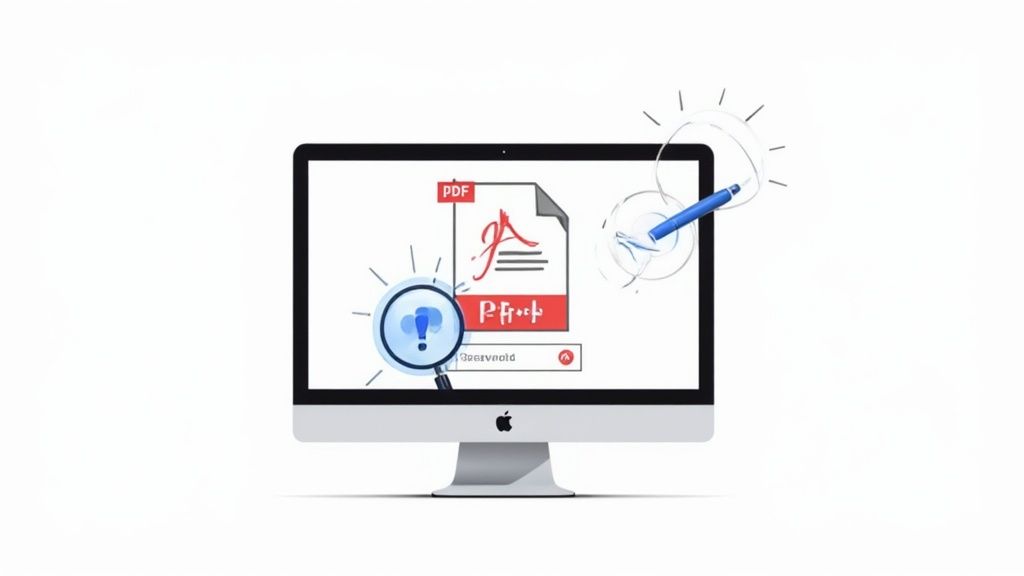
When you've hit a wall trying to edit a PDF directly, there's one strategy that almost always works: conversion. By changing the locked PDF into a completely different file type, like a Microsoft Word or Google Docs file, you essentially break it out of its digital prison.
This method is the ultimate workaround. It frees the text, images, and other content from the PDF's rigid structure, giving you full editing control in a program you're already comfortable with. It’s my go-to move when I need to make significant changes and other tricks just aren't cutting it.
Using Free Online Converters for Quick Edits
The absolute fastest way to get this done is with a free online tool. Services like iLovePDF, Smallpdf, and Soda PDF have made this process dead simple. You just drag and drop your file, select "PDF to Word," and a new, editable document is ready for download in seconds.
This is perfect for non-sensitive documents where speed is everything. Say you have a locked event flyer and just need to update the date—an online converter lets you handle that in less than a minute without installing a thing.
But there’s a trade-off for all that convenience. You should never upload documents containing confidential or personal information to a free online service. While most reputable sites have privacy policies, it's just not worth the risk. For sensitive files, an offline desktop tool is always the smarter choice.
Leveraging Adobe Acrobat Pro’s Built-in Power
If you already have a subscription to Adobe Acrobat Pro, you're sitting on one of the best conversion tools available. Its engine is phenomenal at preserving complex formatting, which is a lifesaver for documents where the layout is critical—think reports filled with tables, charts, and specific branding.
The process is incredibly straightforward:
- First, open your PDF in Adobe Acrobat Pro.
- Head to File > Export To > Microsoft Word > Word Document.
- When the "Save As" window pops up, click the Settings button. This gives you extra control to fine-tune how the conversion handles the layout or whether it includes comments.
- Finally, click Save, and Acrobat will generate a high-quality Word file.
This method keeps everything on your own computer, guaranteeing maximum security and privacy. It's the professional-grade option for when accuracy is non-negotiable. If you find yourself doing this often, you could even explore no-code automation workflows to handle bulk conversions and other repetitive PDF tasks more efficiently.
The Google Docs Method for Easy Collaboration
Here’s a trick a lot of people don’t know about: Google Docs can convert PDFs on the fly. This feature is fantastic for turning a static document into something your team can immediately work on together in the cloud.
Just upload your PDF to Google Drive. Then, right-click the file, select Open with, and choose Google Docs. That’s it. Google runs a quick scan on the document and converts it into editable text right before your eyes.
My Personal Tip: This is my favorite method for turning static PDF content into actionable meeting notes or collaborative project documents. It's fast, free, and instantly integrates the information into your Google Workspace environment.
This technique is surprisingly effective for text-heavy documents like articles or simple reports. Be warned, though—it can struggle with complex layouts. You might find that images have shifted, columns are jumbled, or fancy formatting has disappeared. It's a classic trade-off: you sacrifice perfect fidelity for instant, collaborative access.
Once you have the text in an editable format, you can take it a step further. For example, our guide on how to turn a PDF into organized notes shows you how to structure that newly-unlocked content.
Comparing Your Conversion Options
So, which method is right for you? It really boils down to balancing speed, security, and how important the original formatting is.
| Method | Best For | Pros | Cons |
|---|---|---|---|
| Online Converters | Quick, non-sensitive edits | Fast, free, no software required | Not secure for confidential data, potential ad clutter |
| Adobe Acrobat Pro | Professional documents with complex layouts | High-fidelity conversion, secure and offline | Requires a paid subscription, slight learning curve |
| Google Docs | Collaborative work and text-heavy documents | Free, cloud-based, great for teamwork | May disrupt complex formatting and image placement |
Ultimately, converting a read-only PDF is a surefire way to get the job done. Whether you choose a speedy online tool, the precision of Acrobat, or the collaborative power of Google Docs, you can unlock your document and finally get back to work.
Bringing Scanned PDFs to Life with OCR
Have you ever opened a PDF, tried to select the text, and found you couldn't? It’s a common frustration. Often, the reason isn't a password or a complex permission setting. The file is simply a flat image—basically, a photograph of a document.
This happens all the time with scanned contracts, pages from old books, or even receipts you’ve saved with your phone. To your computer, it's just a picture, not a collection of individual letters and words you can work with.
That’s where Optical Character Recognition (OCR) comes in. Think of it as a smart translator. OCR software scans the image, recognizes the shapes of letters and numbers, and converts them into real, selectable text. It's the magic wand for unlocking this entire class of read-only PDFs.
Putting OCR to Work on Your PDF
While OCR technology sounds incredibly complex, modern PDF editors have made it a surprisingly straightforward, often one-click, process. The core steps are almost identical whether you’re using a high-end desktop app or a quick web-based tool.
Let’s walk through a real-world scenario: You have a scanned client agreement and need to update a specific clause.
- First, open the scanned PDF in an OCR-capable tool. A powerful editor like Adobe Acrobat Pro is perfect for this, as it has a robust OCR engine built right in.
- Next, find and run the OCR function. In Acrobat, this lives under the “Scan & OCR” tool. The software is usually smart enough to detect a scanned file and will prompt you to recognize the text. If not, just select the tool and click "Recognize Text."
- Now, let the software do its thing. The tool will analyze the document, identifying text blocks, tables, and images. It then creates an invisible layer of editable text right on top of the original image.
- Don't skip the review. No OCR is perfect. Once the process is finished, you absolutely must proofread the document. Look for common mistakes—an "l" mistaken for a "1," or an "rn" that became an "m."
- Finally, save your new, editable PDF. Once you've tidied up any errors, just save the file. The document will now behave like any other PDF. You can select text, copy paragraphs, and edit directly.
Just like that, you've transformed a static image into a dynamic, searchable, and fully editable file.
Pro Tips for Getting the Best OCR Results
The quality of your output is directly tied to the quality of the initial scan. A little prep work can save you a mountain of headaches correcting errors later.
My Experience: I once wrestled with a blurry, poorly scanned contract for an hour. The OCR was a disaster—jumbled words, wrong numbers, the works. Now, I always insist on a clean, high-resolution scan from the start. It turns a painful cleanup job into a quick, five-minute task.
To make your OCR process as smooth as possible, stick to these best practices:
- Start with a High-Quality Scan: Always aim for a resolution of at least 300 DPI (dots per inch). This gives the OCR software enough visual detail to work with.
- Ensure Good Lighting and Contrast: Shadows, glare, and faded text are your enemies. The clearer the text is against the background, the better the result will be.
- Straighten the Document: A crooked page can throw the software off. Use your scanner's alignment guides or a straightening tool in your PDF editor before running OCR.
- Choose the Right Language: Most OCR tools ask you to specify the document's language. Selecting the correct one dramatically improves accuracy, especially if the text has special characters or accents.
Following these simple rules tells the OCR engine exactly what to look for, meaning fewer errors and less time you have to spend on manual corrections.
Making Direct Edits with Powerful PDF Editors
Sometimes, converting a file just isn't the right move. You might be dealing with a marketing brochure with a pixel-perfect layout or a financial report where every column has to stay perfectly aligned. In these situations, you need to make surgical edits directly inside the PDF to preserve its structure.
This is where dedicated PDF editors like Adobe Acrobat Pro and Foxit PDF Editor really shine. Once you've cleared any permission hurdles, these powerful desktop apps let you dive in and manipulate content just like you would in a regular document. They offer a whole suite of tools that go way beyond simple text corrections.
Beyond Basic Text Changes
Think of a professional PDF editor as a Swiss Army knife for your documents. You're not just fixing a typo. These tools give you the ability to perform a whole range of sophisticated edits that are critical in a professional setting.
For instance, you can:
- Swap out images to update the branding in a company catalog.
- Add or remove entire pages to tailor a proposal for a new client.
- Insert interactive elements like hyperlinks or fillable form fields.
- Redact sensitive information to create a public-facing version of a legal document.
Using a dedicated editor means you’re not just figuring out how to edit a read only pdf; you're taking full command of its content and structure. If you need to protect private data in a document, you can learn more about how to black out something in PDF safely and effectively.
A Real-World Editing Scenario
Let's say you’re a project manager with a finalized project charter saved as a PDF. At the very last minute, you notice a key stakeholder’s name is misspelled, and an initial budget figure needs a small tweak. Converting it to Word would almost certainly wreck the carefully formatted tables and signature lines.
This is where an editor like Adobe Acrobat makes the fix direct and clean. You'd simply open the PDF, click the "Edit PDF" tool, and type the correction right over the misspelled name. Next, you’d navigate to the budget table, click inside the specific cell, and update the number. The whole process is intuitive and, most importantly, maintains the document’s professional look.
This kind of direct manipulation is why there's such a massive market for these tools. The PDF editor app market was valued at USD 2.5 billion and is projected to hit USD 4.54 billion by 2032. This growth is driven by professionals and individual users who need reliable tools to manage their documents. You can see more insights on the PDF editor app market here.
What About Web-Based Editors?
While desktop software offers the most muscle, web-based PDF editors have become remarkably capable for direct edits. Tools like Sejda or PDFescape run right in your browser and provide solid editing features without any installation.
These are fantastic for making quick changes on the go, like adding a comment, highlighting some text, or filling out a form. They might not have the power to reflow entire paragraphs of text like their desktop counterparts, but for most common editing tasks, they’re often more than enough.
My Takeaway: For minor tweaks or when you're away from your main computer, a good web editor can be a lifesaver. For deep, structural changes or when working with highly sensitive files, nothing beats the security and power of an offline desktop application.
Ultimately, choosing the right tool comes down to the complexity of your edit. For quick fixes, a web tool is perfectly fine. For anything requiring precision and absolute control over the document's layout and security, investing in a dedicated desktop editor is the way to go. This ensures your edits are clean, professional, and don't destroy the document's original design.
Common Questions About Editing Locked PDFs
When you're trying to figure out how to edit a read-only PDF, you're not alone. A lot of the same questions pop up time and again. Let's cut through the confusion and get you some clear, straightforward answers.
Is It Legal to Edit a Read-Only PDF?
This is the big one, and the answer is simple: it’s only legal if you own the document or have explicit permission to change it.
Removing restrictions from a file you don't have the rights to—like a copyrighted industry report, a legal contract you've received, or a purchased e-book—can easily land you in hot water, potentially violating copyright law.
Think about it from a business perspective: a company might lock a price list to prevent anyone from changing the numbers. Bypassing that security to alter the prices would be a serious breach. Always make sure you have the authority before you try to modify a secured file.
Will I Mess Up the Formatting When I Edit the PDF?
That’s a perfectly valid worry. After all, a document’s layout is often just as important as the text itself. The biggest risk to your formatting comes when you convert a PDF into a totally different file type, like a Microsoft Word document.
Anything with a complex layout—tables, columns, lots of images placed just so—is especially likely to get jumbled during conversion.
If you need to preserve the exact look and feel, your best bet is always a dedicated PDF editor. These tools let you make changes directly inside the PDF, which is the safest way to keep the original structure intact. Even with the best OCR technology, you'll probably still need to do a little cleanup to get the spacing just right.
Can I Edit a Read-Only PDF on My Phone?
You absolutely can. Gone are the days when you were chained to a desktop for any real work. Most of the big names in the PDF world, like Adobe, iLovePDF, and Smallpdf, have fantastic mobile apps for both iOS and Android.
These apps are perfect for getting things done on the move. You can easily tackle tasks like:
- Signing a contract right before a deadline.
- Converting a report to another format while on the train.
- Fixing a small typo during a meeting.
While you'll probably still want a bigger screen for heavy-duty editing and reformatting, today's mobile tools are surprisingly powerful and convenient for most everyday tasks.
Key Takeaway: For any document with sensitive information—personal data, financial records, or business secrets—always use an offline, desktop-based PDF editor. This keeps your file from ever leaving the security of your own computer.
Are Online PDF Converters Safe for Sensitive Documents?
This is where you need to be careful. While most reputable online services use encryption and have privacy policies stating they delete your files after a short time, you're still uploading your data to a third-party server. For a few moments, at least, it’s out of your hands.
When dealing with confidential information, the only way to be 100% certain your data stays private is to use an offline desktop application. This is a must for legal contracts, financial statements, and personal records.
And once you've made your document editable, you might just want to add notes without changing the text itself. Our guide on how to insert comments in a PDF can walk you through the best way to do that. Making smart security choices is every bit as important as knowing the technical steps.
When lengthy reports and dense documents slow you down, PDF Summarizer gives you the clarity you need in seconds. Chat with your PDFs, ask questions across multiple files at once, and get instant, verifiable answers without the grind. Try it for free and turn your reading into a conversation at https://pdfsummarizer.pro.
Relevant articles
Make pdf searchable with OCR, AI, and tools—learn how to convert scans into searchable PDFs and find what you need fast (make pdf searchable).