Make pdf searchable (make pdf searchable): A Practical Guide to OCR and AI Tools
Make pdf searchable with OCR, AI, and tools—learn how to convert scans into searchable PDFs and find what you need fast (make pdf searchable).
To make a PDF searchable, you need to add a text layer to the file using a process called Optical Character Recognition (OCR). It sounds technical, but it’s straightforward with the right tools. Software like Adobe Acrobat Pro, various free online converters, and even Google Docs can run OCR on your file, transforming it from a flat image into a document where the text is selectable, copyable, and—most importantly—searchable.
Why Your PDF Is Not Searchable
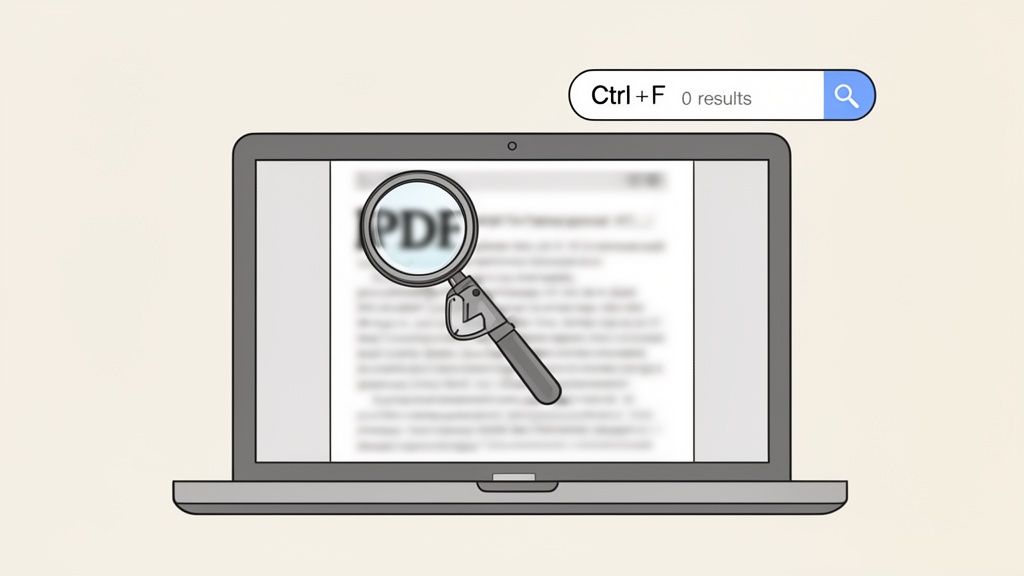
We’ve all been there. You hit Ctrl+F (or Cmd+F on a Mac), type in a word you know is on the page, and get that frustrating "0 results" message. It’s a common headache, and the reason is almost always the same: your PDF is just a picture of a document, not a text document itself.
These are often called image-based or "flat" PDFs. To your computer, the file is a single, static image, just like a JPEG or a photograph. Because there's no actual text data for the search function to read, it comes up empty every time.
The Two Types of PDFs
Once you understand the fundamental difference between PDF types, the problem becomes much easier to solve. Nearly every PDF you encounter will fall into one of these two camps.
- Image-Based PDFs (Non-Searchable): These are the usual suspects. They're typically created when you scan a physical document or take a picture of a page with your phone. The file perfectly captures the look of the original, but the text is locked inside that image. You can see the words, but you can't select, copy, or search for them.
- Text-Based PDFs (Searchable): These are "born-digital" files created directly from programs like Microsoft Word or Google Docs. They are built with a text layer from the start, which means all the content is already machine-readable and indexed for searching.
Think of a paralegal trying to find a specific clause in a 200-page scanned contract. Or a student with a scanned textbook chapter who can't search for key terms before a big exam. In both scenarios, the document is there, but the information inside is functionally inaccessible for quick retrieval.
The issue isn't the PDF format itself, but its origin. A file saved from a word processor is searchable from the get-go. A file created from a scanner is just an image and needs a little help to become searchable.
For a clearer picture, let’s quickly compare the two.
Searchable vs Non-Searchable PDFs at a Glance
This table breaks down the key differences between a standard text-based PDF and its non-searchable, image-based counterpart.
| Feature | Image-Based PDF (Non-Searchable) | Text-Based PDF (Searchable) |
|---|---|---|
| Searchability | Cannot be searched (Ctrl+F fails) | Fully searchable |
| Text Interaction | Text cannot be selected, copied, or edited | Text can be easily selected and copied |
| Accessibility | Inaccessible to screen readers | Accessible to users with visual impairments |
| Creation Method | Scanners, cameras, some "Print to PDF" | Word processors, design software, direct export |
| File Size | Generally larger due to image data | Typically smaller and more optimized |
Ultimately, a text-based PDF is a dynamic document, while an image-based one is just a static picture.
Introducing the Solution: Optical Character Recognition
The technology that bridges this gap is Optical Character Recognition (OCR).
OCR is a smart process where software scans the image of your document, recognizes the shapes of letters and numbers, and converts them into actual, machine-readable text. It works by adding an invisible, searchable text layer right on top of the original document image.
This conversion is the key to unlocking all the information trapped inside your scanned files and images. By running an OCR process, you turn a static picture into a dynamic, interactive document, making your work faster and a lot less frustrating.
How OCR Technology Unlocks Your Documents
At its core, Optical Character Recognition (OCR) is the magic that brings static, image-based PDFs to life. Think of it as a digital detective that scans a picture of a document, recognizes the shapes of the letters, and turns them into actual text your computer can read. This is precisely what lets you make a PDF searchable.
So, how does it work? An OCR engine analyzes the image pixel by pixel, hunting for patterns that match characters it already knows. It sees lines, curves, and dots, and intelligently assembles them into letters, numbers, and symbols. This recognized text is then layered invisibly over the original image inside the PDF file. The document looks identical, but it now has a hidden, searchable text layer.
What Determines OCR Accuracy?
Getting a perfect conversion isn't always a given. The quality of the OCR output is directly tied to the quality of the document you start with. A few key factors can make or break the accuracy of the text recognition.
Here’s what really matters:
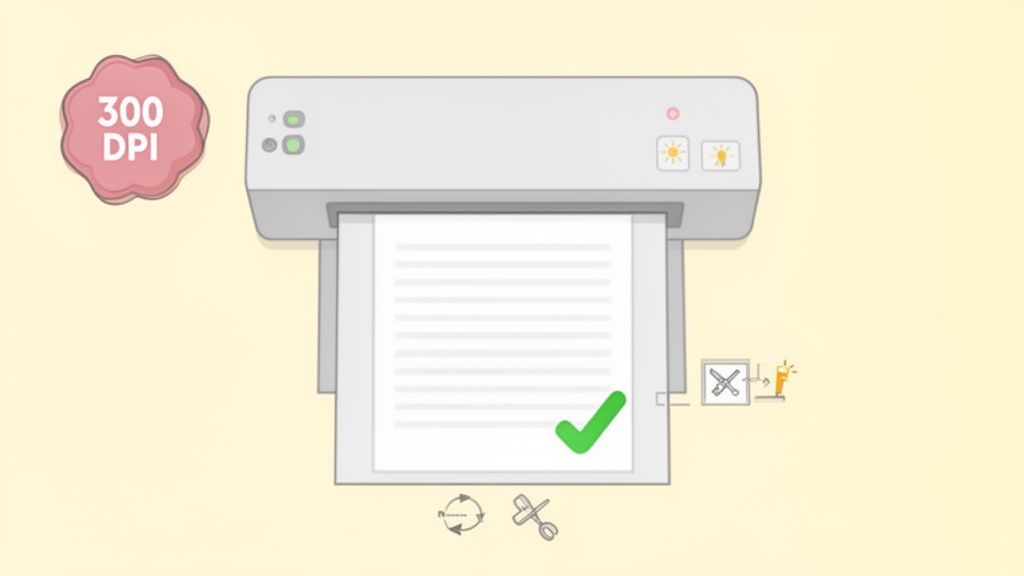
- Scan Quality: This is, without a doubt, the biggest factor. A crisp, high-resolution scan—ideally 300 DPI or higher—gives the OCR software more detail to work with, which means far fewer mistakes. Blurry or low-res scans almost always lead to garbled, nonsensical text.
- Document Condition: If your original document has creases, coffee stains, or heavy shadows, the OCR can get confused. A clean, flat page will always produce a more accurate result.
- Font and Layout: Simple, common fonts (think Arial or Times New Roman) are much easier for software to recognize than handwritten notes or funky, decorative scripts. Likewise, a clean single-column layout is a breeze compared to a complex newsletter with multiple columns, tables, and images scattered about.
Nailing these elements will dramatically boost the quality of your searchable PDF. If you want to dive deeper into the mechanics, this article gives a great breakdown of What Is Optical Character Recognition and How Does It Work?.
Common Ways to Apply OCR
Making a PDF searchable isn't a one-size-fits-all job. The best tool really depends on the task at hand, whether you're converting a single scanned receipt or building OCR into your daily document workflow.
Most people rely on one of three main approaches to get the job done.
- Dedicated Desktop Software: Powerhouse tools like Adobe Acrobat Pro are the gold standard for a reason. They pack highly accurate OCR engines and give you advanced features for correcting errors and handling tricky layouts. This is the go-to for professionals who can't compromise on quality.
- Convenient Online Converters: For a quick, one-off conversion, free online OCR tools are fantastic. You just upload your file, let their servers do the work, and download the searchable version a minute later. They’re great in a pinch, but I’d be cautious about uploading anything sensitive or confidential.
- Integrated Document Systems: Many platforms you already use have OCR built right in. Ever uploaded a scanned PDF to Google Drive and opened it with Google Docs? That’s OCR working automatically behind the scenes. It's a seamless option if you're already living in that ecosystem.
The whole point of OCR is to turn a dead-end image into a living source of information. It bridges the gap between a piece of paper and your digital workspace, making locked-up content ready to be searched, copied, and analyzed.
Choosing the right method means you can efficiently extract text from a PDF online or on your desktop, all depending on your needs for security and accuracy. This step is the foundation for turning a static file into something you can actually work with.
Choosing the Right Tool to Make Your PDF Searchable
So, you've got a PDF that won't let you search, copy, or paste. The good news is you have options. The not-so-good news? Picking the right tool can feel like a chore. The best approach really boils down to your specific situation—what you're working with, how much time you have, and how sensitive the document is.
Let's walk through the main contenders and figure out which one makes the most sense for you.
A good starting point is to figure out what kind of PDF you're dealing with. This simple workflow can help you quickly classify your file and decide if you need OCR at all.
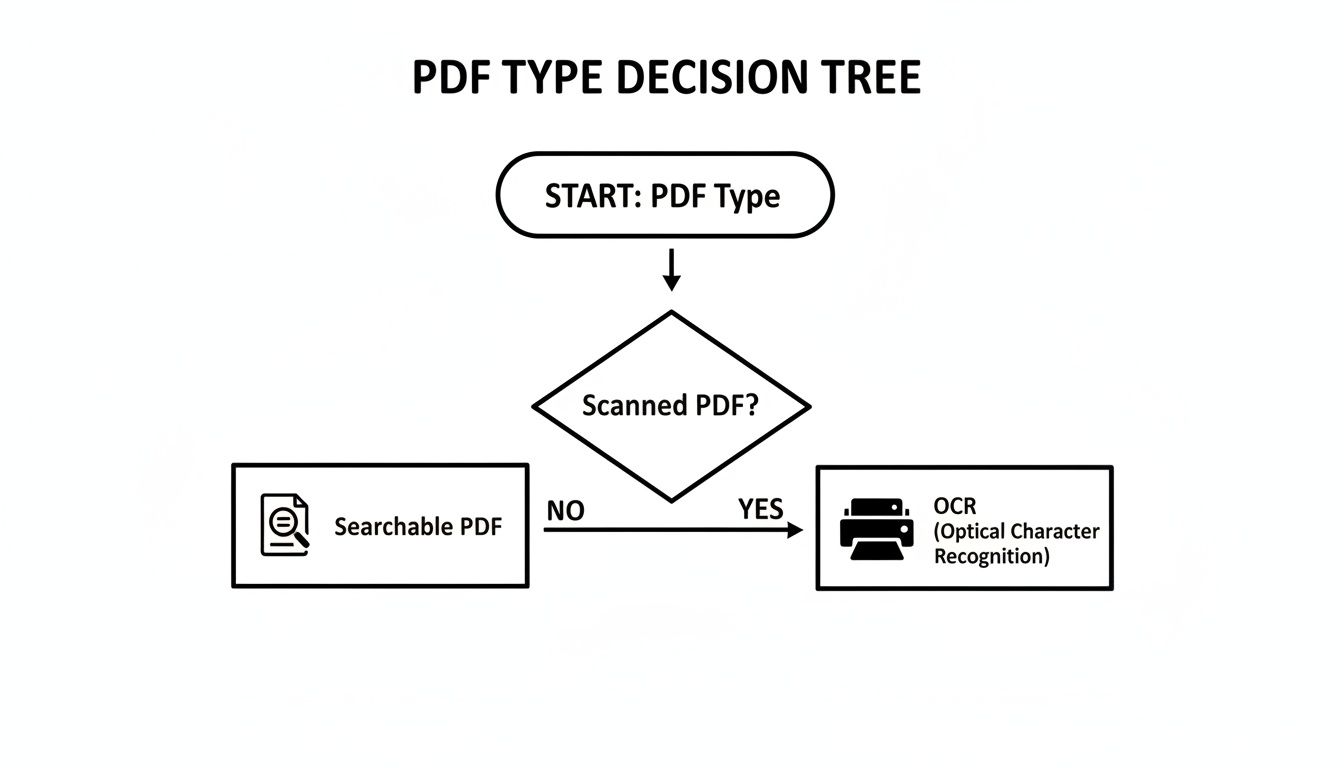
As you can see, the first question is always: is this a scanned image or a text-based document? If it’s a scan, OCR is your non-negotiable first step to making that content usable.
Free Online Converters
If you're in a hurry and just need to convert a single, non-sensitive document, a free online OCR tool is your best friend. They’re incredibly easy to use. You just drag and drop your file, wait a few moments for it to process, and download a brand-new searchable PDF.
This is perfect for quick, one-off jobs, like turning a scanned receipt into a searchable file for your expense report or converting a chapter from a textbook for a research project.
The major catch here is privacy. When you upload a document, you're sending your data to a third-party server. I would never recommend using these services for legal contracts, client records, or anything containing personal financial information. Many free tools also cap your file size or limit how many pages you can convert per day.
Professional Desktop Software
When security is paramount, nothing beats dedicated desktop software. Tools like Adobe Acrobat Pro are the gold standard for a reason. All the processing happens right on your computer, meaning your sensitive documents never leave your possession. This is the go-to method for any business or professional handling confidential information.
Desktop software also packs a serious punch with features. It’s built for heavy lifting, like converting hundreds of documents at once (batch processing). The OCR engines are typically more accurate, and you get advanced tools to edit and correct any recognition errors. The downside? It's not free. The cost can be a real factor, and there’s often a bit of a learning curve to master all the features.
Ultimately, the choice often comes down to this: do you need immediate, no-cost convenience for a non-sensitive file, or are you willing to invest in robust security and powerful features for professional work?
AI-Powered Platforms
There's a newer, smarter way to handle this, too. AI-powered platforms like PDF Summarizer bridge the gap between simple online tools and heavy-duty desktop software. When you upload a scanned PDF, many of these platforms run OCR automatically in the background without you even having to think about it.
But here’s where it gets interesting. The real advantage isn't just making a file searchable; it's making it instantly queryable. Instead of converting a document just to hit Ctrl+F, you can start a conversation with it. You can ask complex questions in plain English, like "What were the Q3 revenue projections in this report?" or "Summarize the key arguments from this legal precedent."
This approach is a game-changer for researchers sifting through dense academic papers, legal teams reviewing case files, or anyone who needs to pull specific insights from a document without reading every single word. It’s the same powerful technology that can help you do things like translate Chinese PDFs into English just as easily. These platforms offer a powerful middle ground with secure processing and intelligent features that go way beyond simple search.
Comparison of PDF Searchability Methods
To make it even clearer, here’s a quick breakdown of how these methods stack up against each other.
| Method | Best For | Pros | Cons |
|---|---|---|---|
| Online Converters | Quick, one-off conversions of non-sensitive files. | Free, fast, and incredibly easy to use. No installation needed. | Major security and privacy concerns. Often have file size and usage limits. |
| Desktop Software | Professionals and businesses handling sensitive or high-volume documents. | Maximum security (local processing). Powerful batch features and high accuracy. | Can be expensive (subscription or one-time purchase). Steeper learning curve. |
| AI Platforms | Researchers, students, and professionals needing to extract specific insights quickly. | Combines OCR with interactive chat. Secure and highly efficient for analysis. | Typically requires a subscription. Best for insight extraction, not just conversion. |
Choosing the right tool is about matching its strengths to your specific job. By understanding these key differences, you can pick the most efficient and appropriate method every time.
A Smarter Way to Interact With Your Documents
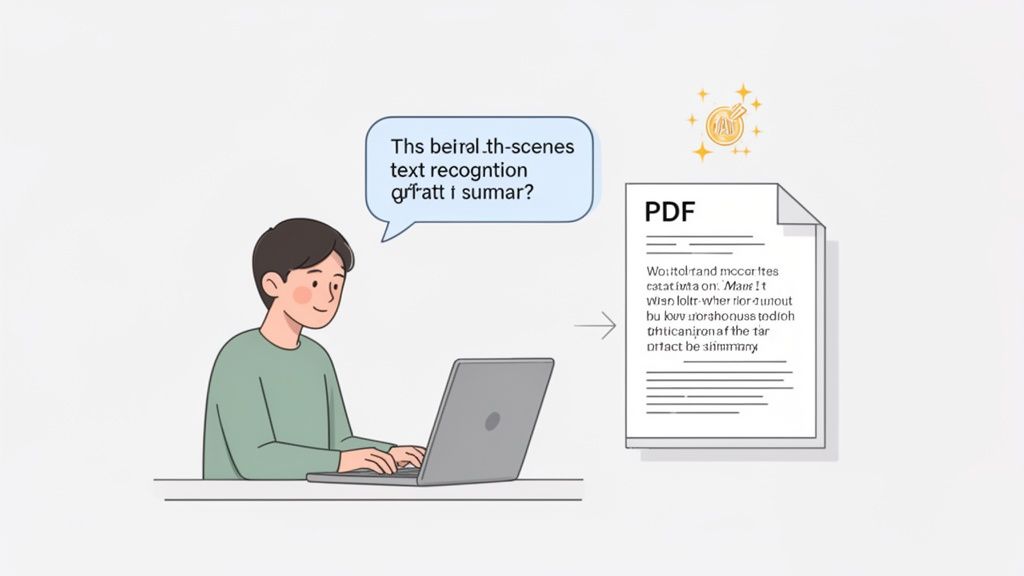
Running a file through OCR just to use Ctrl+F is a tried-and-true method, but let’s be honest—it’s starting to feel like a relic. What if you could skip that whole conversion step? The modern approach isn't about making a PDF searchable; it’s about making the content inside it instantly conversational.
This is where AI-powered document tools are completely changing the game. Forget the meticulous process of converting a file. You just upload any PDF—even a blurry, non-searchable scan—and the platform does all the heavy lifting behind the scenes. The AI performs text recognition and analysis on the fly, allowing you to find facts, generate summaries, and pull specific data in seconds.
This method fundamentally changes how you work with documents. You're no longer just a passive reader; you're in an active dialogue with the information.
Beyond Keywords to True Understanding
The real leap forward here isn't just about finding words; it's about grasping context. A traditional keyword search is painfully literal. If you search for "quarterly earnings," you will only find that exact phrase. Nothing more, nothing less.
An AI-powered chat interface is different. It understands intent. You can ask questions in plain English, just like you would with a human assistant.
- Ask, "What were the main financial takeaways from the last quarter?" and it will pull together information from charts, tables, and text.
- Query, "Summarize the key arguments in the legal discovery document," and it delivers a concise overview, complete with sources.
- Request, "Find all mentions of Project Titan's budget," and it will locate the relevant figures even if they aren't phrased in the exact same way.
For a researcher, this is huge. Imagine a historian uploading a dozen scanned, decades-old journal articles. Instead of converting each one and sifting through them with keywords, they can ask a complex question across all of them, like, "Compare the conclusions of Smith's 1982 paper with Jones's 1985 findings on the same topic." The AI can analyze every source at once and give back a synthesized answer.
This shift moves us from merely finding keywords to extracting genuine insights. The goal is no longer just to make a PDF searchable but to make its knowledge accessible on demand.
An Example of Conversational Search
Let's walk through a real-world scenario. A market analyst gets a 50-page industry report packed with dense text and complex data tables. To make matters worse, it's a scanned copy, meaning it's completely unsearchable by default.
With an old-school OCR tool, they’d first have to process the entire document. With an AI chat tool, the workflow is immediate:
- Upload: The analyst simply drags the scanned PDF into the chat interface.
- Ask: They type, "What is the projected market growth rate for the next five years?"
- Answer: The AI instantly scans the document, recognizes the text, finds the right section, and gives a direct answer: "The projected CAGR is 6.2% from 2024 to 2029, as stated on page 34."
This is all about efficiency and precision, turning a static file into a dynamic knowledge base. This kind of technology isn't just for text, either. For instance, advanced AI powered transcription software can unlock insights from audio and video by turning spoken content into searchable text. If you want to dig deeper into this, check out our guide on how to AI summarize a PDF to streamline your workflow even more.
Practical Tips for Flawless Search Results
There's an old saying that your output is only as good as your input. This couldn't be more true when you're trying to make a PDF searchable with OCR technology. A clean, high-quality source document almost always gives you accurate, reliable results, saving you the future headache of fixing mistakes by hand.
I like to think of OCR software as a student trying to read a difficult text. The clearer the writing, the better it understands. If you feed it a blurry, crooked, or poorly lit scan, it's like asking it to decipher a crumpled, coffee-stained note. The software will have to guess, and those guesses lead to errors that mess up your workflow.
Setting Up Your Scans for Success
Before you even hit the scan button, taking a moment to get the settings right can make a world of difference for your OCR accuracy. Honestly, these quick pre-scan checks are the single best thing you can do to get a clean conversion, no matter what tool you end up using.
Here's my checklist for a perfect scan:
- Resolution is everything. Always, and I mean always, scan documents at 300 DPI (Dots Per Inch) at a minimum. If you go any lower, the OCR software won't have enough visual information to tell characters apart—it might mix up an "o" with a "c" or an "i" with an "l." If you're dealing with fine print, bumping it up to 600 DPI is a smart move.
- Get the lighting right. Shadows are the enemy of good OCR. They can hide parts of letters or trick the software into seeing smudges or extra characters. Just make sure your document is lying flat with even light across the whole page.
- Keep it straight. A flat, properly aligned page is far easier for software to read than one that's skewed or curled. Most modern scanners have a "deskew" feature that automatically straightens out tilted pages—I highly recommend turning that on.
A high-quality scan is the foundation of a reliable searchable PDF. Taking an extra minute to get the initial scan right can save you hours of frustrating corrections down the line. It’s the difference between a seamless process and a frustrating, error-filled one.
Handling Imperfect Source Files
So, what happens when you can't rescan the document? We’ve all been there—stuck with a low-quality PDF someone else sent over. The good news is you’re not out of luck. Many professional OCR tools come with built-in image enhancement features to clean up messy files before the text recognition kicks in.
Here are the features I look for in the software:
- Deskew and Despeckle: We've covered deskewing, which straightens crooked scans. Despeckle is just as crucial. It gets rid of all the tiny black dots and "noise" that often appear on scans, which the OCR might otherwise mistake for periods or other punctuation.
- Page Orientation: This sounds obvious, but you’d be surprised how often it’s overlooked. If you have pages that are upside down or sideways, use the rotation tool to fix them first. OCR just can't read text that isn't upright.
- Layout Recognition: For complex documents like newsletters, academic papers, or magazine pages with multiple columns and tables, you need a tool that can intelligently identify these different zones. This feature is a lifesaver because it stops the OCR from reading straight across columns and turning your text into one long, jumbled paragraph of nonsense.
Got Questions About Searchable PDFs? We’ve Got Answers.
When you start digging into making your PDFs searchable, a few questions always pop up. It's a common stumbling block. Let's tackle some of the most frequent ones I hear from people trying to get their documents in order.
Will Making My PDF Searchable Make the File Bigger?
In short, yes. Think of it this way: when you run a scanned document through an OCR tool, you’re not replacing the image. You're actually adding an entirely new, invisible layer of text on top of it.
This text layer is what allows you to search and copy-paste, but since you're adding data, the file size will naturally increase. The trade-off is almost always worth it, though. A slightly larger file is a small price to pay for a document you can actually work with.
What About PDFs with Handwriting? Can I Make Those Searchable?
You can try, but your mileage will vary—a lot. The technology for recognizing handwriting (sometimes called Intelligent Character Recognition or ICR) has come a long way, but it's not perfect. The success rate really hinges on how clear the original writing is.
Clean, block-letter printing? You'll probably get decent results. Messy, cursive script from a doctor's notepad? Not so much.
My advice for any important handwritten document is to treat the OCR output as a rough first draft. Expect to go back and manually clean up the text to get it to 100% accuracy.
Are Free Online Converters Safe for Confidential Documents?
I would strongly advise against it. When you upload a file to a free online tool, you're essentially handing it over to a third-party server. You have no real way of knowing who has access to it, how long they store it, or what they do with it.
For anything sensitive, like the examples below, it's just not worth the risk.
- Legal documents and client files
- Financial reports or sensitive invoices
- Anything with personal or private data
Your best bet for confidential information is to stick with offline desktop software you control or a secure, trusted AI platform with a clear privacy policy. Keeping your data on your own machine or with a reputable service is always the safer path.
Tired of converting files just to find one piece of information? PDF Summarizer lets you chat directly with any PDF using AI—even scanned ones. Ask questions and get answers in seconds, no OCR required. Give it a try for free at pdfsummarizer.pro.
Relevant articles
Stuck with a locked file? Learn how to edit a read only PDF with proven methods for permission-locked and scanned documents using simple, effective tools.