Extract Text From PDF Online A Practical Guide
Learn how to extract text from PDF online with this practical guide. Discover the best tools and tips for handling any document, from native to scanned.
Getting text out of a PDF should be as simple as copy-and-paste, but we've all been there—you end up with a mess of jumbled characters and broken lines. The secret isn't finding a "better" tool, but first understanding what kind of PDF you're dealing with.
It all boils down to one simple check.
First, Figure Out Your PDF Type
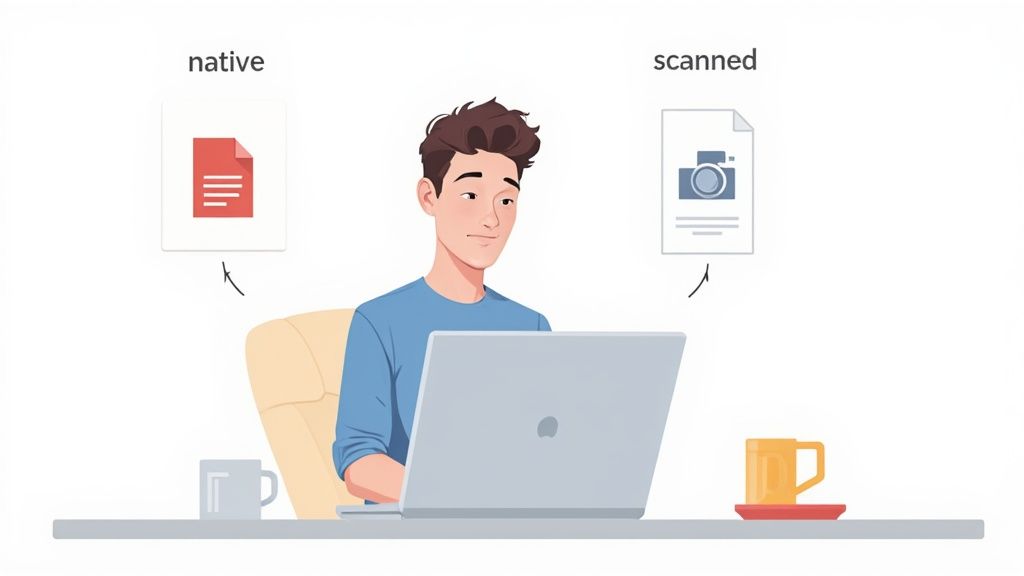
Before you upload your file to any online service, you need to know if it's a native PDF or a scanned one. This single piece of information determines which tool will work and which will leave you with a useless file. Getting this right from the start saves a ton of time and frustration.
Native PDFs: The Easy Win
A native PDF is one created digitally, probably from a program like Microsoft Word, Google Docs, or InDesign. The text inside isn't just an image of words; it’s actual text data.
How can you tell? The easiest way is to try and highlight a sentence with your cursor. If you can select the text just like you would on a website, congratulations—you have a native PDF.
Extracting text from these files is a breeze. Almost any standard online PDF-to-Text or PDF-to-Word converter will do the job perfectly. These tools just read that existing text layer and spit it out in an editable format.
For example, a tool like Adobe’s online converter is built for this. Its simple "Select a file" interface is designed for these straightforward, text-based documents.
Scanned PDFs: The OCR Challenge
Now for the tricky one. A scanned PDF is basically a photograph of a document. Think of a contract you signed, scanned, and saved, or a page from an old book.
When you open one, try highlighting the text. You’ll find you can't select individual words or sentences. Instead, you might draw a blue box over a whole section, just like you would in an image editor. That's your big clue—it's a scanned PDF.
A standard converter is useless here. Since there's no underlying text layer to grab, it will either give you a blank document or a chaotic mix of symbols.
To pull text from a scanned document, the tool absolutely must have Optical Character Recognition (OCR). OCR technology scans the document image, intelligently identifies the shapes of the letters and numbers, and reconstructs them into actual, editable text. Skipping this feature is the single biggest mistake people make.
Choosing Your PDF Extraction Method
To make it even clearer, here’s a quick breakdown of which method to use for your file.
| PDF Type | Best Extraction Method | Key Consideration |
|---|---|---|
| Native PDF | Standard Online Converter | Fast and highly accurate since it's just copying existing text. |
| Scanned PDF | Online OCR Service | Accuracy depends on the scan quality and the OCR engine's power. |
Ultimately, identifying your PDF type first is the most important step. Once you know what you're working with, you can confidently pick the right online tool and get clean, usable text every time.
Understanding Native vs. Scanned PDFs
Before you can pull text from a PDF, you have to know what kind of file you’re actually dealing with. It sounds basic, but this one step dictates your entire approach. Getting it wrong is the number one reason people end up with a wall of garbled, unusable characters instead of clean text.
There are two main flavors of PDF you'll come across: native PDFs and scanned PDFs.
A native PDF, sometimes called a "true" PDF, was born digital. Think of a report you wrote in Microsoft Word or a spreadsheet from Google Sheets that you saved directly as a PDF. The text in that file is real, selectable data—just like the words you're reading right now.
A scanned PDF is a different beast entirely. It’s basically just a picture. Imagine snapping a photo of a printed invoice or a page from a textbook and saving that image as a PDF. Your file contains an image of text, not the text itself.
The Simple Click-and-Highlight Test
So, how do you tell them apart? Luckily, there’s a dead-simple test that takes about three seconds.
Open your PDF and try to select a sentence with your mouse.
- If you can easily highlight individual words and lines, congratulations, you have a native PDF. The text layer is live, which makes extraction much, much easier.
- If your cursor just draws a blue box over a chunk of the page like you're selecting a photo, you're working with a scanned PDF.
This little distinction changes everything. You can copy and paste text directly from a native PDF (though you might lose the formatting). But with a scanned PDF, there's literally no text to copy—it needs special treatment first.
Why This Difference Is Everything for Extraction
For native files, most online tools can simply read and pull out the embedded text. The process is usually clean and pretty reliable. Scanned documents, however, require a tool with Optical Character Recognition (OCR).
OCR is the magic that makes this work. The software scans the image, recognizes the shapes of the letters and numbers, and digitally reconstructs them into actual, editable text. Without OCR, trying to extract text from a scanned PDF will give you a blank document or complete gibberish.
The accuracy numbers tell the whole story. Clean, native PDFs often hit over 95% accuracy during text extraction. But for a low-quality scanned document, OCR accuracy can plummet below 80%, which means you'll be doing a lot of manual cleanup.
This data really drives home why you have to match the tool to the document. Trying to treat a scanned file like a native one is just setting yourself up for a headache. On a related note, some files can be "read-only," which adds another layer of complexity. If that's what you're up against, our guide on how to edit a read-only PDF can help you out.
Taking a moment to check your file type from the get-go will save you a ton of time and lead to a much better result.
How To Choose The Right Online Extraction Tool
With so many options out there to extract text from pdf online, it’s easy to feel a bit lost. The real challenge isn't just finding a tool that works—it's about finding the one that works best for your specific document and what you need to do with it. A simple, free converter might be perfect for a one-page, text-based PDF, but it's going to fall flat if you feed it a 100-page scanned report.
The trick is to match the tool's horsepower to your PDF's complexity. And the best place to start is by figuring out exactly what kind of PDF you're dealing with.
This simple flowchart breaks down the first, most crucial step: determining if your PDF is native or scanned.
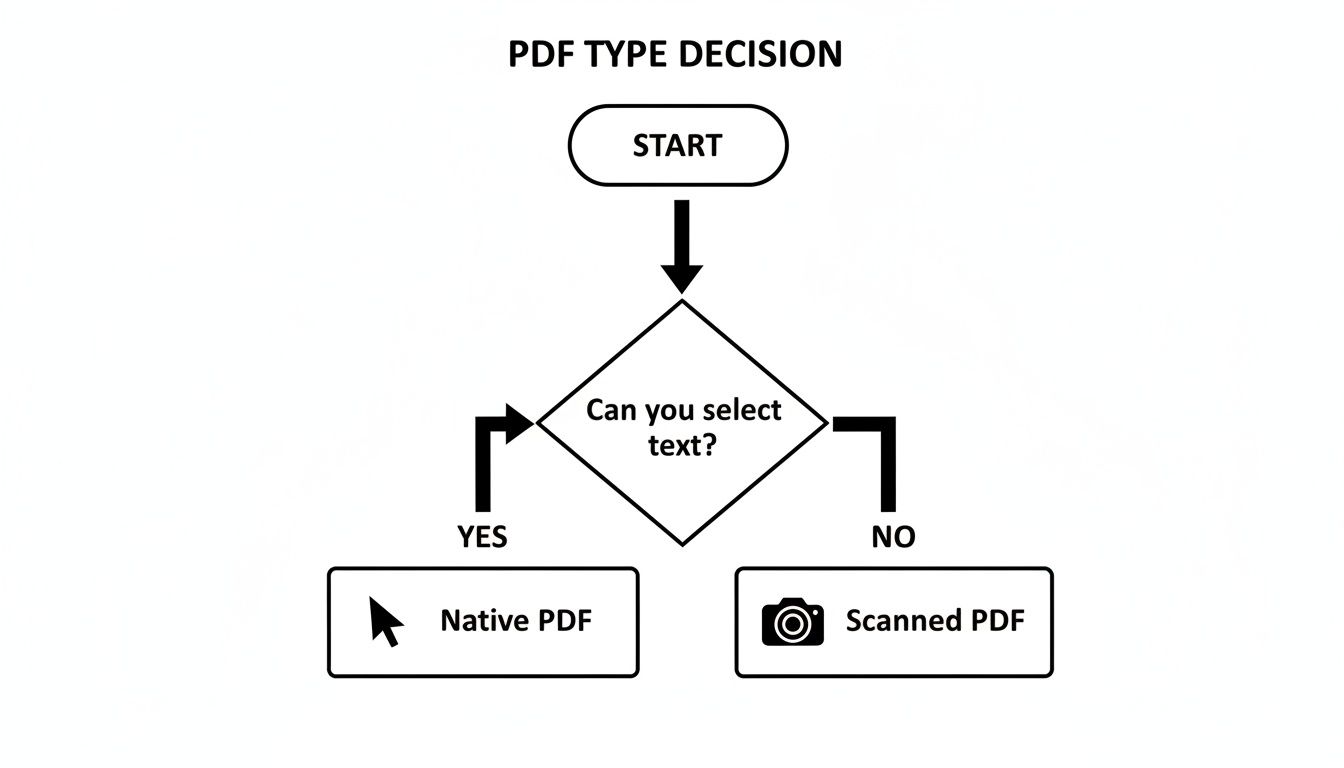
As you can see, the ability to highlight and copy text is the dead giveaway. This simple test immediately points you in the right direction, helping you decide between a basic converter or a more powerful OCR service.
Assess The Complexity Of Your Document
Beyond just being native or scanned, the document's internal layout plays a massive role. Does your PDF have complex tables, multiple columns, or embedded charts? Many free, basic tools can't handle these elements and will just mash all the text together into a single, unreadable block.
Think about these real-world scenarios:
- A Simple Research Paper: If it’s just straightforward paragraphs and a few headings, a basic online converter will likely do the job just fine.
- A Complex Financial Report: A document packed with dense tables, tiny footnotes, and various charts needs a smarter tool that can recognize and preserve that structure.
For anything with an intricate layout, you'll want to look for services that specifically mention things like table recognition or layout preservation. These tools use much more sophisticated algorithms to understand the visual structure of the document, not just the characters within it.
Evaluate The Tool's Core Technology
The online tools available range from simple scripts to full-fledged AI platforms. Having a sense of what's "under the hood" helps you set realistic expectations for accuracy and performance.
Many professional services use a hybrid approach. They might use template-based OCR for highly predictable documents like standardized forms but lean on AI-powered parsers for variable documents like invoices or legal contracts.
A quick look at different online extractors shows how varied they are.
Comparison Of Online PDF Extraction Tools
Here’s a breakdown of the common types of tools you'll encounter, what they're good for, and what to expect in terms of features and cost.
| Tool Type | Best For | Key Features | Cost |
|---|---|---|---|
| Basic Web Converters | Quick, one-off extraction from simple, native PDFs. | Simple upload-and-convert interface; extracts plain text. | Usually Free (often ad-supported). |
| Online OCR Services | Extracting text from scanned PDFs or images. | Optical Character Recognition (OCR), some language support. | Freemium (limited pages/day) or Subscription-based. |
| AI-Powered Platforms | High-volume, complex documents with tables, forms, and varied layouts. | Advanced OCR, table/form recognition, API access, batch processing. | Subscription-based, often priced per page or document. |
| Integrated Tools (e.g., PDF Summarizer) | Extracting, summarizing, and querying text for quick insights. | Text extraction plus AI summarization and Q&A features. | Freemium or Subscription-based. |
Ultimately, the goal is to find a tool that aligns with your document's complexity and your end goal, whether that's simple text retrieval or in-depth data analysis.
Consider Volume And Frequency
The next big question is: how many documents are you working with? Your answer completely changes the calculus of which tool makes sense.
- A One-Off Task: If you just need to grab the text from a single PDF one time, a free web-based tool is your best bet. A few ads or slower processing are minor inconveniences.
- Bulk Processing: If you need to extract data from hundreds or thousands of PDFs on a regular basis, investing in a paid service with batch processing is a must. These platforms are built for scale, offering much better speed, accuracy, and security.
Key Takeaway: For high-volume or recurring tasks, prioritize tools with API access or batch upload features. This will save countless hours compared to processing files one by one.
Many services offer tiered pricing based on the number of pages you process per month, so you can scale up as your needs grow. If you're looking for a tool that can not only extract text but also help you quickly make sense of it, exploring a PDF summary generator is a fantastic next step. And for a wider perspective on the technology, learning about different web data extraction tools can give you a better feel for the features available across the market.
Getting Clean, Accurate Text: A Few Best Practices
Getting text out of a PDF is just the first step. The real challenge is getting clean, usable text that doesn’t force you into hours of manual cleanup. Poor extraction can quickly turn a simple task into a formatting nightmare, and this is especially true with scanned documents.
The quality of what you get out is directly tied to the quality of what you put in. When you're using Optical Character Recognition (OCR), the software is literally "reading" an image of your document. A blurry, skewed, or poorly lit scan is practically guaranteed to result in garbled text.
Luckily, a few simple pre-processing steps can make a world of difference. These are the pro-level tips that separate a messy data dump from a clean, structured result when you extract text from PDF online.
Prepare Your Document Before You Upload
Before you even think about dropping your scanned PDF into a tool, take a moment to improve its quality. Think of it as setting your OCR up for success. Even small adjustments can prevent those all-too-common errors like misread characters or jumbled words.
Here are the pre-processing actions that deliver the biggest bang for your buck:
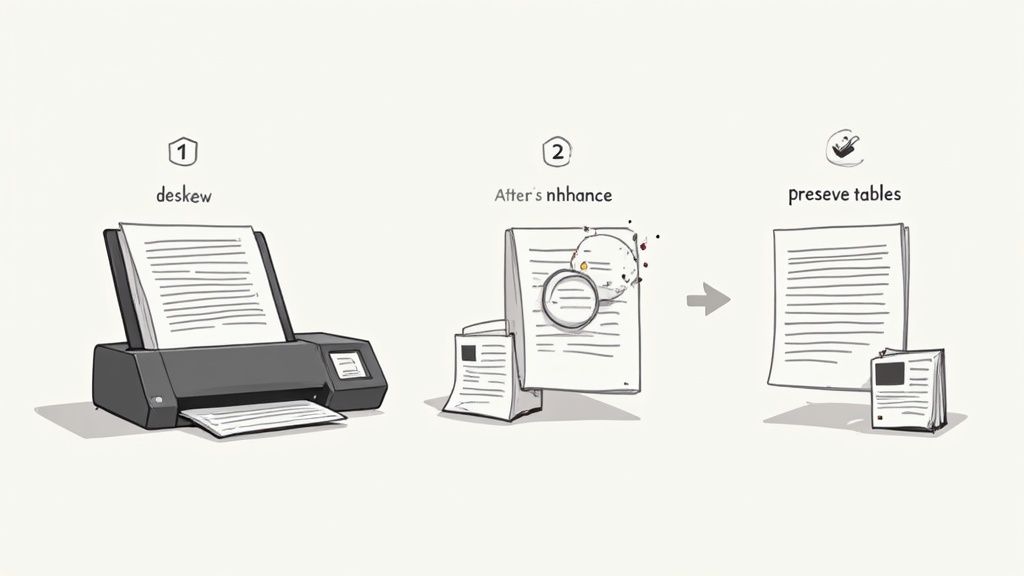
- Deskew the Page: Was the document scanned at a slight angle? Straighten it out. Use a simple image editor to rotate the page so that all the text runs perfectly horizontally.
- Boost the Contrast: Make the text darker and the background lighter. This sharp distinction helps the OCR software clearly identify the characters and cuts down on ambiguity.
- Check the Resolution: For best results, you really want a resolution of at least 300 DPI (dots per inch). Anything lower can make characters look blocky or fuzzy, which is a recipe for recognition errors.
Pro Tip: Try to remove any visual "noise" before you scan. Things like shadows from the scanner lid, coffee stains, or handwritten notes can seriously confuse an OCR engine, causing it to misinterpret text or insert random characters.
How to Preserve Tables, Lists, and Other Tricky Formatting
One of the biggest headaches with text extraction is losing the original document's structure. Complex layouts with tables, multiple columns, and bullet points often get mashed together into one long, unreadable block of text.
To get around this, look for online tools that specifically mention "layout preservation" or "table recognition." These more advanced services don't just read characters; they analyze the document's visual structure. They’re smart enough to identify distinct content blocks—like columns, headers, and table cells—and try to reconstruct them in the output.
For instance, a basic OCR tool might read a two-column article straight across, mixing sentences from both columns into gibberish. A smarter tool recognizes the columns and extracts all the text from column one before moving on to column two.
Dealing with Multilingual Text and Special Characters
If you're working with documents that contain multiple languages or special characters (like mathematical symbols or accented letters), basic extraction tools will often stumble. They might replace anything they don't recognize with question marks or other symbols, corrupting your text.
To make sure you get it right, here’s what to do:
- Select the Right Language: Many high-quality OCR services let you specify the language (or languages) in the document. This tells the engine which character set to use for recognition, dramatically improving accuracy.
- Choose UTF-8 Encoding: When you export the extracted text, always choose UTF-8 encoding if the option is available. It’s the universal standard and supports virtually all characters and symbols from any language on earth.
Taking these extra steps ensures your final text is clean, accurate, and ready for whatever you need it for. These techniques are also a lifesaver when you're preparing documents to be turned into study materials. For a deeper dive on that, check out our guide on how to turn a PDF into notes.
What About Security and Privacy When Using Online PDF Tools?
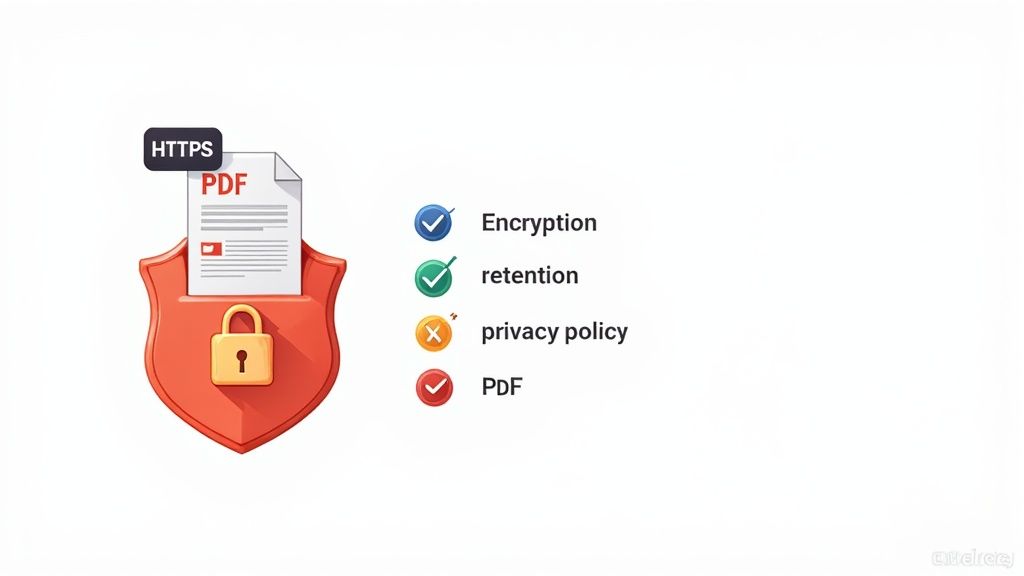
Let's talk about the elephant in the room. When you decide to extract text from pdf online, you’re handing your document over to a third-party service. Uploading a file, even just for a few seconds, can feel like a leap of faith, especially if it contains sensitive personal, financial, or company data.
This is a totally valid concern. The good news is that most reputable tools take security very seriously. The trick is knowing what to look for before you hit that upload button. A quick look at a tool's privacy policy can tell you everything you need to know.
Data Retention and Encryption: The Two Pillars of Security
When I'm evaluating an online tool, I focus on two key things: data retention and encryption. How long does the service keep my file, and how is it protected while it's on their servers? This is where you can quickly separate the good from the questionable.
Many free, ad-supported tools have incredibly vague policies—or none at all. That’s a huge red flag for me.
On the other hand, professional platforms usually have clear, upfront guidelines. They’ll often state that your files are automatically wiped from their servers within a short timeframe, usually somewhere between one to 24 hours. This drastically shrinks the window for any potential data exposure.
You should also always look for end-to-end encryption. This ensures your file is scrambled and unreadable during upload, while it's being processed, and on its way back to you. The easiest first check? Look for "HTTPS" and the little padlock icon in your browser's address bar. For a deeper dive, a practical small business cloud security guide can offer some great insights.
A service's privacy policy isn't just legal boilerplate; it’s a direct reflection of how they value your data. If a tool makes it hard to find or understand its data handling practices, I move on. It's just not worth the risk.
Your Quick Security Checklist
Before you upload a file to any new online tool, run through this mental checklist. It takes less than a minute and can save you a world of trouble.
- Got HTTPS? First things first, check for that padlock. No secure connection, no upload.
- Scan the Privacy Policy: I use "Ctrl+F" to search for key terms like "data retention," "encryption," and "third-party." A clear, easy-to-read policy is a great sign.
- Look for a Deletion Promise: Does the service explicitly state when your files are deleted? The shorter, the better.
- Consider the Business Model: Think about how the tool makes money. Is it a well-known paid or freemium service? Or is it a free-for-all covered in ads? Paid services have a direct incentive to protect you—their reputation depends on it.
Making this quick check a habit is the smartest way to use these convenient online tools without putting your information at risk. You get all the benefits without the security headache.
Got Questions? PDF Text Extraction Troubleshooting
Even with the best online tools, extracting text from a PDF can sometimes throw you a curveball. Let's walk through some of the most common issues people run into and how to solve them like a pro.
Why Does My Extracted Text Look Like Gibberish?
Ah, the classic wall of garbled text and weird symbols. This almost always comes down to one of two things.
First, you've likely used a standard text extractor on a scanned PDF. A regular tool is looking for a digital text layer that simply isn't there, so it spits out nonsense. The solution is to run it through a tool equipped with Optical Character Recognition (OCR). OCR is designed to look at the image of the page and intelligently convert those shapes back into readable characters.
The other likely culprit is a text encoding mismatch, which often happens with documents containing foreign languages or special symbols. When you save or export your extracted text, always look for the option to save it with UTF-8 encoding. This is the universal standard that prevents your text from turning into a bunch of question marks.
What About Password-Protected PDFs? Can I Extract Text From Those?
This is a big one, and the answer depends entirely on the type of password protection.
- Permissions Password: If you can open and read the PDF, but you can't copy text or edit it, you're usually in the clear. Most online extractors can easily bypass these kinds of restrictions.
- "Open" Password: If the PDF demands a password just to view the document, then you absolutely must know the password. No legitimate online tool will try to crack this type of security. You'll have to enter the password before the tool can even access the file.
A quick word of warning: be incredibly cautious with any website that claims it can "unlock" your password-protected files. Many of these are sketchy at best and can pose a serious security risk to your data.
How Do I Pull Text from Just a Single Page?
Dealing with a 200-page report when you only need the text from page 87? I've been there. Thankfully, you don't have to extract the whole thing.
Most good online PDF tools have a page selection feature. Once you upload your file, look for an option to enter a specific page number (like "87") or a page range (like "87-89"). This saves a ton of processing time and keeps your output clean and focused.
If the tool you're using doesn't offer page selection, here's a simple workaround. First, use a free online PDF splitter to isolate the page you need. Save that single page as a new, smaller PDF, and then upload that file to your text extractor. It's an extra step, but it gets the job done perfectly.
Ready to skip the hassle and get straight to the insights? PDF Summarizer uses powerful AI to do more than just extract text—it gives you instant summaries and answers your questions with citations pointing right back to the source. Give it a try for free and see how much faster you can work.
Relevant articles
Learn how to extract information from PDF files using the best methods. Our guide covers manual, OCR, code, and AI tools for any data extraction task.