How to Extract Information from PDF Files The Right Way
Learn how to extract information from PDF files using the best methods. Our guide covers manual, OCR, code, and AI tools for any data extraction task.
Getting information out of a PDF can range from a simple copy-and-paste to deploying some seriously smart software. For straightforward, text-based files, you're usually good to go with the basics. But when you're dealing with scanned documents, you'll need something more powerful, like an Optical Character Recognition (OCR) tool.
And for the heavy lifting? If you're tackling thousands of documents or need to automate the process, programming libraries like Python's pdfplumber or AI-driven platforms are your best bet. These tools don't just see text; they can intelligently interpret a document's content.
Your Guide to Unlocking Data from Any PDF
PDFs are fantastic for sharing documents exactly as you intended them to look. The problem is, they often feel like digital vaults, locking valuable information inside a fixed layout. Pulling out a specific table from a dense financial report, quoting text from a research paper, or grabbing details from a scanned invoice can be a real headache.
The secret isn't finding one magic tool, but knowing which tool to use for the job. It almost always comes down to the type of PDF you're working with. This guide will walk you through the most effective ways to extract information from any PDF, covering everything from simple manual tricks to powerful automated solutions.
Understanding Native vs. Scanned PDFs
First things first, you need to figure out what kind of PDF you have. It's usually one of two types.
A native PDF is born digital. Think of saving a Word document or a Google Doc as a PDF. The text is real—you can click it, highlight it, and copy it.
On the other hand, a scanned PDF is basically a picture of a document. Imagine taking a photo of a receipt or scanning a page from a book. The "text" you see is just an image made of pixels, so you can't just copy and paste it.
This distinction is everything. It's the fork in the road that determines your entire extraction strategy.
This flowchart gives you a quick visual on how to pick your method based on the PDF you're facing.
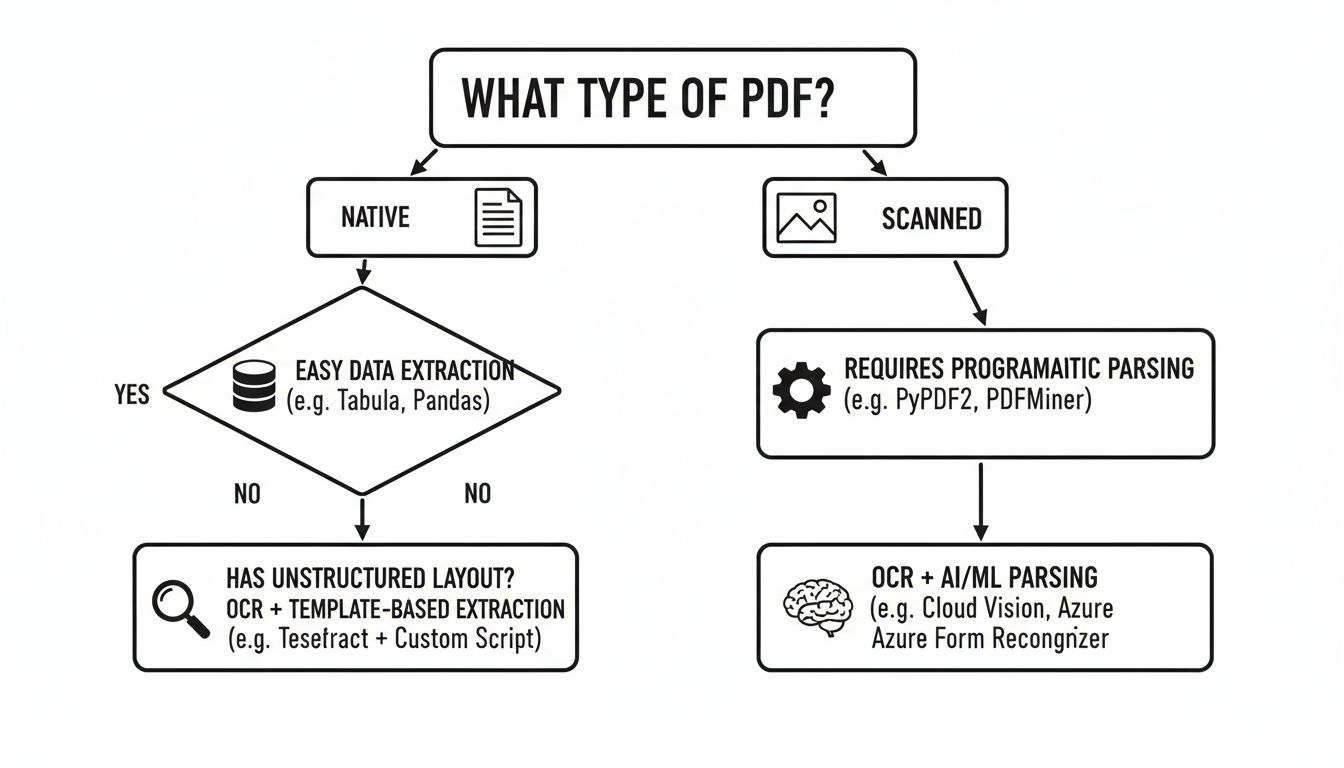
As you can see, figuring out if your document is native or scanned is the first critical step. It sets you on the right path from the start.
Why PDF Data Extraction Matters
The need to pull data from PDFs has exploded into a massive industry. The global market for PDF software hit USD 2.15 billion in 2024 and is projected to reach USD 5.72 billion by 2033. That incredible growth just goes to show how vital these tools have become for businesses buried under a mountain of invoices, reports, and contracts all saved as PDFs.
At its core, PDF extraction is about turning static information into dynamic, usable data. It’s the bridge between a locked document and actionable insights, whether for academic research, business intelligence, or legal analysis. Understanding the nuances of this process is a key part of modern document analysis.
To help you get started, this table breaks down the common methods so you can quickly find the right approach for your needs.
Choosing Your PDF Extraction Method
A quick comparison of different methods to extract information from PDFs, helping you choose the right tool for your specific need and technical skill level.
| Method | Best For | Speed & Scalability | Required Skill Level |
|---|---|---|---|
| Manual Copy-Paste | Quick, one-off text grabs from native PDFs. | Slow; not scalable for large volumes. | Beginner |
| PDF Converters | Converting entire native PDFs to editable formats like Word or Excel. | Fast for single files, but can be tedious for many. | Beginner |
| OCR Tools | Extracting text from scanned PDFs or images. | Moderate; depends on document complexity and tool quality. | Beginner to Intermediate |
| Programmatic Libraries | Automated, bulk extraction for complex, structured data. | Very fast and highly scalable for thousands of documents. | Advanced (Coding skills needed) |
| AI Summarizers | Getting quick answers, summaries, and key takeaways without full extraction. | Extremely fast for analysis and insight generation. | Beginner |
Each method has its place. Sometimes, a quick copy-paste is all you need. Other times, you'll be glad to have a powerful AI tool or a custom script to do the heavy lifting for you. This guide will equip you with the knowledge to choose the best extraction method for any scenario you encounter.
Mastering Manual and OCR Extraction Techniques
Sometimes, the most effective tool is the simplest one. If you're working with a "native" PDF—one created digitally from a program like Word or InDesign—the good old copy-and-paste method is your best first move. It’s perfect for grabbing a quick quote or a few paragraphs without any fuss.
Of course, it’s not always that clean. Copying and pasting from a PDF can introduce a whole host of formatting gremlins. You’ve probably seen it: weird line breaks, sentences smashed together, or text that’s completely lost its structure.
Here’s a pro tip I’ve used for years: paste the text into a plain text editor first. On Windows, that’s Notepad; on a Mac, use TextEdit. This simple action strips out all the invisible formatting code, leaving you with clean, raw text. From there, you can move it into your Word doc or email without fighting the layout. It’s one extra step that can save you a mountain of frustration.
When Copying and Pasting Fails
The real test comes when you’re dealing with a scanned document. These PDFs are basically just pictures of text, which means you can't select anything. Your cursor just sees a single, flat image.
This is where Optical Character Recognition (OCR) technology steps in. OCR software is designed to look at an image, identify the shapes of letters and words, and convert them into actual, machine-readable text. It turns a static picture into a document you can search, copy, and edit.
The need for this kind of technology is booming. The PDF editor software market shot up from USD 3,358.86 million in 2023 to USD 3,969.83 million in 2024. And while OCR adoption has jumped by 45% since 2020, a surprising 33% of scanned PDFs are still unsearchable. That's a huge gap that modern tools are scrambling to close. You can dive deeper into the PDF software market's expansion to see the full picture.
Putting OCR into Practice
Getting started with OCR is more straightforward than you might think. You'll find this feature in everything from dedicated software to free online converters.
- For Sensitive Documents: If you’re handling something like a legal contract, a desktop application like Adobe Acrobat Pro is a reliable choice. Its "Enhance Scans" tool can process the entire document, making it fully searchable so you can copy specific clauses with total accuracy.
- For Quick, Casual Tasks: Free online OCR tools are great for less sensitive information. Let's say you snap a photo of a receipt for an expense report. Just upload the image to a web-based service, and it will pull out the text, letting you easily grab the vendor name and totals.
The real power of OCR isn't just pulling out text—it's about making information findable. When you turn a dusty, unsearchable archive into a fully indexed library, you save countless hours of manual searching.
Tips for Better OCR Accuracy
The quality of your OCR results is directly tied to the quality of your scan. A little prep work goes a long way.
To get the best results, focus on a few key things. First, make sure your scan is high-resolution; at least 300 DPI (dots per inch) is the industry standard for a reason. Also, ensure the document is straight and doesn't have any weird shadows or glare, as these can easily confuse the software.
Finally, always check for a language setting in your OCR tool. Selecting the correct language makes a huge difference in accuracy, especially if you're working with documents that contain special characters or accents.
Automating Extraction with Python and Code
When you’re staring down a mountain of PDFs, clicking and copying just won't cut it. For those jobs involving hundreds or even thousands of documents, automation isn't just a nice-to-have; it's the only practical way forward. This is where a little bit of code can save you an enormous amount of time.
Python, with its massive collection of free libraries, has become the undisputed champ of programmatic PDF extraction. These tools let you slice and dice a PDF's structure, grab exactly what you need, and pipe it into something useful like a spreadsheet or database.
Think about it. You could have a script that automatically combs through a folder of new invoices every morning. It could pull out the invoice number, date, and total amount, then flag anything that looks off. That's the kind of power you get when you extract information from pdf files with code.
Choosing Your Python PDF Library
Not all Python libraries are the same—each has its own sweet spot. The right choice really depends on how complex your PDFs are and what specific bits of information you're trying to pull. For most people, the end goal is to automate data entry by transforming messy PDF data into clean, structured information.
Here’s a quick look at the most popular options I've used over the years:
PyPDF2: This is usually the first tool people reach for. It's fantastic for basic PDF tasks like splitting, merging, and rotating pages. If you just need to grab straightforward text from a native PDF, it’s lightweight and incredibly easy to get started with.
pdfplumber: If you have to deal with tables,
pdfplumberis a game-changer. It’s built to recognize the lines and cells that form a table, making it perfect for pulling data from financial reports or complex data sheets where other libraries might just see a jumble of text.PyMuPDF (fitz): When you need raw power and speed, nothing beats
PyMuPDF. This library can handle pretty much anything you throw at it, from extracting text and tables to pulling out high-resolution images. Its performance makes it my top recommendation for heavy-duty, enterprise-level jobs.
Practical Code Examples in Action
So, how does this actually look in practice? Let's say you've got a folder packed with résumés in PDF format, and your task is to create a spreadsheet with every applicant's name and email address.
Using a library like PyMuPDF, you could whip up a short script to loop through every file in that folder. For each PDF, the script would scan the text for patterns matching an email address (using something called regular expressions) and then neatly write the findings into a CSV file.
A job that would take a human a full day of soul-crushing copy-and-paste can be done by the script in less than a minute.
The real magic here isn't just about speed—it's about scalability. Once that script is written, it works just as well for 10 PDFs as it does for 10,000. You've created a repeatable, reliable workflow for handling your data.
This shouldn't be intimidating. It's not about becoming a software developer overnight. It’s about finding the right tool for a specific, repetitive problem and turning a major bottleneck into a smooth, automated process.
How AI Takes Document Processing to the Next Level
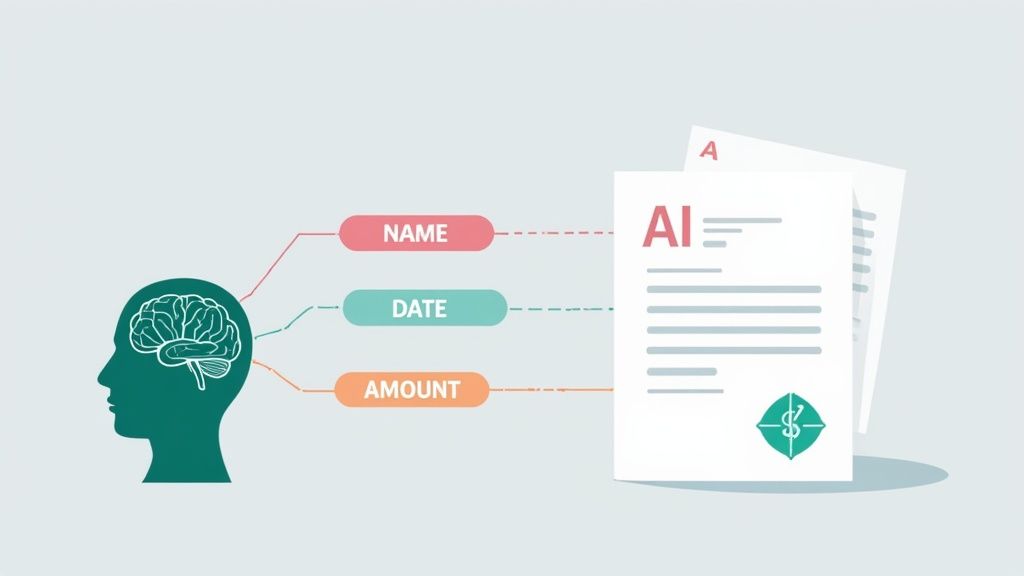
While programmatic extraction gives you speed, the real game-changer is adding intelligence. Modern AI tools don't just dump raw text into a file; they actually understand what the text means. This is the critical leap from basic data extraction to true intelligent document processing.
Instead of just grabbing every word on the page, these platforms can pinpoint specific details like names, dates, or contract values without you having to lift a finger. This completely changes how we extract information from pdf files, turning what was once a static document into a dynamic source of answers.
The demand for this kind of technology is exploding. The data extraction software market is expected to jump from USD 2.01 billion in 2025 to USD 3.64 billion by 2029. That growth is almost entirely fueled by AI, which helps companies find the gold hidden in their PDFs and slash the time wasted on manual work.
It's About Understanding, Not Just Extraction
The true power of AI is its knack for making sense of messy, unstructured information. Think about a legal team that needs to find a specific indemnification clause buried in 50 different contracts, each formatted differently. An AI tool can sniff out that exact clause in seconds, no matter how it's phrased or where it's located.
This is the whole idea behind Intelligent Document Processing (IDP). It’s built to handle the complex, real-world documents that trip up simpler tools.
These AI-driven platforms also let you interact with your documents in a completely new way. Instead of writing code, you just ask questions in plain English:
- "What was the total revenue in the Q4 financial summary?"
- "Can you summarize the key findings from this 50-page research paper?"
- "List all the people mentioned in this meeting transcript."
This conversational style opens up complex data analysis to everyone, not just people who can code.
The goal of AI in document processing isn't just to make things faster; it's to make them smarter. It delivers actionable insights by understanding the relationships between different pieces of data, providing answers instead of just raw text.
Putting AI to Work on Your PDFs
This intelligent approach unlocks some incredibly powerful workflows. A financial analyst, for example, could upload a dozen quarterly reports and simply ask the AI to compare year-over-year growth metrics. A task that used to take hours of painstaking spreadsheet work can now be done in minutes.
In the same way, students and researchers can get instant summaries of dense academic papers. Tools that use AI to summarize a PDF can boil down hours of reading into a handful of key takeaways, and they’ll even give you citations that link right back to the original source. It’s a way to accelerate your research without sacrificing accuracy.
Practical Applications and Data Accuracy Tips
Knowing which tools to use is a great start, but the real magic happens when you apply these methods to solve real-world problems. It's also crucial to make sure the data you pull is trustworthy. Different situations call for different game plans, from straightforward automation to complex AI analysis.
A classic business headache is processing invoices. Think of a small business getting swamped with PDF invoices from dozens of different suppliers. A programmatic approach using Python and a library like pdfplumber can be a lifesaver. You can set up a script to watch an inbox, grab PDF attachments, and specifically extract information from pdf invoices—like the PO number, total amount, and due date—before neatly logging it all into a spreadsheet.
For academic researchers, it's a race against the clock. When you're tackling a literature review with dozens of dense research papers, an AI-powered tool is a game-changer. Instead of slogging through each one manually, a researcher can upload the whole batch and ask direct questions like, "Which of these studies mention neuroplasticity in adults over 50?" The AI can instantly point to the right documents and even summarize the relevant sections. What used to take a week can now be done in an afternoon.
Ensuring Your Extracted Data Is Accurate
Let's be realistic: no extraction method is flawless. Whether you're using a simple OCR tool or a sophisticated AI, mistakes can and do happen. Misread characters, jumbled table columns, or misunderstood context can all lead to bad data. This is why verification isn't just a final step—it's woven into the entire process.
The goal isn't just to extract data; it's to extract reliable data. A small error, like a misplaced decimal point in a financial report, can have significant consequences. Always build a verification stage into your workflow.
A great starting point is to spot-check your results against the original PDF. For any data points you absolutely can't get wrong, always go back and cross-reference them with the source document. If you've pulled tables, double-check that the columns and rows are still aligned correctly.
A Quick Data Verification Checklist
After you extract information from a PDF, run through these quick checks. It’s a simple habit that helps maintain data integrity and catches common errors before they snowball.
- Clean Up Formatting: Be on the lookout for weird line breaks, extra spaces, or special characters that didn't make the journey. A quick find-and-replace often cleans up most of these issues.
- Cross-Reference Key Figures: When dealing with numbers, randomly pick a few key values—like totals or percentages—and check them by hand against the original PDF. This builds confidence in the rest of your dataset.
- Handle Multilingual Content Carefully: If your PDF has multiple languages, make sure your tool is up to the task. Check for garbled text or funky characters, which is a classic sign of an incorrect language setting.
Adopting these practices elevates what you're doing from just pulling text to producing clean, actionable data. For students and researchers wanting to get organized, converting this data into structured notes is the perfect next step. You can learn more about effective strategies for turning your PDF findings into organized study material in our guide on transforming PDFs into notes.
Got Questions About PDF Data Extraction?
Even with the best tools in your arsenal, you're bound to hit a few snags when trying to pull information from a PDF. It just comes with the territory. Let's walk through some of the most common questions I hear and get you unstuck.
What’s the Best Free Tool for Extracting Tables?
When you need to pull tables from a PDF without opening your wallet, my go-to recommendation is almost always Tabula. It's an open-source tool built specifically for this one job, and it does it really well.
Unlike a lot of general-purpose PDF converters that can turn a nice, neat table into a garbled mess, Tabula is fantastic at recognizing rows and columns. It lets you export the data straight into a clean CSV or Excel file, ready for analysis.
That said, if you run into a really tricky or deeply embedded table, sometimes the programmatic libraries we talked about earlier, like Python's pdfplumber, can give you a bit more muscle. You get surgical control over defining the table's boundaries, which can be a lifesaver for complex documents.
Can I Extract Data from a Secured PDF?
Ah, the classic password-protected PDF. This is a common roadblock. If a PDF has been locked down to prevent copying, standard extraction tools will hit a brick wall.
There’s no magic bullet here. The only legitimate way forward is to get the password to unlock the document’s permissions.
Once you have it and the PDF is unlocked, all the methods in this guide are back on the table—from a simple copy-paste to running a full-blown extraction script. Trying to crack or bypass security isn't just a bad idea; it can often violate the terms of use for that document.
The key takeaway: Permissions are everything. A PDF’s security settings are the first gatekeeper. Before you even start, make sure you have the right to access and use the information inside.
How Do I Handle Complex, Multi-Column Layouts?
We’ve all seen them—those PDFs formatted like a magazine or a scientific journal with text flowing across multiple columns. Basic extraction tools often get confused and spit out a jumbled, unreadable block of text.
When you're facing a tricky layout like this, you need a smarter approach.
Here are a couple of methods that work well in the real world:
- Use an Intelligent OCR Tool: Modern OCR software, especially the kind built into tools like Adobe Acrobat Pro, is pretty good at layout detection. These tools can often identify the columns and follow the text flow correctly, just like a human reader would.
- Go Programmatic: For ultimate control, a library like
PyMuPDFis a powerhouse. It allows you to define specific rectangular areas—or "bounding boxes"—on the page. This means you can tell your script, "Extract everything from this box first, then move to this one," ensuring the text from each column is processed in the right order.
By using a tool that actually understands the document's visual structure, you can pull clean, coherent text from even the most challenging layouts.
Ready to stop wrestling with your documents and start getting answers? PDF Summarizer uses AI to instantly summarize dense reports, answer questions about your files, and pull key insights from any PDF in seconds. Upload a document and experience a smarter way to extract information. Try it for free on pdfsummarizer.pro
Relevant articles
Discover how intelligent document processing software uses AI to automate data extraction, boost accuracy, and streamline workflows.
Discover proven workflows for PDF to Markdown conversion. Learn to handle everything from simple text documents to complex layouts with tables and images.
Learn how to extract text from PDF online with this practical guide. Discover the best tools and tips for handling any document, from native to scanned.