A Practical Guide to PDF to Markdown Conversion
Discover proven workflows for PDF to Markdown conversion. Learn to handle everything from simple text documents to complex layouts with tables and images.
Turning a PDF into Markdown is all about liberation. You're taking a document that's essentially a digital printout—static and locked-in—and transforming it into a flexible, plain-text format that you can actually work with. The right way to do this really depends on what kind of PDF you're starting with. A simple text document might only need a quick command-line tool, but a scanned research paper or a complex report demands a much smarter approach.
Why Bother Converting PDF to Markdown? Choosing Your Method
The push to convert PDFs to Markdown isn't just about changing file types anymore. It’s become a crucial step for anyone building a modern knowledge base, feeding documents to an AI, or managing documentation with version control.
PDFs are great for ensuring a document looks the same everywhere, but that’s where their utility often ends. They're a pain to edit, a nightmare to search effectively, and nearly impossible to integrate into automated workflows. Markdown, by contrast, is just simple text. It's lightweight, universally supported, and perfect for everything from web content and software docs to your personal notes.
People usually make the switch for a few big reasons:
- Fueling AI and RAG Systems: Clean, structured Markdown is far easier for Large Language Models (LLMs) to understand. This leads to much better, more accurate answers when you’re using a Retrieval-Augmented Generation (RAG) system.
- Version Control: You can't easily track changes in a binary PDF file. But when you store documentation as Markdown in a system like Git, every single change is clearly logged and reviewable.
- Repurposing Content: Once your content is in Markdown, you can effortlessly adapt it for a blog post, a website, or another document format without spending hours on mind-numbing copy-and-paste sessions.
- Boosting Search and Accessibility: Plain text is inherently accessible and makes the content fully searchable, unlocking the information trapped inside the PDF.
Matching Your PDF to the Right Tool
Let's be clear: not all PDFs are the same. Trying to use the wrong tool is a recipe for a garbled mess and a lot of wasted time. A straightforward, text-based report doesn't require a sophisticated AI tool, and a simple converter will completely choke on a scanned document full of images and tables.
The first, most critical step is figuring out what kind of PDF you're dealing with. The demand for high-quality converters has exploded with the rise of AI, which thrives on well-structured data. For instance, a review by BlazeDocs found that their AI-powered tool could achieve over 95% accuracy on complex academic papers, even with tricky layouts.
This decision tree gives you a quick visual guide for picking the right path based on your document's complexity.
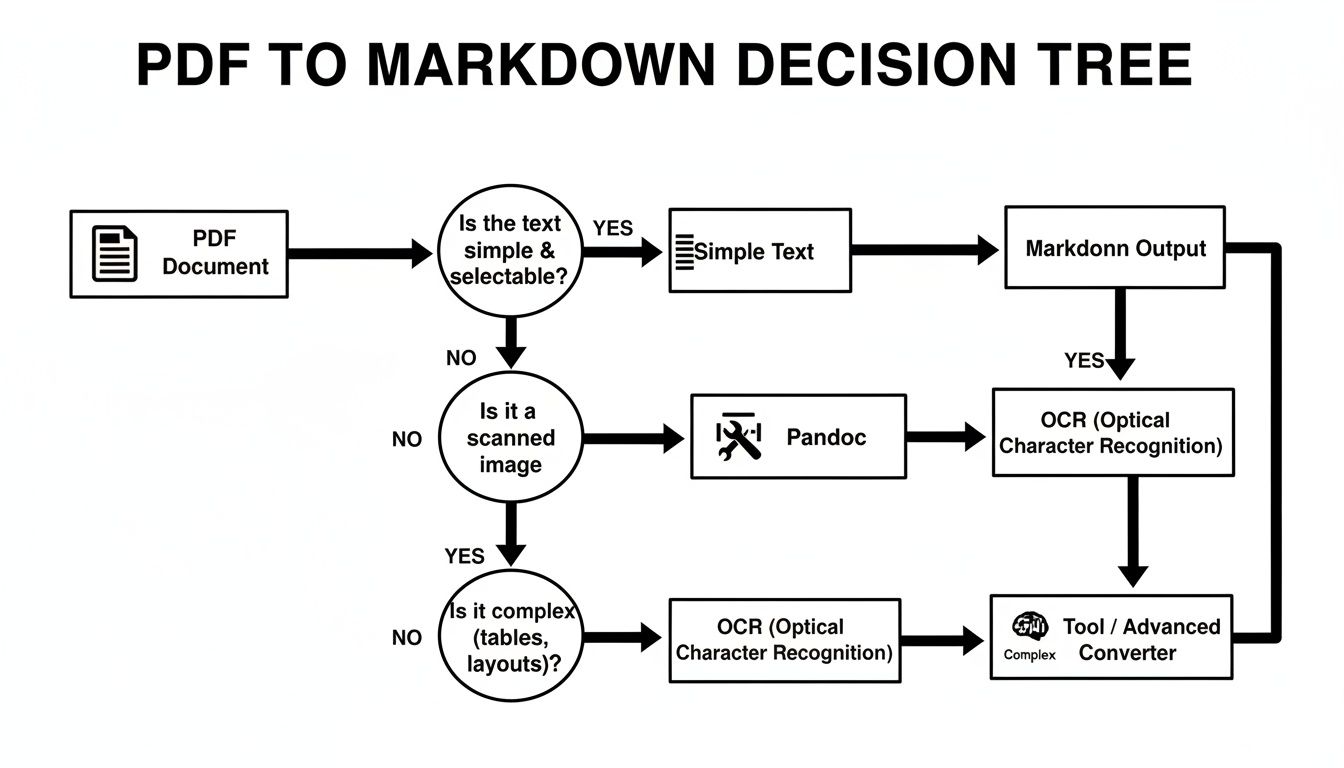
As the chart shows, identifying your document type—is it simple text, a scanned image, or a complex layout?—is the key to getting a clean conversion without a massive cleanup job afterward.
How to Choose Your PDF to Markdown Conversion Method
To make it even clearer, here’s a quick breakdown of which methods work best for different types of PDFs.
| PDF Type | Key Challenge | Recommended Method | Expected Fidelity |
|---|---|---|---|
| Simple Text-Based PDF | Minimal formatting, mainly paragraphs and headings. | Basic command-line tools (e.g., pdftotext, pandoc). |
High: Excellent for text, basic structure is usually preserved. |
| PDF with Images & Tables | Preserving non-text elements and their placement. | Advanced converters or AI-powered tools like PDF Summarizer. | Medium to High: Structure and text are good, but images/tables may need manual fixing. |
| Scanned Document (Image-Only) | Text is locked inside an image, not selectable. | OCR (Optical Character Recognition) software (e.g., Tesseract). | Variable: Quality depends heavily on the scan's clarity; expect errors. |
| Complex Academic Paper | Intricate layouts, citations, footnotes, and equations. | Specialized AI-powered tools designed for structured data extraction. | Very High: These tools are built to understand and recreate complex academic structures. |
Choosing wisely from the start minimizes the manual work you'll have to do later. The goal isn't just to get the words out; it's to keep the meaning and structure intact.
The real challenge isn't just extracting text; it's preserving the document's original structure—headings, lists, tables, and citations. Choosing the right method from the start saves hours of manual cleanup later.
For anyone trying to make their study or research process more efficient, turning dense documents into well-organized notes is a game-changer. You can find more strategies for this in our guide on converting PDF to notes. By selecting the right tool for your specific PDF, you end up with more than just a usable Markdown file—you get a document that retains the logical flow of the original, making the information inside it far more valuable.
When you're dealing with straightforward, text-based PDFs—think reports, articles, and documents without a ton of complex formatting—your best bet is often a command-line tool called Pandoc. In academic and developer circles, it's legendary, often called the "Swiss Army knife" of document conversion for its ability to juggle dozens of formats.
Pandoc's real strength is its ability to understand a document's structure. It doesn't just blindly scrape text; it's smart enough to identify headings, lists, and links, then translate them into clean Markdown syntax. This makes it my go-to first step for most basic pdf to markdown jobs.
Getting Pandoc Set Up
Before you can work any magic, you need to get Pandoc installed. Thankfully, the process is well-documented and pretty painless on any major operating system.
- Windows: Just grab the installer from the official Pandoc website. A simple wizard will walk you through the entire setup.
- macOS: If you use Homebrew, it's as easy as it gets. Open your terminal and type
brew install pandoc. - Linux: It's likely in your package manager. For Debian or Ubuntu, you'd just run
sudo apt-get install pandoc.
Once that's done, pop open your terminal or command prompt and type pandoc --version. If you see the version number pop up, you're all set.
The Pandoc website itself is an incredible resource, packed with user guides that go far beyond what we're covering here. I highly recommend bookmarking it.
Running Your First Conversion
With Pandoc ready, the actual conversion is surprisingly simple. The command follows a basic pandoc [input_file] -o [output_file] pattern.
Let's imagine you have a file named quarterly-report.pdf. You'd just open your terminal, navigate to the folder where the file is saved, and run this command:
pandoc quarterly-report.pdf -o quarterly-report.md
And that's it. Pandoc will chew through the PDF and spit out a quarterly-report.md file right in the same directory. The new file will have all the original headings (#), lists (*), and other simple formatting intact. It feels almost like magic the first time you do it.
While we're focused on PDF to Markdown, it's worth noting how versatile this tool is. For instance, you can reverse the process, which is covered in this handy guide to Markdown to Word conversion with Pandoc. Understanding its full capabilities really opens up your workflow possibilities.
My Experience: The real beauty of Pandoc for text-based PDFs is that it respects the document's hierarchy. It sees a heading as a heading, not just big, bold text. This structural intelligence is what gives you a clean, usable Markdown file instead of a jumbled mess.
Know When Pandoc Isn't the Right Tool
As great as it is, Pandoc has its limits. It works beautifully on PDFs that were born digital and have selectable text, but it will choke on more complex documents.
Here's where you'll run into trouble:
- Scanned PDFs: If your PDF is essentially a picture of a page, Pandoc has nothing to work with. It can't read text from an image. For that, you'll need an OCR tool, which we'll get into next.
- Complex Columns: Trying to convert a newspaper article or a two-column academic paper? Pandoc will often get confused and mash the text from the columns together into an unreadable garble.
- Elaborate Tables & Images: It can handle basic tables, but anything with merged cells or intricate layouts will probably fall apart. It also isn't designed to extract images.
The key is to play to its strengths. Use Pandoc for fast, clean conversions of text-heavy documents. But when you're faced with a scanned document or a visually complex layout, it's time to reach for a different tool in the toolbox.
Handling Complex Layouts with Tables and Images
Simple text conversions are one thing, but the real test for any PDF to Markdown workflow is how it handles the messy stuff. We've all seen it: academic papers, technical manuals, and financial reports packed with multi-column text, detailed tables, and embedded images. This is where basic converters fall apart, leaving you with a chaotic jumble of text that's more work to fix than starting from scratch.
To get this right, you have to move beyond simple text scraping. You need a tool that can actually understand the visual structure of the page, figure out how different elements relate to each other, and then intelligently rebuild them in Markdown. It’s less about grabbing text and more about sophisticated layout analysis, a task that’s increasingly powered by AI.
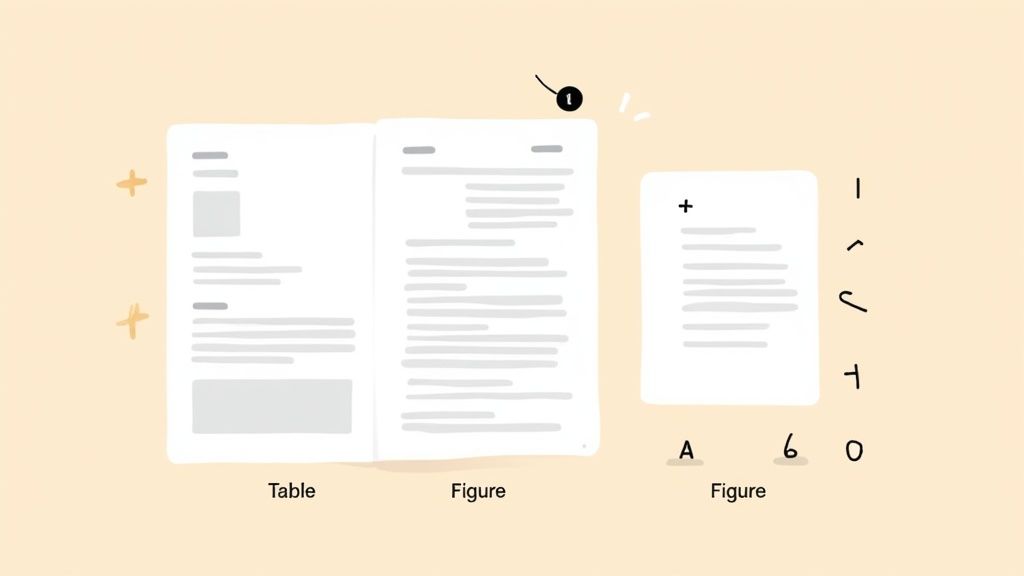
These smarter tools don't just see a random block of text; they can recognize it as a column, a footnote, or a figure caption. This contextual awareness is the secret to preserving the document's original meaning and readability.
Preserving Tables Without Losing Structure
Tables are usually the first casualty in a bad conversion. A perfectly organized table in a PDF can devolve into an unreadable mess if the converter can't distinguish rows from columns. This gets even worse with common complexities like merged cells or multi-line headers.
This is where AI-powered converters really shine. They've been trained on millions of documents, so they can identify tabular data with surprising accuracy.
- They can recognize grid lines, even invisible ones, to define cell boundaries correctly.
- They understand when cells are merged and can replicate that structure in Markdown syntax.
- They even maintain text alignment within cells, which is absolutely critical for financial or scientific data.
This is a level of precision that older, rule-based tools like Pandoc often struggle to match on their own when faced with a truly complex document.
Retaining Images and Their Context
Images and figures present another big challenge. A basic converter might just ignore them or dump them all into a separate folder, completely disconnected from the text. This breaks the entire flow of the document, since the images lose the context that explains them.
A high-fidelity tool, on the other hand, is much smarter about it. It will:
- Extract the image file, usually keeping its original resolution.
- Pinpoint its location in the original document flow.
- Insert a proper Markdown link (
) right where it belongs in the text. - Grab the caption and often use it as the alt text, preserving that vital context.
This process ensures your final Markdown document is a complete and faithful version of the original, not just a text dump.
Tackling Equations and Special Formatting
For anyone working with academic or technical documents, mathematical equations are a deal-breaker. They often exist as images or use special fonts in a PDF, which can turn into absolute gibberish during a conversion. Modern converters have a couple of tricks for this.
Many tools can recognize LaTeX formatting within the PDF and convert it back into raw code. This is perfect for Markdown environments that support rendering engines like MathJax or KaTeX. For equations that are just images, specialized OCR can recognize the mathematical symbols and reconstruct the formula.
This preserves the integrity of scientific and technical information—a non-negotiable for researchers and engineers.
The benchmark for a great conversion tool isn't just accuracy, but fidelity. It should not only get the content right but also preserve the structural and visual relationships that give the content meaning.
The performance gap between tools is huge. For instance, a benchmark by Systenics AI showed that Mistral Document AI excelled at recognizing complex tables and keeping the layout intact. This lines up with a broader trend where AI-driven converters are hitting 85-95% accuracy on text extraction, leaving older methods in the dust.
Feature Comparison of Advanced Conversion Tools
When you're dealing with these kinds of documents, picking the right tool is everything. Not all "AI-powered" solutions are built the same. Some are brilliant at pulling tables, while others are fine-tuned for academic papers full of equations.
| Tool Name | Table Handling | Equation Support | Layout Preservation | Best For |
|---|---|---|---|---|
| Marker | Excellent: Handles complex, multi-page tables accurately. | Good: Converts LaTeX and MathML effectively. | Very Good: Reconstructs multi-column layouts and reading order. | Academic papers and technical manuals. |
| Docling | Good: Reliable for standard tables but may struggle with merged cells. | Basic: Can miss complex or image-based formulas. | Moderate: Best for single-column layouts; struggles with complex pages. | Business reports and articles. |
| Nougat | Moderate: Primarily focused on text and equations. | Excellent: Specifically designed for scientific papers with equations. | Good: Handles academic two-column layouts well. | Scientific research and mathematical texts. |
At the end of the day, the best strategy is to test-drive a couple of different high-fidelity tools with your specific type of document. The small differences in their algorithms might mean one is a perfect fit for your layout challenges. A little time spent testing upfront can save you hours of manual cleanup, ensuring your PDF to Markdown conversion is both accurate and efficient.
Digitizing Scanned Documents Using OCR
So far, we’ve been talking about PDFs where you can actually select the text. But what about when your PDF is basically just a picture of a document? This happens all the time with old archival scans, handouts someone photographed, or pages from a flatbed scanner. In these cases, a standard converter won't find any text to work with.
This is where a different kind of tool comes into play: Optical Character Recognition (OCR).
Think of OCR as a technology that "reads" an image, identifies the shapes of letters and numbers, and turns that picture of words into actual, editable text. For any workflow involving scanned material, an OCR step isn't just nice to have—it's absolutely essential.
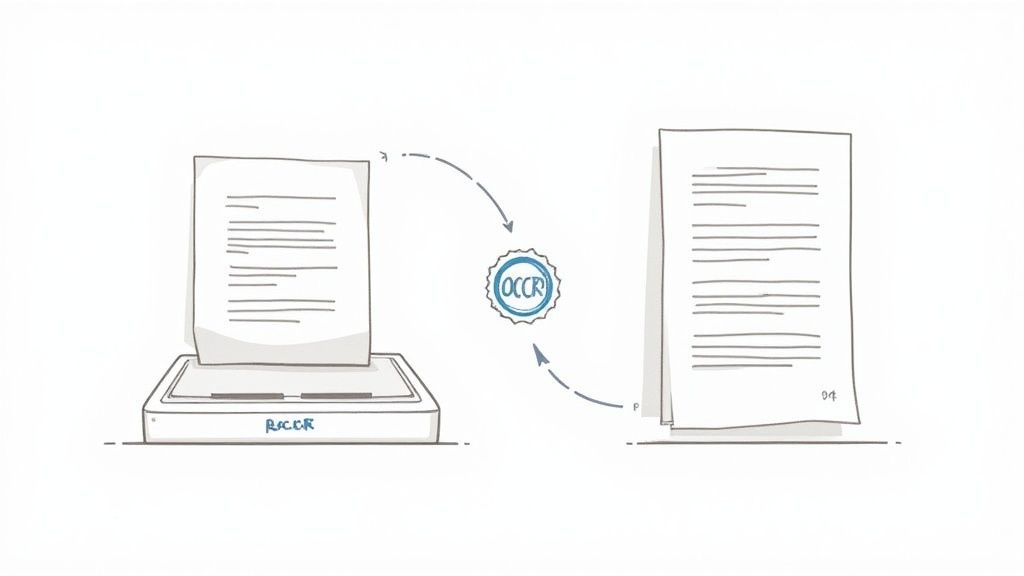
Without OCR, a scanned PDF is a dead end. It’s effectively a read-only document that you can't search, copy, or edit. (We actually have a whole guide on how to edit a read-only-pdf if you want to dive deeper into that topic: https://pdfsummarizer.pro/blog/how-to-edit-a-read-only-pdf). An OCR engine is what unlocks all that trapped information.
Choosing Your OCR Engine
When it comes to OCR software, one of the most powerful and well-known open-source options is Tesseract. Originally a Hewlett-Packard project and now maintained by Google, it's a beast of a command-line tool that can recognize over 100 languages.
You can approach using Tesseract in a couple of ways:
- As a Standalone Tool: This is the hands-on route. You extract an image (like a PNG or TIFF) from your PDF, run Tesseract on it directly, and get a plain text file. From there, you'd manually add your Markdown formatting.
- Integrated Within a Larger Tool: A lot of conversion tools have OCR built right in. They're smart enough to detect an image-based PDF and will automatically run it through an engine like Tesseract in the background before converting it.
For most people, an integrated tool is way more convenient. But if accuracy is your top priority, running the OCR process yourself gives you much more control over the final output.
Practical Tips for Improving OCR Accuracy
Let's be clear: OCR isn't magic. The quality of the text you get out is directly tied to the quality of the image you put in. A blurry, crooked, or low-contrast scan will give you a garbled mess. I’ve learned from experience that spending just a few minutes prepping an image can save you hours of fixing typos later.
Here are a few things that make a huge difference:
- Bump Up the Resolution: Aim for at least 300 DPI (dots per inch). Anything lower and the software starts struggling to tell the difference between an "l" and a "1" or a "c" and an "o".
- Fix Skew and Rotation: Was the document scanned at a slight angle? Use any image editor to straighten it out. This is called "deskewing," and it helps the engine read the lines of text properly.
- Boost the Contrast: Tweak the brightness and contrast to get the text as dark as possible and the background as light as possible. This clean separation is exactly what the software needs.
- Go Black and White: Color and even grayscale can sometimes introduce visual "noise" that confuses the OCR process. Converting the image to a simple monochrome (black and white) format often produces the cleanest results.
The single biggest mistake people make with OCR is feeding it a poor-quality image and expecting perfect results. Pre-processing isn't an optional step; it's the most important part of getting clean, usable text from a scanned document.
For really tough jobs, knowing some advanced techniques for translating scanned PDFs without losing formatting can give you an edge. A little effort upfront to clean your source images will set your OCR tool up for success and make your conversion to Markdown much less painful.
Automating Bulk Conversions for Large Projects
Converting a few PDFs by hand is one thing. But what happens when you’re facing a mountain of them? When you’re trying to build a knowledge base for a Retrieval-Augmented Generation (RAG) system or digitize an entire archive, manually converting hundreds or thousands of files isn't just slow—it's a project-killer.
At that scale, you need to shift your thinking from doing the work to building a system that does the work for you. Automation is the only way forward. By scripting your workflow, you create a repeatable, high-speed process that can chew through entire directories of documents without you lifting a finger.
Your First Step into Batch Processing with Shell Scripts
The easiest entry point into automation is often a simple shell script. If you’re comfortable on the command line, you can whip up a quick loop to run a tool like Pandoc on every single PDF in a folder. It’s a massive leap in efficiency over converting files one by one.
For instance, a basic for loop in a Bash script can do all the heavy lifting for you.
#!/bin/bash
A simple script to convert all PDFs in the current directory to Markdown
Make a home for our converted files
mkdir -p markdown_files
Loop through all PDF files in this folder
for file in *.pdf; do
Grab the filename without the .pdf extension
filename=$(basename -- "$file" .pdf)
Run Pandoc and save the new Markdown file
echo "Converting $file..."
pandoc "$file" -o "markdown_files/$filename.md"
done
echo "All done! Your Markdown files are ready."
This little script is a real workhorse. It finds every PDF, neatly strips the old extension, and tucks the new Markdown file into a dedicated subfolder to keep things organized. It’s the perfect foundation for building a more sophisticated data pipeline.
Scaling Up with Python for Custom Logic
While shell scripts are fantastic for straightforward jobs, you'll eventually hit their limits. What if you need to handle corrupted files gracefully, deskew scanned pages before OCR, or clean up the output? This is where a more robust scripting language like Python shines.
With Python, you can build a far more intelligent conversion pipeline. Imagine being able to:
- Handle Errors: If a PDF is password-protected or corrupted, a Python script can catch the error, log the problematic file, and simply move on to the next one.
- Pre-process Files: You could automatically run image enhancement algorithms on scanned documents before feeding them to your OCR engine, dramatically improving accuracy.
- Post-process Markdown: After the conversion, a script can automatically standardize headings, fix common formatting glitches, or inject metadata into each file.
Python gives you the power to create a workflow that’s perfectly tailored to the unique quirks of your document collection.
Unleashing High-Throughput with GPU Acceleration
For truly massive projects—like ingesting an entire corporate library for a new AI model—even a fast script will eventually hit a wall. Your CPU just can't keep up. This is the moment to look at tools built specifically for high-throughput, GPU-accelerated conversion.
Take a look at the performance benchmarks for a tool called Marker, which was designed for this exact scenario.
The difference is staggering. Specialized tools like Marker are engineered to harness the parallel processing power of a GPU, achieving conversion speeds that are simply out of reach for a CPU.
The open-source version of Marker can process an incredible 25 pages/second in batch mode on an H100 GPU. Its hosted API can convert a 250-page PDF in about 15 seconds. This kind of speed is a game-changer for organizations building large AI knowledge bases, where properly chunked Markdown can boost retrieval accuracy by 30-50%. You can learn more about Marker's capabilities on their GitHub page.
Choosing to automate isn't just about saving time on one project. It’s about building a scalable system that can handle any volume of documents you throw at it in the future, turning a potential roadblock into a smooth, efficient process.
Common Questions About PDF to Markdown Conversions
Even with the best software, turning a PDF into clean Markdown can feel like a bit of an art. You're bound to hit a few snags along the way. Let's walk through some of the most common issues people run into and how to solve them.
Can You Convert a Two-Column PDF to Single-Column Markdown?
Yes, but this is where you can really see the difference between basic and advanced tools. It's a classic problem, especially with academic papers or journal articles.
Modern AI-powered converters are built for this. They're smart enough to analyze the document's layout and figure out the correct reading order, merging the two columns into a single, logical flow. The result is a clean Markdown file that reads naturally.
If you try this with a simple command-line tool like a basic Pandoc command, you'll likely get a jumbled mess. It often just interleaves lines from each column, making the output completely unreadable without a ton of manual cleanup.
How Should You Handle Encrypted or Protected PDFs?
Most converters will simply refuse to process an encrypted or password-protected PDF. They just can't get past that initial security layer.
The only way forward is to remove the protection first. You'll need to use a dedicated PDF editor like Adobe Acrobat or a trusted online utility to save an unprotected version of the file.
It's really important to make sure you have the legal right to decrypt the document before you do this. Once the file is unlocked, your pdf to markdown converter will be able to process it just like any other file. This is a non-negotiable first step for protected documents.
What Is the Best Way to Preserve Tables?
Tables are another major headache. For any PDF with tables—especially complex ones with merged cells or funky layouts—an AI-based converter is your best bet. These tools have been trained on millions of documents, so they can accurately recognize row and column structures and translate them into proper Markdown table syntax.
Older or more basic tools often just spit out the table's contents as a blob of unstructured text. The data is there, but the tabular format is completely gone, making it incredibly difficult to understand. This is one of the biggest reasons to opt for a more sophisticated tool.
Why Are Images Missing from My Markdown File?
This is a really common point of confusion because different tools handle images in completely different ways. You'll usually encounter one of these three scenarios:
- Extraction and Linking: The best tools will automatically pull out all the images, save them into a new folder (usually called
imagesorassets), and then correctly insert the relative image links right into your Markdown file. This is the ideal outcome. - Ignoring Images: Many simpler converters are text-only by design. They'll grab the text and deliberately ignore everything else, including your images.
- Configuration Dependent: Some tools, especially command-line utilities, can handle images but require you to turn on a specific setting or add a flag to your command.
Always check the documentation for your specific tool to see how it deals with images. If getting a high-fidelity conversion of both text and visuals is critical, it's worth looking into tools that prioritize structured output. For instance, a dedicated PDF summary generator is designed to preserve the core elements of a document, ensuring the vital context from images and tables isn't lost in translation.
Ready to transform your dense PDFs into actionable insights? With PDF Summarizer, you can chat with your documents, get instant answers, and extract key information in seconds. Stop wasting time deciphering complex reports and start getting the answers you need, right away. Try it for free at https://pdfsummarizer.pro.
Relevant articles
Learn how to extract information from PDF files using the best methods. Our guide covers manual, OCR, code, and AI tools for any data extraction task.