A Practical Guide to Insert Comments in PDF Files
Learn how to insert comments in PDF documents with this guide. We cover the best tools for desktop, web, and mobile, plus collaboration tips.
It's surprisingly easy to insert comments in PDF files, and you don't need expensive software to do it. Free tools you already have, like Adobe Reader, your web browser, or even built-in apps on your computer, get the job done. This is a must-have skill for anyone who works on a team, letting you add feedback and highlight text without touching the original document.
Why Commenting in PDFs Is a Game Changer for Collaboration
Adding comments to a PDF is so much more than a neat little feature—it’s the backbone of clear feedback and efficient teamwork. When you insert comments in a PDF, you're creating a separate, interactive layer for discussion that sits right on top of the document. The original file stays untouched, but the conversation happens right where it needs to.
Think of it as the modern version of sticky notes and a red pen, but way smarter. Instead of a vague email that says, "Can you look at the third paragraph on page two?" you can highlight that exact sentence and type your note right next to it. This cuts out the guesswork and endless back-and-forth that can kill a project's momentum.
Real-World Scenarios Where PDF Comments Shine
This simple function is a lifesaver in tons of professional and academic settings. For example:
- Legal Teams: Attorneys fly through contract reviews by highlighting specific clauses, suggesting new phrasing, and flagging points for discussion directly in the document.
- Designers and Creatives: A graphic designer sends a proof, and the client can drop pins on the layout to say, "Let's try a different color here," or "Move this logo up a bit."
- Academic Collaboration: Researchers sharing drafts can use comments to question a methodology, suggest a missing citation, or praise a well-made point. While learning how to organize research papers is the first step, good commenting is what makes collaboration work: https://pdfsummarizer.pro/blog/how-to-organize-research-papers.
- Remote Teams: A project manager annotates a quarterly report and uses @mentions in a cloud-based PDF tool to assign specific action items to different team members.
The real win here is having a single source of truth. All the feedback is in one place, tied to specific parts of the document. No more hunting through email chains or trying to figure out which of the five versions of "Final_Report_v5_final_final.pdf" is the right one.
This creates a clean, visible trail of feedback. You can see who said what and when, all in context. For anyone looking to level up their team's digital workflow, it's worth exploring broader strategies for enhancing team communication and collaboration. At the end of the day, knowing how to insert comments in PDF files is a fundamental skill that saves time, prevents headaches, and just makes working together easier.
Mastering PDF Comments on Your Desktop
When you need to get serious about adding feedback to a PDF, your desktop is still king. The dedicated software available gives you a level of control and a suite of tools that browser-based editors and mobile apps often can't match.
The best tool for you really boils down to your operating system and how deep you need to go with your edits. For most day-to-day tasks, the free programs that are likely already on your computer have all the firepower you need to highlight, add notes, and get your point across.
Adobe Acrobat Reader: The Universal Standard
Since Adobe invented the PDF format, it’s no surprise that their free Adobe Acrobat Reader DC is the gold standard for commenting. It packs a surprisingly comprehensive set of tools that most people will ever need.
You can drop in a classic sticky note, highlight text in different colors, and even use drawing tools to underline or circle specific areas. Every single annotation is tagged with your name, which is a lifesaver when you're a project manager trying to sort through feedback from multiple team members on a single proposal.
The demand for these features is huge. The global PDF software market was valued at around USD 2.15 billion in 2024 and is expected to rocket to USD 5.72 billion by 2033. This growth is largely fueled by the shift to remote work, where digital collaboration is everything. You can dig into these PDF market growth statistics for a deeper look.
Using macOS Preview for Quick Annotations
If you’re on a Mac, you’ve got a fantastic PDF tool hiding in plain sight. Apple’s Preview is often underestimated, but its Markup toolbar is incredibly capable for adding feedback without installing a single thing.
A quick click on the Markup icon unlocks a whole host of intuitive tools:
- Text Boxes: Drop a typed comment anywhere you need it on the page.
- Highlights & Underlines: Make key phrases or sentences pop.
- Shapes: Frame entire paragraphs or images that need attention with a rectangle or oval.
- Sticky Notes: Add longer, more detailed thoughts that don’t clutter the page.
Preview is my go-to for quick-and-dirty markups. Think of a student annotating a research paper for a class or a freelancer signing a contract and adding a quick note. It’s fast, simple, and perfectly integrated into the Mac experience.
This little decision tree shows exactly when commenting moves from a "nice-to-have" to a "must-have" feature.
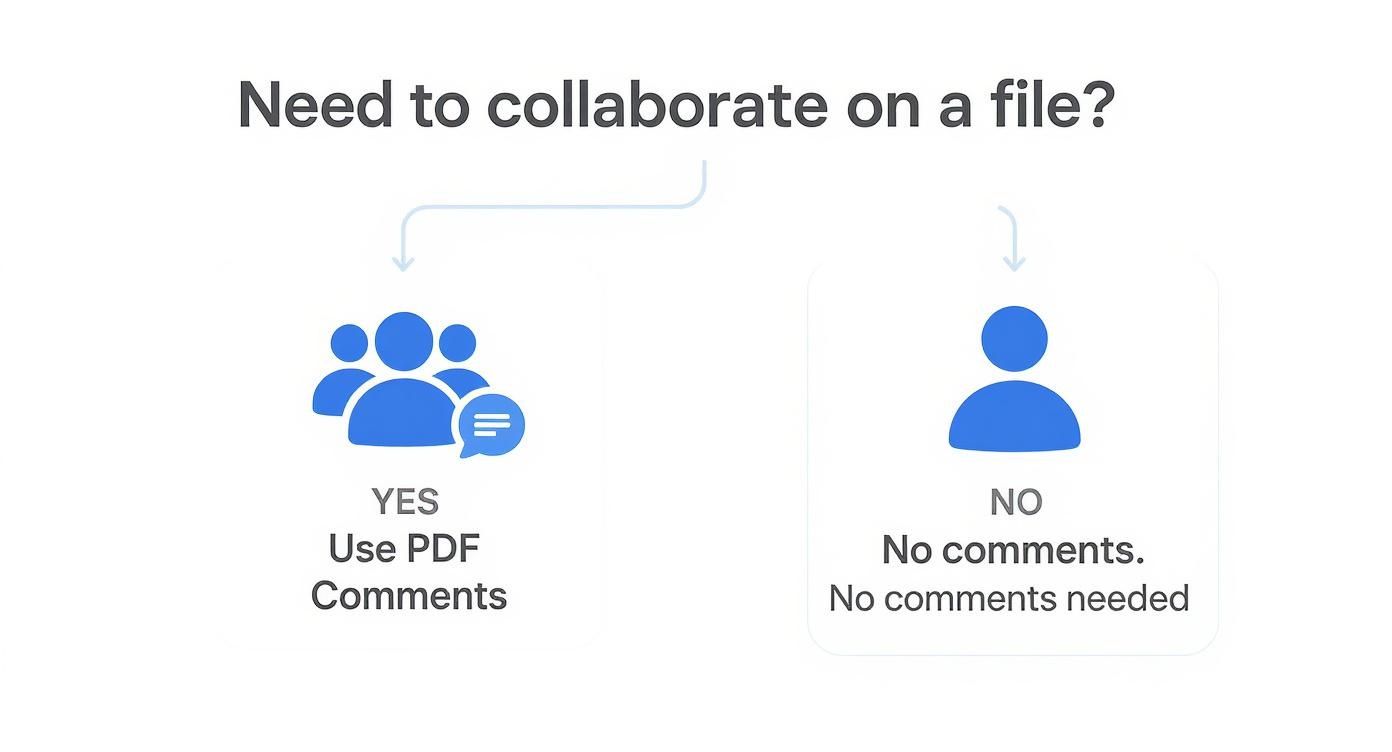
As the flowchart shows, the minute another person gets involved, clear, precise commenting becomes essential for keeping a project moving forward.
Desktop PDF Commenting Tool Comparison
To help you decide which tool fits your needs, here's a quick breakdown of what you get with the most common desktop applications.
| Feature | Adobe Acrobat Reader DC (Free) | Adobe Acrobat Pro (Paid) | macOS Preview (Free) |
|---|---|---|---|
| Sticky Notes | Yes | Yes | Yes |
| Highlight, Underline, Strikethrough | Yes | Yes | Yes |
| Drawing Tools (Shapes, Lines) | Yes | Yes | Yes |
| Text Boxes/Callouts | Yes | Yes | Yes |
| File Attachments in Comments | No | Yes | No |
| Compare Document Versions | No | Yes | No |
| Redact Sensitive Information | No | Yes | Limited (can be uncovered) |
| Shared Reviews (Real-time) | No | Yes | No |
This table makes it clear: while free tools are excellent for personal markups and straightforward feedback, the paid version of Acrobat Pro is built for deep, professional collaboration where version control and advanced features are critical.
When to Upgrade to Adobe Acrobat Pro
So, when is it worth shelling out for Adobe Acrobat Pro? While the free tools handle most situations, the Pro version is built for those who live and breathe complex document reviews.
For professional editors, legal teams, or anyone wrangling high-stakes feedback, Acrobat Pro isn't a cost—it's an investment in sanity. It lets you go beyond just inserting comments to actually managing the entire review cycle, comparing document versions, redacting sensitive text for good, and collecting feedback without losing your mind.
Its killer feature is the shared review. Instead of emailing a PDF to five people and getting five different annotated files back, you send a single link. Everyone's comments populate the same document in real-time. This completely eliminates the nightmare of manually merging feedback. For any formal, structured collaboration, it’s an absolute game-changer.
Adding PDF Comments with Online Tools and Browsers
Sometimes you just need to get feedback on a PDF fast, without the song and dance of downloading and installing special software. For those moments, the tools you already have open all day—your web browser and a handful of online editors—are surprisingly capable. You can often just drag a PDF into a new tab and get to work.
This is all about convenience. It’s perfect when you’re on a shared computer or trying to get quick feedback from a colleague who isn't exactly a tech whiz. The ability to insert comments in PDF files this way is a lifesaver for projects with tight turnarounds.
Using Your Web Browser as a PDF Editor
Modern browsers like Google Chrome and Microsoft Edge have grown up. Their built-in PDF viewers are no longer just for reading; they’ve become functional annotation tools that are perfect for simple, straightforward feedback.
Just open a PDF in your browser, and you’ll usually find a basic but effective set of tools:
- Highlighting: The easiest way to draw attention to a key sentence or statistic.
- Drawing: A freehand pen tool lets you quickly circle a confusing diagram or underline a sentence.
- Text Notes: You can drop a text-based comment anywhere on the page to ask a question or provide a specific instruction.
Once you’re done, you just save a new copy of the PDF, which now includes all your annotations. It’s the ideal workflow for a manager who needs to give a quick thumbs-up on a draft or a colleague pointing out a couple of typos.
Dedicated Online PDF Editors
When you need a bit more firepower but still want to avoid a software installation, dedicated web-based tools are your best bet. Platforms like Smallpdf, iLovePDF, and Sejda bring a desktop-like experience right into your browser, letting you add sticky notes, shapes, text boxes, and much more.
Most of these services offer a free tier that’s generous enough for occasional use. Their real advantage is that they bridge the gap—offering a much richer toolset than a browser viewer while keeping the zero-install convenience of a web app. But that convenience comes with a major caveat.
A Note on Security: Think twice before uploading sensitive documents to a third-party website. Always check the platform's privacy policy to see how they handle your data and how long they keep it. For non-sensitive files, these tools are fantastic; for a confidential business contract, you’re much safer sticking with a secure desktop application.
Commenting on documents is a fundamental part of how we work together, and it's no surprise that this functionality is part of a massive global annotation software market. This industry is actually projected to reach multi-billion-dollar valuations by 2033. If you're curious, you can discover more insights about the data annotation market and its growth.
Ultimately, browser-based tools give you a fast and accessible way to insert comments. For truly dense or complex documents, though, you might need a different approach. If your goal is to quickly grasp the core ideas of a long file, you might find our guide on how to use AI to summarize PDF documents a more effective way to turn lengthy reports into actionable insights.
How to Insert Comments in PDF Files on Mobile Devices
Work doesn't always happen at your desk. We're constantly reviewing documents on the go, and thankfully, adding feedback to a PDF is just as straightforward on a phone or tablet. Modern mobile apps are surprisingly powerful, essentially turning your device into a portable collaboration hub.
This is something I find myself doing all the time. Whether it's a manager on their morning commute quickly approving a report with a "Looks great!" comment, or a student annotating lecture slides on the bus, the flexibility is a game-changer.
Using the Adobe Acrobat Reader App
For a full-featured experience, the official Adobe Acrobat Reader app for iOS and Android is your best bet. It brings the familiar, intuitive feel of the desktop version right to your mobile device, so there's practically no learning curve.
Once a document is open, a simple tap brings up a whole suite of annotation tools. You'll probably lean on these core functions the most:
- Comment: Tap anywhere to drop a sticky note. I use this for general feedback or longer thoughts that aren't tied to a specific sentence.
- Highlight, Strikethrough, Underline: Just select text with your finger or a stylus, and a small menu appears with these options. It’s the quickest way to flag specific words.
- Text Tool: This lets you type directly onto the page—perfect for suggesting replacement wording or filling out a simple form field that isn't interactive.
- Drawing Tool: Need to give more visual feedback? The freehand tool is great for circling a diagram or drawing an arrow to connect two related ideas.
Every comment you make is saved directly into the file. When you send it back to your team, all your feedback is embedded right where you left it.
Leveraging Native iOS Markup Tools
If you're an iPhone or iPad user, you already have a powerful commenting tool built right into the OS. When you open a PDF in the Files app or Mail, just look for the Markup icon (it looks like a pen tip). Tapping it reveals a solid set of annotation tools.
The native integration is the real win here. You don't need a separate app for quick markups. It’s perfect for signing a contract and adding a quick note, or for circling a mistake on an invoice you just got in an email.
While it isn't as jam-packed with features as the dedicated Adobe app, the built-in Markup tool has all the essentials: pens, highlighters, text boxes, and even a spot to add your saved signature. It's an incredibly efficient way to insert comments in PDF files when you just need to get it done and sent off without any fuss.
Pro Tips for Effective PDF Collaboration
Okay, so you've got the basics of adding comments to a PDF down. Now, let's talk about how to take it to the next level. These are the techniques that separate a simple markup from a truly effective collaborative review, saving your team from those endless, confusing feedback loops.
A simple but surprisingly powerful trick is to establish a clear commenting system for your team. You don't need a complex manual—just a basic color-coding rule can work wonders.
- Red Highlights: Think of this as the "stop" signal. Use it for urgent, must-fix errors or critical changes that can't be ignored.
- Yellow Highlights: This is your "caution" or discussion zone. Perfect for suggestions, questions, or points that need a bit more conversation.
- Green Highlights: The green light. Use it to indicate approval or to mark sections that are good to go.
This kind of visual shorthand instantly tells reviewers where to focus their attention. It cuts down on review time and clarifies the status of every part of the document without anyone needing to hop on a call.
Streamline Your Review Workflow
When a document is covered in dozens of comments from multiple people, trying to find what you need can feel like digging for a needle in a haystack. This is where you need to stop scrolling and start using the built-in power tools.
Most serious PDF readers, like Adobe Acrobat, have a Comments List or Annotations Pane. This feature is an absolute game-changer. It pulls every single comment into one neat, sortable list. You can filter comments by author to see all of one person’s feedback at once, or sort by page number to review everything in order.
For really detailed collaborative work, like legal or contractual reviews, understanding formal processes like how to redline a contract can give you an even deeper appreciation for managing complex document changes.
One of the most underutilized pro features I've seen is the ability to summarize comments. Instead of exporting every single note, you can generate a clean summary PDF that lists all the feedback with its context. It's perfect for creating meeting minutes or a revision checklist.
If you’re working in a cloud-based system like Adobe Document Cloud, don’t forget the @mention function. It works just like it does on social media. Tag a specific colleague in a comment, and they’ll get a direct notification. This ensures they see the feedback meant for them without having to sift through everyone else's notes.
Work Faster with Keyboard Shortcuts
Let's be honest, clicking through menus slows you down. Power users know that keyboard shortcuts are the key to real efficiency. If you commit just a few of these to memory, you’ll find your markup workflow becomes much faster and more fluid.
| Action | Windows Shortcut | Mac Shortcut |
|---|---|---|
| Add Sticky Note | Ctrl + 6 |
Cmd + 6 |
| Highlight Text | U |
U |
| Strikethrough Text | D |
D |
| Underline Text | Shift + U |
Shift + U |
Mastering these skills isn't just a niche productivity hack. Data annotation tools, which include PDF commenting, are part of a massive market valued at around USD 6.98 billion in 2025. This tech is critical for everything from team collaboration to AI development.
If you're often buried under a mountain of feedback, our guide on turning a PDF to notes offers more great strategies for condensing and organizing that information.
Answering Common Questions About PDF Commenting
Even with the best tools, you can sometimes hit a snag when adding comments to a PDF. Don't worry, most of these issues are easy to fix once you know what's going on behind the scenes. Let's walk through some of the most frequent questions I hear and get you back on track.
Why Can't I Add Comments to a PDF?
This is easily the most common frustration, and it almost always comes down to two culprits: security settings or a "flattened" document.
First, the person who created the PDF might have locked it down and restricted commenting permissions. You can usually check this by digging into the document's properties (often under the "File" menu). If restrictions are enabled, you’ll need to get an unsecured version from the author to add your feedback.
The other likely reason is that the PDF has been flattened. Think of it like a layered cake being squished into a single pancake—all the individual layers are gone. This often happens with scanned documents or when a file is prepared for printing. Since commenting tools need to interact with text and object layers, they can't do anything with a flat image.
How Can I See All the Comments in a PDF at Once?
When a document is covered in feedback from multiple people, scrolling through every single page is a nightmare. Thankfully, every decent PDF reader has a built-in solution for this.
Look for a "Comments List" or "Annotations" pane. It's usually tucked away in a sidebar or found under the "View" menu.
This panel is your command center for all the feedback. It lists every single comment, and from there you can:
- Sort comments by author to see everything one person noted.
- Organize the list by page number for a more linear review.
- Filter by date to focus on the most recent additions.
The best part? Clicking on a comment in the list instantly jumps you to that exact spot in the document. It's a massive time-saver for conducting an organized review.
Seeing all comments in one place is absolutely critical for creating a single source of truth. It stops feedback from getting lost in the shuffle and ensures every note is addressed before you finalize the document.
Will Others See My Comments If They Don't Have Adobe?
Yes, absolutely. This is one of the best things about the PDF format.
Comments are built on an open standard, meaning they aren't exclusive to Adobe products. When you insert comments in a PDF and hit save, those notes become part of the file itself.
Anyone who opens that PDF in a modern viewer—whether it's Google Chrome, Microsoft Edge, macOS Preview, or a mobile app—will see your feedback. The little comment icons might look slightly different from one program to the next, but the content of your notes will be there. This cross-platform reliability is what makes PDFs so great for collaboration.
When you're dealing with dense reports or research papers, sometimes you need more than just comments—you need answers. PDF Summarizer lets you upload any document and chat with it directly. Ask questions, get instant summaries, and find key information in seconds, turning complex files into clear, actionable insights. Understand your documents faster at pdfsummarizer.pro.
Recent articles

Learn how to merge pdf foxit reader PDFs quickly with step-by-step tips, free options, and 2026 updates.

Learn how to open pdf in google docs across devices, fix formatting, and edit PDFs with ease.

Discover the 12 best document collaboration tools for any team. Compare features, pricing, and use cases to find the perfect platform for your workflow.

Learn how to add citations in Google Docs using the built-in tool, add-ons like Zotero, and an advanced PDF workflow. Master APA, MLA, and Chicago styles.

Discover the best citation management software for your research. Compare Zotero, EndNote, Mendeley, and more to find the perfect tool for your workflow.

Explore critical thinking skills for students with practical strategies to analyze information, argue persuasively, and boost academic success.