Translate Adobe PDF: Quick guide to translate adobe pdf in any language
Learn how to translate adobe pdf quickly with practical steps, free tools, and AI tips to reach any language.
Ever found yourself staring at a PDF in a language you don't understand? It’s a common roadblock. You might have an international research paper, a foreign market report, or even just a product manual that's a complete mystery.
To translate an Adobe PDF, your best bet ranges from quick and free online tools to more robust features within Adobe Acrobat Pro, or even specialized AI platforms for those high-stakes, sensitive documents. It really boils down to a trade-off between speed, accuracy, and security.
Your Guide to Translating Adobe PDFs
The whole point of a PDF is to lock in a document's look and feel, which is great until you need to translate it. That very feature makes translation a pain. Just copying and pasting the text into a standard translator often leaves you with a garbled mess, especially if the PDF has complex tables, charts, or is a scanned image. The formatting goes right out the window.
This guide will walk you through the best methods out there today, so you can pick the right tool for the job without the headache. Knowing your options is half the battle.
Choosing the Right Translation Path
So, where do you start? The best way to translate your Adobe PDF really depends on the document itself. Think of it like a decision tree—what works for a simple text file will fail miserably for a scanned legal contract.
This chart breaks it down perfectly:
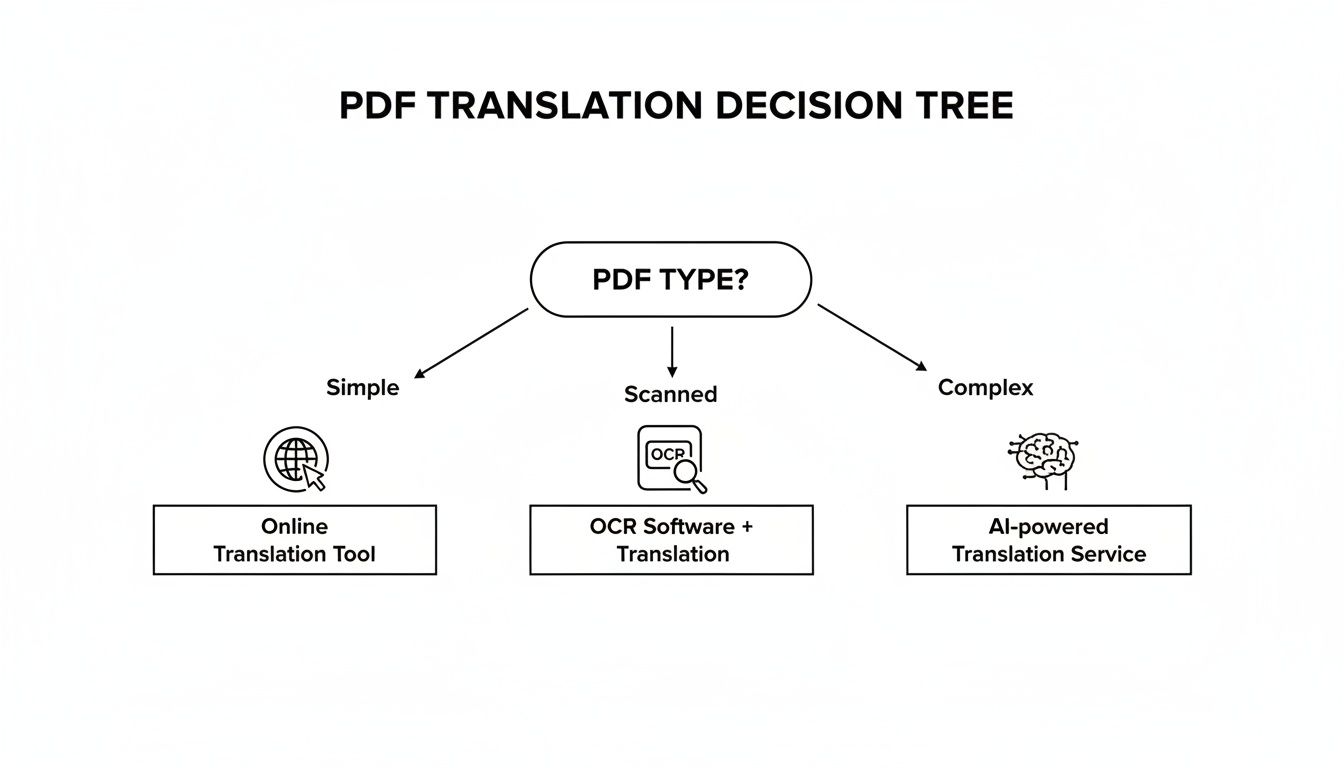
As you can see, for basic text documents, a simple online tool often gets the job done. But if you're dealing with a scanned PDF or an image-based file, you’ll first need a tool with Optical Character Recognition (OCR) to even make the text readable. For those really complex reports where every detail and formatting nuance counts, a dedicated AI platform is the only way to go.
The need for these solutions is blowing up. The global PDF software market hit USD 2.15 billion in 2024 and is on track to reach USD 5.72 billion by 2033. This growth is all about the worldwide shift to digital-first work, which makes having reliable PDF translation tools more critical than ever in both business and academic circles.
Using Online Document Translators for Quick Results
Sometimes you just need a fast, no-fuss translation. For getting the gist of a research paper, a quick client email saved as a PDF, or any other informal document, free online translators are your best bet. There's no software to install, and you get results almost instantly.
Platforms like Google Translate and DeepL have made this process incredibly simple. You just drag and drop your PDF, pick your language, and their systems do the heavy lifting. Within a minute or two, you’ll have a translated version ready to download.
This approach is perfect when you prioritize speed over perfect formatting. It's designed for text-heavy documents where the core information is what truly matters, not the fancy layout.
What to Expect With Formatting and File Limits
While these tools are a lifesaver for speed, they do come with a few trade-offs. The most common headache? Scrambled formatting. The translation process often plays havoc with the original design—think broken tables, misplaced images, and wacky layouts. It’s a known quirk of automated document translation.
You'll also run into file limits. Most free services cap the size of the PDF you can upload, often around 10 MB or a specific page count. If you’re working with a hefty, high-resolution report, you might have to split it into smaller files first, which can be a bit of a hassle.
Pro Tip: Be ready to do some manual cleanup. The translated file will almost certainly need some love. You'll likely be readjusting text boxes, realigning images, and fixing odd spacing, especially if the original PDF was visually rich.
To help you choose, here's a quick look at the most popular options.
Comparing Top Online PDF Translators
Deciding which online tool to use often comes down to balancing translation quality, file support, and potential limitations. Here’s a comparison of the top three free services for translating Adobe PDF files.
| Feature | Google Translate | DeepL | DocTranslator |
|---|---|---|---|
| Translation Quality | Good, wide language support. | Excellent, known for natural-sounding text. | Decent, but can be less nuanced than others. |
| Formatting | Often struggles with complex layouts. | Better than many, but not perfect. | Tries to preserve layout, with mixed results. |
| File Size Limit (Free) | Up to 10 MB. | Up to 5 MB or 3 files/month. | Handles larger files, up to 1 GB. |
| Best For | Quick gists and broad language needs. | High-quality text translation where nuance matters. | Large documents where preserving some layout is key. |
Ultimately, the best tool depends on your specific PDF. For a simple text document, DeepL might give you the most accurate result. For a massive report, DocTranslator's generous file size limit is a clear winner. It pays to try a couple to see which one handles your document best.
Privacy Risks and When to Avoid Online Tools
Here's the big catch with free online tools: privacy. When you upload a document, you're sending your data to a third-party server. Many of these services state in their terms that they might use your data to improve their translation models.
This is a massive red flag for anything confidential. You should never upload documents containing:
- Personal financial details or bank statements
- Proprietary business data or internal reports
- Sensitive legal contracts or client information
For these types of files, the convenience just isn't worth the risk of a data breach. There are many ways to translate a PDF to English for free using more secure methods, but always read the privacy policy before uploading anything sensitive. For confidential work, stick to a secure desktop app like Adobe Acrobat or a trusted, privacy-focused AI tool.
Translating Directly Within Adobe Acrobat Pro
If you're already living and breathing in the Adobe ecosystem, you'll be glad to know there are powerful translation tools built right into Adobe Acrobat Pro. This is my go-to method when security is the top priority. It keeps your sensitive documents inside a trusted environment rather than uploading them to some random third-party website. It’s the best choice for anyone who can't compromise on document integrity and privacy.
The real beauty of working directly in Acrobat Pro is that you sidestep the formatting nightmares that often come with online converters. The translation happens right there, in context. You can quickly check a snippet of text without completely scrambling the document's layout. This is incredibly handy for things like contracts or reports where you just need to understand a specific clause, not the whole thing.
Using the Acrobat AI Assistant
The Acrobat AI Assistant is the real game-changer here. This isn't just a basic text selection tool; it offers a much more interactive way to engage with your documents. You can highlight a piece of text and simply ask the AI Assistant to translate it for you on the fly. You get an instant interpretation without ever leaving the PDF.
But it goes beyond simple translation. This integrated tool can also summarize dense passages or answer specific questions about the document in whatever language you're working in.
Let's say you receive a massive report in German. Instead of translating all 100 pages, you can just ask the AI Assistant in English, "What are the key financial takeaways from section three?" It pulls out the answer for you, saving an incredible amount of time. It's no wonder this feature is catching on; Adobe reported that the Acrobat AI Assistant's adoption skyrocketed by over 40% in a single quarter. That kind of growth tells you it's solving real problems for people. You can read more about how AI is boosting Adobe's tools and revenue on futurumgroup.com.
Real-World Scenario: A legal team gets a 50-page contract in French. Instead of paying for a full, time-consuming translation, a paralegal uses the Acrobat AI Assistant. They instantly translate only the critical indemnity and liability clauses, verifying key terms in minutes. The best part? The confidential document never left their local machine.
Strengths and Limitations of This Method
The biggest win for using Acrobat's native tools is undoubtedly security. Your file stays within the application, wiping out the privacy risks you run with online services. Plus, this method does a fantastic job of preserving the original document's formatting and context.
Getting a translation started in Adobe Acrobat Pro is pretty straightforward, giving you instant results without a lot of fuss.
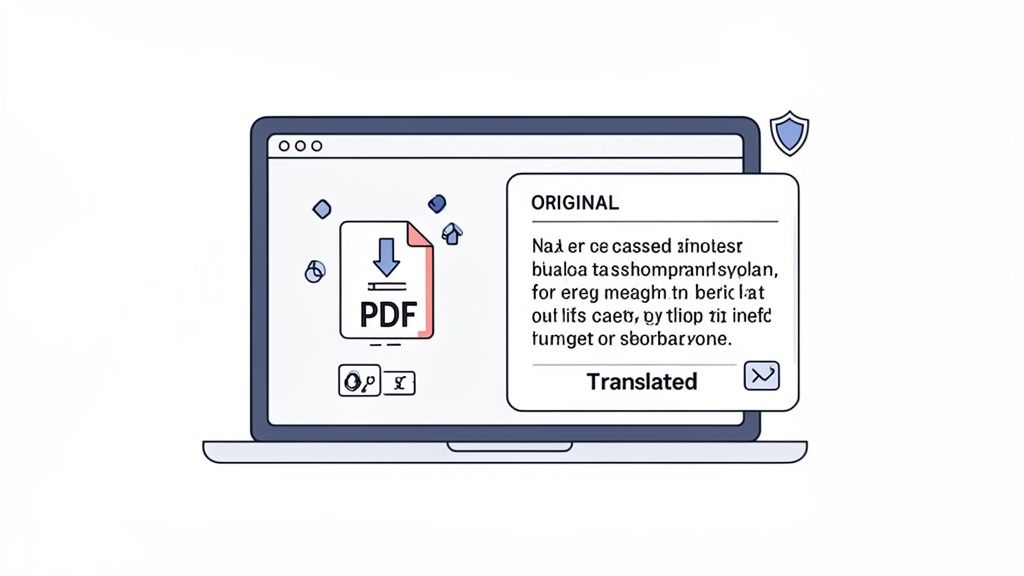
As you can see, the process is baked right into the existing Acrobat workflow. But it's crucial to know the limits. While it's perfect for quick checks, translating snippets, and getting AI-powered summaries, Acrobat's built-in features aren't really designed to spit out a fully formatted, translated version of an entire document in one click. For that kind of heavy lifting, you’ll need a more specialized approach.
And if you run into a locked document, you might first need to figure out how to edit a read-only PDF before you can even select the text to translate it.
How to Translate Scanned PDFs and Images with OCR
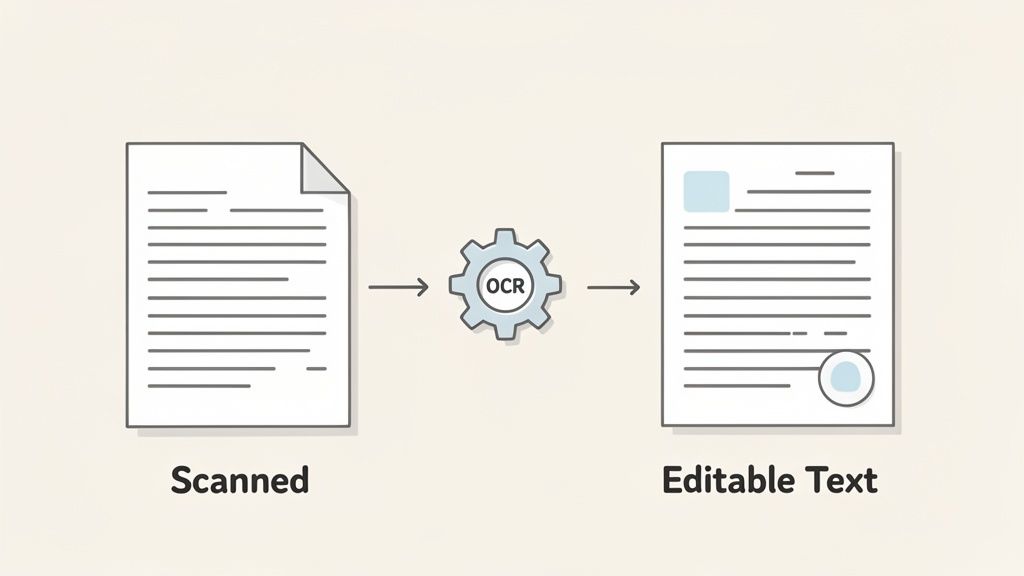
Ever tried to translate a PDF only to find you can't select any of the text? This is a classic sign you're dealing with a scanned document. Whether it's an old contract or a research paper, the PDF is essentially a flat image, and your computer sees pictures of words, not actual text it can work with.
This is where a technology called Optical Character Recognition (OCR) saves the day. Think of it as a tool that reads the image, identifies each letter and number, and converts it all into real, editable text. Without OCR, no translation software can even begin to understand what's on the page.
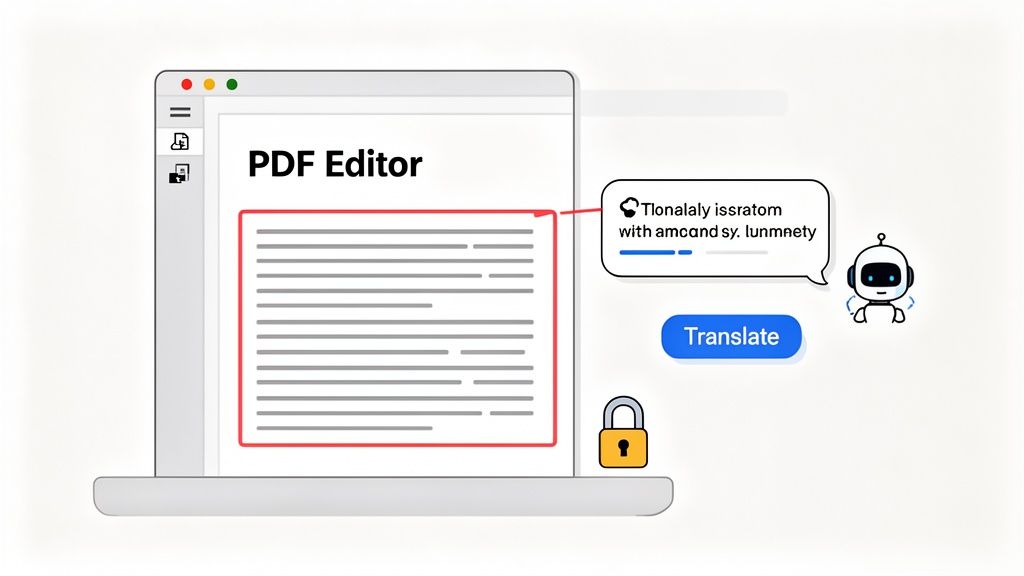
Many professional PDF tools, including Adobe Acrobat Pro, come with this feature built right in. You just need to open your scanned file and run the "Scan & OCR" or "Recognize Text" function. What this does is create a hidden layer of text directly over the original image, making it finally selectable and ready for translation.
The Two-Step Translation Workflow
Once the OCR magic is done, you've got a text-enabled PDF. From here, the translation process is pretty straightforward.
First, you need to get that newly recognized text out of the document. The easiest way is to simply copy and paste the sections you need. For larger documents, a better approach is to export the entire file into an editable format, like a Microsoft Word file (.docx).
Second, you translate the content. Now that the text is accessible, you can drop it into a powerful online tool like DeepL for a quick, high-quality translation. If you're working inside Acrobat Pro, you can also use the integrated AI Assistant to translate small chunks of text on the fly.
This whole process effectively unlocks information that was previously trapped inside a static image. For more advanced tips, our guide on how to extract information from PDF files is a great next read.
Keep in mind, OCR technology is incredibly useful beyond just translation. It's the key to digitizing archives, making old documents searchable, and turning stacks of paper into valuable data. The accuracy of the OCR scan is the foundation for everything that follows.
Getting Better Translations by Improving OCR Accuracy
Your final translation will only ever be as good as the initial text recognition. If the OCR tool messes up—reading an "e" as a "c" or missing punctuation—those errors get passed directly into the translation, often creating confusing or nonsensical results.
Here are a few things I've learned to get the cleanest possible OCR output:
- Start with a High-Quality Scan: This is non-negotiable. Aim for a scan resolution of at least 300 DPI (dots per inch). A crisp, clear source image gives the software the best chance of getting every character right.
- Check for Good Lighting and Contrast: Shadows, glare, or faded text are the enemy of accurate OCR. A clean, evenly lit document will always produce better results.
- Select the Correct Language: Before you hit "run," double-check that you've told the OCR tool which language it's looking for. This helps it correctly recognize unique characters, accents, and symbols.
By taking a moment to optimize your scan quality, you set the stage for a much more reliable and accurate translation of your Adobe PDF.
Going Beyond Translation with AI-Powered Analysis
Sometimes, a simple word-for-word translation just doesn't cut it. Standard tools are fine for getting the gist of a document, but they often stumble over context, jargon, and the intricate connections between multiple files. This is where modern AI platforms change the game. They offer a much deeper level of understanding that goes far beyond just swapping words from one language to another.
Think about a legal team sifting through a mountain of case files from Germany, France, and Spain. Instead of the slow, painful process of translating each document one by one, they can upload the entire batch into a single, intelligent system. They can then ask complex questions in plain English, like, "Pull all references to intellectual property precedents from these documents," and get a single, synthesized answer. The AI does the heavy lifting, connecting the dots across all languages.
From Translation to True Understanding
These advanced systems aren't just built to translate Adobe PDF files; they’re designed to analyze them. This is a massive leap forward for anyone who needs to synthesize information from multilingual sources, whether you're an academic conducting a literature review or a financial analyst comparing international market reports.
The real magic of these platforms comes down to a few key advantages:
- Context Is King: AI models read the entire document to grasp slang, technical terms, and subtle nuances. This results in far more accurate translations than you'd get from a simple copy-paste tool.
- Ask Anything, in Any Language: You can pose questions in one language and receive cohesive answers pulled from documents written in many others. This completely breaks down old information barriers.
- No More Formatting Nightmares: Many of these tools are smart enough to preserve the original layout—including charts and tables—saving you hours of tedious cleanup work.
- Security You Can Trust: Unlike many free online translators, professional-grade AI platforms offer robust security protocols, keeping your confidential data locked down.
This shift isn't just a niche trend; it's a massive industry movement. The market for language translation software hit an incredible USD 63.98 billion in 2024 and is on track to reach USD 115.07 billion by 2035. AI is the engine driving this growth, making complex translation workflows more accurate and accessible than ever before. For a deeper dive, check out this detailed language translation software report.
Getting Your PDFs Ready for AI
To unlock the full potential of these powerful systems, your documents need to be prepped correctly. If you're working with scanned PDFs, for example, the first step is always running them through Optical Character Recognition (OCR) software. This turns what is essentially an image of text into actual, machine-readable data.
A clean, well-structured PDF is the foundation for accurate AI analysis. If the AI can't read the text properly, it can't translate or analyze it effectively. Garbage in, garbage out.
The better the source material, the better the final result. Learning how to properly convert PDF document to text using AI-powered platforms is a critical first step. By feeding the AI clean, workable data from the start, you ensure you're getting reliable insights for your multilingual projects.
Common Questions About Translating Adobe PDFs
When you start digging into how to translate an Adobe PDF, you'll quickly run into a few common hurdles. Everyone seems to hit the same walls. Getting clear answers to these questions upfront will save you a ton of frustration and help you choose the right tool for the job.
Let’s walk through the most frequent issues people face. We'll cover everything from keeping your document's layout from falling apart to navigating the tricky waters of security and getting accurate translations for highly specialized content.
How Can I Translate a PDF and Keep the Formatting?
This is the million-dollar question, isn't it? You've spent hours perfecting a visually rich document, and the last thing you want is for a translation tool to turn it into a jumbled wall of text. Unfortunately, most free online tools do exactly that.
To get the best results and keep your layout intact, you have a few solid options:
- Stick with dedicated software. Tools like Adobe Acrobat Pro are built to work within the PDF's structure, giving you a much better chance of preserving the original layout during translation.
- Use an advanced AI tool. Some modern platforms are specifically designed to handle complex formatting. They often show you the translation side-by-side with the original, which is a great way to maintain visual consistency.
- Try the export-and-translate method. This is a more hands-on approach. First, use Acrobat to export the PDF to a Word document (.docx). Then, run that Word file through a high-quality translator like DeepL. Finally, you'll need to manually clean up the layout in Word before saving it back as a PDF.
The export-to-Word workflow definitely gives you the most control, but it requires more manual effort. It’s the go-to method when the final visual presentation is just as important as the translated text.
Can I Translate a Password-Protected PDF?
In most cases, the answer is no. Translation tools need to get under the hood and access the PDF's content layer to pull out the text. If a password prevents copying or editing, these tools simply can't get in.
You'll have to remove the restrictions first. This means you need the password to open the file in a program like Adobe Acrobat Pro. From there, you can save a new, unlocked version of the document. Once those permissions are gone, you can use any of the translation methods we've talked about. Trying to upload a locked file to an online translator will almost always just give you an error message.
What Is the Most Accurate Way to Translate a Technical PDF?
When you're dealing with technical, legal, or medical documents, "close enough" isn't good enough. Precision is everything. Standard machine translation often stumbles over the specialized terminology and subtle nuances in these files.
The gold standard here is a hybrid approach—a smart combination of machine power and human expertise.
- First, run the document through a top-tier AI translator like DeepL, which is known for handling complex sentence structures better than most. This gets you a very strong first draft.
- Then, and this is the crucial part, have a human expert review and edit the translation. This person must be fluent in both languages and, just as importantly, be a subject-matter expert in that specific field.
This two-step process ensures all the jargon is translated correctly and that the final document is not just linguistically accurate but also makes perfect sense to its intended professional audience.
Are My Documents Safe with Online PDF Translators?
This is a huge one. When you upload a file to a free online service, you're sending it to a third-party server, and you have little to no guarantee of privacy. In fact, many of these platforms openly state in their terms of service that they might use your documents to train their translation models.
That’s a massive security risk if your document contains any confidential information. You should never upload sensitive financial records, private business plans, or personal legal documents to a free, public website.
For anything sensitive, your best bet is to use secure, offline desktop software like Adobe Acrobat Pro. Alternatively, you can use a privacy-first AI tool that offers end-to-end encryption and explicitly guarantees your documents won't be stored. Always take a minute to read the privacy policy before you upload anything.
For a seamless and secure way to understand documents in any language, PDF Summarizer offers an intelligent solution. Chat with your PDFs, get instant summaries, and ask questions across multiple files at once. Our AI-powered tool supports any language, providing on-the-fly translation and analysis while keeping your data private. Try it for free at PDF Summarizer.
Relevant articles
Discover how to translate PDF to English free with our guide to the best online tools. Learn to handle scanned docs and keep your formatting intact.