Translate PDF to English Free A Practical Guide
Discover how to translate PDF to English free with our guide to the best online tools. Learn to handle scanned docs and keep your formatting intact.
Got a PDF stuck in a language you don't understand? The fastest way to get it into English is often a good, secure web-based tool. These services are built for one thing: you upload the file, pick your language, and get a translated version back in seconds. No software, no fuss.
Why Bother With a Guide for Free PDF Translation?
It happens to everyone. You could be a student staring down a foreign research paper, a professional trying to make sense of an international report, or just someone who stumbled upon an interesting document. That language barrier can feel like a solid wall.
Needing to translate a PDF to English for free is a super common problem, but thankfully, we have more solutions today than ever before. This guide is all about showing you the practical, no-cost ways to get it done right.
We're going to skip the tedious copy-and-paste methods. Instead, we'll dive into everything from instant online translators to some powerful features tucked away in software you probably already have installed. The whole point is to give you real, actionable advice that works.
What This Guide Covers
Think of this as your go-to playbook for choosing the right tool for the job. Different PDFs need different approaches, and we'll walk through the most common scenarios you'll face.
- Simple Text Documents: For basic PDFs with mostly text, we’ll look at the quickest online options.
- Complex Formatted Reports: When the layout is crucial—think tables, images, and columns—I'll show you how to keep it all intact.
- Scanned or Image-Based Files: We’ll cover how to use Optical Character Recognition (OCR) to turn those "untranslatable" images of text into something you can actually work with.
- Ensuring Accuracy: You'll learn a few simple checks to make sure the final translation is reliable and actually makes sense.
By the time you're done here, you’ll be able to tackle any PDF translation task without spending a penny. The goal is to give you the confidence to pick the best free method for your specific needs, saving you a ton of time and frustration.
Once you have your document translated, especially if it’s a dense academic text, you might want some tips on how to read scientific papers efficiently to really absorb the information.
Instant Online Tools for Quick PDF Translation
When you need to understand a foreign-language PDF right now, nothing beats a web-based translator. These tools are built for pure speed and convenience. You just upload your file, and in a few moments, you have an English version ready to go—no software installation required. It's the perfect solution when you just need to get the gist of a report or paper quickly.
The real game-changer here, though, is how AI has completely transformed these simple translators. Imagine you have a dense, 50-page research paper in another language. Instead of slogging through a direct translation, you can now just ask the document questions in plain English. This conversational approach is a massive time-saver.
For instance, a tool like PDF Summarizer lets you upload your file and start a direct chat with it. You can ask things like, "What are the key conclusions of this study?" or "Summarize section three for me," and get immediate, sourced answers back in English.
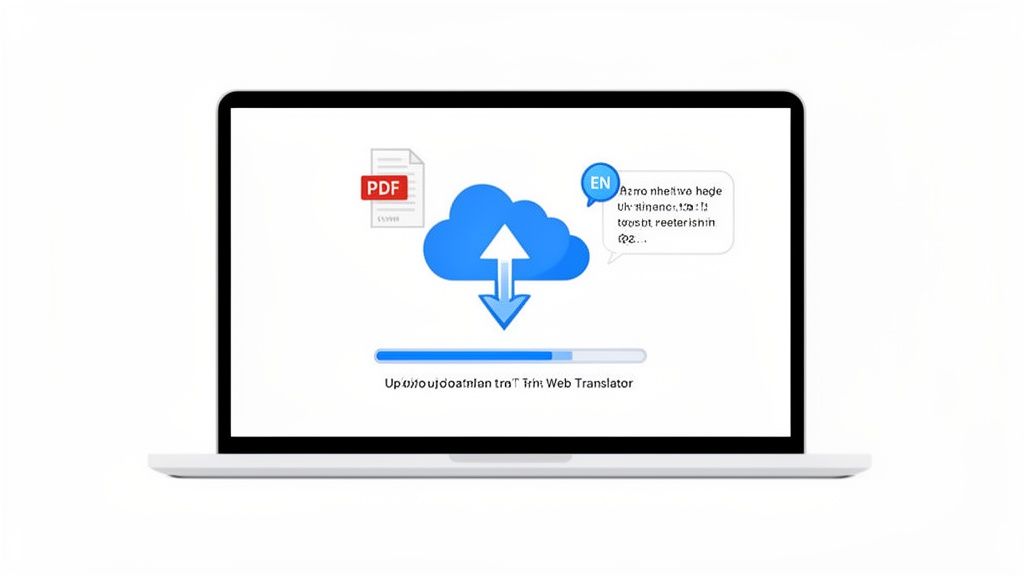
This screenshot shows exactly what I'm talking about. It’s a modern, interactive way to translate a PDF to English for free. You've got the document viewer on one side and a chat interface on the other, making it easy to ask questions and get answers. The best part? You can instantly verify what the AI tells you by clicking on citations that jump you right to the original text.
How Interactive Translation Works
This new generation of tools doesn't just swap words from one language to another. The AI first reads and genuinely understands the document's content, no matter the original language. This means you're not just getting a flat translation; you're actually interacting with the core information inside the document.
Here are a few features that make these tools so powerful:
- On-the-fly Translation: The text is converted into English instantly as you interact with it.
- Multi-File Chat: This is a lifesaver for research. You can upload several related PDFs and ask questions across all of them at once.
- Side-by-Side View: Having your conversation next to the original PDF page makes it incredibly easy to check sources and see the context.
A quick heads-up: if your PDF is a scan, the text might be trapped inside an image. You'll need to make that text selectable first. You can learn more about how to extract text from a PDF online before dropping it into an interactive tool.
This interactive process is a massive leap from old-school translation. Instead of a static, translated document, you get a dynamic workspace where you can probe the document for the exact information you need, saving immense amounts of time.
Limitations of Free Online Tools
As useful as they are, free online PDF translators aren't without their limits. Knowing what to expect can help you pick the right tool for the job and save you a headache later on.
Free and no-signup tools have become a go-to for students and researchers, and most platforms offer very functional free tiers. By 2025, it became standard for these services to impose file-size caps around 5–10 MB and have processing times ranging from under a minute to several minutes. For many, this trade-off is well worth it. The combination of free access with paid premium features has made interactive tools—offering translation, multi-file chats, and clickable source citations—a massive productivity booster, cutting down research time by an estimated 50% or more.
Just keep these common constraints in mind:
- File Size Caps: Most free versions will limit how large of a PDF you can upload.
- Page Limits: Some services will only translate a certain number of pages for free.
- Privacy Concerns: This one is important. Think twice before uploading sensitive or confidential documents to a free web service. It's always a good idea to check the privacy policy first.
Using Google’s Free Tools to Translate Your PDFs
You probably already have access to a powerful and completely free way to translate PDFs: the Google suite. There are actually two different ways to do this using Google's tools, and picking the right one from the get-go will save you a ton of hassle.
The quickest path is using the document translation feature built right into Google Translate. This is my go-to when I just need the text and couldn't care less about the original formatting. It's perfect for simple, text-heavy documents like articles or basic reports where speed is everything.
You just pop over to the website, click the "Documents" tab, upload your file, and it spits out the translation.
It's beautifully simple. The interface is clean, the process is fast, and you get your translated text in seconds.
The Google Docs Method: When Formatting Matters
But what about those PDFs where the layout is actually important? Think of a brochure, a technical manual with diagrams, or a report filled with tables and columns. For those, the direct translate tool can create a jumbled mess.
This is where the Google Docs method comes in. It requires one extra step, but trust me, the results are leagues better for complex documents. You’re essentially using Google Drive’s powerful conversion engine to do the heavy lifting first.
Here’s how it works:
- First, upload your PDF file to your Google Drive.
- Find the file in Drive, right-click on it, and hover over "Open with."
- From the menu that appears, select "Google Docs."
What happens next is pretty cool. Google runs its own Optical Character Recognition (OCR) process on the PDF, turning it into an editable Google Doc. It’s surprisingly good at keeping the original structure—things like columns, text wrapping around images, and even basic tables usually come through intact.
Once it's open as a Google Doc, the final step is a breeze.
In the new Google Doc, just go up to the menu and click Tools > Translate document. This creates an entirely new, translated copy, so your original file remains untouched.
So, Which Google Method Should You Choose?
Deciding is all about the complexity of your document.
If you're looking at a 20-page academic paper that’s all text, the direct Google Translate uploader is the most efficient choice. You’ll get the core information you need almost instantly.
However, if you have a company newsletter with a specific layout or a manual where images and text need to stay in context, the Google Docs method is the only way to go. The initial conversion preserves so much of the original look and feel, giving you a final document that’s far more professional and easier to read. It's hands-down the best way to translate a PDF to English for free while keeping the formatting in one piece.
Dealing With Scanned PDFs and Tricky Layouts
What happens when your PDF isn't a simple, text-based document? Maybe you're working with a scanned contract, an old academic paper saved as a series of images, or a report packed with complex tables, charts, and columns. With these files, you can't just select the text and copy it into a translator.
This is where a clever piece of technology called Optical Character Recognition (OCR) comes into play. Think of OCR as a digital magnifying glass that scans an image, identifies the shapes of letters and numbers, and turns them into actual, editable text. Without OCR, your scanned document is just a picture to your computer. With it, the text is unlocked and ready for translation.
The good news is you don't need to hunt for a separate OCR tool. Many of the free methods we've already covered, like the Google Docs approach, have this technology built right in.
This quick flowchart helps visualize which Google tool to grab based on your PDF's complexity.
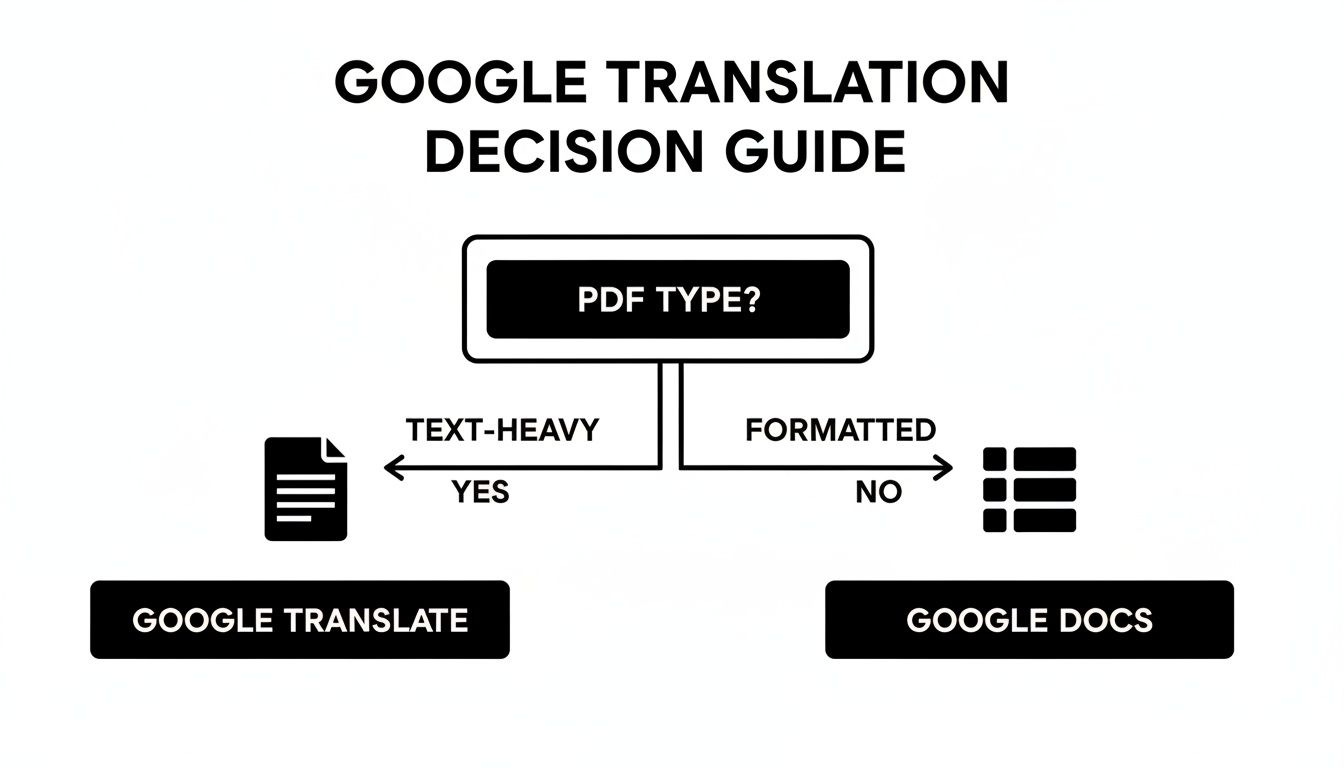
As you can see, the choice is pretty clear. For straightforward, text-heavy documents, Google Translate is the speedier option. But for anything with formatting you want to keep, Google Docs is the way to go.
Keeping Your Formatting Intact with Microsoft Word
While Google Docs is a fantastic free tool, don't overlook Microsoft Word. If you already have it installed, Word's ability to handle complex PDF layouts can be surprisingly powerful, often doing a better job of preserving the original document's structure than other free options.
The process couldn't be simpler. Just open the PDF file directly in Word. The application will show a small prompt, letting you know it's about to convert the PDF into an editable Word document. This conversion is where the real work happens. Word is remarkably good at recognizing and recreating elements like:
- Columns and Text Boxes: It does a solid job of keeping multi-column layouts from falling apart.
- Tables: It converts tables from the PDF into actual, editable Word tables with impressive accuracy.
- Images and Captions: It usually maintains the placement of visuals alongside their corresponding text.
Once the file is open and converted, you can use Word’s own translation feature, found right under the "Review" tab. This two-step process—convert first, then translate—is one of the best ways to translate a PDF to English for free while saving yourself a ton of time on cleanup afterward.
Choosing the Right Method for Your Document
The market for machine translation has grown massively, with modern AI-powered services now able to process a 10-page technical PDF in just a few minutes—a task that used to take days.
To help you decide, here's a quick comparison of the free methods we've discussed and what they're best suited for.
Comparison of Free PDF Translation Methods
| Method | Best For | Formatting Preservation | Scanned PDF (OCR) | Ease of Use |
|---|---|---|---|---|
| Quick Web Tools | Short, text-only files where speed is the priority. | Low | No | Very Easy |
| Google Translate | Text-heavy documents with simple layouts. | Low | No | Very Easy |
| Google Docs | Scanned PDFs and documents with moderate formatting. | Medium | Yes | Easy |
| Microsoft Word | Digitally-created PDFs with complex layouts (tables, columns). | High | No | Easy |
Ultimately, the best method really depends on the file you're working with.
Key Takeaway: For a scanned document, you must start with OCR, making the Google Docs method your best free option. For a digitally-created PDF with lots of formatting, Microsoft Word often delivers a more faithful layout conversion before you even get to the translation step.
By pairing OCR with the right translation tool, even the most challenging PDFs become easy to handle. And if your goal is just to pull out specific facts or figures instead of translating the whole file, you might find it more efficient to explore different ways to extract information from a PDF. It's a great time-saver when you only need the key takeaways from a dense report.
How to Verify Your Translation Accuracy
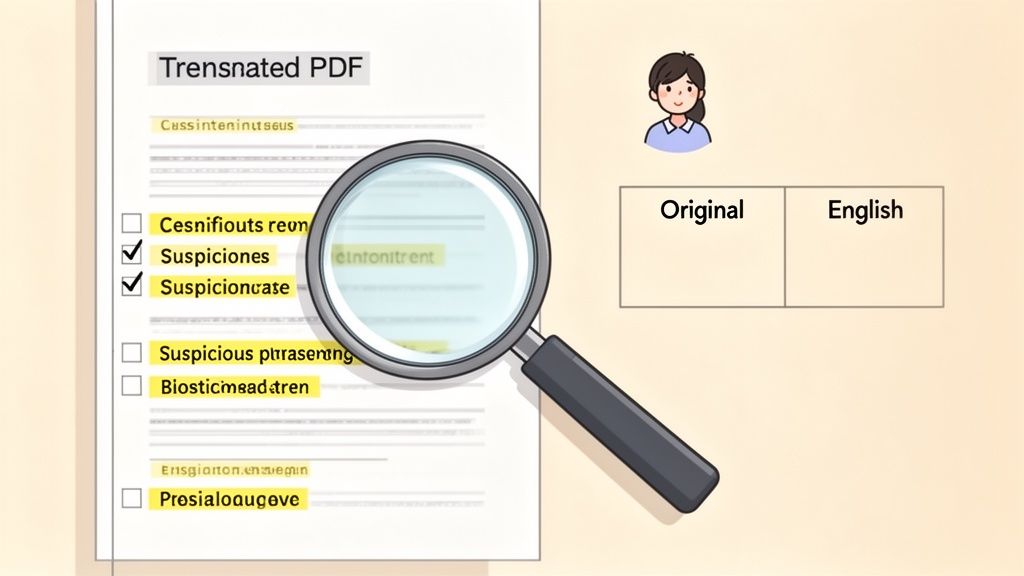
A free translation is only as good as it is accurate. And while today’s AI tools are impressive, they’re far from flawless. They often miss subtle context, pick some truly clunky phrasing, or get completely stumped by idioms.
Taking just a few minutes to quality-check the output can make all the difference, turning a rough, robotic draft into something you can actually use.
My go-to first step is surprisingly low-tech: I read important parts of the text out loud. It might sound silly, but your ear is a fantastic tool for catching stilted, unnatural phrasing that your eyes might just skim over. If you find yourself stumbling over a sentence, that’s a dead giveaway it needs a human touch.
Spotting Common Machine Translation Errors
When you translate a PDF to English for free, the machine translation tools tend to make the same kinds of mistakes over and over. Once you know what to look for, you can spot and fix them much faster.
Here are the usual suspects I always check for:
- Contextually Wrong Words: This is a classic. An AI might translate the Spanish word "banco" as a financial "bank" when the sentence is clearly talking about sitting on a "bench."
- Literal Idiom Translations: You'll see some bizarre stuff here. An expression like "it's raining cats and dogs" won't make any sense when translated word-for-word into another language.
- Awkward Phrasing: This is what happens when the AI clings too tightly to the source language's sentence structure. The result is grammatically correct but feels stiff and unnatural in English.
For anything critical—names, dates, technical specs, or key figures—I always cross-reference. Just copy a specific term and pop it into a different translator like DeepL or Google Translate. If they give you different results, it’s a red flag. You'll need to dig a little deeper to figure out the right translation.
Adopting a Hybrid Translation Workflow
For documents where accuracy is absolutely critical—think legal contracts, user manuals, or major business proposals—a hybrid approach is your best bet. You let the AI do the initial heavy lifting, and then have a human with a good command of the language review and polish the output.
This hybrid model gives you the best of both worlds: the raw speed of AI and the nuanced understanding of a human expert. It's a smart way to get high-quality results without paying for a full manual translation from scratch.
Modern neural machine translation (NMT) has made incredible leaps. In fact, by 2025, the accuracy of AI for business documents hit around 94% for many language pairs, nearly on par with professional humans. The new best practice isn't AI or human, but AI then human. The machine handles the volume, and a person provides the final polish for critical content.
Don't have a native speaker on hand? You can still improve the output. One trick is to run the translated text through another AI tool, this time for summarization. Our guide on using a free PDF summarizer shows how you can quickly condense key sections. This is a great way to verify if the core ideas and takeaways survived the translation process and still make logical sense.
Common Questions About Free PDF Translation
If you're trying to translate a PDF to English for free, you've probably run into a few common roadblocks. Getting quick and reliable translations without paying can feel like a maze, but it doesn't have to be. Let's walk through some of the most frequent questions that come up.
Knowing the answers ahead of time will help you choose the right tool for the job and keep your information safe.
Is It Safe to Upload My PDF to a Free Online Translator?
This is the big one, and the honest answer is: it really depends on what’s in the PDF.
If you're translating something non-sensitive—like a public report, a news article, or an academic paper—a reputable free online tool is usually fine. The risk is pretty low.
But you should never upload confidential documents. This means anything containing personal data, financial information, signed contracts, or proprietary business details. Why? Many free services state in their terms that they can use your data to train their AI models.
Before you upload anything, take a second to read the privacy policy. For sensitive documents, your safest bet is an offline method, like the translator built into Microsoft Word, which keeps the process on your local machine.
How Can I Keep the Original Formatting?
This is where most free tools stumble. Trying to keep the original layout, with all its columns, images, and tables, is a huge challenge. Most quick web-based translators will just give you back a wall of plain text, which can be a nightmare to read.
For preserving formatting, Microsoft Word is often your best option. It does a surprisingly good job of converting PDFs into editable Word documents while trying to keep the layout intact.
Just open the PDF with Word, let it convert, and then head to the "Review" tab to use the built-in "Translate" feature. It’s not flawless, but this two-step approach—convert, then translate—gives you the best shot at a well-formatted result without having to rebuild it from scratch.
Can I Translate a Scanned or Image-Based PDF?
Yes, absolutely! It just requires one extra step. A scanned PDF is really just an image of text, so standard translators can't read it. You need a tool with Optical Character Recognition (OCR) to first turn that image into machine-readable text.
One of the most effective free ways to do this is with Google Drive.
- First, upload your scanned PDF to Google Drive.
- Next, right-click the file and choose "Open with > Google Docs."
Google’s OCR engine will kick in automatically, converting the scanned pages into a fully editable Google Doc. From there, you can just go to "Tools > Translate document." The accuracy depends on the quality of the original scan, but for a free solution, it works wonders.
Why Did My PDF Translation Fail?
It’s definitely frustrating when a translation just doesn't work. Usually, it's one of a handful of common culprits. The PDF might be password-protected or have copy-and-paste restrictions, which blocks the software from accessing the text.
As we just covered, a scanned PDF will always fail if the tool doesn't have OCR. Sometimes, really complex layouts with lots of overlapping graphics can also trip up the software.
The most common reason, though? You’ve probably hit the file size limit. Most free services cap how large a file you can upload. Before you give up, check if the file is locked or oversized. If it's too big, try splitting it into smaller chunks and translating them one by one.
Stop wrestling with dense PDFs and start getting answers. With PDF Summarizer, you can chat with your documents in any language, get instant summaries, and find the exact information you need in seconds. Try it for free today and see how easy understanding your documents can be.
Relevant articles
Learn how to translate adobe pdf quickly with practical steps, free tools, and AI tips to reach any language.