Combine Multiple PDFs Into One A Practical Guide
Learn how to combine multiple PDFs into one using free tools and professional software. Our guide offers actionable tips for better document management.
Knowing how to combine multiple PDFs into one file isn't just a neat computer trick—it's a core skill for anyone trying to stay organized in a digital world. It’s all about taking a bunch of separate PDF files and stitching them together into a single, easy-to-manage document. This simple action can make a world of difference for everything from submitting a project to sending a polished presentation to a client.
Why Combining PDFs Is a Productivity Superpower
Merging PDFs is more than just cleaning up a messy desktop. It’s a strategic move that makes you more efficient, your work clearer, and your final product look far more professional, no matter what you do.
For a student, this could mean pulling together scattered lecture notes, a few research papers, and your assignment drafts into one master study guide before an exam. Suddenly, everything you need is in one place and searchable.
In a business context, the advantages are even clearer. Picture a legal team juggling dozens of individual documents for a big case—affidavits, motions, and exhibits. Combining them into a single, logically ordered master file is a game-changer. It ensures nothing gets lost in the shuffle and streamlines the entire review process. This kind of workflow improvement is a key part of many broader productivity solutions that aim to smooth out digital hiccups.
The Real-World Impact on Efficiency
The amount of time you get back by working from a single, consolidated document is huge. Think about a team that has to review a proposal spread across 15 different files. Just by merging them, they can slash the time it takes to find information by up to 70%. It also cuts down on the digital clutter that can bloat file counts by 40% on big projects.
Key Takeaway: A unified PDF doesn't just make sharing and archiving easier. It creates a stronger, more professional narrative for your audience, whether you're dealing with clients, colleagues, or professors.
Not sure which method to use? This decision tree can help you pick the right tool based on whether you need speed, special features, or top-notch security.
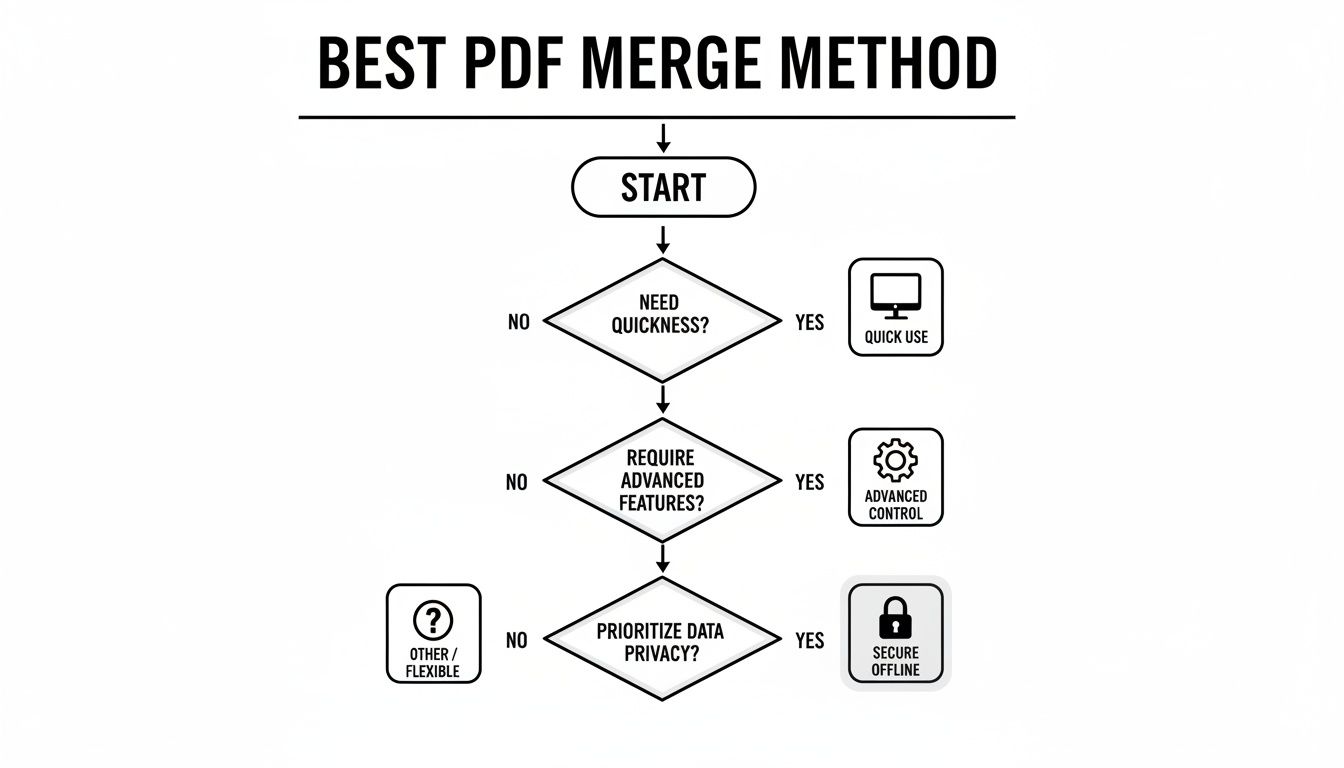
As the flowchart shows, your main goal—a quick merge, advanced editing control, or keeping sensitive data offline—is what should drive your choice of tool. Getting this right is a big part of smart digital workflow, which ties directly into the ideas we cover in our guide to document management best practices.
Choosing Your Best Method for Merging PDFs
Here’s a quick comparison of the top ways to combine PDFs, helping you pick the right tool for your specific needs.
| Method | Best For | Cost | Key Feature |
|---|---|---|---|
| Native OS Tools | Quick, simple merges on your own computer without extra software. | Free | Built-in, no installation needed, and completely private. |
| Adobe Acrobat | Professionals needing advanced editing, security, and page control. | Paid Subscription | Comprehensive toolkit for editing, reordering, and securing PDFs. |
| Online PDF Mergers | Convenient, one-off merges when you're on any device. | Free (with limits) | Browser-based, accessible anywhere, but requires an internet connection. |
| Command-Line Tools | Developers and tech-savvy users who want to automate tasks. | Free | Powerful, scriptable, and perfect for batch processing. |
| Mobile Apps | Merging documents on the go using your phone or tablet. | Freemium | Portability and the ability to merge directly from your device's camera. |
| PDF Summarizer | Researchers analyzing multiple documents as a unified set. | Paid Subscription | Treats multiple files as one interactive "chat" for analysis. |
Ultimately, the right tool depends entirely on what you're trying to accomplish—from a simple two-page combination to a complex, multi-document research project.
Merging PDFs With Free Built-In Tools
You might be surprised to learn you don’t need to buy or download special software just to combine a few PDFs. Your computer already has everything you need for most simple merging jobs, giving you a secure, offline, and totally free way to get it done. These built-in tools are perfect for those everyday tasks, like pulling together a few invoices or stitching together sections of a report right before a meeting.
Let's walk through how to do this on both a Mac and a Windows PC. Each operating system gives you a surprisingly simple way to consolidate your documents without any extra hassle.
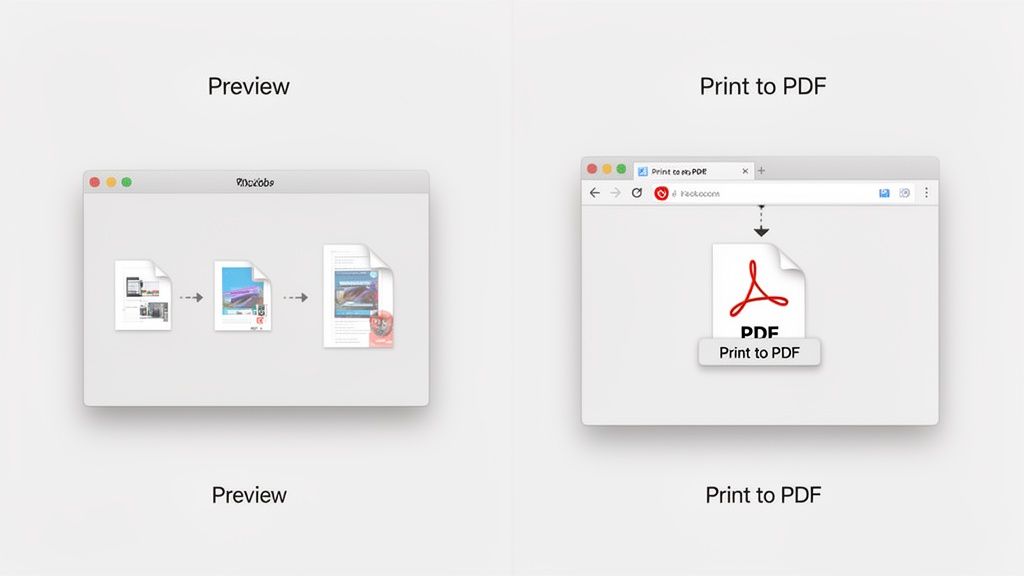
The Mac Method Using Preview
If you’re a Mac user, you’re in luck. You have a little powerhouse of a program called Preview baked right into macOS. It’s far more than a simple file viewer; it's a solid editor for basic PDF tasks, and combining files is one of its strong suits. The whole process is incredibly visual and intuitive.
First, just double-click to open your main PDF in Preview. Next, you’ll want to see the page thumbnails. Head up to the menu bar and select View > Thumbnails. This pops open a sidebar showing every page, which is the key to making this work.
Now for the easy part. Find the other PDFs you want to add in Finder, and simply drag them into that thumbnail sidebar. You can drop them at the very beginning, the very end, or even squeeze them in between existing pages. Once you let go, you'll see all the pages from all your documents lined up in a single scrollable view. It's that simple.
A few tips from my own experience with Preview:
- Reorder on the fly: Need to rearrange the pages? Just click and drag the thumbnails into the right order. It's perfect for organizing chapters or sorting receipts chronologically.
- Fix rotated pages: If a scan came in sideways, one click of the rotate button in the toolbar will fix it instantly.
- Trim the fat: Don't need a certain page? Click its thumbnail and hit the Delete key. Gone.
When you’re happy with the layout, go to File > Save (or "Export as PDF..." for more control) to lock in your changes and create the new, unified PDF. For jobs like this, Preview’s simplicity is why it's often considered one of the best free PDF editors for Mac.
The Windows Workaround With Print To PDF
On the Windows side of things, you can get the same result with a clever built-in feature called Microsoft Print to PDF. It isn’t a direct "merge" command, but it uses the universal print function to combine files from just about any program that can print—including your web browser.
The simplest approach is to open all the PDFs you want to merge in separate tabs in a browser like Microsoft Edge or Chrome. With all your files open and ready, hit Ctrl + P to bring up the print menu.
Now, here’s the trick. In the print dialog box, look for the printer destination and choose Microsoft Print to PDF. This isn't a physical printer; it’s a virtual one that turns whatever you "print" into a brand new PDF file.
Under the "Pages" option, make sure "All" is selected. This tells the virtual printer to go through every page in every open tab and compile them into one continuous document. Click "Print," and Windows will ask you where you want to save your new, merged PDF. It’s a fantastic workaround that saves you from having to install any third-party software.
Using Professional Tools for Advanced Merging
Sometimes, you need more than just a quick and dirty file merge. When the final document has to be perfect—for a client presentation, a legal filing, or a major project submission—it’s time to bring in the heavy hitters. Free tools are fantastic for simple jobs, but professional-grade software like Adobe Acrobat Pro gives you the granular control you need to craft a polished, professional document.
This level of precision is why the PDF format has become so dominant. It’s not just a feeling; the numbers back it up. Data from 2021 showed PDFs were the third most common file type online. That same year, a whopping 90% of Google searches for file types were for PDFs, compared to just 3% for DOCX. You can dig into these PDF popularity trends on the PDF Association's website.
Adobe Acrobat Pro: The Industry Standard
There's a reason Adobe Acrobat Pro is considered the gold standard. Its "Combine Files" feature is less of a tool and more of a powerful workbench for building a unified document from just about anything. You’re not just limited to PDFs. You can pull in Word docs, Excel spreadsheets, JPEGs, and even web pages, and Acrobat will convert and slot them right into your project.
The real magic happens in the interactive preview window. Before you commit to anything, you get a bird's-eye view of every single page from every file.
- Drag-and-Drop Reordering: Need to move Chapter 3 before Chapter 2? Just grab the thumbnails and drag them into place. It’s perfect for organizing a complex report.
- Selective Deletion: You can easily spot and remove junk pages—like the cover sheet from an appendix or a random blank page that snuck in.
- Expand and Review: For a 50-page document you're adding, you can expand it right in the preview to see all 50 pages and rearrange them individually if you need to.
Once you’ve got your pages in order, you can use Acrobat’s full editing suite to add headers and footers, run OCR to make scanned text searchable, and get the final document looking just right.
Reputable Online Services: A Word on Security
Don't have access to paid software? A good online PDF combiner can be a lifesaver. Services like Smallpdf or iLovePDF have made the process incredibly simple: drag your files into the browser, reorder them, and hit download. It works on any device and takes seconds.
But that convenience comes with a major caveat: security. When you upload a document to an online tool, you're sending your data to someone else's server.
Privacy First: Never, ever use an online tool for documents containing sensitive personal, financial, or confidential business information. For anything that requires privacy, stick to offline desktop software.
Before you upload, always check the service's privacy policy. The good ones use encryption and clearly state that they automatically delete files from their servers after a few hours. This is a good sign, but for truly sensitive stuff, the only guaranteed safe method is one that happens entirely on your own computer.
Command-Line Utilities: For the Automation Pros
For developers, system admins, or anyone comfortable in a terminal window, command-line utilities are the most efficient way to merge PDFs. Free, open-source tools like pdftk, qpdf, and Ghostscript can be built into scripts to handle repetitive, high-volume tasks automatically.
For example, using pdftk (the PDF Toolkit), you can write a one-line command that merges every PDF in a folder into a single output file. Imagine combining hundreds of daily reports or archiving invoices with a single script. They don't have a pretty interface, but for sheer, unadulterated automation, nothing beats them.
A Smarter Way to Handle Research PDFs
So far, we've been talking about the nuts and bolts of combining multiple PDFs into one big file. But let's pause for a moment and ask: what's the real goal? Is it just to create a giant document, or is it to merge the knowledge scattered across all those files?
For anyone deep in research—students, academics, analysts—this is a critical distinction. It's a total game-changer.
Instead of wrestling with a single, unwieldy PDF that might be hundreds of pages long, what if you could create an interactive research space? This completely sidesteps the usual headaches of a massive merged file, like getting lost trying to navigate it or losing the context of where a specific piece of information came from. It’s a much more fluid way to connect the dots.
From Merged Files to Merged Insights
Picture this: you're a grad student working on a literature review. You’ve got a dozen dense, academic papers saved as separate PDFs. The old-school way is to merge them all. Now you’ve got one enormous file that’s an absolute nightmare to get through. You end up scrolling endlessly, trying to remember which paper said what and cross-reference findings. It's a mess.
There's a better way. With a tool like PDF Summarizer, you can upload all twelve of those papers into a single Multi-File Chat. This doesn't smash the files together; it pools their content into one intelligent conversation.
Here’s how that completely changes your workflow:
- Centralized Knowledge: All your sources live in one dashboard. They're all together, yet still separate and easy to get to.
- Cross-Document Questions: You can ask questions that search across the entire collection at once. No more opening file after file.
- Synthesized Answers: The AI reads across all your documents and gives you a single, consolidated answer, pulling evidence from multiple papers.
This screenshot gives you a glimpse of what it looks like to ask a question across several uploaded research papers simultaneously.
See how the answer isn't just a keyword search? It's a genuine synthesis of information, which makes complex research so much easier to handle.
The secret sauce here is the citations. Every single point in the AI's answer comes with a clickable source link. That link takes you to the exact page and paragraph in the original PDF where the info was found. This is huge for maintaining academic integrity and makes fact-checking a breeze.
A Practical Research Scenario
Let's make this real. With your dozen papers uploaded, you can start asking the kind of sophisticated questions that a static, merged PDF could never answer.
- "What are the common methodologies these studies used?"
- "Summarize the key findings about 'cognitive bias' from all sources."
- "Which of these papers contradict the conclusions in Smith (2022)?"
- "Create a table comparing the sample sizes and primary outcomes of each paper."
Each response is a direct synthesis from your personal library of documents. It’s like having a research assistant who has read, understood, and cross-referenced everything for you.
This approach transforms the tedious task of manually taking notes on PDFs into a dynamic conversation with your source material. It's simply a smarter, faster way to connect ideas without ever creating that clunky, oversized file.
Polishing Your Newly Merged Document
Getting all your files into one PDF is a huge win, but the job isn't quite done. Now it's time to transform that collection of pages into a single, professional, and easy-to-navigate document. Think of this as the final polish that makes all the difference.
The very first thing I always do is check the page order. It’s incredibly common for pages to get jumbled when you combine multiple PDFs into one, especially if you're pulling from various sources. Just take a minute to scroll through the thumbnails and drag any misplaced pages into their correct spot. This simple step is crucial for creating a logical flow that won't confuse your reader.
Final Touches for a Professional PDF
Once the pages are in the right sequence, a few other tweaks can dramatically improve the final product. For instance, scanned pages often show up sideways or upside down. Thankfully, this is a quick fix in just about any PDF editor—a simple rotation makes everything upright and readable.
File size is another big one. A merged PDF, particularly one packed with high-resolution images or scans, can easily become too large to email. Compressing the file shrinks it down, often without any noticeable drop in quality for on-screen viewing. Most tools give you a few compression options, so you can find that sweet spot between a small file size and crisp image clarity.
For the best outcome, it pays to start with good source files. Spending a little time upfront on creating high-quality PDFs can save you headaches later.
Adding Advanced Functionality and Security
What if your document includes scanned pages from old reports or contracts? Those are basically just static images of text, which means you can't search them or copy a sentence. This is where Optical Character Recognition (OCR) becomes your best friend. Running OCR on the document converts those images of words into real, selectable, and searchable text.
Key Insight: A searchable PDF is exponentially more useful than a static one. OCR transforms a simple digital archive into an interactive resource, saving countless hours of manual searching.
Finally, think about who will see this document. If it contains sensitive information, you absolutely need to protect it before sending it out. The most common step is to add a password that's required to open the file. For even more control, you can set specific permissions to fine-tune what others can do.
You can usually:
- Prevent printing to control how many physical copies are floating around.
- Block copying of text and images to safeguard your content.
- Restrict editing to maintain the document’s integrity.
Taking these last few steps will turn your freshly merged file from a simple compilation into a secure, searchable, and professional document ready for anything.
Got Questions? Let's Troubleshoot Combining PDFs
Even with the best tools in hand, merging PDFs isn't always a straight shot. You can easily hit a snag. Let's walk through some of the most common issues people run into and how to solve them so you can keep your project moving.
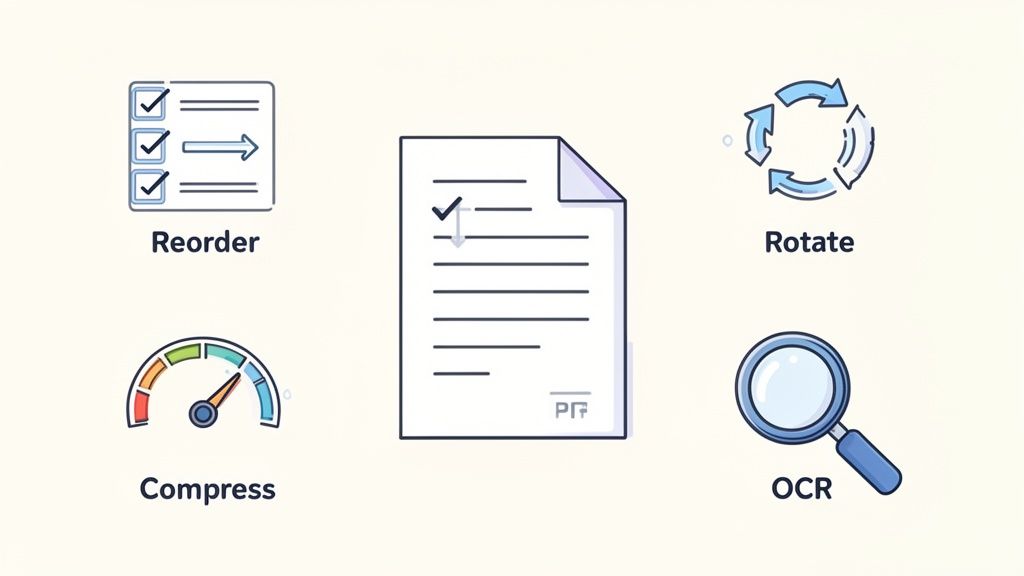
From locked files to final document quality, knowing a few tricks can make the entire process a whole lot smoother.
Can I Merge PDF Files That Are Password Protected?
This is a classic roadblock. The short answer is no—you almost always have to remove the password protection before trying to merge the files. Nearly every tool out there, from Adobe Acrobat to free online services, needs the documents to be unlocked first.
If you know the password, the fix is easy. Just open the protected PDF, enter the password, and then save a new, unprotected copy. Use that new version for your merge, and you'll be good to go. Without the password, though, you're stuck; the security features will prevent any tool from accessing and combining the file.
Will Combining PDFs Reduce Their Quality?
This one really depends on what’s in your PDFs. If your documents are all text and vector graphics (think logos, charts, and diagrams), you’ll see zero quality loss. The merging process is simply rearranging existing data, not re-rendering or degrading it.
The situation changes when high-resolution images are involved. Some tools, especially online ones, might automatically compress images to keep the final file size from getting too big.
Professional software like Adobe Acrobat puts you in the driver's seat, giving you fine-tuned control over compression settings. This is great because you can decide whether to prioritize perfect image quality or a smaller, more email-friendly file size.
Honestly, for most everyday uses like web sharing or emailing, the standard compression is completely fine and you likely won't even notice a difference.
How Can I Combine Multiple PDFs Into One on My Phone?
You absolutely can. Both iOS and Android have a ton of great apps built for exactly this purpose. Managing documents right from your phone or tablet is incredibly convenient when you're not at your desk.
A few of my go-to mobile options are:
- Adobe Acrobat Reader: The mobile version has a solid merge tool, though it's usually part of their paid subscription.
- Smallpdf: I like this one for its clean interface and how well it connects with cloud storage services.
- iLovePDF: Another heavy-hitter with a powerful mobile app for merging and a whole suite of other PDF tools.
These apps let you pull files directly from your phone's storage, Google Drive, or Dropbox, drag them into the right order, and combine them with just a couple of taps.
Is It Safe to Use Online PDF Combiners?
Here's where you have to balance convenience with security. Reputable online services use encryption and have privacy policies stating they'll delete your files from their servers after a few hours. That said, uploading anything sensitive to a third-party server always carries some level of risk.
My advice? Always take a minute to check the privacy policy before uploading. For anything confidential—financial statements, legal documents, personal ID scans—the safest bet is to stick with an offline desktop tool like Adobe Acrobat or the tools already built into your operating system.
Ready to merge knowledge, not just files? PDF Summarizer lets you upload multiple documents into one interactive chat, so you can ask questions across all your research at once. Try it for free and turn your scattered PDFs into clear, actionable insights today. https://pdfsummarizer.pro
Relevant articles

Learn how to merge pdf foxit reader PDFs quickly with step-by-step tips, free options, and 2026 updates.