A Smarter Way of Taking Notes on PDF Documents
Discover how to improve your workflow for taking notes on PDF files. Learn core techniques, AI-powered tools, and advanced strategies for better recall.
Let's be honest, taking notes on a PDF can feel like wrestling with a ghost. You highlight a sentence here, drop a digital sticky note there, and before you know it, the document is a chaotic mess. Trying to pull any real meaning from that digital disaster later is next to impossible.
Why Your PDF Note-Taking Method Isn't Working
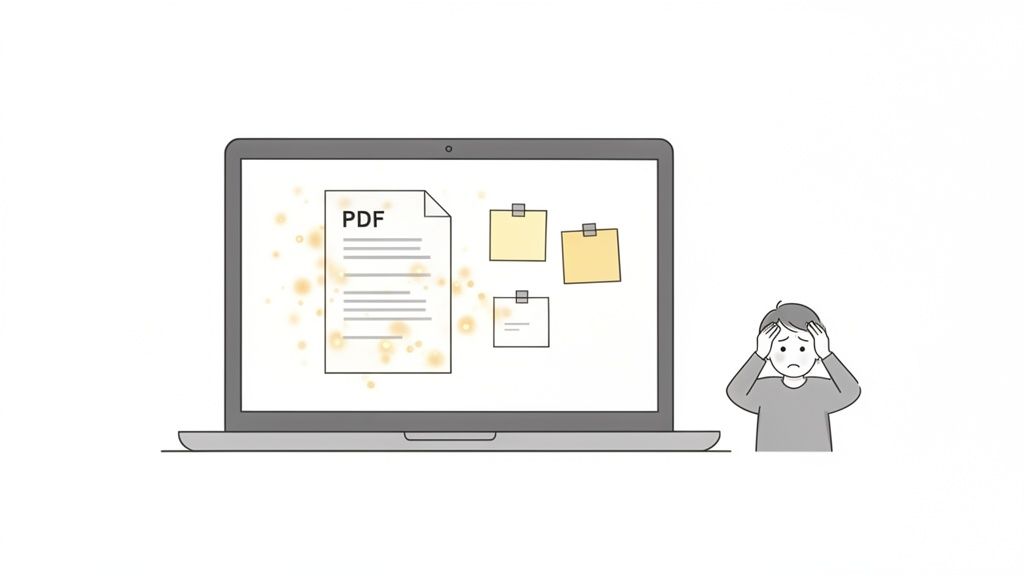
If you're a student, researcher, or really anyone who works with digital documents, this struggle is all too familiar. You spend hours carefully highlighting what you think is important, but when you come back to it, you’re just staring at a wall of yellow with zero context. This kind of passive highlighting doesn't do much for actual learning or remembering things long-term.
The root of the problem is that most PDF readers were built simply for viewing documents, not for truly interacting with them.
This disconnect between what we need and what basic tools offer has created a huge demand for better solutions. The global PDF software market was valued at around USD $2.16 billion in 2024, which shows just how vital these tools are becoming. You can dig into more market growth statistics on Verified Market Reports.
The Limits of Standard Annotation Tools
Your average, built-in annotation tools just don't cut it for serious work. Highlighters and basic text boxes have their place, but they don’t help you have a real conversation with the material you're reading. You end up with a bunch of disconnected thoughts that are a pain to organize, connect, or pull into another document. It feels less like productive work and more like digital graffiti.
The real goal of taking notes on a PDF isn't just to mark it up; it's to create a layer of personalized knowledge that is organized, searchable, and easy to review.
Without a solid system, all that effort goes right down the drain. Think about these all-too-common headaches:
- Scattered Insights: Your brilliant ideas are stuck inside the PDF, making it tough to see the bigger picture or combine notes from several sources.
- Lack of Interactivity: You can't really question the text or link different ideas together without jumping through hoops. It’s a one-way street.
- Time-Consuming Review: Going back to a heavily marked-up document means you have to re-read the whole thing just to find your own notes, which completely defeats the purpose.
These pain points make it crystal clear that we need a smarter way to work. The old method of just splashing color on a document is broken. It’s time for a system that turns passive reading into an active, productive dialogue with your texts.
Mastering Core PDF Annotation Techniques
Before we get into the cool AI stuff, it’s really important to get the basics right. The foundational tools in almost any PDF reader are more powerful than you think. Taking good notes on a PDF isn't just about randomly highlighting things that look important; it’s about having a conversation with the document. When you use these simple tools with a clear purpose, you can turn a flat, static file into a space where you can really think and learn.
It’s no surprise that the market for PDF editing software is blowing up. It’s one of the fastest-growing software categories out there, and that’s because we all need better ways to actually work with our documents, not just look at them. You can dig into the numbers on this trend over at the PDF market on PDF Reader Pro. This boom just confirms what we all feel: we need to move past passive reading.
Giving Your Highlights a Purpose
The highlighter is probably the most-used and most-abused tool in the box. Let's be honest, a page that looks like a neon sign isn't helpful—it's just visual chaos. The trick is to have a system.
A simple color-coding strategy can completely change the game. For instance, if you're a student breaking down a dense scientific paper, you could try something like this:
- Yellow: Main arguments or the thesis statement. The big ideas.
- Blue: The hard data, statistics, or evidence backing it all up.
- Pink: Terms you don’t know or concepts that need a second look later.
- Green: Killer quotes or powerful phrases you might want to use yourself.
Just by doing this, you've added a layer of structure. When you come back to review, a quick glance shows you the anatomy of the paper—arguments in yellow, proof in blue. It makes studying so much faster.
Beyond Highlighting: Text Boxes and Comments
Highlighting points out the key text, but text boxes and comments are where you really start to think. Use text boxes to jot down short notes in the margins, like summarizing a complex paragraph in your own words. That little act of rephrasing, known as active recall, is a proven way to lock information into your long-term memory.
Comments are great for asking questions or connecting the dots without cluttering the page. As you're reading, you might drop a comment like, "Wait, how does this finding square with what the author said on page 2?" Our own guide on how to insert comments in a PDF dives deeper into this. You're essentially creating a dialogue with yourself and the author, which pushes you to think more critically.
The real magic happens when you combine the tools. Highlight a key statistic, then add a comment questioning its source or linking it to another study you read. This layered approach is how you build a truly deep, personal understanding of the material.
Choosing the Right Annotation Tool for the Job
Different tasks call for different tools. A simple highlighter won't cut it when you need to map out complex relationships, and a drawing tool is overkill for just marking a key phrase. It's all about picking the right tool for the specific job at hand to make your notes as clear and effective as possible.
| Annotation Tool | Best For | Pro Tip |
|---|---|---|
| Highlighter | Marking key concepts, thesis statements, and important phrases. | Use a consistent color-coding system to categorize information (e.g., yellow for main ideas). |
| Text Box | Summarizing paragraphs in your own words or adding detailed notes. | Place text boxes in the margins to keep the main text clean and readable. |
| Sticky Note/Comment | Asking questions, adding quick reminders, or linking to other ideas. | Keep comments concise. They're perfect for "thought bubbles" as you read. |
| Underline | Emphasizing a specific sentence within an already-highlighted block. | Use it for surgical precision to pinpoint the single most critical part of a larger idea. |
| Drawing Tools | Visually connecting ideas, diagramming processes, or circling figures. | Use arrows to link a diagram to its explanation on another part of the page. |
Ultimately, a mix-and-match approach is usually the most powerful. Don't feel locked into one method; let the document and your goals guide your choice.
Using Drawing and Underlining Tools Strategically
Don't sleep on the drawing tools! Lines and arrows are fantastic for visually linking related ideas, especially if they’re spread out on a page. You can draw a simple box around a critical chart and then use an arrow to connect it directly to the paragraph that explains it. It creates an instant visual map for your brain to follow.
Underlining is more subtle than highlighting, but it has its place. It's perfect for singling out a specific, crucial phrase that's already inside a highlighted section. For example, you could highlight a whole paragraph that lays out an argument, but then underline the one sentence that delivers the knockout punch.
The core idea behind all these methods is systematic marking. If you're curious to see how this plays out in other fields, check out some of the medical image annotation techniques—the principles of creating clear, purposeful marks apply everywhere. When you use each tool with intention, your PDF becomes more than just a file; it becomes a well-organized record of your own insights.
Building a Note-Taking System for Better Recall
Just highlighting a PDF isn’t really a strategy. For your notes to actually help you remember things, you need a system. Building a solid framework for how you take notes on a PDF is what turns passive reading into an active learning session. Without a consistent approach, even the most detailed annotations can end up feeling like a chaotic jumble of colors and comments.
The real trick is to build a personal system that clicks for you. Think of it like creating your own shorthand or a personal language for how you engage with a text. A good system means that when you come back to that document weeks or even months later, your notes are instantly clear, scannable, and genuinely helpful.
Adapting Classic Methods for Digital PDFs
You don't have to start from scratch. Many of the best note-taking methods, like the well-known Cornell Note-Taking System, translate surprisingly well to digital PDFs. You just have to get a little creative with the layout.
Instead of drawing lines on a piece of paper, you can use the structure of the PDF itself. Treat the main text as your primary column for highlights and underlines. Then, use the comment or text box features in a margin to drop in keywords, questions, or your own quick thoughts about what you just read. This creates an active back-and-forth between you and the material.
After finishing a section or chapter, try adding one large text box at the very end. Use it to write a quick two or three-sentence summary. This small step forces you to synthesize what you just consumed, a technique proven to boost long-term recall.
By organizing your digital space this way, you're essentially building a powerful study guide right inside the document. It makes reviewing later a breeze—you can just scan the margins to find what you need.
Create Your Own Annotation Legend
Consistency is everything. An annotation legend is just a simple set of rules you define for yourself, giving each color or tool a specific job. This is what makes your notes instantly make sense when you revisit them.
A simple legend might look something like this:
- Yellow Highlight: Reserved for core concepts and main arguments.
- Blue Highlight: Use for supporting data, specific statistics, or hard evidence.
- Underline: For important definitions or key terms you'll need to remember.
- 'Q' in Comments: To mark questions you have about a specific passage.
- '!' in Comments: A personal insight or an "aha!" moment you don't want to forget.
This flowchart breaks down the basic tools you'll be working with: highlighting, underlining, and adding comments.
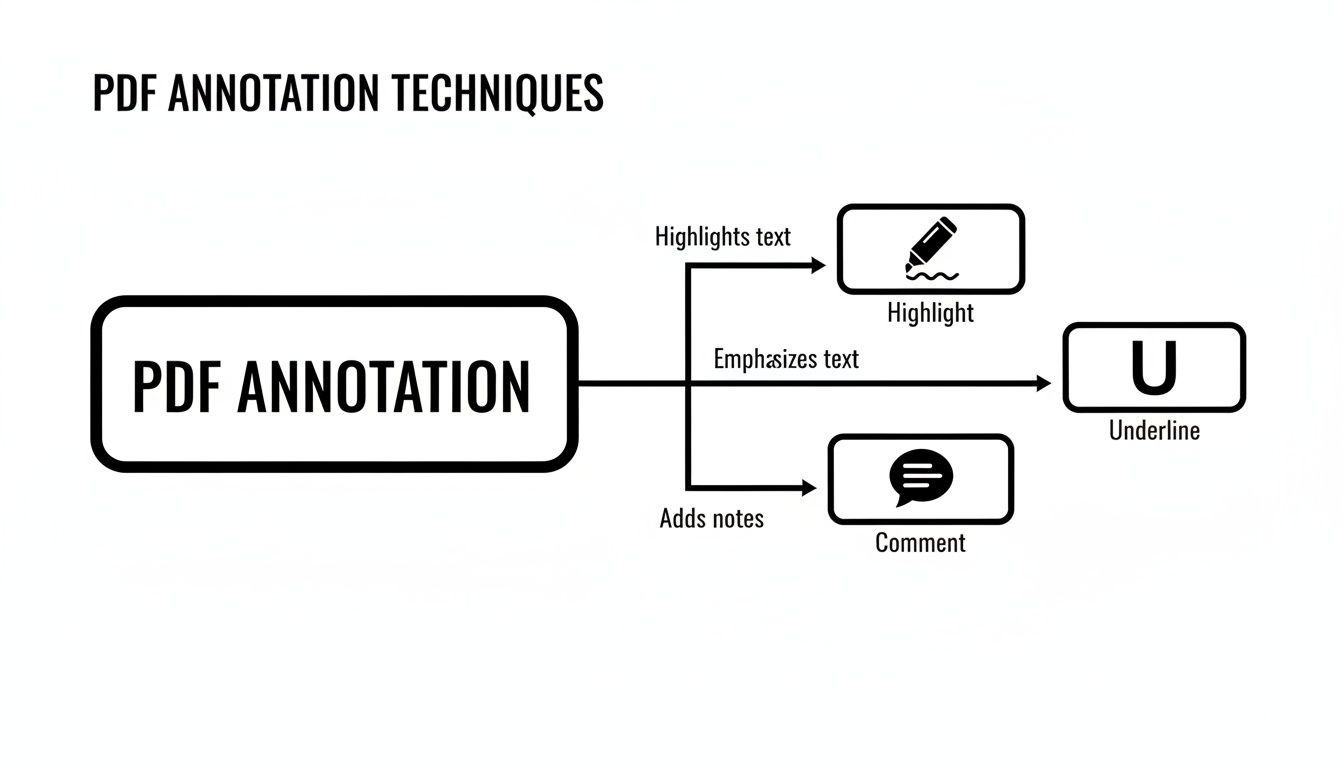
The image drives home the idea that combining these tools creates a much richer, more layered set of notes than just using one. The real goal is to get past simple markups and build a complete system for engaging with the text.
If you're looking for ways to organize these notes outside of the PDF, exploring Notion writing templates can give you some fantastic frameworks. You can also dive deeper into turning your annotations into summaries with our guide on converting a https://pdfsummarizer.pro/blog/pdf-to-notes.
Supercharge Your Workflow with AI-Powered Tools
Manual annotation is great, but it still means you’re doing all the heavy lifting. This is where AI really changes the game. It moves you from just marking up a document to actually having a conversation with it, completely redefining what’s possible when taking notes on a PDF.
Instead of dedicating hours to reading and breaking down a dense, 50-page research paper, what if you could pull out the core arguments in seconds? That's the reality now. Tools like PDF Summarizer are built to digest complex information, giving you instant summaries that nail the main points without all the manual work.
This isn't just about saving time—it fundamentally changes how you approach the material. You get the big picture first, which lets you be much more focused and strategic with your own note-taking.
Chatting with Your Documents
The biggest leap forward is the ability to literally "chat" with your PDF. This feature turns a static, one-way document into a responsive knowledge base you can interact with. You can ask incredibly specific questions and get precise answers pulled directly from the text.
For instance, a student digging into a scientific study could just ask, "What was the main limitation of this research?" The AI tool will scan the entire document and instantly pinpoint the exact sentence or paragraph where the authors discuss limitations.
Here’s a glimpse of what that interactive process looks like.

The chatbot interface makes digging through a long, complicated document feel as easy as sending a text.
This conversational style makes taking notes on a PDF a much more active process. You're not just passively reading; you're actively hunting for information, questioning the text, and digging into the details that matter most to you.
The real power move with AI note-taking is getting answers with clickable citations. When the tool responds, it also shows you exactly where in the original document it found that piece of information. This lets you verify everything on the spot and see the full context.
This one feature is huge for academic integrity and solid research. It perfectly blends AI-driven speed with the human-verified accuracy you need, giving you real confidence in the insights you're gathering. You can learn more about finding a quality free PDF summarizer that comes equipped with these essential features.
How AI Accelerates Note-Taking
By bringing AI into your workflow, you can automate the most time-consuming parts of note-taking. This frees up your brainpower to focus on what humans do best: higher-level thinking, analysis, and connecting the dots.
Think about these practical benefits:
- Instant Outlines: Ask the AI to "create a bulleted list of the main topics," and you’ve got a structured outline in seconds.
- Definition Lookup: Run into a technical term you don’t know? Just ask, "What is [technical term]?" to get a definition pulled straight from the document's own context.
- Finding Supporting Evidence: Instead of scanning pages for data, you can ask, "Find all statistics related to market growth," and let the AI pull them all together for you.
This kind of intelligent help lets you build a rich set of notes way faster than you could otherwise. Your PDF stops being just a reading assignment and becomes more of a partner in your research. Your work becomes less about tedious searching and more about actual critical thinking.
Advanced Strategies for Researchers and Professionals

If you're a researcher or a professional, taking notes on a PDF is rarely about just one file. Your work depends on synthesizing information from a whole host of sources, whether you're conducting a complex literature review or comparing dense industry reports. This is where modern AI tools really shine, moving beyond simple annotation to become a genuine research partner.
Let's say you're a market analyst trying to get a handle on global trends. You're staring at five different market reports, and each one is a hefty 70+ pages. The old way—reading and manually cross-referencing—could eat up your entire week. But a tool with a Multi-File Chat feature completely flips that script.
By dropping all five reports into a single chat session, you can start asking questions across the entire dataset at once. It’s a game-changer. You can get to the core insights in a fraction of the time, moving straight from data collection to real analysis.
Weaving Insights Together from Multiple PDFs
The real magic of Multi-File Chat is its knack for comparing and contrasting different sources. You can pose high-level questions that would otherwise take hours of painstaking manual work to figure out.
Here’s how a medical researcher might use it:
- Load the Sources: Upload five essential research papers on a new medical treatment.
- Ask a Complex Question: Pose a query like, "What are the conflicting findings regarding side effects across these sources?"
- Get a Synthesized Answer: The AI will scan all the documents and deliver a consolidated list, complete with citations. It might point out that Study A found minimal side effects while Study C reported significant adverse reactions in a specific patient group.
This kind of workflow massively accelerates a literature review, helping you instantly spot research gaps, points of consensus, and areas of scientific debate.
This cross-document analysis is how you build a strong, nuanced argument. You’re not just summarizing one paper at a time; you’re actively constructing a comprehensive view of the entire field.
The demand for this kind of powerful PDF software is exploding. North America currently leads the pack, holding over 40% of the market share. But the Asia Pacific region is quickly closing the gap with a projected growth rate of 14.4% through 2031, driven by massive digital adoption. You can dig deeper into these PDF software market trends to see the full picture.
Verifying Insights and Breaking Down Language Barriers
Speed is great, but accuracy is everything. That’s why a side-by-side view is such a critical feature for any serious professional. It lets you see your chat conversation right next to the original PDF. When the AI gives you an answer with a clickable citation, you can jump straight to the exact passage in the source document.
This verification loop is non-negotiable. It allows you to check the context for yourself, making sure no critical nuance from the original text was lost in translation. You get the speed of AI combined with your own expert oversight.
And what about international work? Many of us deal with documents from all over the world. A good PDF tool can translate files on the fly, letting you upload a report in one language and ask questions about it in another. This simple feature tears down language barriers, opening up a world of information that was once out of reach. Suddenly, taking notes on a PDF becomes a truly global and efficient process.
Common Questions About Taking Notes on PDFs
Even with the best tools in hand, you're bound to hit a few snags when you start taking notes on PDFs. We all do. Getting past these common hurdles is what separates a frustrating process from a truly effective one. Let's tackle some of the questions I hear most often.
Think of this as the final piece of the puzzle—moving beyond just marking up a document and toward building a personal knowledge system that actually works for you.
What Is the Best Way to Organize My Annotated PDFs?
Good organization starts before you even open the file. Seriously. Get into the habit of using a consistent naming convention, like Author-Year-Topic.pdf. It sounds simple, but this one change will save you from ever having to dig through a chaotic downloads folder again.
Once you’re in the document, your annotation system is your best friend. A consistent color-coding scheme lets you see what's important at a glance. But the real game-changer is getting your insights out of the PDF.
Your best notes shouldn't live and die in a single file. You need to export them. Pull your key takeaways, summaries, and questions into a central knowledge base like Notion, Obsidian, or even a simple Word doc. AI tools are brilliant for this; they can generate a clean summary that you can copy and paste, making your knowledge searchable long after you've closed the original file.
Can AI Tools Truly Understand Complex Technical PDFs?
It's a fair question. The short answer is yes. Modern AI models have been trained on staggering amounts of academic and technical literature. They've seen it all, from dense research papers to intricate financial reports.
This means a tool like PDF Summarizer isn't just looking for keywords. It's built to analyze context, understand complex terminology, and accurately pull out the core arguments and data.
The feature that really makes this work is clickable citations. This is your built-in fact-checker. You can instantly jump from the AI's summary point directly to the source text to verify it for yourself. It’s the perfect blend of AI speed and your own critical eye, giving you real confidence in your understanding.
How Can I Take Notes on a PDF on My Tablet or Phone?
Working on the go is all about using the right setup. I find that web-based AI platforms are the way to go here, since they just work in your browser without needing a dedicated app.
You can be on your tablet, pull a PDF from Google Drive, and start chatting with it to generate summaries between classes or meetings. It's a lifesaver for professionals who need to catch up on reports while traveling. If you prefer to mark things up by hand, look for a good PDF reader app that plays well with a stylus.
The secret sauce is using cloud-based tools. This ensures that any notes, highlights, or summaries you create on your phone are right there waiting for you when you open your laptop. No manual syncing, no hassle.
Ready to turn those dense documents into clear, actionable insights? PDF Summarizer lets you chat with your files, get instant answers with sources, and synthesize information across multiple reports. Give it a try for free and see how much faster your research can be. Get started with PDF Summarizer.
Relevant articles
Discover the best methods to take notes on PDF documents. Learn to use smart annotation, AI summaries, and advanced workflows for better learning and research.
Master taking notes on a pdf with practical annotations, smart organization, and AI tools to boost understanding and retention.
Learn how to highlight a PDF on any device. Go beyond basics with pro annotation tips and discover AI tools that instantly find key information.
Learn how to summarize a PDF efficiently using both manual techniques and AI tools. Get actionable advice for students, researchers, and professionals.
Struggling with dense texts? Learn how to read research papers efficiently with our concise guide and practical strategies.

Discover the best way to read textbooks with practical, time-saving techniques, active reading, and note-taking strategies to boost comprehension and memory.