How to Highlight a PDF and Master Your Workflow
Learn how to highlight a PDF on any device. Go beyond basics with pro annotation tips and discover AI tools that instantly find key information.
Knowing how to highlight a PDF is more than just a neat trick—it’s a core skill for anyone who works with digital documents. You can use dedicated tools like Adobe Acrobat Reader, the built-in Preview app on a Mac, or even just your web browser. The goal is always the same: mark up the important stuff so you can find it later, whether you're studying for an exam, reviewing a contract, or collaborating on a report.
Why Highlighting a PDF Is Your Productivity Secret Weapon
We’re all drowning in digital documents, and the simple act of highlighting text is one of the best ways to stay afloat. It turns passive reading into an active conversation with the material. When you mark up key passages, you’re essentially creating a personalized roadmap of the most important information, making it so much easier to remember and come back to.
This kind of active engagement is a game-changer for locking information into your memory. Think about it: a student getting ready for finals can use different colors to track themes, theories, and key evidence. A paralegal can instantly flag critical clauses in a 50-page contract, which saves a massive amount of time when they need to draft a summary later. It’s not just a nice-to-have skill anymore; it's a must-have for getting work done efficiently.
Turning Information Into Insight
The real magic of highlighting is how it helps you find the signal in the noise. We're all handling a staggering amount of digital information every day. For example, the global e-learning market is on track to hit nearly $400 billion by 2026, largely because so many course materials are distributed as PDFs. For students and researchers, this often means that 40% of their study time is spent just sifting through dense text.
Highlighting isn't just about changing the color of text. It's about making a decision—a commitment that says, "This piece of information matters more than the rest."
When you get good at highlighting PDFs, you'll start to notice a few key benefits:
- You'll remember more. The physical act of selecting and marking text helps cement the information in your brain.
- Your thoughts will be clearer. It helps you structure arguments and see how different ideas connect across a long document.
- You'll save a ton of time later. Your future self will thank you when you can find that one crucial quote or statistic without having to reread everything from scratch.
By building these habits, you’ll learn how to process information faster and transform any document from a wall of text into a valuable, organized resource.
Practical Ways to Highlight a PDF on Any Device
Knowing you should highlight a PDF is one thing, but figuring out how to do it on the specific app you're using can be a pain. The good news is that the core function is usually just a click or two away, whether you're on a desktop, laptop, or phone.
Let's break down the process for the most common tools people use every day.
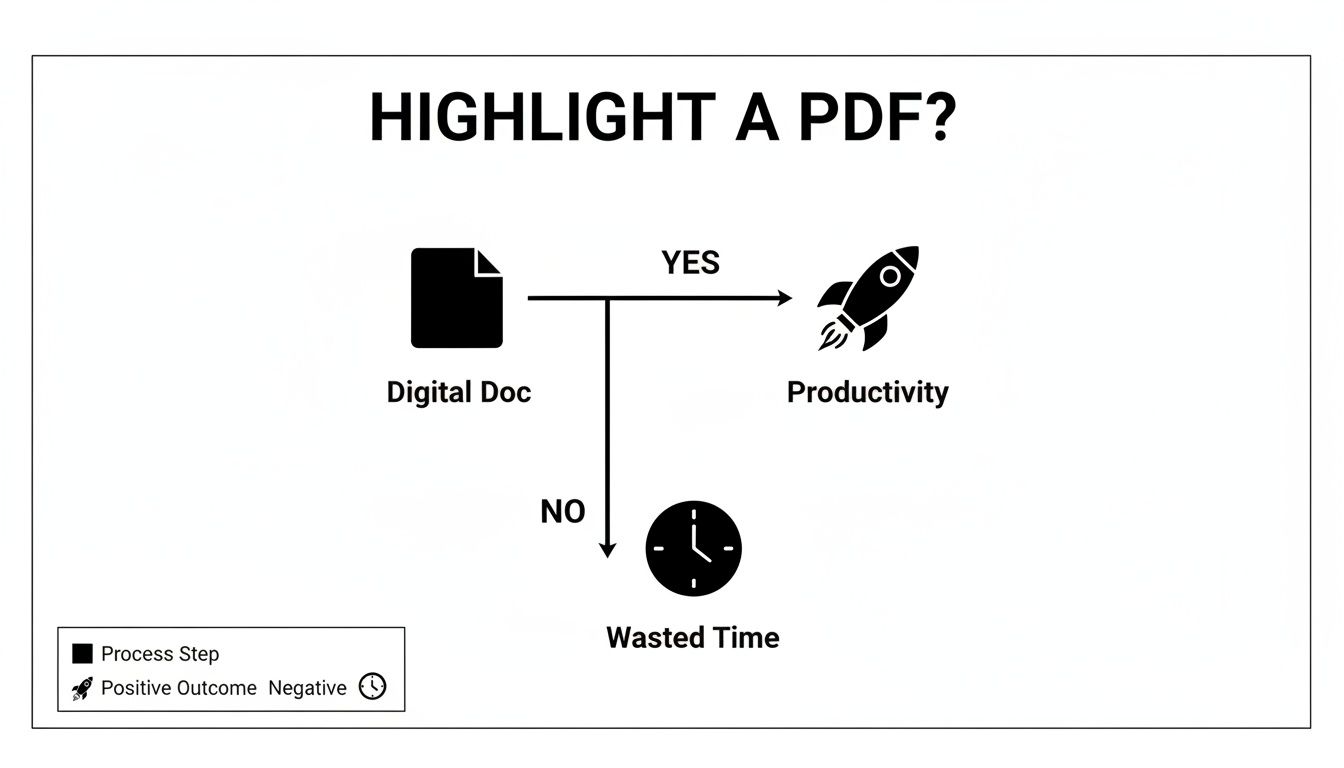
This visual really drives the point home: taking a moment to mark up a document is a direct route to better productivity. Skipping it just means you'll waste time trying to find that key information later.
Using Adobe Acrobat Reader
As the original PDF tool, Adobe Acrobat Reader makes highlighting pretty straightforward. Once you have a document open, your first stop is the Comment tool. You can usually find it in the toolbar at the top or in the panel on the right side of your screen.
Clicking Comment opens up a whole new set of annotation tools. From there, just look for the Highlighter icon—it looks like a little marker pen. Select it, and your cursor will change. Now, you can just click and drag over any text you want to call out.
Want to color-code your notes? No problem. Right-click on any highlighted text and select Properties. A color palette will pop up, letting you assign different meanings to different colors—a lifesaver when you're analyzing a dense research paper or financial report.
Highlighting on a Mac with Preview
If you’re on a Mac, you’re in luck. You don’t need to download anything extra. The built-in Preview app is surprisingly powerful for handling PDFs.
Just open your file in Preview and look for the Markup Toolbar icon, which looks like a small pen tip inside a circle. It's usually hanging out near the search bar. If you don't see it, a quick trip to the menu bar under View > Show Markup Toolbar will bring it right up.
The toolbar gives you all the annotation options you need. Click the Highlight button (it’s usually yellow by default) and start selecting your text. For more options, click the tiny downward arrow next to the highlighter icon to access different colors or switch to an underline or strikethrough. If you want to expand your annotation skills, check out our guide on how to insert comments in a PDF, which takes these basic techniques a step further.
Highlighting Directly in Your Web Browser
These days, you don't even need a dedicated app. Modern web browsers like Google Chrome and Microsoft Edge can handle basic PDF highlighting on the fly.
When you open a PDF in a new browser tab, just move your cursor toward the top of the screen. A PDF toolbar will appear with a few basic options.
Look for the familiar highlighter icon, click it, and you're ready to mark up your text. The most important thing to remember here is to save your work. After you're done, click the Download or Save icon (it often looks like a floppy disk or a downward-facing arrow) and make sure you select the option to save "With your changes." This creates a new, annotated copy of the file on your computer.
PDF Highlighting Tools A Quick Comparison
When you're deciding which free tool to use, a quick side-by-side look can help. Here’s a breakdown of what to expect from the most popular options.
| Tool | Platform | Highlighting Colors | Exporting Highlights | Ease of Use |
|---|---|---|---|---|
| Adobe Reader | Windows, macOS, Web | Full custom palette | Yes, as comments summary | Very Good |
| Mac Preview | macOS only | 5 preset colors | Yes, via Notes pane | Excellent |
| Google Chrome | All Desktops, Web | 4 preset colors | No direct export | Good |
| Microsoft Edge | Windows, macOS, Web | 5 preset colors | Yes, as comments | Good |
As you can see, for basic highlighting, any of these tools will get the job done. However, if you need more advanced features like custom colors or the ability to easily export all your notes, a dedicated app like Adobe Reader or Mac's Preview is your best bet. Browser tools are perfect for quick, one-off markups.
Moving Beyond Highlighting With Pro Annotation Tips
Knowing how to highlight a PDF is one thing, but knowing why is what really makes a difference. If you want to turn a flat document into a dynamic space for thinking and analysis, you need a strategy that goes beyond just splashing color on a page.
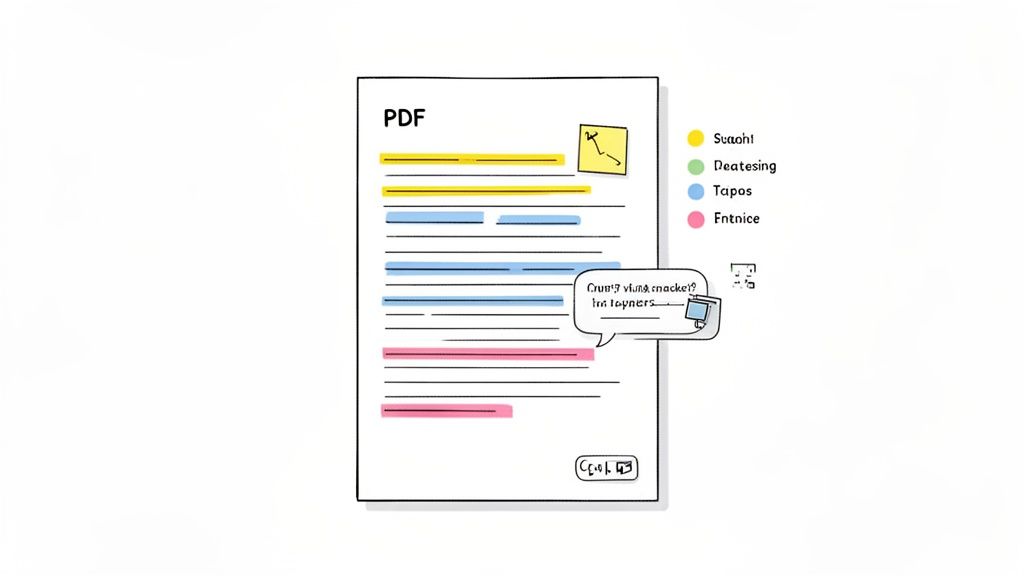
The real magic happens when you build a system. By giving each color a specific job, you’re creating a personal visual language. This makes it incredibly easy to scan a document later and immediately grasp the importance of different sections, rather than just seeing a random rainbow of colors.
Build Your Own Color Code
A consistent color-coding system is an absolute game-changer, especially for anyone doing deep research or studying complex material. It helps your brain instantly categorize information, so you don't have to re-read and re-evaluate every time you open the file.
The best system is one that makes sense to you and that you can stick with. For example, if I'm tearing down a dense academic paper, my color key might look something like this:
- Yellow: The core stuff—thesis statements, main arguments, and key takeaways.
- Blue: The proof—all the supporting data, statistics, and hard evidence.
- Pink: My questions or areas where I'm skeptical and need to dig deeper.
- Green: Essential definitions and jargon I'll need to know.
Suddenly, the PDF isn't just marked up; it’s organized into a structured, searchable knowledge base that I can reference in seconds.
Go Further With Multiple Annotation Tools
Highlighting is your workhorse, but it shouldn't be the only tool in your belt. Most good PDF readers come with a whole suite of annotation features that let you have a much richer conversation with the text.
The goal is to shift from passively consuming information to actively engaging with it. Combining different annotation tools forces you to think more critically as you read.
Don't be afraid to mix and match. I often use the underline tool to pinpoint a crucial phrase inside a larger highlighted section. If a thought pops into my head, I’ll drop a sticky note or a comment right there on the page. This is great because it captures the idea in the moment without derailing my reading flow.
When you get comfortable using these tools together, you stop just reading the document—you start working with it.
Let an AI Do the Highlighting for You
Manually highlighting a dense document can be a real slog. Let's be honest, hunting for key phrases in a 100-page report is tedious work. This is where AI tools have stepped in and completely changed how we tackle dense reading material. Instead of you doing the grunt work, AI can scan the entire document and highlight a PDF for you, pulling out the most important bits in seconds.
Tools like PDF Summarizer are a perfect example. You just upload your file, and the AI gets to work, identifying and marking the critical sentences, key data points, and main arguments. It automates the most time-consuming part of research, freeing you up to actually think about the information instead of just finding it.
A Smarter, Faster Workflow
The whole experience is built for efficiency. Most of these platforms give you a slick side-by-side view: you get a clean, AI-generated summary right next to the original PDF. This lets you get the gist of the document fast without ever losing the original context.
But the real magic is in the clickable citations. See a key takeaway in the summary that piques your interest? Just click it. The tool instantly jumps you to that exact highlighted passage in the source document. This makes verifying facts or diving deeper into a specific point incredibly seamless.
This is what it looks like in action. PDF Summarizer gives you a concise summary on one side with the source text and its automatic highlights on the other.
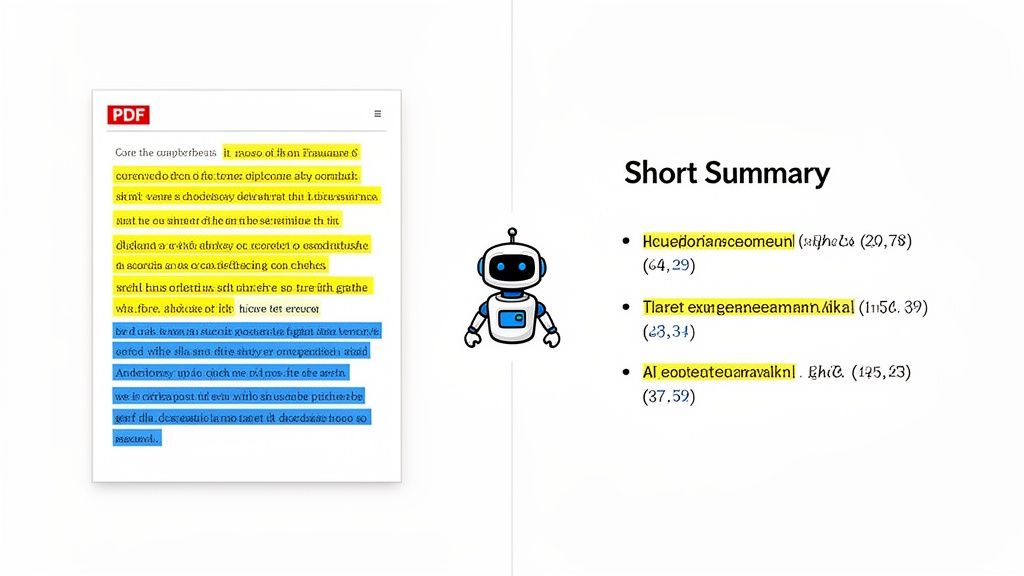
This tight link between the summary and the source gives you the best of both worlds—the speed of AI and the confidence of being able to check its work instantly.
More Than Just Speed: Getting Instant Insight
This isn't just about saving a few minutes. It’s a fundamentally better way to engage with complex information. For professionals drowning in reports, it’s a lifesaver. I’ve seen legal teams cut their contract review time by up to 70% using tools that let them "chat" with their PDFs.
This kind of efficiency is becoming crucial. The global software market is expected to rocket from $823.92 billion in 2025 to over $2.2 trillion by 2034. That’s a massive amount of new information and technology to keep up with.
By letting an algorithm do the first pass, you can walk into a dense academic paper or a complex technical manual with a solid overview already in your head. It sets you up for much deeper, more focused thinking from the get-go.
And once you’ve got your highlights, you can take it a step further. I highly recommend looking into specialized AI tools for processing and cleaning your notes. They can help you turn all those scattered annotations into organized, usable knowledge. Combining automated highlighting with smart note management is a seriously powerful workflow for anyone who works with information.
How to Manage and Export Your PDF Highlights
Highlighting text is great, but the real magic happens when you can pull all those important snippets out of the document. After all, what's the point of marking up a 50-page report if you still have to scroll through every page to find your notes?
The goal is to consolidate your highlights into a clean, easy-to-read summary. This is how you turn scattered annotations into a genuinely useful study guide or a concise briefing document for a meeting.
Putting Your Highlights to Work
Most robust PDF readers, like Adobe Acrobat, have built-in tools for this. Look for an option to create a comment summary. This feature is a game-changer—it pulls all your highlights, comments, and notes into a brand-new, neatly organized PDF. Suddenly, you have a distilled version of the document's most critical information, ready to go.
For students, this is an incredible way to convert dense academic papers into scannable study materials. To really master this, check out our deep dive on how to transform a PDF into organized notes.
A word of caution from experience: highlights sometimes fail to save, especially when you're using a PDF viewer built into your web browser. Always, always make sure you download or "Save As" a new version of the file after you're done. This embeds your annotations permanently into the document so you don't lose all that hard work.
Tackling Common PDF Highlighting Problems
Even with the right tools, highlighting PDFs can sometimes throw you a curveball. Let's walk through a few of the most common hiccups I've seen and how to get past them quickly.
Why Won’t My PDF Let Me Highlight Anything?
This is a classic problem, and 9 times out of 10, the reason is simple: you're dealing with a scanned document.
Instead of actual text, the file is just a flat image of the pages. Your software doesn't see words; it just sees one big picture. To fix this, you need a program with Optical Character Recognition (OCR). This technology scans the "image" and converts it into actual, selectable text that you can then highlight, copy, and search.
Less often, the issue is security. The person who created the PDF might have locked it down to prevent changes, including highlighting. If you can't get an unlocked version from them, you're pretty much stuck. And of course, some bare-bones PDF readers just don't have annotation tools built-in, so you'll need a more robust editor.
I’ve learned this lesson the hard way. There’s nothing more frustrating than getting an hour into marking up a research paper, only to realize I can’t because it's a scanned copy. My rule now? Always try to select a line of text before starting any serious work.
Help! My Highlights Vanished!
This is almost always a browser issue. When you highlight a PDF directly in Chrome, Edge, or another browser, those changes live in a temporary state. If you just close the tab, they're gone for good.
You have to explicitly save a new copy of the PDF to your computer to make those highlights permanent.
Look for the Download or Save icon (usually a little downward-pointing arrow). Make sure you choose the option to save "with your changes." This creates a new file on your hard drive with all your brilliant annotations baked right in.
How Do I Share a Highlighted PDF So Others See My Notes?
As long as you’ve followed the step above and saved a new, annotated version of the file, you’re all set.
Simply attach that new file to your email or upload it to your shared drive like you would any other document. Because you saved a new copy, your highlights are now part of the file itself, and anyone you send it to will see them exactly as you intended.
Ready to skip the manual work entirely? PDF Summarizer uses AI to automatically highlight a PDF, pulling out key insights and creating instant summaries. Chat with your documents and get answers with clickable citations in seconds. Try it free today.
Relevant articles

Discover how an AI PDF summarizer can transform dense documents into clear insights. Learn about key features, practical uses, and how to start today.
Master taking notes on a pdf with practical annotations, smart organization, and AI tools to boost understanding and retention.
Learn how to AI summarize PDF documents to save time and boost productivity. This guide covers how to get instant insights and chat with your files.
Discover how to improve your workflow for taking notes on PDF files. Learn core techniques, AI-powered tools, and advanced strategies for better recall.
What is document analysis: Discover the methods, real-world examples, and a clear step-by-step approach to extract insights from documents.