Taking notes on a pdf: Master Annotation for Better Learning
Master taking notes on a pdf with practical annotations, smart organization, and AI tools to boost understanding and retention.
Taking notes on a PDF is a whole different ballgame than just running a digital highlighter across the page. To really get anything out of what you're reading, you have to actively engage with the material—commenting, asking questions, and summarizing as you go. This turns a flat, static document into your own personal, interactive workspace, which makes a massive difference in how much you actually understand and remember later.
The best systems I've seen (and used) combine smart highlighting with margin notes and linked summaries. This creates a searchable, genuinely useful study guide you can come back to.
Move Beyond Highlighting to Actually Learn from PDFs
Let's be honest: does your collection of research papers look like it was attacked by a flock of digital canaries? We've all been there. It's so easy to fall into the trap of passive highlighting, where you color entire paragraphs without really processing what they mean.
True learning kicks in when you stop being a passive reader and start actively engaging with the text. Think of it as having a conversation with the author. But before you even touch that highlighter tool, you need a game plan.
Set a Clear Goal for Your Reading
First things first: why are you reading this document? Your answer completely changes your note-taking strategy. You wouldn't tackle a dense academic paper for a lit review the same way you'd skim a quarterly report for KPIs.
Define your purpose before you start. Are you trying to:
- Pinpoint the main argument? If so, your eyes should be peeled for thesis statements and conclusions.
- Pull out specific data points? You'll be focusing on tables, charts, and the methodology section.
- Grasp a complex theory? This means breaking down definitions, examples, and counterarguments piece by piece.
Having a clear goal stops you from highlighting mindlessly and keeps your energy focused on what actually matters. It transforms your reading session from a random stroll into a targeted mission. For a deeper dive on this, check out our guide on how to highlight a PDF effectively, which details how to create a real system for your annotations.
Prepare Your Digital Workspace
You wouldn’t start a big project on a messy desk, right? The same logic applies to your digital space. Before you open that PDF, close all those distracting tabs and apps. Make sure your PDF reader has the annotation tools you need front and center—the highlighter, comment box, and drawing tools are about to become your best friends.
Think of your PDF not as a finished book, but as a workbook waiting for your input. Your goal is to fill the margins with your thoughts, questions, and connections, creating a document that is uniquely yours and far more valuable than the original clean copy.
This mindset shift is everything. When you open a PDF with the intention to interact, question, and even challenge the text, you're setting yourself up for deep learning. You're no longer just reading; you're building knowledge.
To see what this shift looks like in practice, here's a quick comparison of the passive habits most of us have versus the active techniques that really work.
Passive vs Active PDF Note-Taking Strategies
| Passive Habit (What to Avoid) | Active Technique (What to Do Instead) | Why It Works for Retention |
|---|---|---|
| Highlighting entire paragraphs | Color-code highlights for key themes (e.g., yellow for main ideas, blue for data) | Creates visual cues that help your brain categorize and recall information faster. |
| Simply reading the text | Ask questions in the margins. Challenge assumptions or note confusing points. | Turns reading into an active dialogue, forcing deeper processing of the material. |
| Accepting all info as fact | Add notes that connect the text to other articles, lectures, or your own experiences. | Builds a network of knowledge, making new information "stick" by linking it to what you already know. |
| Reading start to finish | Write a short summary in your own words at the end of each major section. | The act of rephrasing proves you've understood the content, not just recognized the words. |
Adopting these active techniques ensures that the time you spend with a document translates directly into better understanding and retention. It's about working smarter, not just coloring more.
Unlocking Your Digital Annotation Toolkit
Real learning happens when you start a conversation with the text, not just passively scan it. To get the most out of your PDFs, you need to go beyond basic highlighting and dig into your software's full set of annotation tools. This is how you turn a flat document into a dynamic workspace for questioning, connecting, and building on ideas.
The trick is to use each tool with a purpose. Instead of just coloring passages that look important, think of your tools as specialized instruments for different kinds of analysis. This approach transforms reading from a passive skim into an active dialogue with the material.
The flowchart below shows a simple but powerful three-step process for active learning with any PDF.
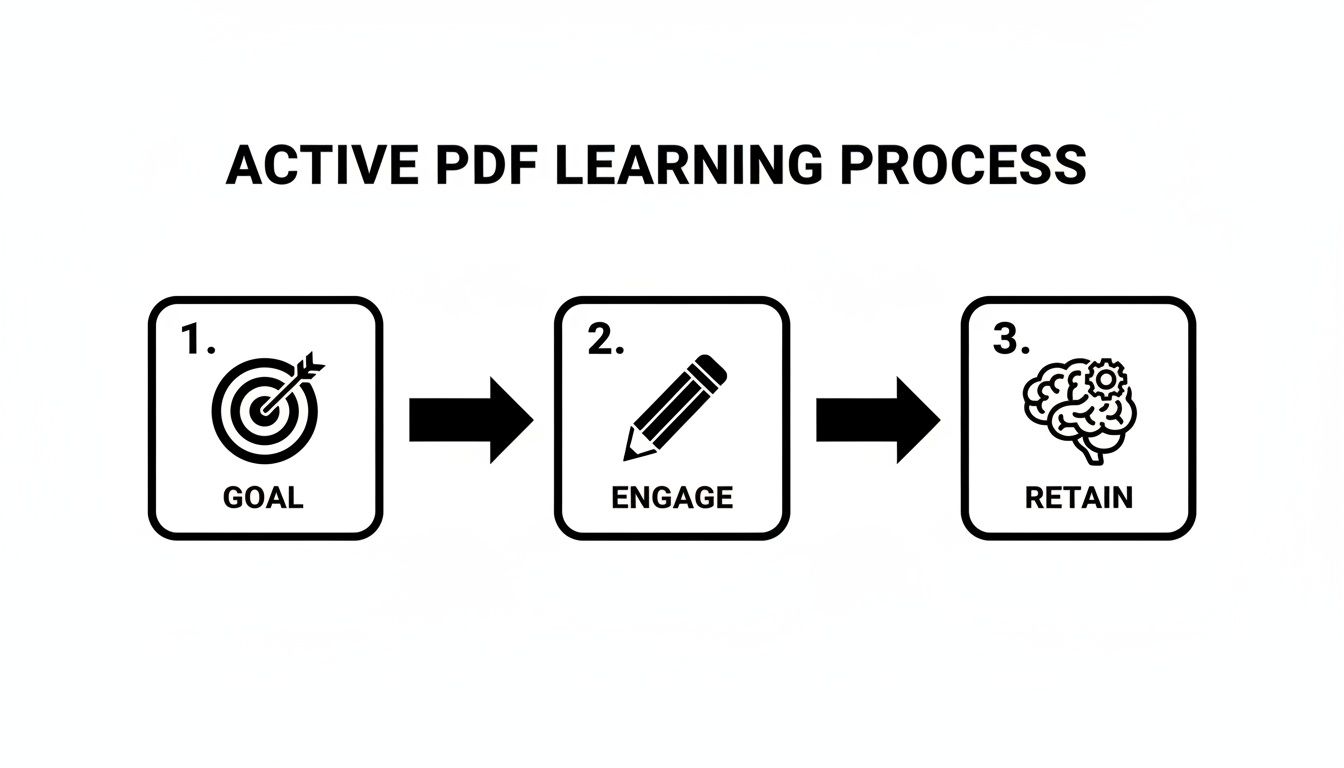
This model shows how setting a goal before you read, actively engaging with the content as you go, and then focusing on retention creates a rock-solid learning cycle.
Develop a Personal Color-Coding System
The highlighter is everyone’s go-to tool, but using it without a system is like underlining every single word—it quickly becomes meaningless. The real power comes from assigning specific jobs to different colors, creating a visual shorthand your brain can process in an instant.
Here’s a practical system I’ve used for years:
- Yellow: I reserve this for the author's main arguments, thesis statements, and topic sentences. Yellow flags the absolute core of the document.
- Blue: This is for key definitions, statistics, or critical pieces of evidence supporting the main points. Think of blue as the "proof."
- Red/Pink: I use this for my own questions, points of confusion, or statements I disagree with. This color is my trigger for further research or critical thought.
- Green: This is for actionable insights, case studies, or examples I want to remember and apply later.
This color-coded method adds an immediate layer of structure to your notes. When you come back to the document, you can instantly see the argument's framework, the supporting data, and your own critical reactions.
Go Beyond Highlights With Digital Sticky Notes
Highlighting is for marking text, but digital sticky notes (or comments) are where your actual thinking happens. They let you add detailed thoughts, summaries, and connections without jamming up the original text.
For every single section you highlight, get in the habit of adding a comment that answers one simple question: "Why did I highlight this?" This one change forces you to actively process the information instead of just passively marking it.
For example, after highlighting a surprising statistic in blue, you might add a comment like, "This data directly contradicts the findings from Smith's 2022 paper—I need to compare their methodologies." Your annotations suddenly evolve from a list of quotes into a network of connected ideas. For more on this, check out our guide on how to insert comments in a PDF to really make your notes work for you.
Use Drawing Tools to Connect Ideas Visually
Don't sleep on the basic drawing tools in most PDF readers—lines, arrows, and simple shapes are surprisingly powerful. Use them to visually link concepts across different paragraphs or even from one page to another.
Draw an arrow from a theory on page 2 to a real-world example on page 10. Circle a cluster of related terms and connect them with lines, creating a mini mind-map right on the page. This is incredibly useful for grasping complex relationships and process flows that aren't spelled out in a diagram.
For those who want a truly top-tier annotation experience, acquiring an iPad Pro can make freehand drawing and markup feel as natural as pen on paper. That tactile engagement with the material helps cement your understanding in a way that just typing often can't match.
How to Organize Your PDF Notes So You Can Find Them Later
Let's be honest: brilliant annotations are worthless if they're lost in a digital black hole. After you’ve spent hours marking up a PDF, the last thing you want is for all that hard-won insight to vanish into a messy folder. Building a reliable system for your notes isn't just about being tidy; it's about making your knowledge easy to find and reuse later.
Without a system, you're basically creating a library with no card catalog. When you need to write that research paper or prep for an exam, you'll end up re-opening and re-reading every single file, which completely defeats the point of taking notes in the first place. Let’s build a system to avoid that nightmare.
Create an Intelligent Folder Structure
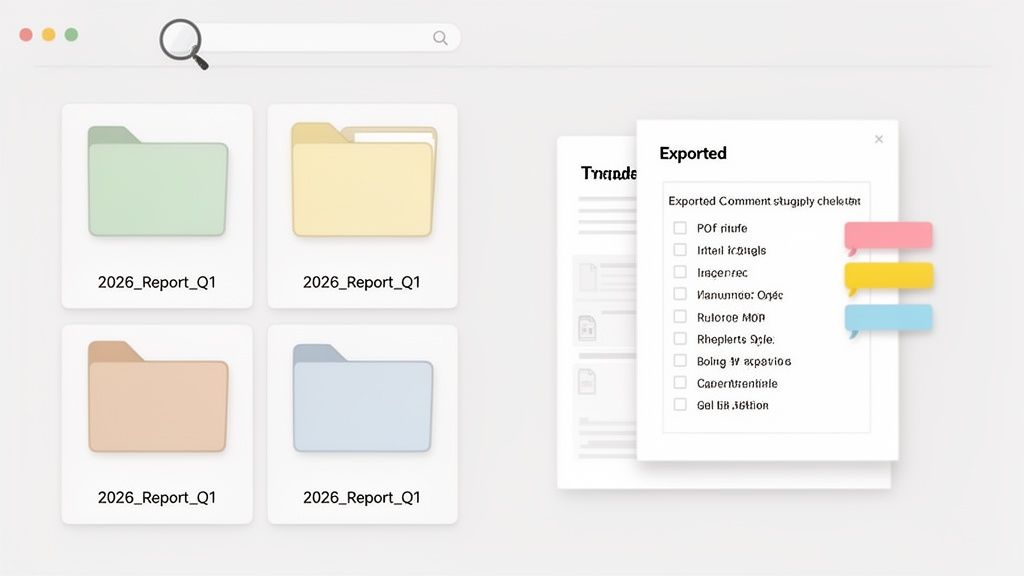
Your first line of defense against digital chaos is a simple, logical folder system. Please, don't just dump everything into your "Downloads" folder. That way lies madness. Instead, start thinking in terms of projects, courses, or topics.
A student, for example, could have a main folder for "Fall Semester 2024" with subfolders for each class, like "HIST-101" or "CHEM-203." A researcher working on a new study might create a folder called "Project Alpha - Literature Review."
This one habit ensures related documents live together. It sounds basic, but it makes a world of difference when you need to see all your materials for a specific task at a glance.
Adopt a Consistent File Naming Convention
This is the secret weapon of genuinely organized people. A file named article.pdf tells you absolutely nothing. But a file named Smith-2023-AI_Ethics-J_Phil_Tech.pdf? That tells you the author, year, topic, and journal instantly.
I’ve found a simple formula works wonders: Author-Year-Topic-Source.pdf
This approach makes your files immediately scannable and searchable before you even open them. The key is consistency. Pick a format that works for you and stick with it for every single document. Your file list will transform from a random mess into a browsable, personal database.
Export and Summarize Your Annotations
Most serious PDF editors have a powerful feature that people rarely use: the ability to export a summary of your comments and highlights. This generates a separate, clean document listing every single annotation you made, often alongside the original text it refers to.
Don't let your notes stay trapped inside the PDF. Exporting them turns your scattered highlights and margin comments into a structured outline or study guide that you can review, search, and edit on its own.
This exported summary becomes a huge asset. You can use it to:
- Quickly review key points without having to open the full, dense document again.
- Copy and paste quotes directly into your own drafts.
- Search all your notes from that one PDF using a simple text search (Ctrl+F or Cmd+F).
This single step is a game-changer for synthesizing information. Instead of flipping through a dozen pages, you have a concise digest of your own thoughts and the document's most critical ideas. Imagine you've just read ten research papers. By compiling the ten exported summaries, you can create a single master document for your literature review, making it infinitely easier to spot patterns and connections across all your sources.
Using AI to Level Up Your PDF Note-Taking
Artificial intelligence has completely changed the game for working with digital documents, and that absolutely includes taking notes on a PDF. The newest AI tools go way beyond basic highlighting and commenting. They act like smart research assistants, helping you digest complex information in a fraction of the time.
This isn’t about letting a robot do your thinking. It's about offloading the grunt work so you can zero in on what actually requires your expertise.
Picture this: you get handed a dense, 50-page quarterly report an hour before a big meeting. Instead of frantically skimming and praying you find the key takeaways, an AI tool can whip up an executive summary in seconds. You get the high-level overview you need to walk into that meeting and contribute with confidence.
Ask Your Documents Direct Questions
One of the most powerful new features is the ability to literally "chat" with your documents. Forget searching for keywords and trying to piece together the context yourself. Now, you can ask plain-English questions and get instant answers pulled directly from the text.
This is a massive time-saver for anyone doing detailed analysis. A researcher digging into a scientific paper can skip the fluff and ask directly:
- "What was the exact methodology used in this study?"
- "List all mentions of the control group's results."
- "Explain the author's main conclusion in simple terms."
The best part? Each answer usually links right back to the specific page and paragraph in the PDF, so you can verify the source in a click. This conversational approach turns a static document into a dynamic database you can query for insights, radically speeding up any research project.
Synthesize Information Across Multiple Sources
The real breakthrough, though, is the ability to synthesize information from multiple documents at once. We've all been there—trying to compare arguments from a dozen different papers, with countless tabs open, slowly losing our minds.
With a good AI-powered tool, you can upload all your source PDFs into a single workspace. From there, you can ask complex questions that span the entire collection. For example, "Compare the arguments from Smith (2022) and Jones (2023) about renewable energy subsidies." The AI will pull the relevant info from both files, summarize each author's position, and even point out where they agree or disagree.
This multi-file chat capability fundamentally changes the literature review process. It shifts your role from a manual information retriever to a high-level analyst, allowing you to focus on interpreting the connections between sources rather than just finding them.
This kind of power is why interest in advanced PDF software is skyrocketing. The global market for these tools hit about USD 1.85 billion in 2024, and it's still climbing. This demand, explored in a recent PDF software market report, shows just how essential this tech has become, with AI being the main driver.
From Raw Data to Actionable Insights
Ultimately, these AI note-taking tools are built to close the gap between reading and understanding. They help you pull out the core ideas from any document, making your learning or research far more efficient.
Think about these real-world examples:
- A student prepping for finals can ask their collection of lecture notes and readings to, "Create a study guide explaining the key theories of cognitive psychology."
- A legal professional can upload several contracts and ask, "Identify any clauses related to liability across all these documents."
- A financial analyst can feed in multiple market reports and request, "Summarize the key growth drivers mentioned for the tech sector in Q3."
These tools don't just find information; they help you connect it. By handling the heavy lifting of summarizing and retrieving facts, they free up your brainpower for deeper analysis and creative thinking. If you're ready to dive in, our guide on how to AI summarize a PDF is the perfect place to start.
Putting Your Notes into Action
The real reason we spend all this time meticulously taking notes on a PDF isn't just to end up with a beautifully color-coded document. The end goal is to actually create something new from all that gathered knowledge. Your annotations, summaries, and AI-powered Q&As are just the raw materials. Now it's time to build.
This final stage is all about synthesis—weaving together different threads of information to form a coherent, original whole. This is where all your hard work pays off, moving you from a passive reader to an active creator.
From Annotations to a Cohesive First Draft
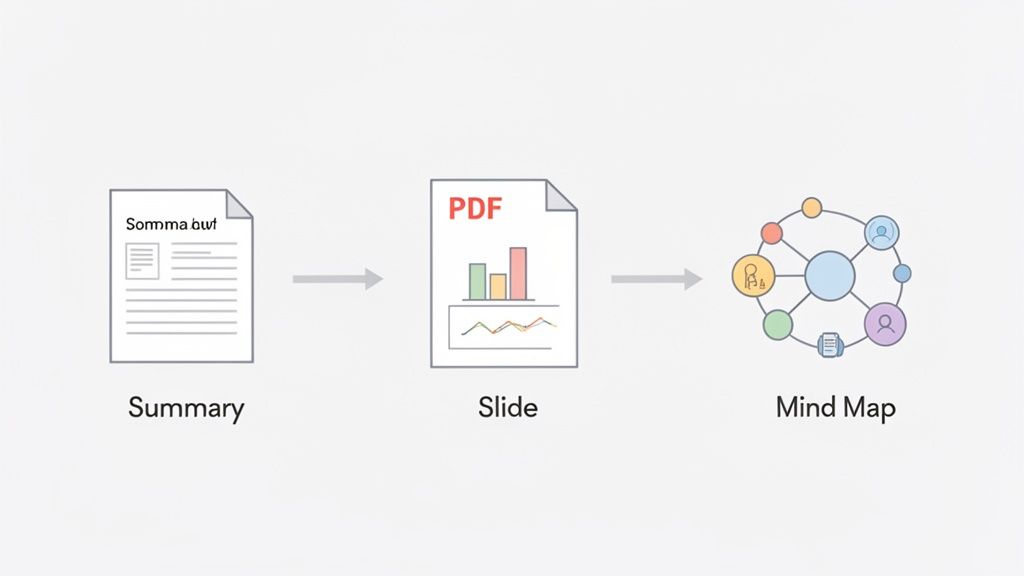
The most straightforward way to use your notes is to spin them into a new document. Your exported annotation summaries and AI-generated insights are a brilliant jumping-off point. They essentially hand you a pre-built outline, already populated with key quotes, your own marginalia, and the major themes you've identified.
Instead of staring down a terrifyingly blank page, you start with a rich, curated collection of your own thoughts. This isn't just about copying and pasting, though. It’s about weaving those fragmented ideas into a fluid, compelling narrative.
Think about writing a research paper. You can pull all your notes tagged "methodology" from five different PDFs. By seeing them all side-by-side, you can compare, contrast, and craft a paragraph that doesn’t just list what others did but truly analyzes their different approaches.
Building Connections with Mind Maps
Sometimes, a linear document like an essay just doesn't cut it, especially when you're wrestling with complex ideas from multiple sources that are all interconnected. This is where a mind map becomes an absolute game-changer for synthesizing your PDF notes.
A mind map lets you organize information visually and non-linearly, which can unlock new ways of thinking. Here’s a simple way to get your PDF notes onto a map:
- Central Idea: Start with your main topic or research question right in the middle.
- Primary Branches: Create main branches for the key themes you’ve identified across your readings. Your color-coded highlights are perfect for this.
- Sub-Branches: From there, add smaller branches with specific evidence, data points, or counterarguments from your notes, linking each one back to its source.
This visual approach helps you see the forest for the trees, spot unexpected relationships between concepts, and even brainstorm new arguments that would have stayed buried in a traditional outline.
The real value of note-taking isn't just capturing information; it's creating a system that allows you to easily retrieve and recombine that information in novel ways. Your annotated PDF library should function as a personal, searchable knowledge base.
Answering Complex Questions and Preparing for Exams
Your library of annotated PDFs is more than just a digital filing cabinet; it's an engine for answering tough questions. When you’re faced with a specific exam prompt or a tricky project query, there’s no need to start from square one. You can use the search functions in your PDF reader or folder system to instantly pull up everything relevant.
Imagine a history student prepping for a final exam. The prompt is: "Analyze the economic factors leading to the fall of the Roman Empire."
- They can search their entire reading folder for keywords like "economy," "inflation," and "trade."
- The search will instantly surface every single highlight, comment, and note they've ever made on that topic across dozens of documents.
- By compiling these targeted notes, they can construct a comprehensive, evidence-based answer far more efficiently than by frantically re-reading everything from scratch.
This method transforms cramming for an exam into a focused, strategic synthesis exercise.
Once your masterpiece is complete, the next step is sharing it. While most sharing happens digitally, some situations might still call for a more traditional approach. For those rare occasions, knowing how to fax a PDF can be a surprisingly handy skill, ensuring your work gets where it needs to go, no matter the recipient's tech setup.
Got Questions About Taking Notes on PDFs?
As you start taking your PDF note-taking more seriously, you're bound to run into a few questions. There’s no single "right" way to do it; the best methods really depend on what you’re trying to accomplish, the device you're on, and the kind of documents you’re wrestling with.
Let’s tackle some of the most common questions that come up. My goal here is to give you straightforward, practical answers that help you solve common hiccups and build a workflow that actually works for you.
What’s the Best Software for Taking Notes on a PDF?
Honestly, the "best" software is the one that fits the job you're doing right now. It's less about finding one magic app and more about having the right tool for the right task.
For simple markups—a quick highlight here, a text comment there—the free tools you probably already have are often good enough. I'm talking about things like Adobe Acrobat Reader on a PC or the built-in Preview app on a Mac. They handle the basics without any fuss.
If you’re working on a tablet with a stylus, you'll want something designed for that "pen on paper" feel. Apps like GoodNotes and Notability are brilliant for this. They are built from the ground up for handwriting, sketching out diagrams, and giving you a much more hands-on, tactile experience.
But for serious analysis where efficiency is key, AI-powered platforms are in a completely different ballpark. These tools go way beyond simple annotation. They let you have a conversation with your document. You can ask for a quick summary of a dense chapter, pinpoint specific data, or pose complex questions and get answers without having to reread the same pages over and over. A lot of modern workflows now involve using a simple annotator for the tactile stuff and a powerful AI tool for the heavy lifting of real comprehension.
How Can I Actually Take Good Notes on a PDF on My Phone?
Note-taking on a tiny screen is a whole different ball game. You have to change your strategy, because trying to do detailed, handwritten notes with a stylus just isn't going to happen.
The trick is to focus on small, precise actions that work well on a touchscreen. Stick to highlighting just the key phrases and use the comment feature to type out short, punchy notes about your immediate thoughts. Don't even try to replicate what you’d do on a desktop; you'll just get frustrated.
This is where a cloud-based AI tool becomes a game-changer. You can upload a hefty PDF from your phone, ask the tool to summarize a confusing section, or pull a specific statistic while you're waiting in line for coffee. It turns your phone from a passive reader into a genuine research assistant you can use anywhere.
This approach means you can actually get real work done on your documents from anywhere, turning that downtime into productive time without needing a big screen and a keyboard.
Is It Better to Type or Handwrite Notes on a PDF?
Ah, the classic debate. The truth is, both have their own unique cognitive perks. The best choice really boils down to what you’re trying to do in that moment.
There’s a good amount of research suggesting that handwriting notes on a PDF with a stylus helps with memory. The physical motion of forming letters and shapes makes your brain engage with the material on a deeper level. This makes handwriting perfect for more conceptual tasks, like:
- Sketching a quick mind map to see how ideas connect.
- Drawing arrows to link a concept in one paragraph to an example in another.
- Jotting down quick, abstract thoughts in the margins that aren't fully formed yet.
On the flip side, typing is much faster, neater, and—this is the big one—searchable. This makes it the clear winner for capturing direct quotes, writing out detailed summaries in comment boxes, or building a running list of key terms and definitions.
A lot of pros I know use a hybrid approach. They’ll use a stylus on a tablet for the initial brainstorming and visual mapping, then switch over to a keyboard to type up their organized summaries and key takeaways. It gives you the best of both worlds.
How Do I Keep My PDF Annotations from Becoming a Mess?
It’s easy for a well-intentioned, annotated PDF to devolve into a chaotic rainbow of highlights and comments. The secret to avoiding that mess is to create a system and stick to it.
First off, be selective. You're not trying to paint the whole page. Highlight only the most essential phrase in a sentence—the piece that holds the core idea—not the entire paragraph. Your future self will thank you when it's time to review.
Next, come up with a dead-simple color-coding system and be consistent. For instance: yellow for main ideas, blue for data points or definitions, and red for things you have questions about. This creates a visual shorthand that helps you understand your notes at a glance.
If you take away only one tip, make it this one: always add a comment explaining why you highlighted something. That tiny bit of context is priceless when you come back to the document weeks later and have no idea what you were thinking.
Finally, get into the habit of using your software’s export feature. Most good tools can pull all your highlights and comments into a clean, separate document. This instantly transforms your scattered thoughts into a structured summary or study guide you can actually use.
Ready to change how you work with your documents? Stop just reading and start understanding. PDF Summarizer lets you chat with any PDF, get instant summaries, and synthesize information across multiple files at once. Try it for free in your browser today and see how much faster you can get to the insights that matter.
Relevant articles
Discover the best methods to take notes on PDF documents. Learn to use smart annotation, AI summaries, and advanced workflows for better learning and research.
Learn what is synthesizing information and move beyond simple summaries. Discover how to connect ideas from multiple sources to create powerful new insights.
Learn how to highlight a PDF on any device. Go beyond basics with pro annotation tips and discover AI tools that instantly find key information.
Discover how to improve your workflow for taking notes on PDF files. Learn core techniques, AI-powered tools, and advanced strategies for better recall.
Discover how to convert any PDF to notes efficiently. This guide offers actionable workflows for students, researchers, and professionals using modern tools.

Discover how to conduct a literature review with a practical, step-by-step guide covering scope, synthesis, and reporting findings.