Combine Multiple PDFs Into One Free A Practical Guide
Learn how to combine multiple PDFs into one free. This guide covers the best tools and methods for Mac, Windows, mobile, and online PDF merging.
It's surprisingly easy to combine multiple PDFs into one for free. Most computers already have the tools you need built right in, whether you're using Preview on a Mac or the "Print to PDF" function on Windows. And if you need a quick fix without installing anything, free online PDF combiners are a fantastic option.
Conquering Document Chaos: Why Merging PDFs Is a Must
Ever found yourself drowning in a sea of separate PDF attachments for a single project? We've all been there. The simple act of merging those files can instantly turn a chaotic mess into a clean, streamlined workflow, making your documents far easier to share, review, and archive.
Instead of juggling endless files, you get one cohesive document. This isn't just about convenience; it's a foundational step towards smart digital organization. To really get a handle on your files, it helps to follow the latest document management best practices.
Finding Your Ideal Free PDF Tool
The demand for good, free PDF tools is enormous. A staggering 1.2 billion PDFs are created every single day around the world, and a huge chunk—about 65%—need some kind of editing or merging. Since most people aren't paying for premium software, the need for effective free solutions is clear.
With so many options out there for every platform, the "best" tool really comes down to what you value most. Are you prioritizing privacy, need for speed, or accessibility on the go?
This decision tree gives you a quick visual guide to picking the right free tool for your situation.
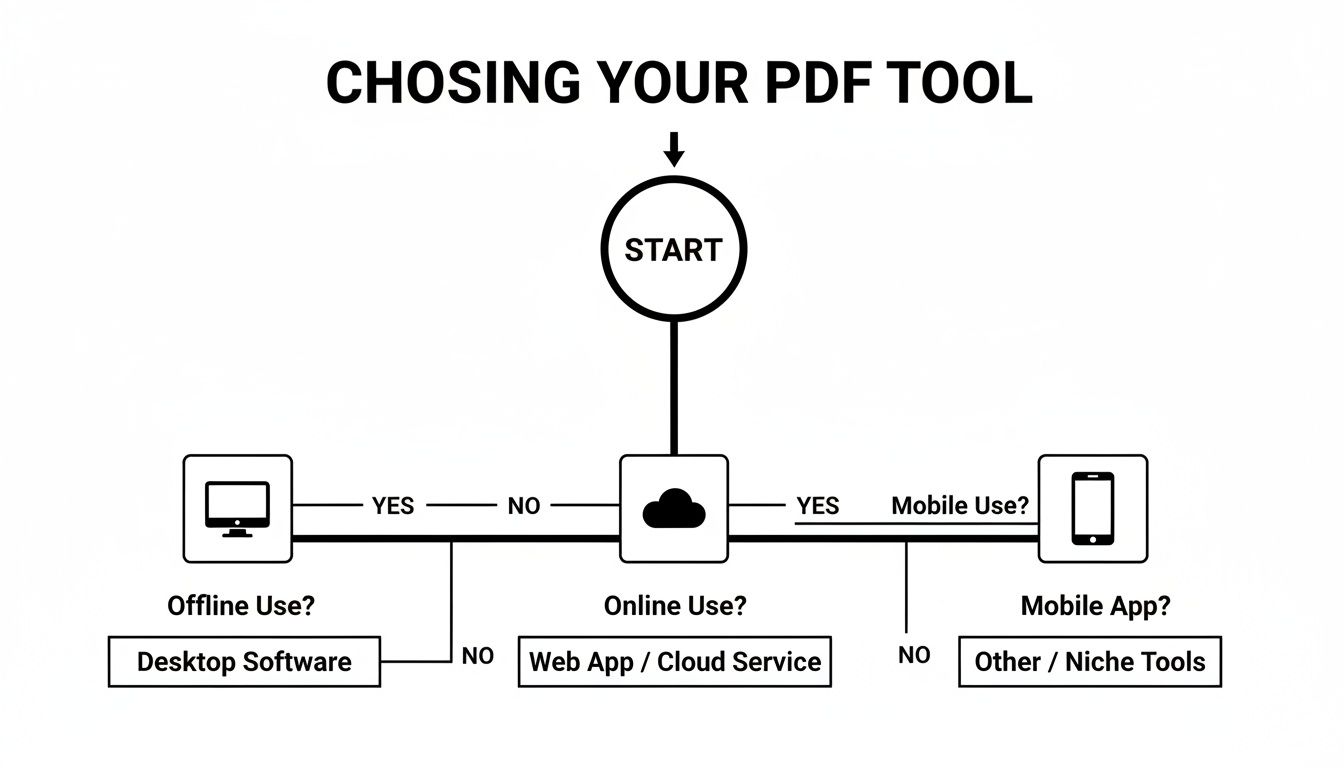
The main takeaway here is that your ideal method depends entirely on your workflow. Are you working offline at your desk, collaborating online, or trying to manage files on your phone?
A consolidated PDF isn't just a file; it's a clear, sequential story. It prevents confusion during collaboration, ensures reviewers see information in the correct order, and simplifies final archiving.
The benefits become obvious almost immediately:
- Simplified Sharing: Emailing one attachment is always better than sending a dozen.
- Improved Organization: Keep all related documents—like invoices, reports, and contracts for a single project—neatly bundled together.
- Streamlined Reviewing: Readers can scroll through a single, continuous document instead of clicking to open and close multiple files.
Choosing Your Free PDF Merging Method
To help you decide at a glance, this table breaks down the best free methods across different platforms.
| Method | Best For | Key Advantage |
|---|---|---|
| Web-Based Tools | Users needing quick, one-off merges without software installation. | Universal access from any device with an internet connection. |
| Windows "Print to PDF" | Windows users who prefer an offline method for sensitive documents. | Built-in, 100% private, and works without an internet connection. |
| macOS Preview App | Mac users looking for a fast, native, and offline solution. | Seamlessly integrated into the OS, incredibly intuitive, and completely free. |
| Mobile Apps (iOS/Android) | People who need to merge documents on their phone or tablet. | Portability and the ability to manage files from anywhere. |
Each approach has its place. Your choice simply depends on the tools you have at hand and the specific task you're trying to accomplish.
Combining PDFs on Your Desktop With Native Tools
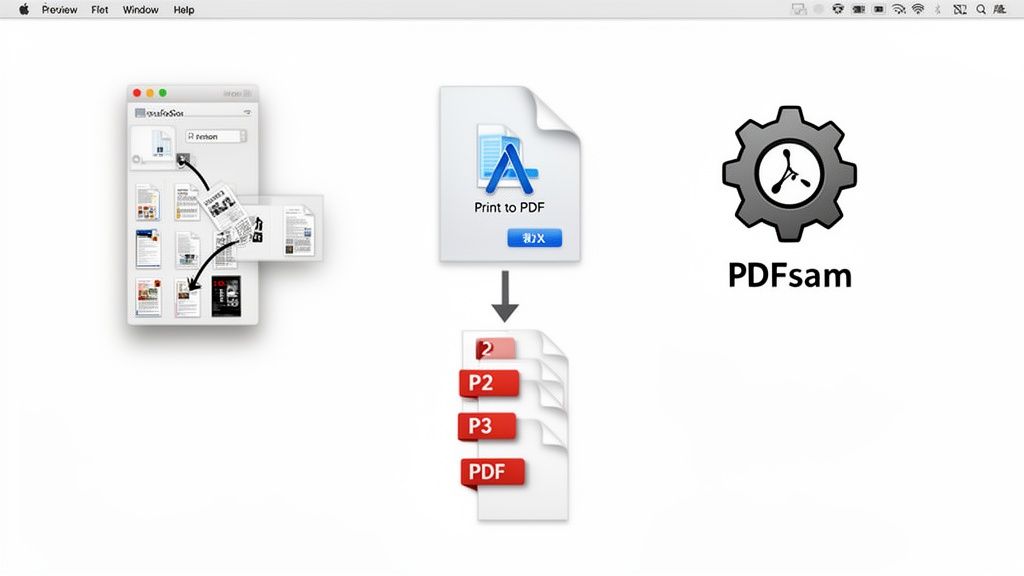
You probably don’t need to download anything new to merge a few PDFs. Your computer already has some powerful, free tools baked right in, perfect for getting the job done quickly and securely.
The biggest win with these built-in methods is privacy. Your files never leave your machine—they aren't uploaded to some random server in the cloud. This is critical when you need to combine multiple PDFs into one for free and those documents contain sensitive info like client contracts, financial statements, or personal records. Keeping it local eliminates the risk.
Merging PDFs on macOS with Preview
If you’re on a Mac, the built-in Preview app is your best friend. It’s far more than a simple viewer; it’s a surprisingly capable tool that makes merging PDFs feel effortless thanks to its drag-and-drop interface.
First, open one of your PDFs in Preview. Head up to the "View" menu and click "Thumbnails." This opens a sidebar showing a small preview of every page in your document.
Now for the magic. Just drag your other PDF files from a Finder window and drop them right into that thumbnail sidebar. You can place them at the very beginning, the end, or even squeeze them between existing pages to get the order just right.
The real power of using Preview is the control you have. Before you save anything, you can drag individual pages up or down in the thumbnail view to perfectly organize the final document.
Once everything looks good, go to "File" and select "Export as PDF." Give your newly combined file a name, save it, and you're all set. If you work with documents on a Mac often, learning little tricks like this can be a huge time-saver. You can explore even more options by checking out the best free PDF editors for Mac.
The Windows Print to PDF Trick
On Windows 10 and 11, there’s a clever workaround that uses the "Microsoft Print to PDF" feature. It’s not a one-click "merge" button, but it gets you the same result by treating a batch of files as a single print job that you save as a new PDF.
Here’s how you do it:
- Select Your Files: Open File Explorer, hold down the Ctrl key, and click on each PDF you want to combine. The order you click them in matters, so select them in the sequence you want them to appear.
- Right-Click to Print: With all the files highlighted, right-click on the first document in your sequence and choose "Print" from the menu.
- Choose the PDF Printer: In the pop-up print window, find the printer dropdown list and select "Microsoft Print to PDF."
- Print and Save: Hit the "Print" button. Windows will then ask you where you want to save your new, merged PDF and what you want to name it.
It's a surprisingly handy method for quickly piecing together reports or application packets without installing a single piece of software.
An Open-Source Option for Linux
For the Linux crowd, the open-source community always comes through with powerful, free solutions. PDFsam Basic is a go-to favorite for a reason. It's a straightforward desktop app you install that excels at merging, splitting, and rotating PDFs completely offline.
The process is simple: add your files, drag them into the correct order, and click the "Run" button to merge them. It's a reliable workhorse for anyone on a Linux system.
Using Free Online Tools for Instant PDF Merging
Sometimes you just need to merge a few PDFs quickly without installing any software. This is where web-based tools really shine. Their biggest advantage is accessibility—as long as you have an internet connection, you can combine files on any computer or phone, no matter where you are.
These online services are built for one thing: getting the job done fast. The process is almost always dead simple, boiling down to just a few clicks to get your merged document.
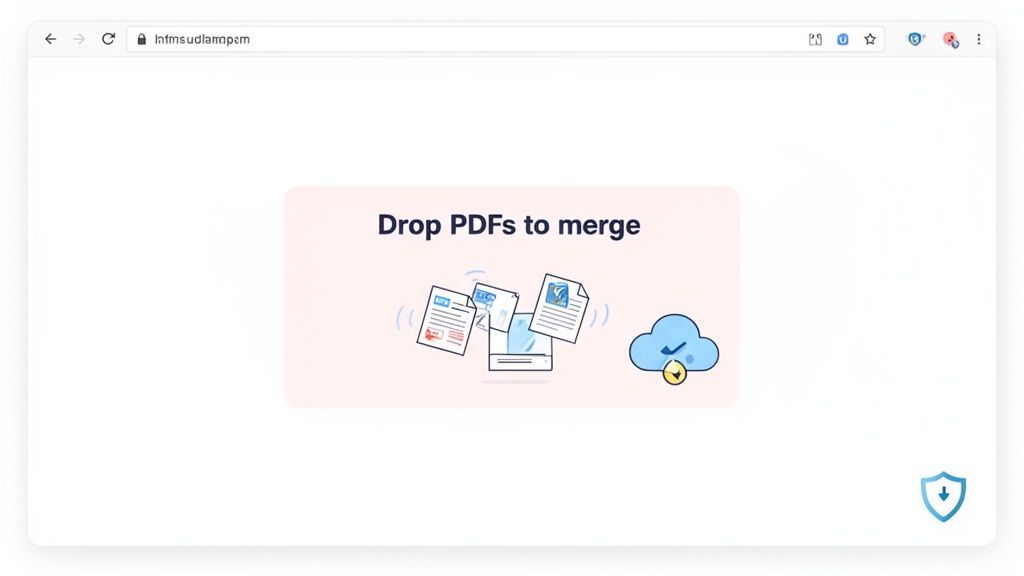
The Typical Online Merging Workflow
Even though every site looks a little different, the core process is practically identical everywhere you go. This makes it easy to switch between tools without having to relearn anything.
- First, you upload your documents. You'll see a big "upload" button or a drag-and-drop area. You can usually select all the files you need in one go.
- Next, arrange the file order. The site will show you thumbnails of everything you've uploaded. Just drag them around until they're in the right sequence for the final document.
- Finally, merge and download. Hit the "Merge" or "Combine" button. The site will process the files for a few seconds, and then a download link for your new, single PDF will be ready.
Navigating Privacy and Security
The biggest hang-up with online tools is always privacy. When you upload a document, you're sending it to someone else's server. What happens to it? A trustworthy service will be upfront about how it handles your data.
This is a legitimate concern, especially when your PDFs contain sensitive or personal information. A recent report found that while 68% of small to mid-sized enterprises use free online mergers to cut software costs, security is their main worry. You can dive deeper into the PDF software market trends on Verified Market Reports.
My rule of thumb is simple: if you wouldn't feel comfortable emailing it, don't upload it to a free online tool. For things like financial records, legal contracts, or anything with personal ID numbers, stick with the offline desktop methods. They're always the safer bet.
When you're picking an online PDF combiner, keep an eye out for a few key things:
- A Clear Privacy Policy: The site should spell out what happens to your files and how long they keep them.
- Automatic File Deletion: The best tools automatically wipe your files from their servers after a short period, usually within an hour.
- Encrypted Connections: Look for the little padlock icon in your browser's address bar. This means the site uses HTTPS, which encrypts your data as it travels to and from their servers.
By taking these small precautions, you can confidently use the convenience of online tools to combine multiple PDFs into one for free while keeping your information safe. It's all about finding that sweet spot between ease of use and smart data handling.
Merging PDFs on Your Phone or Tablet
Let's be honest, we do almost everything on our phones these days. Why should managing documents be any different? Whether you're a student pulling together lecture notes on the bus or a consultant compiling a report from an airport lounge, your phone is more than capable. You can absolutely combine multiple PDFs into one for free right from your pocket.
The trick is knowing where to look. Sometimes the best tool is already built into your device, and other times it's a matter of finding a trustworthy free app. It’s often just as quick as using a computer, but a whole lot more convenient when you're on the move.
The iOS Method: Your iPhone's Hidden Superpower
If you have an iPhone or iPad, you're in luck. The best tool for the job is already on your device: the Files app. It’s simple, secure, and doesn't cost a dime. No App Store downloads needed.
Many people don't even realize this feature is there. Here’s how you can use it:
- First, open the Files app and find your PDFs. I find it easiest to move them all into a single folder beforehand to keep things organized.
- Next, tap the three-dots icon at the top right and hit "Select." Go ahead and tap each PDF in the exact order you want them to appear in the final document.
- With your files highlighted, look for the three-dots icon in the bottom-right corner this time. Tap it and select "Create PDF."
And that's it! iOS will instantly stitch your documents together into a brand-new PDF, preserving the order you selected. From there, you can rename it, Airdrop it, or save it to your cloud service of choice.
The real beauty of using the native Files app is security. Your documents never leave your device, which is a huge plus if you're working with confidential contracts or personal records.
Top Free Options for Android Users
Android's ecosystem is a bit more varied, so there isn't one single, built-in tool for this. But don't worry, the Google Play Store is full of excellent free apps that get the job done. My advice? Look for an app with a clean interface and a clear privacy policy. You don't need a bloated piece of software with a dozen features you'll never touch.
A solid, no-frills choice is an app like PDF Merge: Combine PDF. It's built for one purpose, and it does it well.
The workflow is usually a breeze:
- Open the app and give it permission to see your files.
- Navigate to your device's storage and pick the PDFs you want to merge.
- Most apps will let you drag and drop the files to get the sequence just right.
- Hit the "merge" button, and you're done.
A simple, dedicated app like this makes combining documents on Android painless. It's perfect for piecing together scanned receipts for an expense report or combining chapters of an e-book right on your tablet. By picking a reliable tool, you can make your Android device a seriously productive gadget.
Thinking Beyond Merging With AI Document Tools
Knowing how to combine multiple PDFs into one for free is a fantastic skill to have in your back pocket. But sometimes, just stapling a bunch of documents together doesn't actually solve your problem. What if what you really need isn't a single file, but a single, clear answer drawn from all of your sources?
This is where the game changes. Instead of just merging files, you can now upload them all into one workspace and ask questions across the entire collection at the same time. This moves you past simple organization and into true information synthesis, helping you find deeper insights in a fraction of the time.
When Synthesizing Beats Merging
Picture a student knee-deep in research for a term paper. They've gathered ten different academic PDFs on their topic. The old-school method would be to merge them all into one massive, unwieldy file and then spend hours scrolling, reading, and trying to manually connect the dots.
With an AI-powered tool, that whole process looks completely different.
The student can upload all ten PDFs and just ask a simple question: "What are the common findings on this topic across these documents?" Instantly, they get a sourced answer that pulls key information from multiple papers, highlighting connections they might have otherwise missed.
This approach flips document management on its head. It’s less about the clerical task of file organization and more about speeding up comprehension and discovery.
This is a huge advantage in plenty of professional settings, too:
- Legal Teams: Instead of merging hundreds of pages of case files, a paralegal can ask, "Find all mentions of 'Exhibit A' across these depositions." They get a complete, consolidated list in seconds.
- Financial Analysts: An analyst can upload several quarterly reports and ask, "Compare the revenue growth mentioned in these three documents," getting a quick, data-driven summary without having to hunt for the numbers.
Chat with Your Documents
This kind of functionality—where you can essentially have a conversation with your documents—is becoming more and more common. It's all powered by AI that can actually read and understand the text, tables, and data within your files.
Here’s a glimpse of what that kind of interface often looks like.
An interface like this lets you drop in a bunch of files and just start asking questions in a chat window, getting consolidated answers from all your sources at once.
This shift toward AI-driven features is a huge reason the PDF software market is projected to hit $18.2 billion by 2033, as people look for tools that do more than just basic edits. You can read more about the growth of the PDF software market.
So while merging is great for taming document chaos, turning to advanced tools that offer capabilities like AI Legal Document Review can completely reshape more complex workflows. If your real goal is to extract and understand information quickly, it's worth seeing what these tools can do. To dive deeper, check out our guide on https://pdfsummarizer.pro/blog/automatic-document-processing.
How to Fix Common PDF Merging Problems
Let's be real—when you combine multiple PDFs into one for free, it doesn't always go off without a hitch. You might run into jumbled formatting, ballooning file sizes, or other headaches that can stall your progress. Luckily, these are common problems, and most of them have pretty straightforward fixes.
A classic issue I see all the time is broken interactive elements. You've just merged a bunch of documents, but now the fillable form fields are frozen solid, and none of the hyperlinks work anymore. This usually happens because the merging tool "flattens" the PDFs, which is like taking a screenshot of each page and stitching them together. All the cool, dynamic stuff gets lost in translation.
Pro Tip: If you need to keep those interactive features intact, your best bet is to use a dedicated PDF program's "Combine Files" function. Avoid the "Print to PDF" workaround, which is almost guaranteed to strip out any dynamic content.
Managing Bloated File Sizes
Another major pain point is ending up with a single, monstrously large document that's too big to email. When you combine several high-resolution PDFs, it's easy to create a final file that's hundreds of megabytes.
The solution here is compression. Most free online tools have this feature, but you'll have to decide on a balance between size and quality.
- Standard Compression: This will shrink the file size considerably with only a slight dip in image quality. For most everyday tasks, this is the perfect setting.
- Heavy Compression: This makes the file drastically smaller, but it can also make your text and images look fuzzy. Only go this route if the file size is your absolute top priority.
It’s not just about file size, though; data privacy is a huge concern. While 40% of users admit to worrying about data privacy, the use of free cloud tools with built-in encryption has jumped by 60% recently as services have gotten better and more trustworthy. You can dig into more stats on the growth of PDF tools on Cognitive Market Research.
One last thing to watch out for: if some of your source PDFs weren't text-searchable, your final merged document won't be either. You can easily fix this by running them through an OCR process first. It's a quick extra step that you can learn about in our guide on how to make a PDF searchable, ensuring your final document is as useful as it can be.
Frequently Asked Questions About Merging PDFs
When you need to combine multiple PDFs into one for free, a few questions tend to pop up again and again. Getting these sorted out ahead of time can save you a lot of headaches and help you pick the right tool for the job.
Is It Safe to Merge PDFs Online?
This is probably the biggest concern, and for good reason. Is it safe to upload your documents to a random website? Well, it really depends on what’s in those documents.
For things like public reports, articles, or any non-sensitive material, a reputable online tool is generally fine. But if your PDFs contain personal information, financial data, or confidential business plans, you should absolutely use an offline method. Stick with tools like Preview on macOS or the built-in "Print to PDF" function on Windows. That way, your files never leave the safety of your own computer.
Handling Large Files and Maintaining Quality
People often wonder if there's a limit to how many files they can merge. While most free tools don't set a hard cap, trying to combine a huge number of large files at once will definitely slow things down and can sometimes cause the tool to crash.
As a rule of thumb, I've found it's best to stick to batches of fewer than 50 files at a time. This usually keeps things running smoothly.
And what about quality? It’s a valid concern, especially if your documents are full of images.
- For text-heavy PDFs, you have nothing to worry about. The text will stay just as crisp as it was in the original files.
- For PDFs with images, the merging process itself rarely degrades quality. The real risk comes after merging, if you decide to compress the final PDF to shrink its file size. That’s when you might see images get a little fuzzy.
To keep everything looking sharp, start with high-quality original documents and use a tool that doesn't force aggressive compression on you. Good services will give you some control over the final output.
Do I Need to Create an Account?
Thankfully, for most free online PDF combiners, the answer is a resounding no. One of the best things about these tools is their convenience. You can just upload your files, merge them, and download the result without having to sign up or hand over your email address. It’s a quick, no-strings-attached solution.
Still spending hours trying to connect ideas across multiple reports? PDF Summarizer lets you upload all your documents and ask questions to get a single, unified answer instantly. Stop merging and start synthesizing. Try it free at https://pdfsummarizer.pro.
Relevant articles

Discover the 12 best document collaboration tools for any team. Compare features, pricing, and use cases to find the perfect platform for your workflow.
Learn how to upload a PDF on any device with our practical guide. Discover pro tips for file size, naming conventions, and fixing common upload errors.
Discover how a modern PDF document search engine uses AI and semantic search to unlock information across all your files. Find anything in seconds.
Discover how to combine pdf files on any device with quick, practical steps for students and pros to merge docs effortlessly.
Discover how legal document automation software transforms legal workflows. This guide covers features, real-world uses, and AI's role for modern legal teams.