How to combine pdf files: Simple steps for any device
Discover how to combine pdf files on any device with quick, practical steps for students and pros to merge docs effortlessly.
Knowing how to combine PDF files isn't just a technical trick; it's a core digital skill that transforms a mess of separate files into a single, organized document. If you've ever had to compile research papers, send a client a package of invoices, or build a project portfolio, you know the struggle. Merging those scattered PDFs is the key to a smoother workflow and makes sharing information a breeze.
Why Combining PDFs Is a Productivity Game Changer
Let's be real—merging PDFs is more than just clicking a button. It's a genuine productivity hack. Picture turning a dozen different research articles downloaded from various databases into one cohesive document for your literature review. Or, imagine compiling invoices, project briefs, and client reports into a single, professional package. That simple action brings immediate order to what was once digital chaos.
Creating one unified document clears the clutter from your desktop, makes sharing information dead simple, and helps you finally get a handle on version control. Instead of sending an email with five separate attachments (and hoping your recipient opens them in the right order), you send one. This isn't just about being tidy; it's a strategic move that fundamentally improves how you work.
Streamline Your Digital Workflow
The benefits of an organized digital life are huge. When you combine PDF files, you centralize information. No more digging through multiple folders to find what you need. This is especially true in academic and professional life, where juggling a massive amount of documentation is just part of the job.
It's no surprise that the demand for tools that can do this has exploded. The PDF editor software market was already valued at USD 3,358.86 million in 2023 and is expected to rocket to USD 15,114.11 million by 2032. You can explore more data on the PDF software market to see just how fast this space is growing.
By putting everything into one file, you dramatically cut the risk of sending incomplete information or, even worse, an outdated version. A single, merged PDF ensures everyone is on the same page, literally, which cuts down on confusion and costly errors.
The Real-World Advantages of Merging PDFs
Merging documents goes way beyond convenience. It delivers tangible benefits that make you more efficient and professional. Think about it: a well-organized, single-file submission just looks better than a handful of loose pages.
- Better Organization: Keep related documents—like invoices, receipts, and project reports—all in one place. This makes archiving and finding them later so much easier.
- Easier Sharing: Emailing one attachment is far simpler than sending a bunch of them, and it’s less likely to get caught in a spam filter.
- A More Professional Look: Presenting a report, proposal, or portfolio as a single, cohesive document makes it incredibly easy for your audience to read and navigate.
- Solid Version Control: You can finally stop the "which version is the latest?" email chain. Everyone works from one master document, period.
Ultimately, mastering how to combine PDFs is a fundamental part of modern digital literacy. To dive deeper, check out our guide on document management best practices.
How To Combine PDF Files on Your Preferred Device
No matter what device you’re on, there’s a way to merge PDF files. The trick is knowing which tool is right for the job—sometimes it’s a built-in feature you never knew existed, and other times it's a dedicated app. Let’s walk through the best methods for whatever system you’re running.
Before you dive in, this simple flowchart shows the basic thought process. If you have a stack of related documents, merging them is almost always the right move for better organization.
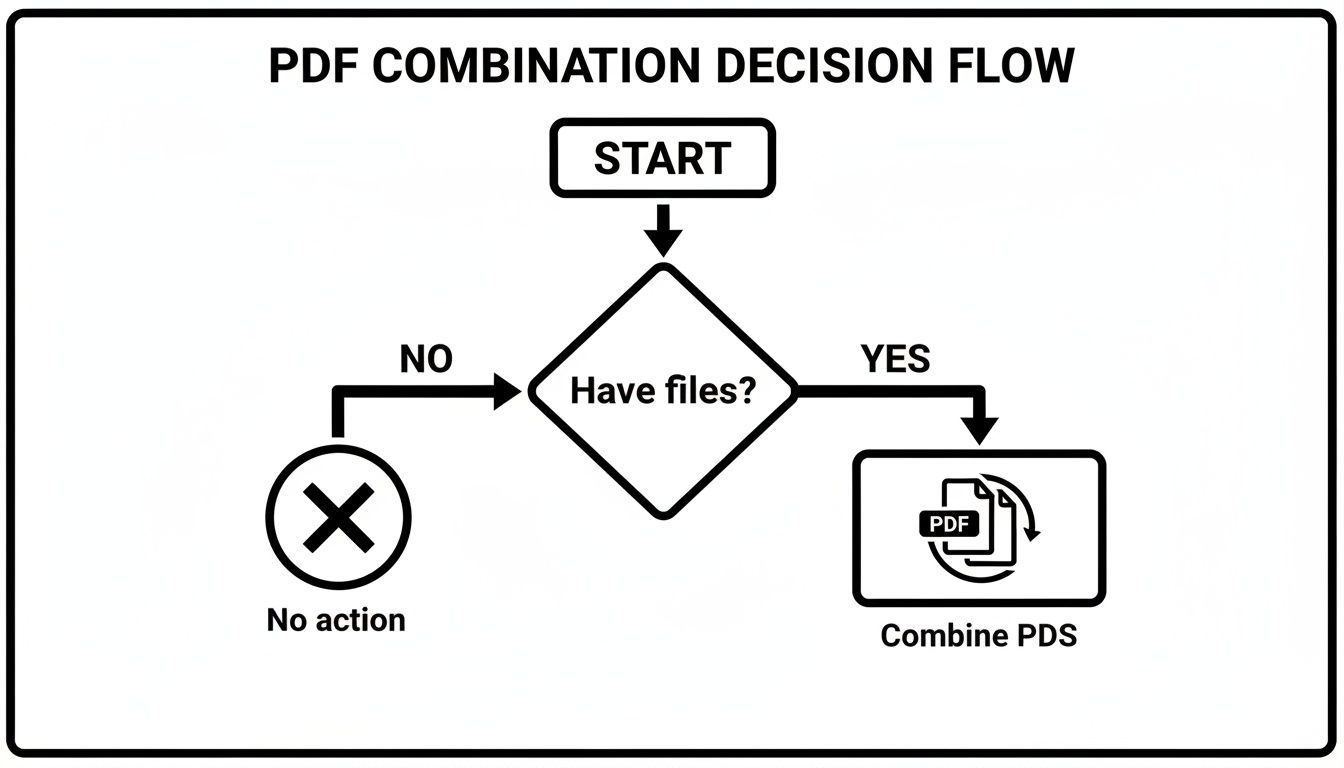
It’s a simple truth: juggling multiple files is a headache. Combining them makes everything easier to manage, share, and archive.
To help you choose the right method for your setup, here's a quick comparison of the most common approaches.
PDF Combining Methods at a Glance
| Method | Platform | Cost | Best For |
|---|---|---|---|
| Native Apps (Preview) | macOS | Free (Built-in) | Quick, secure merges for Mac users without extra software. |
| "Print to PDF" | Windows | Free (Built-in) | Basic combining on Windows when you don't have dedicated software. |
| Online Tools | Web (Any OS) | Free / Freemium | Fast, one-off merges on any device, especially for non-sensitive files. |
| Dedicated Software | Windows, macOS, Linux | Paid (Adobe Acrobat) / Free | Power users needing advanced features like page ordering and editing. |
| Mobile Apps | iOS, Android | Free / Freemium | On-the-go document management, like combining receipts or reports from a phone. |
| Command-Line | Linux | Free (Built-in) | Developers and technical users who need to automate or script PDF tasks. |
This table should give you a solid starting point. Now, let's get into the specifics for each platform.
Merging PDFs on a Windows PC
Windows users actually have a handy built-in trick for simple merges: the Microsoft Print to PDF feature. It’s a bit of a workaround, but it lets you "print" multiple documents into a single, new PDF file without installing a thing. It’s surprisingly effective for straightforward tasks.
When you need more control, though, dedicated applications are the way to go. Software like Adobe Acrobat offers a much more intuitive drag-and-drop experience. These tools are built specifically for PDF management, giving you far more options for ordering pages and fine-tuning the final document.
It's not just about convenience. Compatibility snags in document workflows are a real problem, impacting up to 25-30% of global enterprises. Mismatched formatting and layout shifts can derail entire projects. This challenge is a major driver in the PDF software market, which you can read more about at businessresearchinsights.com.
Combining PDFs on a Mac with Preview
If you’re on a Mac, you’re in luck. Your computer comes with a powerful, and often overlooked, tool called Preview. This native app makes merging PDFs incredibly simple, and frankly, it’s all most people ever need.
Here’s how easy it is:
- First, open one of your PDFs in Preview.
- Make sure you can see the thumbnail sidebar. If not, just go to View > Thumbnails.
- Now, just drag your other PDF files and drop them right into that thumbnail sidebar. You’ll see them pop up.
- Once they're all in, you can drag the thumbnails around to get the pages in the exact order you want.
- When you’re happy with the arrangement, go to File > Export as PDF to save your new, combined document.
This entire process is fast, free, and keeps your files secure on your own machine. If you find yourself needing more advanced features down the line, we’ve put together a great list of options here: https://pdfsummarizer.pro/blog/best-pdf-editor-for-mac-free.
Using Online Tools and Mobile Apps
When you’re away from your main computer or just need to merge a couple of files quickly, online PDF combiners are a lifesaver. These web-based tools run in any browser and require zero installation. Just upload your files, put them in order, and download the finished product.
A word of caution, though: always be mindful of privacy. I’d advise against uploading any sensitive or confidential documents to a free online service.
Mobile apps for both iOS and Android are also fantastic for handling documents on the fly. You can find dozens of apps that let you pull files from your phone’s storage or a cloud service like Google Drive, merge them with a few taps, and share them right away. Perfect for things like combining receipts into a single expense report while you're still on a business trip.
And remember, just as you combine files, you sometimes need to break them apart. For those situations, a variety of PDF Splitter tools can help you manage individual sections efficiently. For the more technically-inclined, Linux also offers powerful command-line utilities that give you scriptable control over your PDFs, perfect for automating batch jobs.
Go Beyond Merging with Multi-File Chat
Sticking PDF files together is a solid first step, but what if you could merge their actual insights? The latest AI tools are completely changing how we handle our documents. We're moving past just organizing files into a single stack and into a world where we can have a conversation with the information they contain.
This is exactly what PDF Summarizer’s Multi-File Chat feature is built for. It lets you upload a whole batch of documents at once—think financial reports, a stack of academic papers, or a dozen legal contracts—and then talk to all of them together. You’re not just managing files anymore; you're building a live, searchable knowledge base on the fly.
Unlocking Cross-Document Insights
Let’s say you’re an analyst trying to make sense of quarterly reports from three competitors. The old way involved merging the PDFs and then spending hours hunting through them, manually comparing data points. It was a slog.
Now, you can just drop all three files into a Multi-File Chat and ask direct questions.
- "Compare the Q2 revenue growth mentioned in these three reports."
- "What are the main risk factors each company identified?"
- "Pull out every mention of sustainability initiatives from all documents."
The AI digs through everything and gives you a single, consolidated answer, complete with citations showing where it found the information. This turns a tedious research project into a quick, interactive Q&A session, saving you a massive amount of time and helping you spot connections you might have otherwise missed. For highly specialized work like contract analysis, you can find dedicated platforms that chat with PDF legal tools to make complex reviews even faster.
The real power here is turning a static folder of PDFs into an active partner in your research. It’s the difference between owning a library and having a personal librarian who's read every single book and can answer any question you throw at them.
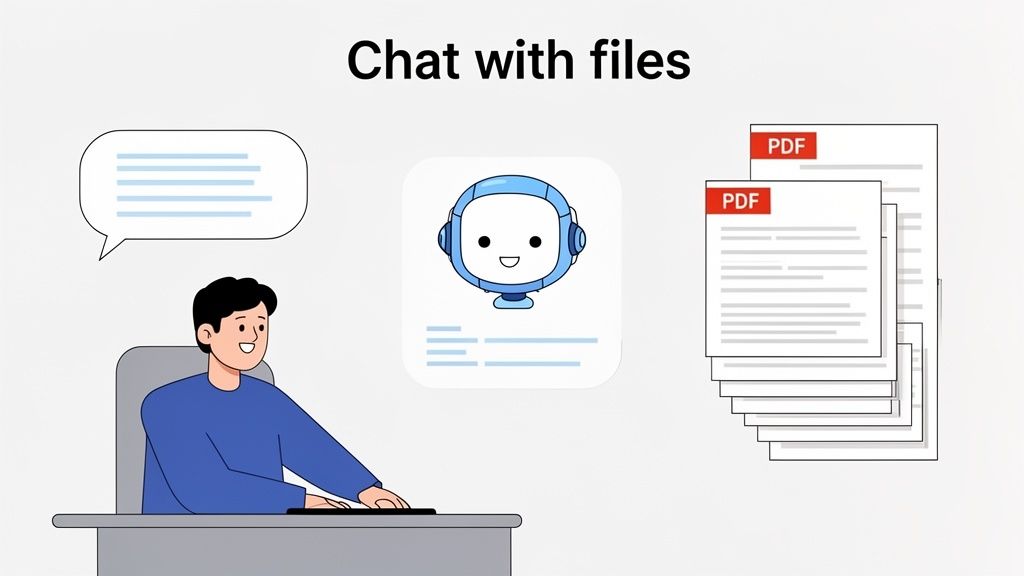
As you can see, the interface is designed to be straightforward. You just upload your files, and you're ready to start the conversation.
Practical Scenarios for Multi-File Chat
The uses for this kind of technology are pretty much endless, especially for anyone who has to wade through large amounts of information.
Take a student working on their thesis. They could upload twenty different research papers and ask, "What are the common themes and conflicting findings about Topic X?" This can cut the time it takes to do a literature review from weeks of manual reading down to just a few hours. We dive deeper into this in our article on AI-powered question answering.
It's just as useful in a legal setting. A paralegal could upload multiple contracts for a single case and ask, "Are there any contradictory liability clauses across these agreements?" The AI scans every document in seconds, flagging potential conflicts that could easily be missed by the human eye. This elevates combining PDFs from a simple admin task into a powerful analytical strategy that ensures consistency and minimizes risk.
Best Practices for a Flawless PDF Merge
Combining PDFs is more than just dropping files into a tool. Anyone can do that. The real art is creating a single, polished document that’s professional and easy for your reader to navigate. Without a few checks, you can easily end up with a jumbled, oversized file that’s more of a headache than a help.
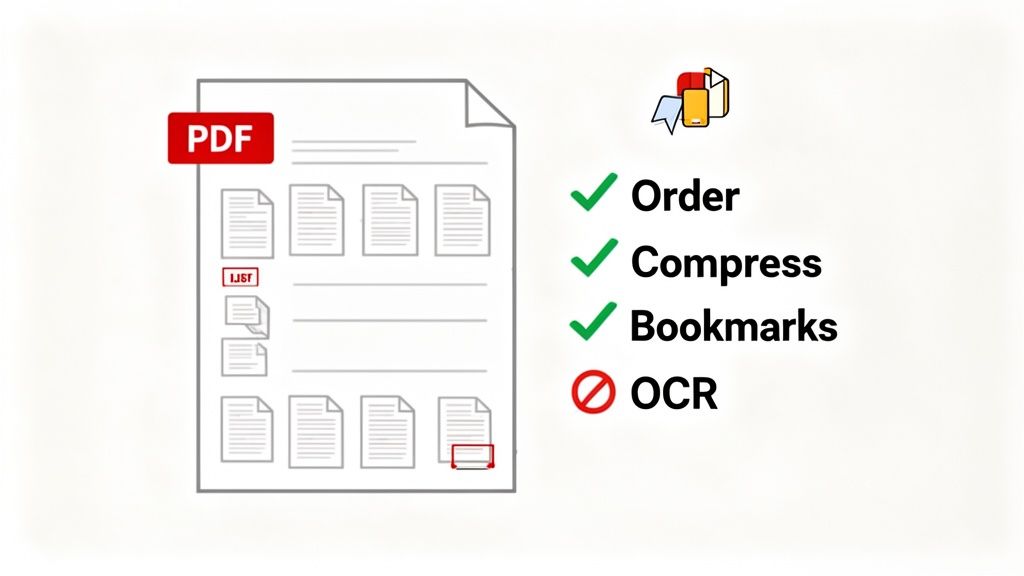
Think about it like putting together a presentation. You wouldn't toss your slides in a random order and call it a day. The same thinking applies here. A little bit of prep work before you hit "merge" makes all the difference in the final product.
Pre-Merge Checks for a Cohesive Document
Before you even think about opening a PDF combiner, spend a minute or two prepping your source files. This small time investment upfront will save you from major frustration down the line.
Here’s a trick I’ve used for years: rename the files with a number at the beginning, like 01-CoverPage.pdf, 02-Introduction.pdf, and 03-MainReport.pdf. This simple habit forces the files into the correct sequence right from the start, so you aren't stuck dragging dozens of thumbnails around inside the merging tool.
A few other critical things to do first:
- Review File Contents: Give each PDF a quick once-over. Is it the final version? There’s nothing worse than realizing you merged an old draft after you’ve already sent the document out.
- Remove Unnecessary Pages: Get rid of any blank pages or appendices you don't need. This keeps the final document clean, professional, and focused.
- Check for Password Protection: Locked files will bring the whole process to a screeching halt. Make sure any password-protected PDFs are unlocked and ready to go before you start.
Manage File Size with Smart Compression
Once everything is in the right order, the next hurdle is almost always the file size. When you combine several documents, especially if they’re loaded with images, the resulting PDF can be gigantic—often too big to email. The solution is compression, but you have to be smart about it.
Most decent PDF tools give you compression options. My advice? Avoid the most aggressive "maximum compression" setting. It’ll shrink the file, sure, but it can also make your images look blurry and text hard to read. Look for a setting called "balanced" or "optimized for web." This usually slashes the file size by 50-70% without a noticeable drop in quality.
Pro Tip: Don’t let a successful merge be undermined by a bloated file. A well-compressed PDF is easier to share, faster to download, and respects your recipient’s inbox space. It’s a crucial final touch.
Preserve Your Document’s Interactive Elements
Finally, think about all the useful data inside your PDFs. Many documents have interactive features like bookmarks, hyperlinks, or searchable text from Optical Character Recognition (OCR). A lot of free, basic online tools will "flatten" your files during the merge, which strips all of that functionality away.
Losing those features is a huge step backward, especially if you're putting together a research packet with a clickable table of contents or a report filled with external links. Always go for a tool—whether it's Adobe Acrobat or a high-quality online service—that specifically says it preserves bookmarks and hyperlinks. This ensures your final PDF is just as searchable and easy to navigate as the original files were.
Troubleshooting Common PDF Combining Headaches
Even when you follow all the right steps, technology can still throw you a curveball. Merging PDFs should be a straightforward task, but sometimes you’re left with shifting layouts or a file size that’s just enormous. It’s a common frustration, but don't worry—most of these problems have surprisingly simple fixes.
I see it all the time: text and images get completely scrambled in the final document. This usually happens when you're trying to combine PDFs that came from different places, like a Word document, a spreadsheet export, and a scanned receipt. The underlying formatting just clashes, creating a jumbled mess.
The best way to sidestep this is to use a quality PDF tool that knows how to properly read and reconcile different file structures. Basic, free tools often just "flatten" everything into a single layer, and that’s where the chaos starts.
Solving Formatting and Layout Shifts
When your carefully combined PDF ends up looking like a ransom note, the first thing to do is inspect the source files. If one of them has complex vector graphics or some obscure fonts, that’s probably your culprit.
A go-to fix that works more often than not is to "re-print" the troublesome PDF to a new PDF file. Just open the problematic document, go to Print, and select "Microsoft Print to PDF" or "Save as PDF" as your printer. This essentially creates a clean, standardized version of the file, stripping out whatever conflicting code was causing the issue. It might slightly lower image quality, but for most documents, it's a lifesaver.
Another pro tip is to open each file in a tool like Adobe Acrobat and save it as an "Optimized PDF" before you even attempt to merge them. This feature often standardizes the files enough to prevent layout problems from ever happening.
Dealing With Locked and Oversized Files
Two other issues that can stop you in your tracks are password-protected files and a final document that’s too massive to email.
Password-Protected PDFs: You simply can’t merge a locked file. There’s no secret workaround here. You have to open it with the password and then save a new, unprotected copy before you can include it in your merge.
Massive File Sizes: If the combined PDF is huge, compression is your best friend. Look for an option like "Reduce File Size" or "Compress PDF." As a rule of thumb, choosing a setting optimized for on-screen viewing is a safe bet. This can often shrink the file by up to 70% without any noticeable drop in quality.
Finally, if a tool flat-out tells you a file is "corrupted," try opening that specific PDF by itself. If it won't open, the file is likely damaged beyond repair. The only real solution is to go back to the original source—the Word doc, the spreadsheet, the image—and generate a fresh PDF.
Frequently Asked Questions About Combining PDFs
Once you start merging PDFs regularly, you'll quickly run into the same handful of questions. From keeping sensitive information private to wrestling with a final file that’s too big to email, getting these things right from the start saves a ton of headaches.
Let’s walk through the most common questions I get asked. Nailing these details will make your whole workflow much smoother.
Are Online PDF Combiners Safe to Use?
This is the big one, and the honest answer is: it depends entirely on the content of your files.
For documents that aren't sensitive—think public articles, recipes, or class notes—most reputable online tools are fine. Just make sure the site address starts with "https" to confirm the connection is secure. Good services also have a clear privacy policy stating they automatically delete your files after a few hours.
However, if you're handling anything with personal, financial, or company-confidential information, the only truly safe option is an offline tool. Stick with desktop software like Adobe Acrobat or the built-in Preview app on a Mac. This approach guarantees your files never leave your computer, completely removing the risk of a data breach on a third-party server.
How Can I Make My Combined PDF File Smaller?
It's incredibly easy to end up with a massive PDF, especially if you're merging files packed with high-quality images or graphics. A bloated file isn't just a pain to email; it’s slow to open and a hassle for whoever receives it. The fix is compression.
Most good PDF editors and many online tools offer this feature.
- Adobe Acrobat has an excellent "Optimize PDF" tool that gives you granular control over the compression settings.
- Online services typically offer simple presets like "Low," "Medium," or "High" compression.
From my experience, it's best to steer clear of the highest compression setting unless file size is your only concern, as it can make images look pixelated. The "medium" or "web-optimized" setting is usually the sweet spot. You can often shrink the file size by 50-70% without any obvious drop in quality. A little pro-tip: try compressing the larger individual PDFs before you merge them.
Will I Lose My Bookmarks and Links When I Combine PDFs?
Losing all your carefully created bookmarks and hyperlinks is a classic—and very frustrating—problem. Whether this happens or not comes down to the tool you choose.
Many free, basic online combiners will "flatten" your PDFs during the merge process. This essentially strips out all the interactive metadata, turning your dynamic document into a static, non-clickable file. If you've just spent hours creating a report with a detailed, bookmarked table of contents, this is a dealbreaker.
To keep everything intact, you need to use more capable software. Professional tools like Adobe Acrobat Pro are built to handle this. They not only preserve bookmarks and links but often allow you to merge and reorganize them into a new, unified table of contents for the final document. This keeps your combined PDF just as easy to navigate as the originals.
Ready to go beyond just merging files? Imagine being able to ask questions and get answers from all your documents at once. With PDF Summarizer, you can upload multiple PDFs and use our Multi-File Chat to compare data, find insights, and get instant answers from your entire research library.
Try PDF Summarizer for free and chat with your documents today!
Relevant articles

Discover the 12 best document collaboration tools for any team. Compare features, pricing, and use cases to find the perfect platform for your workflow.
Learn how to upload a PDF on any device with our practical guide. Discover pro tips for file size, naming conventions, and fixing common upload errors.
Discover how a modern PDF document search engine uses AI and semantic search to unlock information across all your files. Find anything in seconds.
Discover how an AI PDF summarizer can transform dense documents into clear insights. Learn about key features, practical uses, and how to start today.
Learn how to combine multiple PDFs into one free. This guide covers the best tools and methods for Mac, Windows, mobile, and online PDF merging.
Discover how legal document automation software transforms legal workflows. This guide covers features, real-world uses, and AI's role for modern legal teams.