How to Compare Two Documents A Guide to Smart Analysis
Learn how to compare two documents with our complete guide. Discover manual, software, and AI-powered methods to find differences with precision and speed.
To effectively compare two documents, you need a method that truly fits the job at hand. A quick side-by-side glance won't cut it. The best approach will always depend on the task, whether you're hunting down minor edits in a Word doc, validating data in a financial report, or pulling together insights from a stack of research papers.
Why Smart Document Comparison Is a Critical Skill
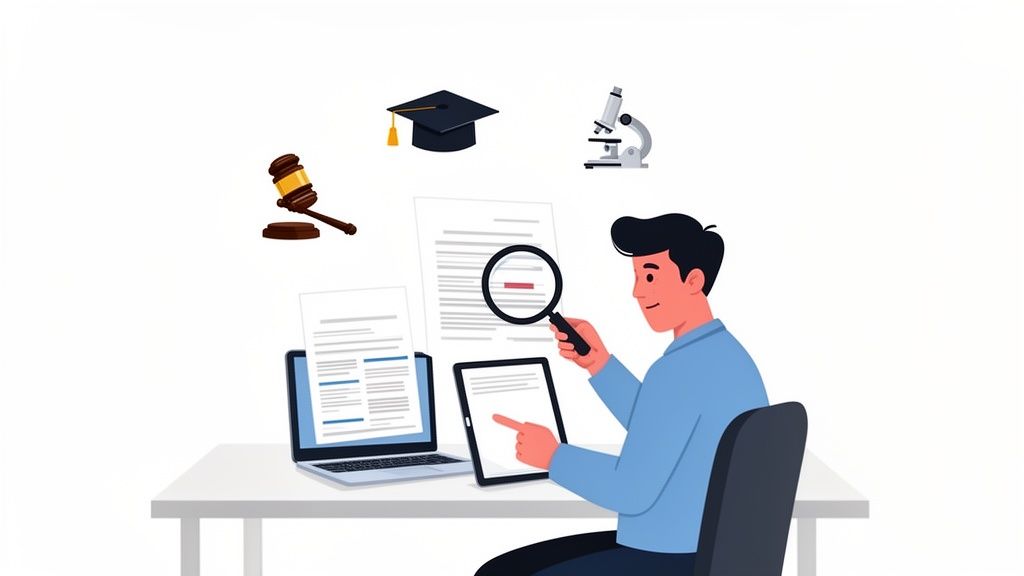
We're all drowning in digital files. Because of this, knowing how to efficiently compare two documents has shifted from a nice-to-have skill to an absolute necessity for anyone who values accuracy and productivity. Students, researchers, and seasoned pros alike face the daily grind of tracking changes, verifying information, or synthesizing data from different versions of a file.
Trying to review documents manually is more than just tedious—it’s an open invitation for human error. A single missed change in a legal contract, an overlooked data point in a research paper, or a subtle tweak in a business proposal can have massive downstream effects. This is the core problem that makes smarter, more dependable comparison methods so critical.
The Scale of the Document Deluge
The sheer volume of digital information we handle makes manual comparison a losing battle. Just think about it: there are over 2.5 trillion PDFs in the world, and that number grows by more than 290 billion each year. This is why professionals on legal and compliance teams can end up spending as much as 40% of their time just on document review, often painstakingly comparing contracts or briefs line by line.
The real challenge isn’t just spotting what’s different. It's understanding why it's different and what that change actually means in context. This is precisely where old-school methods fall short and modern tools shine.
This problem pops up everywhere, with different fields having their own specific needs for document analysis.
- Academic Researchers: They're often juggling dozens of papers for a literature review, trying to compare methodologies, findings, and citations.
- Legal Professionals: Their work demands meticulous tracking of every single revision in contracts and briefs, because one changed word can completely alter a legal obligation.
- Financial Analysts: They need to guarantee data consistency across invoices, purchase orders, and financial statements to head off expensive errors.
- Project Managers: It's on them to align project proposals with scope documents, ensuring every stakeholder is on the same page.
A great real-world example of this is in finance, where teams streamline invoice verification with practices like two-way matching in accounts payable.
Systematically examining these files is its own discipline. To get a better handle on the foundational techniques, you can dive into our guide on https://pdfsummarizer.pro/blog/what-is-document-analysis. Once you grasp the 'why' behind the need for better comparison, it's easier to explore the full spectrum of solutions out there, from the basic features in your software to advanced AI tools built for deep, nuanced analysis.
A Look at Traditional Document Comparison Methods
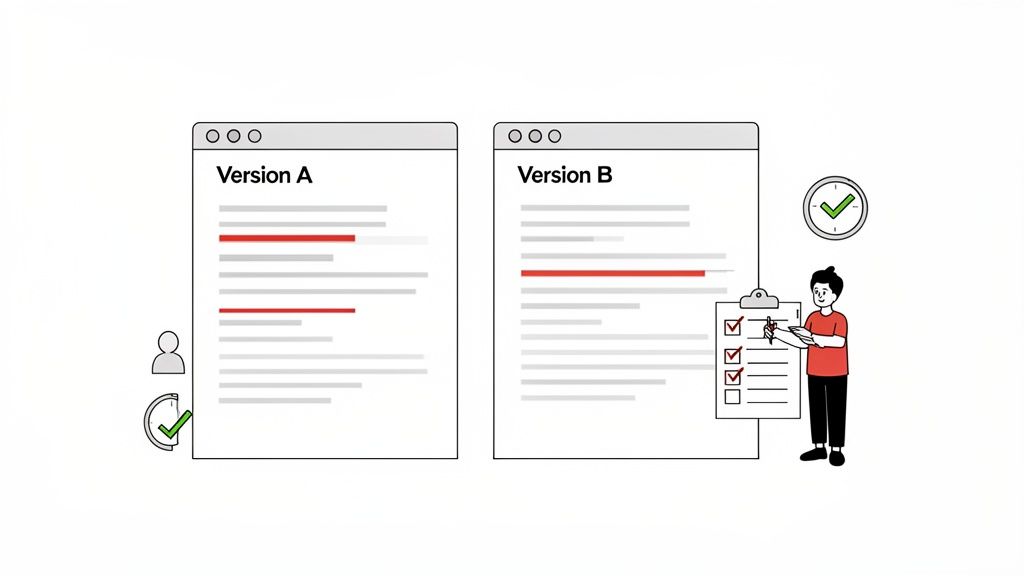
Before AI-powered tools entered the scene, we relied on a handful of tried-and-true methods to spot differences between documents. These approaches are familiar to most of us, but they almost always involve a trade-off between how much effort you put in and how accurate the results are. Getting a handle on their pros and cons is key to understanding why newer solutions are so compelling.
The most basic approach? The manual, side-by-side review. You simply pull up two documents next to each other on your screen or lay out the printouts and scan them line by line. It doesn't require any fancy software, just a sharp eye and a lot of patience.
While you have total control this way, its reliability hinges entirely on your ability to stay focused. For long, dense documents, human error is a massive risk; fatigue sets in, and it's easy to miss a subtle but critical change. It works in a pinch for a short paragraph, but it just doesn't scale.
Using Built-in Word Processor Tools
Thankfully, most word processors have built-in features that take some of the manual labor out of comparing documents. Tools like Compare in Microsoft Word or Version History in Google Docs are a huge step up, automatically highlighting discrepancies between two versions.
In Microsoft Word, the process is pretty robust. You can generate a "redline" document that gives you a clear visual of all additions, deletions, and even formatting tweaks.
How to Compare Two Documents in Microsoft Word:
- Go to the Review tab in the ribbon at the top.
- Click Compare, and from the dropdown, select Compare Documents.
- In the pop-up window, load your Original document and your Revised document.
- Click OK. Word will create a new document showing every difference as a tracked change.
This is the go-to method for lawyers redlining contracts or teams reviewing edits on a report. It gives you a clear, definitive record of every single change. The downside is that it can get tripped up by complex formatting or embedded tables, sometimes flagging minor layout shifts that just create noise.
A key limitation of built-in software tools is their text-centric nature. They excel at spotting word-for-word changes but often fail to grasp the contextual or semantic meaning behind the edits, treating a rephrased sentence the same as a critical data correction.
Google Docs handles this a bit differently with its Version History. Instead of comparing two separate files, it tracks a running log of every change made to a single document over its lifetime. You can scroll back in time to see who made specific edits and when, with additions and deletions clearly marked.
This is fantastic for collaborative projects with multiple people editing the same file. It provides a transparent audit trail but isn't much help if you're trying to compare two completely separate files that don't share a revision history.
To help you decide which traditional method fits your needs, here's a quick breakdown.
A Practical Comparison of Traditional Methods
| Method | Best For | Key Advantage | Major Limitation |
|---|---|---|---|
| Manual Side-by-Side | Quick checks of short, simple documents (e.g., one-page letters, short emails). | No software needed; gives the user complete control over the review process. | Highly prone to human error, incredibly time-consuming, and not scalable for long documents. |
| Microsoft Word Compare | Formal reviews of text-heavy documents like legal contracts, reports, or academic papers. | Creates a clean "redline" document that visually tracks every single change. | Can be confused by complex formatting; focuses on text changes, not meaning. |
| Google Docs Version History | Tracking changes in a live, collaborative document with multiple editors. | Provides a real-time, chronological audit trail of who changed what and when. | Only works for a single document's history; cannot compare two separate, unrelated files. |
These methods have served us well, but they share common weaknesses, especially when you move beyond standard text files.
Challenges with Non-Text Formats
Traditional comparison tools hit a brick wall when you're dealing with files where the text isn't selectable, like scanned PDFs, JPEGs, or PNGs. Because tools in Word or Google Docs see these files as flat images, they can't analyze the text within them.
This often means you’re forced right back to the painstaking manual side-by-side review. It’s a huge bottleneck for anyone working with archived materials, digitized records, or any document that wasn't "born digital." The only workaround is to use Optical Character Recognition (OCR) software first to convert the image into readable text, which adds another step and is rarely 100% accurate.
At the end of the day, while these classic methods still have their place, they often demand significant manual effort and have clear limitations that can slow you down and compromise the accuracy of your work.
The AI Revolution in Document Analysis
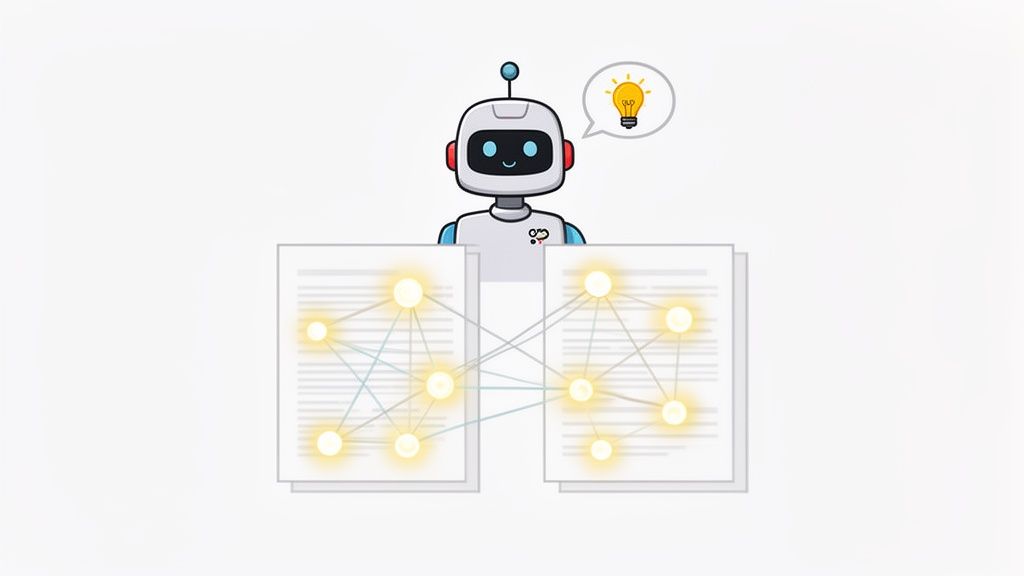
While the old-school tools are fine for catching direct text edits, they almost always miss the bigger picture. This is exactly where Artificial Intelligence steps in, completely changing how we compare documents by moving past simple word-matching and into the world of genuine comprehension. AI doesn't just scan the text; it actually understands it.
This leap forward is driven by Natural Language Processing (NLP), the field of AI that gives computers the ability to read, interpret, and figure out the meaning behind human language. Instead of just flagging a deleted sentence, an NLP model can see that a paragraph has been rewritten to project a totally different tone, even if most of the original words are still there.
Moving from Text Matching to Semantic Understanding
The real breakthrough that AI brings to the table is semantic comparison. Traditional tools ask, "What words are different?" AI, in contrast, asks, "What do these differences actually mean?" This deeper analysis is absolutely essential for complex work where context is king.
Let's say you're a researcher comparing two scientific papers. One might report a finding as "a significant correlation," while the other calls it "a noteworthy association." A basic diff tool would treat these as completely separate phrases. An AI, however, gets that "significant correlation" and "noteworthy association" are conceptually similar, which makes for a much smarter analysis.
The real power of AI in document comparison is its ability to synthesize information. It elevates the task from a simple proofreading job into a dynamic research process, letting you ask questions and find insights that would be nearly impossible to spot manually.
This isn't just for academics, either. Legal teams can use it to find clauses in two contracts that carry the same legal weight despite being worded differently. A business analyst can compare two quarterly reports to find thematic overlaps in their conclusions, not just identically phrased sentences. It's this level of insight that truly sets AI tools apart.
Cross-Document Questioning and Analysis
Modern AI platforms offer a much more interactive way to compare documents: cross-document Q&A. Forget about passively scrolling through a long list of highlighted changes. Now you can actively query your files by asking very specific questions, making the whole process feel more natural and a lot faster.
For instance, you could upload two reports and just ask, "What are the key differences in the budget proposals from Document A and Document B?" The AI will process both files, pull out the relevant information, and give you a direct, clear answer. That’s a world away from hunting down budget tables and comparing them line by line yourself.
This dynamic approach has some serious advantages:
- Efficiency: Get answers to complicated questions in seconds, not hours.
- Depth: Find hidden connections and contradictions that you'd probably miss during a manual review.
- Accuracy: Lower the risk of human error that creeps in from fatigue or oversight when you're dealing with dense documents.
This method effectively turns a static comparison into a hands-on investigation. Tools like a free PDF summarizer AI are a great way to try this out for yourself. By bringing AI into your workflow, you get an analytical partner that helps you not only compare two documents but truly understand the story they tell together.
How to Compare Two Documents Using AI
Let's move from theory to practice. AI-powered tools give you a hands-on, interactive way to compare documents that feels more like a conversation and less like a chore. Instead of just showing you a list of what’s changed, these platforms let you ask specific questions to understand why those changes matter.
I'll walk you through a practical workflow using an AI tool like PDF Summarizer. This process goes way beyond simple text matching, helping you synthesize information, verify facts, and find connections that would be almost impossible to spot with traditional methods.
Step 1: Upload Multiple Documents for Analysis
First things first, you need to gather your materials. Modern AI tools are built to handle multiple files at once, which is a huge advantage for complex projects. Whether you're a student pulling together a literature review or a professional comparing competing business proposals, you can upload everything into a single workspace.
Just drag and drop your PDFs into the tool. The AI gets to work immediately, processing the content of each file to get them ready for analysis. This is a critical step because it creates a shared knowledge base that the AI uses to draw connections and make comparisons across all your sources.
As you can see, the multi-file chat interface lets you upload several documents and talk to them all at once through a single chat window. The AI treats these separate files as one big dataset, so you can ask questions that span all of them without having to jump between different screens.
Step 2: Use a Side-by-Side View for Direct Comparison
Once your documents are loaded, the real analysis can begin. A standout feature in the best tools is the side-by-side view, which places the original document right next to the AI chat interface. This setup is incredibly effective because it keeps you grounded in the source material.
When you ask a question and get an answer, you aren't just taking the AI's word for it; you can instantly scroll through the original PDF to see the context for yourself. This visual pairing of AI insights and primary text makes for a workflow that's both efficient and trustworthy. You're always in control, using the AI as an analytical assistant, not a black box. For some applications, like ensuring academic integrity, it's also helpful to explore various tools for checking for plagiarism in Google Docs, which often rely on similar AI-driven text analysis.
Step 3: Craft Effective Prompts for Cross-Document Q&A
The real power of using AI to compare documents comes from asking the right questions. This is where you shift from passive reading to active investigation. Your goal is to write prompts that tell the AI to compare, contrast, and synthesize information from the files you've uploaded.
It's often best to start with broad questions to get a general overview, then drill down into the specifics. The more precise your prompt, the more targeted and helpful the answer will be. This interactive process essentially turns your static documents into a dynamic database you can query using plain English.
Examples of Effective Cross-Document Prompts
- For Students: "Compare the methodology sections of Document A and Document B. What are the key differences in their research approaches?"
- For Legal Professionals: "Find all clauses related to liability in both contracts and highlight the differences in wording and legal implications."
- For Business Analysts: "Summarize the Q3 financial results from the first report and contrast them with the Q4 projections in the second."
- For Researchers: "What are the main arguments about climate change in these three papers? Do they contradict each other?"
This conversational approach makes complex analysis much more approachable and a whole lot faster. It also helps you uncover connections between documents you might never have thought to look for. You can even ask the AI to do specific jobs, like helping you extract information from a PDF and organize it into a table.
Step 4: Verify Answers with Clickable Citations
Trust is everything when you're using an AI tool. The best platforms build trust right into their design by citing their sources for every piece of information they generate. When the AI answers your question, it shouldn't just give you a summary—it should also provide clickable citations that link back to the exact page and paragraph in the original document.
This feature is a game-changer for accuracy. If the AI says, "Document A reports a 15% increase in revenue," you can click the citation, and the tool will instantly take you to that exact sentence in the PDF. No more manually hunting for evidence. You can verify facts in seconds.
The combination of a side-by-side view and clickable citations creates a powerful feedback loop. You can ask a high-level question, get a synthesized answer, and immediately drill down to the source text to confirm the details—all without ever losing your place.
This is absolutely crucial in academic and professional settings where verifying sources is non-negotiable. Think about it: in Europe’s growing $555 million PDF software market, researchers can spend 25-30% of their time just checking sources across different files. AI tools with side-by-side views have been shown to cut down on errors by 50% in these kinds of tasks. PDF Summarizer’s multi-file chats can slash that review time by up to 70%, letting you ask things like, "Compare findings in Doc A vs. B," and get answers with citations that jump right to the relevant pages.
By following this four-step process—upload, view, query, and verify—you can turn a tedious task into a genuinely insightful and efficient workflow.
Choosing the Right Comparison Method for Your Task
Picking the right way to compare two documents isn't about finding a single "best" tool. It’s about matching the method to your specific goal. The right approach depends entirely on what you need to do, how much time you have, and how complex your files are.
A quick manual once-over might be fine for proofreading a short email, but it's a terrible strategy for reviewing a dense, 50-page legal contract where one wrong word could have major consequences. This is where understanding different workflows becomes critical for getting things done accurately and efficiently. To help you decide, we’ve put together some practical, scenario-based recommendations for different users.
This flowchart maps out a simple way to decide whether you need a quick check for changes or a much deeper dive for insights.
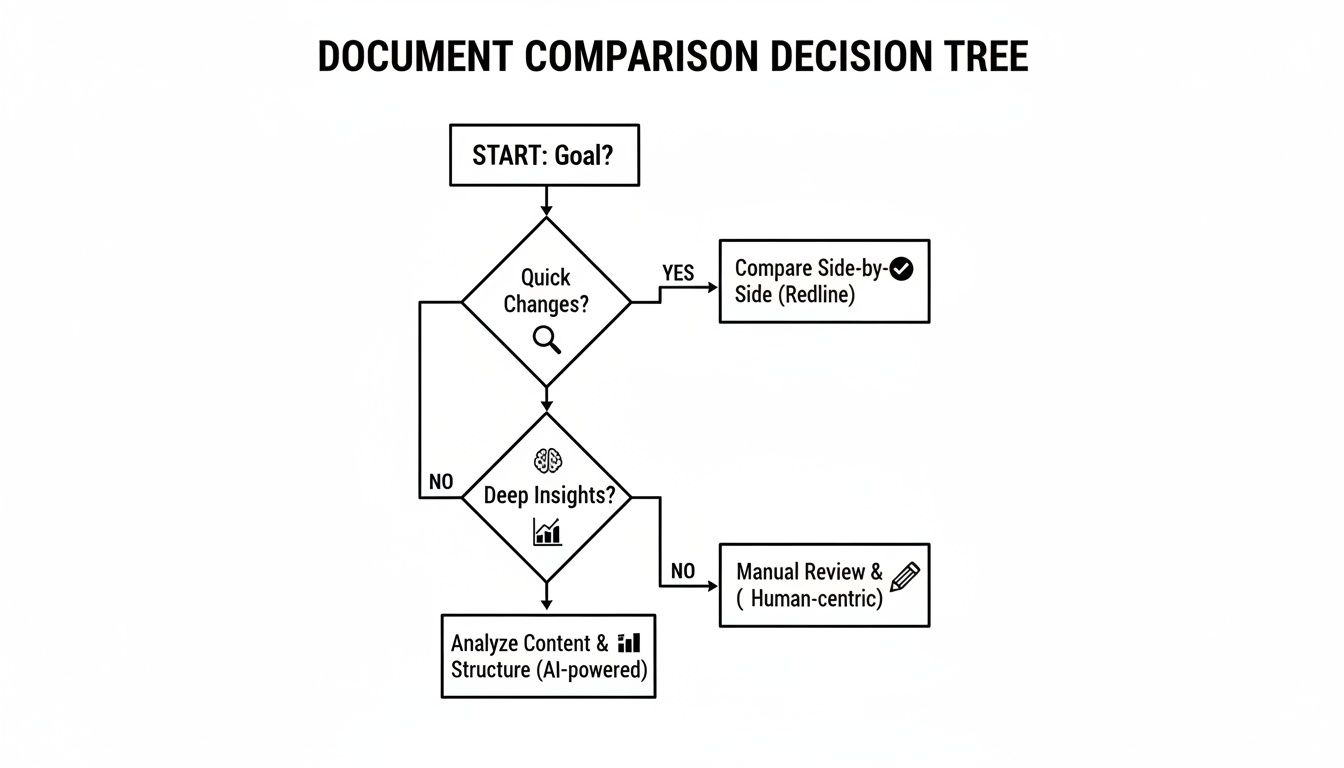
As you can see, simple text changes are easily handled by traditional methods. But when you need to analyze and synthesize complex information, AI-powered tools are the way to go.
Scenario 1: The Undergraduate Student
Undergraduate students are constantly juggling multiple sources for essays and research papers. Their main challenge is to quickly understand different arguments, compare findings from various articles, and pull out key quotes to support their work.
Recommended Workflow:
- Initial Skim (Manual): First, do a quick manual read of the abstracts and conclusions. This helps you immediately filter out papers that aren't relevant to your topic.
- Deep Analysis (AI Tool): Once you have a shortlist, upload the papers into an AI tool like PDF Summarizer. Use the multi-document chat to ask direct questions, like, "Compare the main arguments of these three articles regarding Topic X."
- Fact-Checking (AI Citations): As the AI generates answers, use its clickable citations to jump straight to the source text. This is perfect for verifying information and grabbing direct quotes with their original context.
This blended approach can save a student hours of reading, letting them focus on crafting a strong argument instead of just hunting for information.
Scenario 2: The PhD Researcher
A PhD researcher’s work is far more demanding. They are often sifting through dozens, sometimes hundreds, of dense academic papers for a comprehensive literature review. It’s not just about comparing findings; it’s about identifying gaps in the research, tracing how an idea has evolved, and ensuring their own work is original.
Recommended Workflow:
- Bulk Upload (AI Tool): Start by uploading a large batch of research papers to an AI platform. This immediately creates a centralized, searchable knowledge base for your entire project.
- Thematic Queries (AI Tool): Now, you can use more advanced prompts to explore connections. Ask things like, "What are the conflicting theories on this topic across all uploaded documents?" or "Trace the evolution of the term 'semantic analysis' through these papers chronologically."
- Side-by-Side Verification (AI View): When the AI pinpoints a specific contradiction or interesting connection, use a side-by-side viewer to examine the source texts up close. This detailed check ensures the AI's interpretation is both accurate and nuanced.
For researchers, AI is more than a time-saver—it's an analytical partner. It can uncover non-obvious relationships between texts that are nearly impossible to spot manually, helping you get to novel insights faster.
Scenario 3: The Legal Professional
For anyone in the legal field, precision is non-negotiable. When comparing two versions of a contract, every single word, comma, or formatting tweak can have serious legal implications. The primary goal is to spot every single modification and fully understand its impact.
Recommended Workflow:
- Generate a Redline (Word Processor): The first step should always be using a feature like Microsoft Word's "Compare Documents". This creates a definitive redline that reliably tracks every textual addition, deletion, and formatting change.
- Contextual Analysis (AI Tool): With the changes identified, upload both the original and revised versions to an AI tool. Ask targeted questions to understand the legal meaning behind the edits, for instance, "Analyze the changes to the liability clause. How do they alter each party's risk exposure?"
- Risk Assessment (AI-Assisted Review): Use the AI's analysis to flag potentially problematic changes that demand a closer human review. This elevates the task from a simple proofread to a strategic risk assessment.
By combining the raw change-tracking power of a word processor with the deep analytical capabilities of AI, legal professionals can build a workflow that is both meticulously accurate and strategically insightful.
Common Questions About Document Comparison
Even with great tools, you'll inevitably run into specific snags when comparing documents. Here are some of the most common questions I hear, with straightforward answers to help you pick the right method for the job.
What Is the Best Software for Comparing Two PDF Documents?
There's no single "best" tool—it really boils down to what you're trying to accomplish. Are you looking for tiny edits, or are you trying to understand the big-picture differences?
If your goal is a meticulous, line-by-line comparison, something like Adobe Acrobat Pro's "Compare Files" feature is hard to beat. It generates a "redline" report that highlights every single insertion, deletion, and formatting tweak. This is perfect for legal contracts or editorial reviews where every comma counts.
But what if you need to compare the ideas in two dense research papers? That’s where a simple redline falls short. For that kind of work, an AI-powered tool like PDF Summarizer is a much better fit. Instead of just showing you what's different, it lets you ask questions like, "What are the main contradictions between these two reports?" You're moving beyond simple text matching into genuine analysis.
How Do I Compare Documents in Different Formats?
Trying to compare a Word doc to a PDF can feel like fitting a square peg in a round hole. Most traditional comparison tools need both files to be in the same format to work properly. The easiest fix is to make them match.
The go-to workflow is simply to save your Word document as a PDF. This creates a level playing field, ensuring any comparison tool you use can process both files without getting tripped up by weird formatting issues.
- Step 1: Open your Word document.
- Step 2: Go to File > Save As.
- Step 3: In the format dropdown menu, choose PDF.
- Step 4: Now you have two PDFs ready to upload into your comparison tool of choice.
It’s a quick conversion that solves a ton of potential headaches and allows for a true apples-to-apples comparison.
How Accurate Are AI Document Comparison Tools?
When it comes to raw text extraction and finding specific facts, AI tools are incredibly accurate—often faster and more precise than a human. If you ask an AI to find a particular number or quote, it will locate it almost instantly. But the real measure of a great AI platform isn’t just its ability to find information; it's the transparency it offers.
A trustworthy AI tool must provide verifiable citations. An AI's summary is only as good as your ability to confirm it. For any serious professional or academic work, clickable sources that link directly back to the original text are non-negotiable.
These citations are your fact-checking mechanism. If the tool pulls out a key finding, you can click the source and see the exact sentence it came from in the original document. This creates a workflow where the AI does the heavy lifting, but you stay in complete control of verification. It makes the process both fast and reliable.
What if My Documents Are Scanned Images or Have Non-Selectable Text?
This is a classic problem. You have a scanned PDF, and you can't highlight or copy any of the text. Most comparison software hits a wall here because it can't "read" the words on the page. The solution is a technology called Optical Character Recognition (OCR).
OCR essentially scans the image of the page and translates the letters into machine-readable text. The good news is that many modern AI tools, including PDF Summarizer, have OCR built right in.
This means you don't have to find a separate OCR tool or go through an extra conversion step. Just upload your scanned PDF, and the platform handles the text recognition automatically. Once that’s done, you can treat the scanned file just like any other document—ask questions, compare it with other files, and get cited answers.
Ready to move beyond tedious manual reviews and find the insights hidden in your files? PDF Summarizer lets you chat with multiple documents at once, get instant answers with verifiable sources, and compare complex information in seconds. Try it for free and see how you can transform your workflow.
Relevant articles
Discover how question answering AI transforms documents into conversations. Learn how NLP and machine learning deliver instant, sourced answers from your files.
Discover how a modern PDF summarization tool can transform your workflow. Learn how AI analyzes documents, its key features, and how to get accurate summaries.
Learn how to summarize a PDF efficiently using both manual techniques and AI tools. Get actionable advice for students, researchers, and professionals.
AI to summarize pdf: Master fast, accurate summaries with practical prompts, tips, and real-world use cases to boost your productivity.