Convert Publisher File to PDF: Quick Guide to Preserve Layout
Discover how to convert publisher file to pdf quickly using built-in export options or trusted tools, while preserving layout, fonts, and security.
Fast Solution To Convert Publisher File To PDF
When a .pub file needs to become a reliable PDF, I usually reach for one of 4 methods that balance speed, fidelity, and accessibility.
These 4 approaches let you:
- Preserve complex layouts
- Embed custom fonts
- Maintain active hyperlinks
Exporting directly from Publisher delivers crisp graphics and flawless font embedding. It’s the top choice when your document relies on high-resolution images or nonstandard typefaces.
On the rare occasions Publisher isn’t installed, opening the file in LibreOffice or Microsoft Word can rescue your work. You might notice small shifts in layout, but it’s a solid fallback.
Printing to a virtual PDF printer (like Microsoft Print to PDF) requires no extra downloads. You can tweak output resolution in real time—perfect for quick internal drafts or low-stakes proofs.

The graphic above highlights how direct export shines with intricate designs, print-to-PDF fits fast one-offs, and online converters open the door on any device.
Comparison Of Conversion Methods
Whether you’re a graphic designer, marketer, or office user, this chart breaks down each path at a glance.
| Method | Steps | Pros | Cons |
|---|---|---|---|
| Publisher Export | File → Export → Create PDF | Sharp output, full font support | Requires Publisher |
| Print To PDF | File → Print → Microsoft Print to PDF | No extra installs, instant setup | Limited profile options |
| LibreOffice Bridge | Open in LibreOffice Draw or import into Word | Free tool, decent formatting | Occasional layout shifts |
| Online Converter | Upload .pub to a trusted web converter | Device-independent, fast | Potential privacy risks |
By matching your project’s priorities—whether it’s quality, speed, or universal access—you’ll quickly see which method fits your workflow.
Using Publisher Export Feature
When you’re wrapping up a multipage brochure packed with custom fonts and high-res images, Publisher’s built-in export wizard can save the day. It keeps layouts rock-solid and makes sure your hyperlinks stay live on any device.
Start by opening the File menu and choosing Export PDF or XPS. From here, you’ll select a color profile—CMYK Coated for print shops or RGB Web for screens—and tick Embed All Fonts to lock in every typeface. Transparency and vector details carry over automatically.
Export Settings Explained
Print-Ready Color Profile:
• “ISO Coated v2” for commercial printers
• “sRGB” for on-screen viewingEmbed All Fonts: Guarantees no unexpected substitutions when someone else opens your file.
Downsample Images:
• Bicubic downsampling at 300 ppi for crisp, professional prints
• 150 ppi if you’re making a smaller proof and need to reduce file sizePDF Standard:
• PDF/A for long-term archiving
• PDF/X to meet press-shop specs
• PDF 1.7 when maximum compatibility matters
Converting a .pub file to PDF became a staple workflow in the 2010s, and by 2024 PDF creation and manipulation were growing at roughly 12% annually since 2020. For a deeper dive into how PDFs dominate cross-platform document exchange, check out the latest stats on Smallpdf.
Real World Export Walkthrough
Imagine you’re the marketing lead rushing to finalize a fundraising brochure with bleeds and drop shadows. After clicking Export PDF, hit Options to:
- Adjust bleed margins
- Decide whether to include hyperlinks
- Fine-tune image downsampling
Here’s a quick look at the export options in Publisher:
That High Quality Print preset applies the right ICC profile and embeds fonts by default. You can even disable image downsampling for pinpoint clarity.
Once you’re happy with the settings, hit Publish. Publisher churns out a PDF that mirrors your layout perfectly. File size will depend on image resolution, but you can generally keep it under 10 MB for web distribution without losing any detail.
Best Practices And Tips
Give your PDF a clear, version-style name like Brochure_v3_Print.pdf. Then run a quick preflight check in Acrobat or your favorite PDF tool to catch missing fonts or low-res images.
- Double-check hyperlink toggles to keep links active
- Opt for PDF/X-4 if you’re sending to a modern press workflow
- Preview in Acrobat Reader to confirm interactive elements
“Embedding all fonts prevents last-minute layout shifts when collaborating.”
—Tip From A Designer
After export, consider uploading your PDF to PDF Summarizer. It swiftly analyzes long reports, extracts key data, and highlights takeaways—ideal for teams that need to digest content in a flash. Happy exporting!
Using Print To PDF And LibreOffice

If you don’t have Publisher installed, Windows’ built-in Microsoft Print To PDF can save the day. A few tweaks—boosting resolution, embedding fonts—and you end up with a sharp, ready-to-print file. From there, load your PDF into LibreOffice Draw or test a Word import plugin to see which holds your layout best.
Print To PDF Driver
A quick proof is just clicks away. I once needed a client’s event brochure turned around in an hour. Dialing up to 600 DPI captured every subtle shadow and line. Embedding TrueType fonts guarantees your typography stays consistent when viewed on other computers.
- Open Printer Preferences and select high-quality or press-ready mode
- In Advanced settings, enable Embed TrueType Fonts
- Choose RGB or CMYK based on whether it’s for screen or print
This only takes under 60 seconds—no extra software required, even on locked-down office machines.
LibreOffice Draw Workaround
LibreOffice Draw surprises many by opening .pub files almost flawlessly. It handles nested tables and graphic layers, though you might spot a tiny bleed shift. In most cases, the main layout stays exactly where you designed it.
- Pros
- Free and cross-platform
- Preserves text styles and images
- Cons
- Minor margin drift
- Occasional rasterized effects
Here’s what it looks like when LibreOffice Draw loads your layout.
Even with a slight nudge in the bleed, you can catch and correct it before finalizing.
Using Word’s Publisher import plugin is another free fallback. Frames may realign slightly, but hyperlinks usually survive intact.
Printing then verifying in LibreOffice cuts down layout errors in my nonprofit brochures.
Word Plugin Conversion
Have Word on your computer? Adding a Publisher import add-on creates a smooth route to PDF. Frames, tables, and images map over cleanly, letting you adjust wrapping and styles before export.
- Install the Publisher import add-on (Microsoft Office compatibility pack or WPS plugin)
- Open the .pub file via File > Open > All Files
- Save as PDF with Embed Fonts enabled
After trying all three methods side by side, you’ll know which one replicates your original design most faithfully.
I compare all three exports then pick the one that aligns closest to my original design.
With your final PDF polished, try PDF Summarizer to extract key points and speed up document review.
Using Online Converters To Preserve Layout
Cloud-based converters let you transform Publisher files right in your browser—no installations or admin rights required. A simple drag-and-drop and you’ll see your document turn into a PDF almost instantly.
These services usually include image compression controls, font embedding, and options to keep hyperlinks active. Many also offer one-click presets that balance file size and output quality.
- Privacy Controls that automatically delete uploads after processing
- Security Certifications such as AES-256 encryption and ISO compliance
- Batch Capabilities for handling dozens of files in one go
- Format Previews so you can inspect each page before downloading
If you’re working with sensitive content, make sure the tool spells out GDPR or HIPAA compliance. A solid SSL connection is non-negotiable for protecting layouts and embedded graphics. And if you need to add branding, look for watermark options that let you customize text or logos.
Choosing A Trusted Converter
Platforms like iLovePDF and PDF24 shine when you need a hassle-free, drag-and-drop workflow. In schools or offices where installs are locked down, these browser-based solutions are lifesavers.
Always start with a quick test page to confirm hyperlinks survive the conversion. If image clarity matters, experiment with the DPI slider until everything looks crisp.
Here’s a quick feature comparison:
| Feature | iLovePDF | PDF24 |
|---|---|---|
| Compression Levels | Low / Medium / High | Custom Slider + Presets |
| Batch Upload | Yes, up to 20 files at once | Unlimited (with subscription) |
| Security | SSL + EU Data Centers | SSL + German Privacy Laws |
| Watermark Option | Custom Text & Logo | Text Only |
By mid-decade, Adobe Acrobat still commands about 64% of the market and processes over 400 billion PDFs annually. The remaining 36% is shared by free tools and niche players. For a deeper dive, check out the latest figures on 360iResearch.
"Our PDF exports stayed pixel-perfect even on complex layouts," recalls James Liu, a high school educator who moved to an API-based converter and saved hours of manual work.
Batch Conversion And API Tips
An e-commerce startup I worked with scripted API calls to convert hundreds of product catalogs overnight. They built in retry logic and error logging to catch any hiccups early.
Another example: an online school that batch-processed student zines before finals week, then auto-sent the PDFs to every inbox without touching a mouse.
Here are a few tips for API-driven workflows:
- Use API Keys with restricted scopes to limit each job’s access.
- Enable Webhook Notifications for instant success or failure alerts.
- Monitor Usage Metrics to control costs and measure performance.
To verify layout accuracy, compare the converted PDF side-by-side with your original Publisher file using tools like Beyond Compare or Acrobat’s Compare Files.
Verifying Layout Accuracy
Zoom in on critical elements—tables, logos, special fonts—to catch any misalignments. A quick text search will confirm that hyperlinks stayed intact.
The screenshot below shows advanced choices for compression and link retention.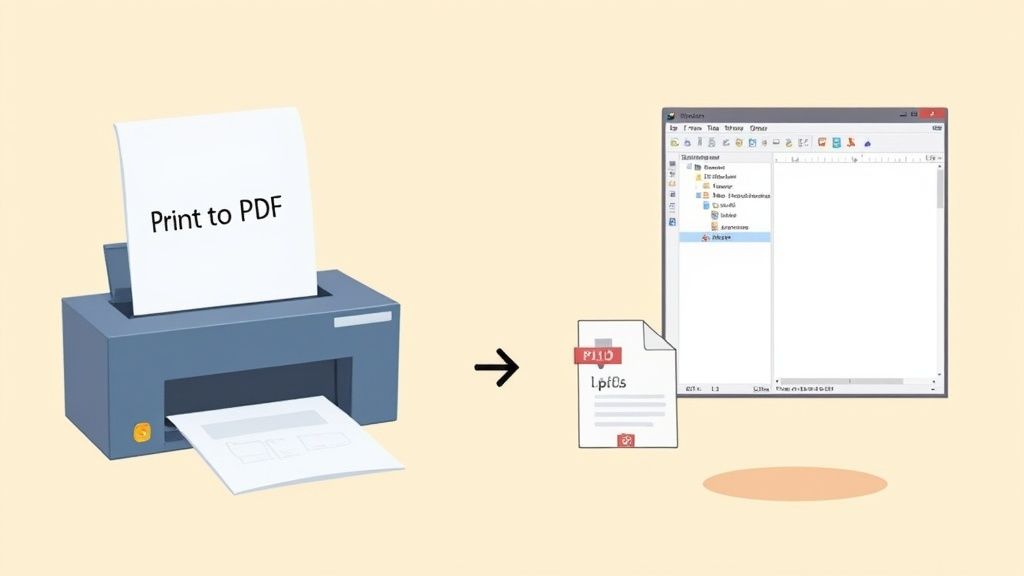
It highlights how you can toggle between presets like High Quality for print and Web Optimized for email. Always test on a smartphone to ensure links stay tappable and layouts adapt to smaller screens.
Once your PDF looks perfect, remove any metadata for a clean distribution. If you want to pull out key findings or summaries next, try using PDF Summarizer to extract insights in seconds.
Secure And Optimize Your PDF File
Once your document conversion wraps up, it pays to lock things down before sharing. A few security tweaks and file-size tweaks go a long way toward meeting compliance rules and keeping recipients happy.
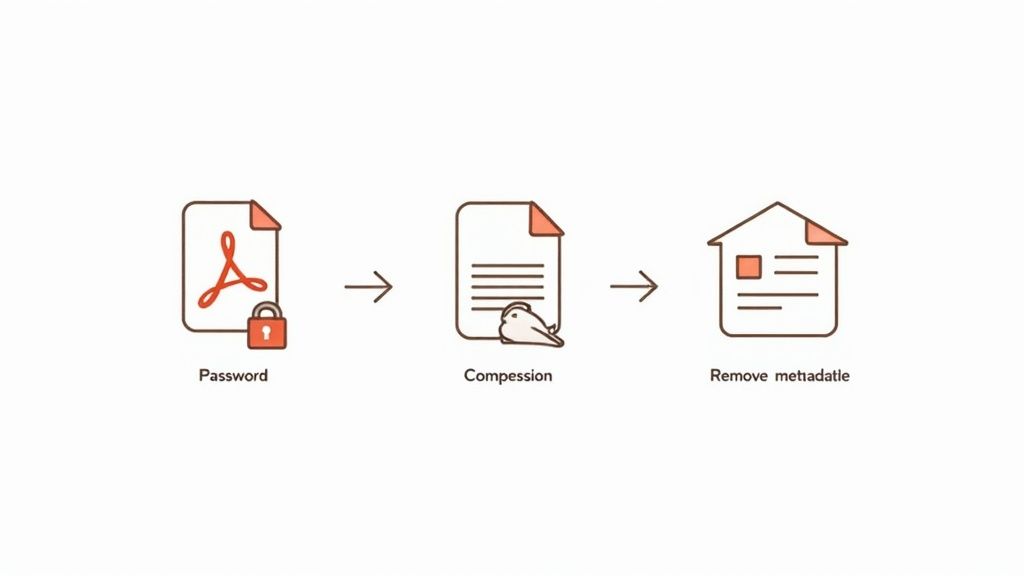
- Enable password protection and fine-tune permissions
- Strip out hidden metadata with a single click
- Apply selective compression to balance clarity and size
Password Protect And Remove Metadata
If you’re on Acrobat Pro, open the Encrypt settings, choose AES-256, and set a strong password. No Pro subscription? Try PDF24 or PDFsam—both offer straightforward AES-256 encryption without a fee.
Metadata can sneak in author details, comments, and edit history. Most PDF utilities include a “Remove Metadata” feature—hit that, and you’ll eliminate accidental data leaks in seconds.
Expert Tip
“Stripping metadata before distribution avoids compliance headaches,” says compliance consultant Laura Chen.
Finally, review your permissions panel to ensure form fields stay read-only and annotations remain locked.
Compress And Add Bookmarks
Good compression isn’t about shrinking everything indiscriminately. In Acrobat’s PDF Optimizer, you can downsample large images and weed out unused font glyphs—your visuals stay crisp, and file size drops.
Bookmarks act like a clickable table of contents. If your document uses clear heading styles, Acrobat and many free editors can auto-generate them. Otherwise, add bookmarks manually—it takes moments and dramatically improves navigation.
- Restrict printing or copying under custom rules
- Embed a short document summary in the info panel
- Choose Standard compression for emails, High Quality for archives
Before you distribute, scroll through the PDF on a phone or tablet. A quick check confirms links still work and layouts adapt properly.
If you prefer the command line, Ghostscript scripts can batch-process entire folders. A single Ghostscript command often shrinks files by 60% while preserving readability.
Don’t overlook free editors like PDFsam and Sejda Desktop. Beyond merging and splitting, they’ll convert your file to PDF/A for long-term archiving, keeping you aligned with ISO standards.
Compare Tool Options
Here’s a snapshot to help you pick the right PDF utility:
| Tool | Cost | Highlights |
|---|---|---|
| Acrobat Pro | Paid | AES-256 encryption, detailed compression, auto-bookmarks |
| PDF24 | Free | Simple UI, basic encryption and compression |
| PDFsam (Basic) | Free | Merge/split, metadata removal |
| Ghostscript | Free, CLI | Batch processing, scripting |
| Sejda Desktop | Free (3 tasks daily) | Merge, compress, intuitive desktop app |
| PDFsam Enhanced | Paid | OCR, PDF/A validation, advanced editing |
Try a quick test file with your top two picks—that hands-on experience will reveal which tool fits your workflow and budget.
After redaction, upload to PDF Summarizer Secure Redaction Guide
Troubleshoot Common Conversion Issues
Missing fonts and blurry images often surface when you turn a .pub into a PDF. You might hit missing codecs, or bleed guides that chop off your margins. A quick font embed can save the day, but sometimes the root cause lives in your page setup.
Quick Font Fixes
Start by verifying font embedding under Publisher’s Advanced options. If a font refuses to stick, install it on your system before reopening your .pub file.
When substitutions persist, head to the Edit Object menu and relink the font manually.
“Embedding fonts at 300 dpi prevented a last-minute glitch on a client’s brochure,” recalls designer Maya Lin.
Graphics And Link Checks
Low-resolution artwork can slip through default exports. Always pick High Quality Print and turn off downsampling for any image you can’t afford to lose detail on.
- View trim guides to confirm bleed margins align
- Apply the correct ICC profile to match your print shop
- Reinstall missing codecs through your OS package manager
Next, open your file in Adobe Acrobat and run a preflight link audit. Any hyperlink pointing to a local or outdated path deserves an immediate update.
| Issue | Symptom | Solution |
|---|---|---|
| Missing Fonts | Default serif appears | Embed or install font manually |
| Blurry Images | Graphics look pixelated | Disable downsampling in export settings |
| Broken Links | Clicks lead to 404 pages | Update hyperlink paths in Publisher |
If rotated text boxes refuse to line up, redraw them in Publisher instead of trusting the export. Adjust bleed margins in Page Setup when crop marks cut too tight.
Pro Tip Compare page one and your final page side by side before sending off.
Uploading to PDF Summarizer can reveal hidden text frames or shifts in your page layout. Check out our guide on editing a read-only PDF to learn how to unlock final touch-ups and preserve your layout integrity: https://pdfsummarizer.pro/blog/how-to-edit-a-read-only-pdf
Final Edge Case Tips
- When embedded graphics rotate incorrectly, tweak their anchor points and export a single page to spot the fault.
- Isolate odd behavior by publishing just the troublesome spread.
- Use these checks to cut back on last-minute revisions under a hard deadline.
Frequently Asked Questions
Converting Publisher files to PDF can feel like juggling fonts, links, and batch jobs all at once. It pays to run a quick trial on a spare document—catch quirks before you hit “Export.”
Below, you’ll find focused tips on font embedding, hyperlink retention, automating multiple files, and more—without rehashing the basics.
Will a PDF Generated From Publisher Keep My Custom Fonts?
Nonstandard fonts often vanish if they’re not embedded correctly. In Publisher’s export dialog, select Embed All Fonts. Then fire up Acrobat Reader to confirm no glyphs are missing.
Always preview in a genuine PDF viewer to avoid surprise font fallbacks.
If consistency matters, choose a PDF/X profile. Those presets lock in every typeface and prevent downstream hiccups.
How Do I Keep Hyperlinks Active in the PDF?
By default, some export settings flatten interactive elements. Open Publisher’s PDF options and tick Include Hyperlinks, then turn off any “flattening” or “print-optimized” flags.
After export, hover over links or run a quick check in Acrobat’s Preflight tool. You’ll spot inactive URLs before they reach colleagues.
Answering Font Compatibility
Embedding at 300 dpi keeps layouts crisp and stops fallback fonts from sneaking in.
If you still see errors:
- Install the missing font on your system
- Restart Microsoft Publisher
- Export again with embedding switched on
Read our guide on inserting comments in a PDF (https://pdfsummarizer.pro/blog/insert-comments-in-pdf).
Can I Automate Batch Conversions?
Publisher doesn’t have a one-click batch export, but you can automate, for example:
- Recording an export sequence with Adobe Action Wizard in Acrobat Pro
- Calling a cloud-based PDF conversion API overnight
- Using free online tools that handle up to 20 files at once
A simple folder-based workflow plus a short script can save hours on repetitive tasks.
Batch Processing Tips
Keep things tidy:
- Store all .pub files in one dedicated folder
- Adopt clear version naming (for example Brochure_v2.pub)
- Spot-check the first and last page of each PDF for layout shifts
For large jobs, schedule API calls to run while you sleep—and wake up to a finished batch.
Once your PDFs are complete, PDF Summarizer can analyze, extract insights, and speed up reviews—so everyone stays on the same page.
PDF Summarizer https://pdfsummarizer.pro
Recent articles

Learn how to merge pdf foxit reader PDFs quickly with step-by-step tips, free options, and 2026 updates.

Learn how to open pdf in google docs across devices, fix formatting, and edit PDFs with ease.

Discover the 12 best document collaboration tools for any team. Compare features, pricing, and use cases to find the perfect platform for your workflow.

Learn how to add citations in Google Docs using the built-in tool, add-ons like Zotero, and an advanced PDF workflow. Master APA, MLA, and Chicago styles.

Discover the best citation management software for your research. Compare Zotero, EndNote, Mendeley, and more to find the perfect tool for your workflow.

Explore critical thinking skills for students with practical strategies to analyze information, argue persuasively, and boost academic success.