A Complete Guide to How to Upload a PDF The Right Way
Learn how to upload a PDF on any device with our practical guide. Discover pro tips for file size, naming conventions, and fixing common upload errors.
Getting your PDF into an application should be simple, but the exact steps can change depending on where you are and what you're using. Most of the time, you'll either click an upload button or, on a desktop, just drag the file right into the browser window.
Each method has its moments to shine, and knowing which one to pick can make your workflow a lot smoother.
Understanding Your PDF Upload Options
Knowing how to upload a PDF is the gateway to almost any digital document task—whether you're submitting a report for work, sharing research with a colleague, or using a tool like a PDF Summarizer to analyze a dense file.
The digital document space is massive. The global PDF software market was valued at around USD 2.15 billion in 2024 and is expected to hit USD 5.72 billion by 2033. This growth is all thanks to the worldwide shift to digital-first workflows. You can explore more about this market growth to see just how central these skills have become.
The best way to upload often comes down to your situation. Drag-and-drop, for example, is a huge timesaver when you're on a desktop and need to get a few files uploaded at once. But if you're dealing with one massive document on a spotty connection, the classic upload button is often the more stable, reliable choice.
Choosing the Right Method
A little context goes a long way in helping you work smarter, not harder.
- Click-to-Upload: This is your go-to for single files, on any mobile device, or when your document is buried deep in a specific folder. It’s the universal standard for a reason.
- Drag-and-Drop: Perfect for desktop users who need to upload multiple files in one go. It lets you skip the file browser entirely, saving you a few clicks and a bit of time.
- Mobile Uploads: On your phone, you'll typically use the "Share" button from your file viewer or find a dedicated upload button inside the app you're using.
Common PDF Upload Methods at a Glance
To make it even clearer, here’s a quick breakdown of the most common methods and when they work best.
| Upload Method | Best For | Key Advantage |
|---|---|---|
| Click-to-Upload | Single files, mobile devices, finding specific folders. | Universally supported and reliable for any file size. |
| Drag-and-Drop | Multiple files at once on a desktop or laptop. | Speed and convenience; skips the file selection window. |
| Mobile 'Share' | Quickly sending a PDF from your phone to an app. | Seamlessly integrated into the mobile OS. |
Choosing the right approach becomes second nature once you've done it a few times. This guide will walk you through each of these methods, so you can handle any PDF upload task without a second thought.
Mastering PDF Uploads on Any Device
Uploading a PDF should be simple, but the best way to do it often depends on the device you're using. Whether you're at your desk prepping for a big project or trying to analyze a report on your phone, picking the right method saves a ton of frustration.
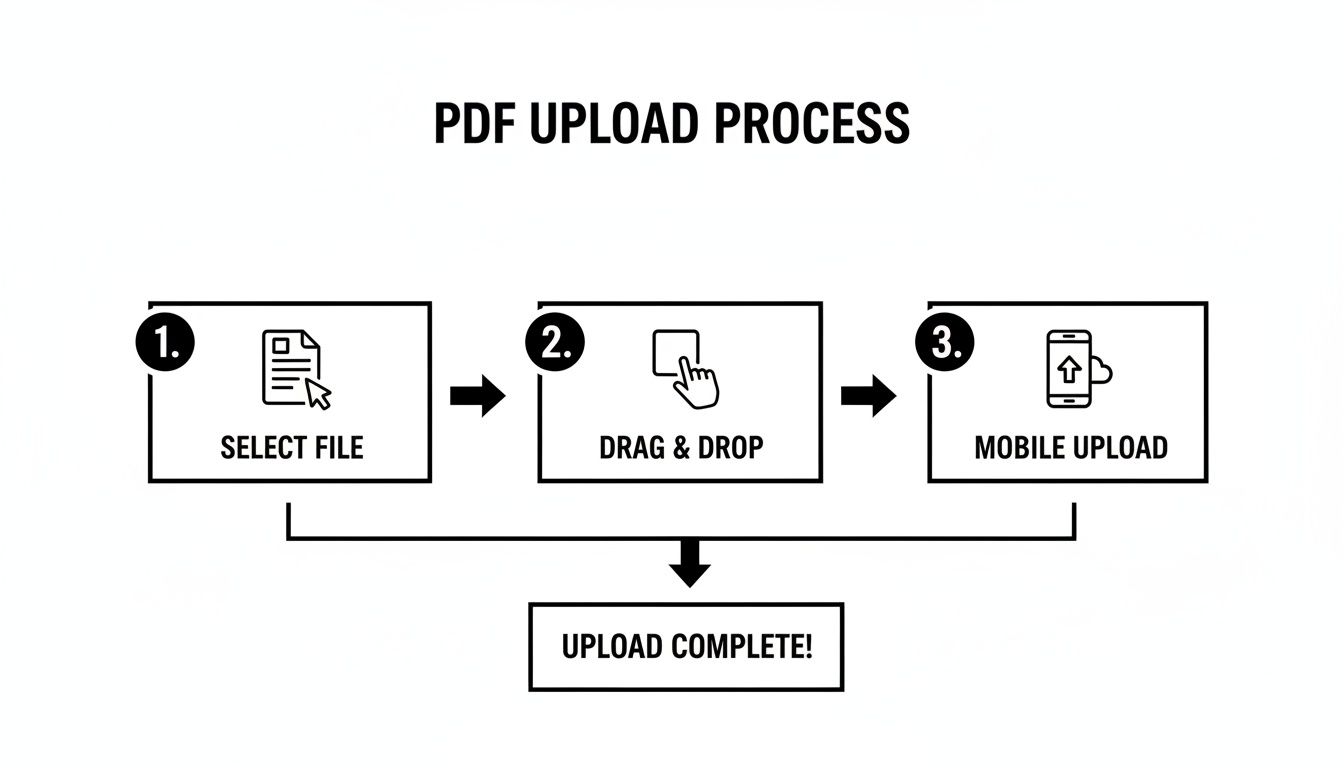
The core idea is always the same: get your file from your device onto the platform. It's just that the how changes slightly depending on your screen size.
Desktop Uploading Made Easy
When you're on a desktop or laptop, you've got a couple of great options for getting your files loaded. The classic method, which everyone is familiar with, is using the file browser.
You’ll see a button labeled "Upload" or "Choose File." Give it a click, and your computer’s file explorer will pop up (that's Finder on a Mac or File Explorer on Windows). From there, you just navigate to where you saved your document and select it. Easy.
For a quicker workflow, especially if you're juggling a few documents at once, drag-and-drop is fantastic.
Pro Tip: I find drag-and-drop to be a lifesaver when I have to analyze several quarterly reports. I just select them all on my desktop, drag the whole group over the browser window, and drop them into the upload box. It’s so much faster than uploading them one by one.
Some of the more advanced platforms offer robust multi-channel upload features, which can be incredibly useful. And if you're dealing with a bunch of separate PDFs that really belong together, you might want to combine PDF files into a single document first to keep things organized.
Mobile Uploads on the Go
Things work a little differently on a smartphone or tablet. Mobile operating systems like iOS and Android are built around apps and sharing, not a traditional file system.
So, instead of a file explorer, you'll often rely on the "Share" function. Let's say you have a PDF in an email or open in a PDF viewer app. Just tap the share icon, and you can send it directly to the app you want to use, like a PDF Summarizer.
Alternatively, most modern websites have an upload button that hooks directly into your phone’s files or your cloud storage, like Google Drive or iCloud. This is perfect for grabbing a document you’ve already saved without having to hunt it down in another app first.
Pro Tips for a Flawless Upload Experience
Ever get stuck on a PDF upload that just spins and spins? More often than not, the problem isn't the tool you're using—it's the file itself. A little prep work before you hit "upload" can save you a ton of frustration and make the whole process a breeze.
Keep an Eye on File Size
The number one culprit for a failed upload is almost always a bloated file size. Think about it: a massive PDF packed with high-resolution images is going to struggle, especially if you're on a spotty Wi-Fi connection.
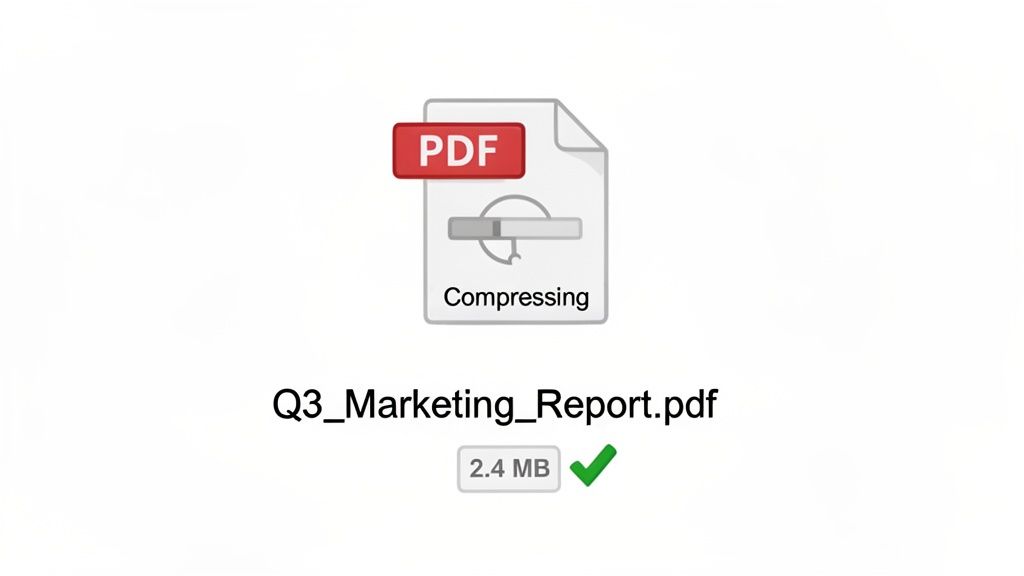
Before you even think about uploading, give your PDF a quick compression. Most PDF editors have a built-in “Reduce File Size” or “Optimize” feature. You can also use a reliable online tool like Smallpdf to safely shrink a chunky 20 MB file down to a much friendlier 2 MB without losing much quality.
Name Your Files Like a Pro
This might seem small, but it’s a game-changer. How many times have you stared at a folder full of files named Doc1_final_revised_v3.pdf? It’s confusing for you and anyone you share it with.
A smart file name tells you exactly what’s inside without you ever having to open it. It’s one of the simplest and most effective organizational habits you can build, especially when working on a team.
Instead of a generic name, try something descriptive like 2024-Q3-Marketing-Performance-Report.pdf. Now that’s a file you can find in seconds.
Check Your File Integrity First
Sometimes, a file just gets corrupted. It might have been a bad download or a glitch when it was exported. The result? You get an "Invalid File Type" error, even though it clearly says .pdf.
The fix is easy: just try opening the file on your computer. If it opens in your PDF reader without any issues, you're good to go. If not, the best bet is to go back to the original source and re-download or re-export it.
PDF Pre-Upload Checklist
Running through these quick checks before you upload will help you sidestep the most common issues. Think of it as a quick pre-flight inspection for your documents.
| Check | Why It Matters | Quick Tip |
|---|---|---|
| File Size | Large files are the primary cause of slow or failed uploads. | Aim for under 10 MB. Use a compression tool if your file is larger. |
| File Name | Clear names make files easy to find, identify, and manage later. | Use a consistent format: YYYY-MM-Topic-Version.pdf. |
| File Integrity | Corrupted files won't be processed, causing "invalid file" errors. | Can you open it in a standard PDF reader? If yes, you're set. |
| PDF Version | Ensure it’s a standard, non-secured, and text-based PDF for best results. | Avoid password-protected files or image-only (scanned) PDFs. |
Taking just a minute to review this checklist can ensure your PDF uploads perfectly on the first try, every time.
How to Fix Common PDF Upload Errors
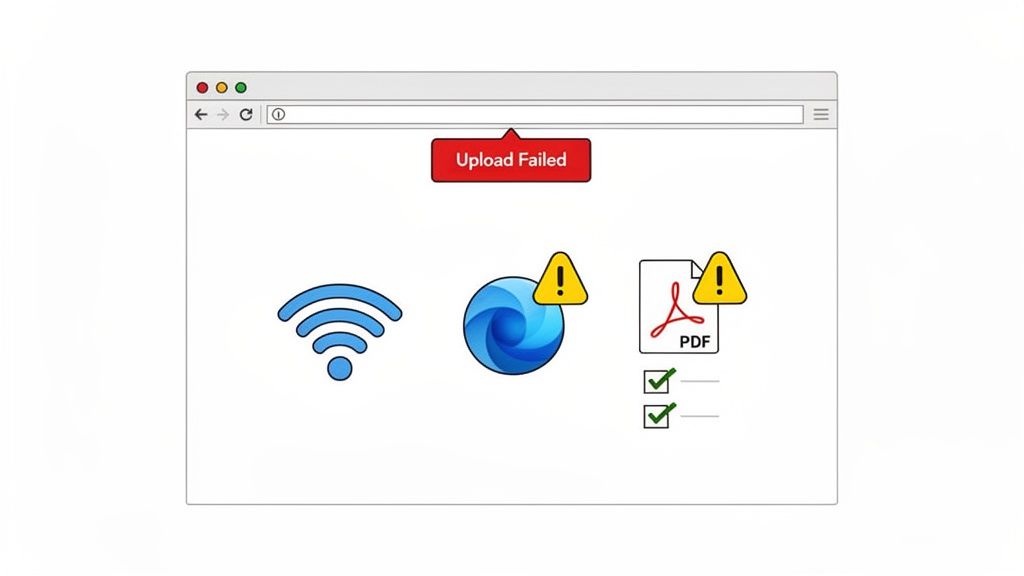
It's a familiar feeling: you've got your PDF ready to go, but you hit upload and... nothing. An "Upload Failed" or "Invalid File Type" error pops up, and your workflow grinds to a halt. It's frustrating, but don't worry—the fix is usually pretty simple once you know what to look for. More often than not, the issue is something on your end, not a problem with the platform itself.
Before you throw in the towel, run through a quick diagnostic checklist. I've found that these few steps solve the vast majority of problems I run into when I upload a PDF.
Diagnosing the Root Cause
Let’s start with the most likely suspects. First up, check your internet connection. A spotty Wi-Fi signal is a classic culprit for uploads that time out or just fail outright. If you can, try switching to a different network or even plugging directly into an ethernet cable.
If the internet seems solid, your browser might be the problem. I’ve seen aggressive ad-blockers and other extensions interfere with upload scripts plenty of times. An easy way to test this theory is to open an incognito or private window (which usually disables extensions) and try uploading again.
My Go-To Troubleshooting Steps:
- Try a Different Browser: If it's not working in Chrome, I'll give Firefox or Safari a shot. This is a super-fast way to see if it's a browser-specific bug.
- Clear Browser Cache: Old, stored data can sometimes cause weird conflicts. A quick cache clear often works like magic for unexplainable errors.
- Restart Your Device: It sounds cliché for a reason—it works! A simple reboot can resolve a surprising number of temporary software glitches.
Checking File and Platform Limits
Okay, so your connection is good and your browser isn't the issue. Now it's time to look at the file itself and the platform you're using. First, make sure the PDF isn't corrupted. Can you open it normally with a standard reader like Adobe Acrobat? If it won't open there, you’ll need to track down a working version of the file.
Finally, remember that almost every online tool has its own set of rules. Be on the lookout for limitations like:
- Maximum File Size: Some services might have an upload cap of 25 MB, while others might allow up to 100 MB. Always check their guidelines.
- File Permissions: Password-protected or encrypted PDFs are often rejected. You might need to figure out how to edit a read-only PDF before the platform can process it.
- Number of Files: Trying to upload a whole folder at once? The platform might have a limit on how many documents it can handle in a single batch.
By working through these common points of failure one by one, you can almost always pinpoint the problem and get back on track. What starts as a frustrating roadblock quickly becomes just a minor hiccup.
Unlocking Your PDF's Potential After Uploading
Once you upload a PDF, you're not just storing a file—you're opening up a world of possibilities. Your document is no longer a static page but an interactive knowledge base you can talk to. With a tool like PDF Summarizer, you can start a conversation with your document the moment it's uploaded.
Think about it from a student's perspective. Instead of re-reading a dense textbook chapter for an exam, you could just ask, "What are the three main theories discussed in this section?" and get a straight answer. It’s a complete shift from passive reading to active learning.
From Static File to Dynamic Asset
The real magic happens when you bring multiple sources into the mix. Imagine uploading several research papers and using a multi-file chat to pull together information across all of them. For anyone doing a literature review, that’s a massive time-saver.
A few key features really make this happen:
- Side-by-Side View: This lets you keep the AI chat and your original PDF on the same screen, so you can reference the source material as you go.
- Clickable Citations: Ever wonder where an AI got its answer? Clickable citations jump you to the exact spot in the text, so you can verify everything instantly.
- No Sign-Up Trials: You can jump right in and test out the main features without needing to create an account first.
This move toward interactive documents is a big deal. The PDF editor software market is expected to grow from USD 5.29 billion in 2026 to USD 10.01 billion by 2032, largely because people want tools with these advanced AI analysis features. You can read the full research about PDF software market trends to see just how quickly things are changing.
Your goal after uploading should be to transform passive documents into an active conversation. This is the key to extracting valuable insights efficiently and accurately.
After you've uploaded your PDF, you can even get creative with it. For example, you could use an AI tool to convert your PDF to a video, which is a great way to share your content on social media. If you want to get more technical with data retrieval, check out our guide on how to extract information from a PDF.
Common PDF Upload Questions, Answered
Running into a snag while trying to upload a PDF is frustrating but usually easy to fix. Let's walk through some of the most common issues people encounter and how to get past them quickly.
Why Is My PDF Taking Forever to Upload?
More often than not, a painfully slow upload comes down to one of two culprits: the file is too big, or your internet connection is struggling.
A PDF packed with high-resolution images can balloon in size. Before you even try to upload a PDF, it's a good idea to compress it. You can use a free online tool or look for a "Save as Optimized" option in your PDF software. This can dramatically shrink the file size with little to no noticeable loss in quality.
Also, give your internet connection a quick check. A spotty Wi-Fi signal can bring any upload to a crawl. If possible, plugging directly into your router with an Ethernet cable is a surefire way to get a more stable, faster connection.
Can I Upload a PDF That's Password-Protected?
The short answer is almost always no. Most platforms and tools, especially AI-powered ones like summarizers, can't handle encrypted or password-protected files. It's a security and privacy measure designed to protect the document's contents.
To get your document uploaded, you’ll have to remove the password first. You can typically do this with any decent PDF editor. Just make sure you have the right permissions to remove the protection before you proceed.
What Does an "Unsupported File Type" Error Mean?
This error usually pops up for two reasons: the file isn't actually a PDF, or it's been corrupted somehow.
First, the simple stuff: double-check that the file extension is ".pdf". If it is, try opening the document on your computer with a standard reader like Adobe Acrobat. If the file won't open, it's probably damaged, and your best bet is to get a fresh copy from the original source.
If it does open locally but won't upload, the issue might be on the website's end. Sometimes, simply clearing your browser's cache or even just switching to a different browser is all it takes to fix the problem.
Ready to turn your documents into a dynamic conversation? Give PDF Summarizer a try. You can chat with your PDFs, pull out key insights instantly, and get the answers you need in seconds. Best of all, there's no sign-up required. Start summarizing your PDFs now.
Relevant articles

Discover the 12 best document collaboration tools for any team. Compare features, pricing, and use cases to find the perfect platform for your workflow.

Streamline your research and summary tasks with AI. Analyze documents, synthesize insights, and craft sharper reports, faster and with confidence.

Discover how to read a PDF online using your browser or smart AI tools. Our guide shows you how to instantly open, chat with, and summarize any document.
Discover how a modern PDF document search engine uses AI and semantic search to unlock information across all your files. Find anything in seconds.

Learn how to combine multiple PDFs into one free. This guide covers the best tools and methods for Mac, Windows, mobile, and online PDF merging.
Discover how to combine pdf files on any device with quick, practical steps for students and pros to merge docs effortlessly.