Extract Text from PDF Free A Practical Guide to Unlocking Your Documents
Discover how to extract text from PDF free with methods that actually work. Our guide covers simple copy-paste, OCR for scanned files, and smarter AI tools.
Trying to extract text from a PDF for free can feel like you're trying to solve a puzzle. Sometimes it works perfectly, other times you get a jumbled mess. The good news is, you likely already have all the tools you need. The best free method really just depends on the kind of PDF you’re working with—a simple copy-paste might be enough for a basic document, while a tool like Google Docs can tackle more complex files, even scanned images.
Why Is Getting Text Out of a PDF So Hard, Anyway?
Let’s be real, pulling text from a PDF can be a massive headache. You might be a student trying to grab a quote for a research paper, only to discover the text isn't selectable at all. Or maybe you're a professional who needs to pull data from a client's report, and when you paste it into an email, the formatting completely self-destructs.
These are the exact roadblocks that make finding a reliable, free way to extract text from a PDF so important.
The root of the problem is that PDFs aren't like normal documents. They were built to preserve a fixed layout, almost like a digital snapshot of a printed page. This design choice often locks the text inside, creating two main hurdles:
- Text-Based PDFs: These are the most common type. The text is actually there, and you can search for it, but copying it can result in a mess of weird line breaks, garbled sentences, and lost formatting. This is especially true if the document has columns or tables.
- Image-Based (Scanned) PDFs: These are basically just pictures of text. Your computer sees one big image, not individual letters and words. Direct copying is impossible without some extra tech to "read" the image.
Navigating Your PDF Extraction Options
The need for easy-to-use solutions is exploding. The market for PDF editor software, valued at USD 4.77 billion in 2025, is expected to more than double to USD 10.01 billion by 2032. This trend shows just how central digital documents have become and why everyday users need to pull text without forking over money for professional software.
So, how do you pick the right tool for the job? This decision tree offers a quick visual guide to help you choose the best path forward based on your specific document.
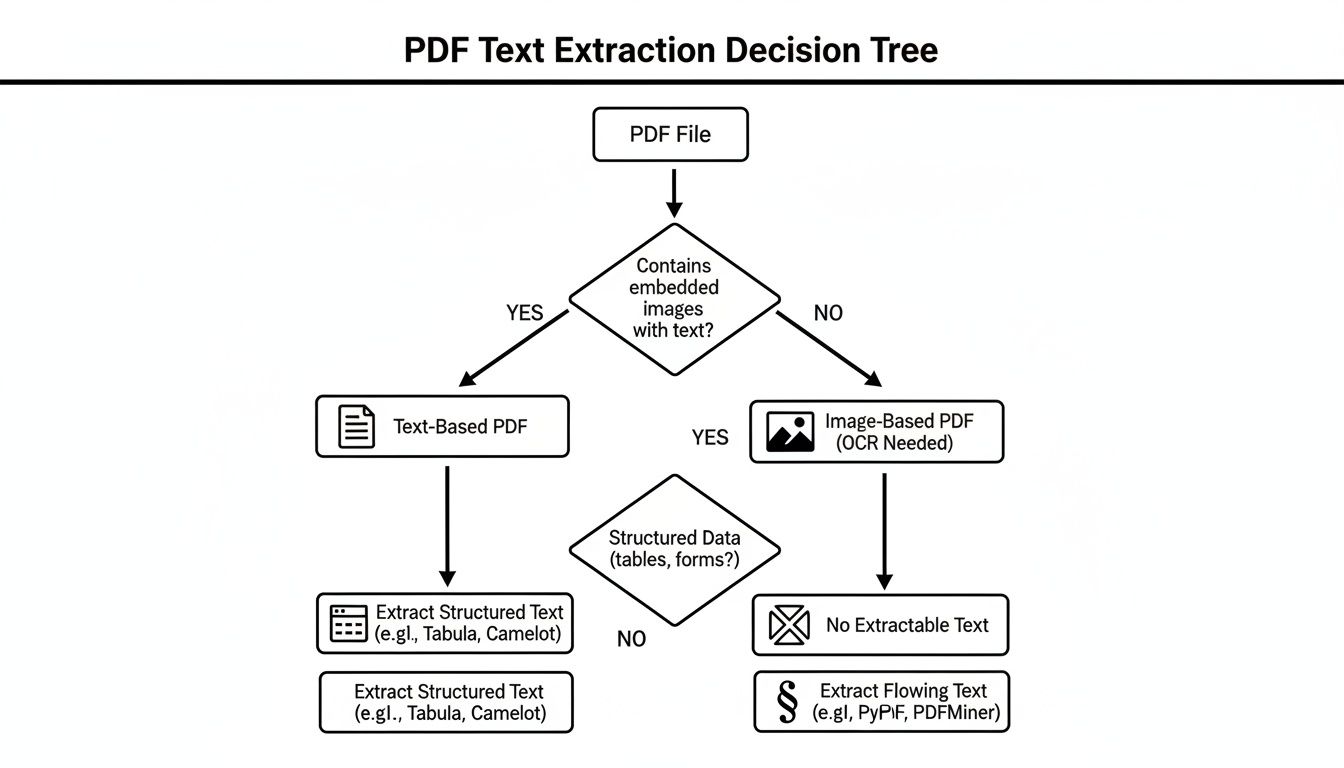
As you can see, the very first step is figuring out if your PDF is text-based or image-based. That single piece of information will point you to the right free tool.
Before we get into the step-by-step methods, it helps to think about the bigger picture. Once you've successfully liberated that text, what can you do with it? Check out our guide on how to extract information from a PDF to see how you can turn that raw text into something genuinely useful. Understanding the "why" often makes the "how" a lot more rewarding.
Quick Guide to Free PDF Text Extraction Methods
With so many options, it can be tough to know where to start. This quick-glance table breaks down the most common free methods, helping you match the right tool to your task.
| Method | Best For | Pros | Cons |
|---|---|---|---|
| Browser Copy/Paste | Quick grabs from simple, text-based PDFs. | No software needed; universally available. | Often breaks formatting, especially with columns or tables. Useless for scanned PDFs. |
| Built-in Viewers | Basic text extraction on macOS (Preview) or Windows. | Free and pre-installed; reliable for standard documents. | Limited features; can struggle with complex layouts. No OCR for image-based files. |
| Google Drive/Docs | Scanned PDFs or documents with complex layouts. | Excellent free OCR capabilities; converts files into editable formats. | Requires an internet connection and a Google account; heavy formatting might not convert perfectly. |
| Microsoft Word | Converting entire PDFs into editable .docx files. | Preserves formatting surprisingly well; widely available. | Can be slow with large files; might alter complex layouts. Not all versions have this feature. |
| Command-Line Tools | Bulk processing and automated workflows. | Powerful, fast, and scriptable for developers and power users. | Requires technical skill (using the terminal); not user-friendly for beginners. |
| Free Online OCR | One-off extraction from scanned images or PDFs. | Simple drag-and-drop interface; no installation needed. | Privacy concerns with sensitive documents; often has file size or daily usage limits. |
| PDF Summarizer AI | Extracting key info without manual copying. | Goes beyond text extraction to provide summaries and insights. | Focused on summarizing, not full text conversion. May have limitations on free use. |
Each of these methods shines in different situations. For a quick text grab, your browser is fine. But for a scanned document, you'll want to lean on the OCR power of Google Docs or an online tool. Choosing the right approach from the start will save you a ton of time and frustration.
The Quick and Easy Copy-Paste Method
Let's start with the most obvious and often fastest way to get text out of a PDF: the classic copy-paste. This is my go-to when I just need a specific quote for a presentation or a paragraph for an email, and I'm not too worried about perfect formatting. It’s quick, dirty, and uses the tools you already have open.
The process is as straightforward as it gets. Just open the PDF in your browser, Adobe Acrobat Reader, or Preview on a Mac. Then, highlight the text you want, hit Ctrl+C (or Cmd+C on a Mac), and drop it into your document with Ctrl+V (or Cmd+V).
But, as anyone who’s done this knows, the simplicity can be deceiving. The moment you paste, things often get weird.
Why Your Pasted Text Looks Broken
The biggest frustration with copy-pasting from a PDF is the formatting chaos that ensues. PDFs are built to look good on screen and in print, not to be easily pulled apart. This means when you copy text, you're often grabbing a lot of invisible formatting junk along with it.
I see these issues all the time:
- Weird line breaks: Suddenly, your nice paragraph is a series of single lines, completely breaking the flow.
- Extra spaces everywhere: You'll find random spaces sprinkled between words, and sometimes even inside of them.
- Formatting goes poof: Say goodbye to your bold text, italics, bullet points, and any hyperlinks. They’re almost always lost in translation.
- The dreaded column jumble: Copying from a two-column layout is the worst. You'll get the first line of the left column, then the first line of the right column, all mashed together into gibberish.
It’s a real headache, especially when you're working with something complex like a research paper or a newsletter.
How to Tame Your Copied Text
Don't give up just yet! You can clean up this formatting mess pretty easily. The secret weapon here is pasting without formatting.
Instead of just pasting normally, try this keyboard shortcut: Ctrl+Shift+V (or Cmd+Shift+V on a Mac). This powerful little command strips out all the source formatting—the weird fonts, the awkward line breaks, the extra spacing—and just gives you the raw, plain text. You’ll still have to re-apply any bold or italics yourself, but it solves the biggest problems instantly.
Pro Tip: If you’re still getting stubborn formatting, use a plain text editor as a middleman. Paste the text into Notepad (on Windows) or TextEdit (on Mac) first. These simple apps don't support rich formatting, so they automatically scrub the text clean. From there, you can copy the now-pristine text and paste it into your final document.
I find this extra step is a lifesaver, especially when dealing with older PDFs that were not created well. It gives you a clean foundation to work from, making any manual cleanup a breeze. While this method won't work for scanned documents or complex tables, for a quick and simple text grab, you really can't beat it.
Using Everyday Tools You Didn't Know Could Help
Sometimes, the best tool for the job is one you already have open. Before you go hunting for a specialized app, you can often extract text from a PDF for free using the software you use every day, like Google Docs and Microsoft Word. These programs are more than just word processors; they pack surprisingly powerful PDF conversion features under the hood.
You might be sitting on a fantastic PDF extractor without even realizing it. These tools are perfect for those times when a simple copy-paste just won't cut it, especially with documents that have tricky columns, basic tables, or when you need the whole file in an editable format.
Unlocking Text with Google Docs
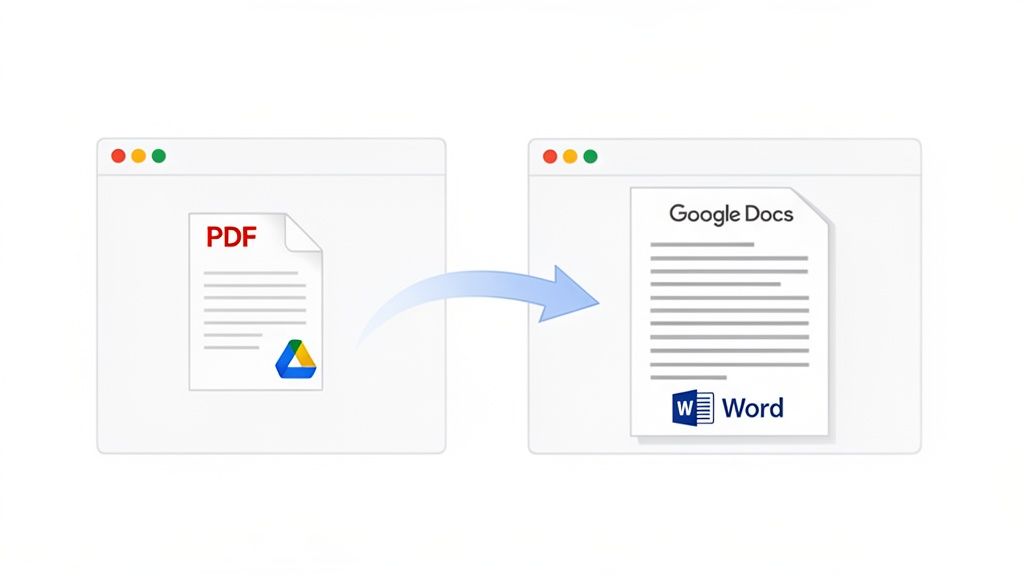
One of the simplest ways to pull text from a PDF—even a scanned one—is through Google Docs. It uses its built-in Optical Character Recognition (OCR) to work its magic, and the whole process happens right in your browser.
Here’s how it works:
- First, just upload your PDF file into Google Drive.
- Once it's uploaded, right-click on the file and hover over "Open with."
- From the menu that appears, select "Google Docs."
Give it a moment. Google will process the file, running OCR if it's an image-based PDF, and then open it as a brand-new, editable Google Doc. This is my go-to trick for turning scanned lecture notes or old, non-digital articles into text I can actually search and copy.
The Microsoft Word Conversion Powerhouse
If you have Microsoft Word, you have an even more direct and often cleaner method. Word's conversion engine is particularly good at keeping the original document's structure intact, which is a huge advantage.
All you have to do is open Word, go to File > Open, and browse for your PDF. Word will pop up a quick message letting you know it's about to convert the PDF into an editable document. Just click "OK," and in a few seconds, the content will appear, ready to be edited. I’ve found its ability to handle tables and columns is often far superior to other methods.
I once had a 30-page report filled with data tables that I needed to get into Excel. Copy-pasting was a formatting nightmare. Opening it directly in Word preserved 95% of the table structures perfectly. What could have been a full day of reformatting turned into a ten-minute job.
Which One Should You Choose?
So, when do you turn to Google Docs versus Microsoft Word? It really comes down to the kind of PDF you're working with and what matters most to you: getting the raw text or preserving the original look.
- Choose Google Docs when: You're up against a scanned, image-based PDF. Its free OCR is the main draw here, making unselectable text accessible. It’s also great for simpler documents where you don’t need pixel-perfect formatting.
- Choose Microsoft Word when: The original layout is king. If you need to preserve columns, tables, and other structural elements, Word’s conversion engine does a much better job of maintaining the document's visual integrity.
Both have their limitations, of course. Super complex graphics or unusual fonts might still throw them for a loop. But for a massive number of common PDFs, these familiar tools offer a reliable, powerful, and completely free way to get at the text locked inside.
What to Do When Your PDF is Just a Picture (Free OCR to the Rescue)
Ever had that frustrating moment where you try to copy text from a PDF, but your cursor just won't select anything? If you can't highlight a single word, you're almost certainly looking at a scanned or image-based PDF. To your computer, that document isn't text—it's just one big, flat picture.
This is a common headache, especially with older documents, snapped photos of receipts, or academic papers saved as images. When you need to extract text from a PDF for free in these situations, a simple copy-paste won't work. But don't worry, there's a specific technology built for exactly this problem: Optical Character Recognition, or OCR.
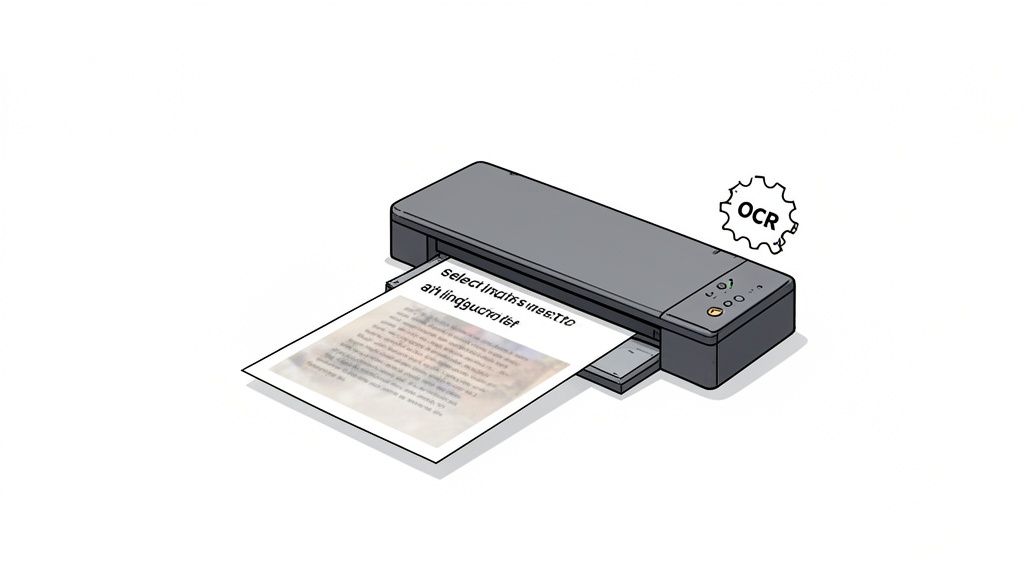
Think of OCR as a digital translator. It scans the "picture" of your document, recognizes the shapes of letters and numbers, and then rebuilds them into actual, editable text you can copy and search. The best part? You don't need to buy expensive software to do it. Several fantastic free online tools can get the job done in a pinch.
Popular Free Online OCR Options
For a one-off conversion, free online OCR websites are incredibly handy. The process is usually the same across the board: you upload your PDF, the site works its magic, and you get your text back in a file like a .txt or .docx.
These platforms are getting seriously smart, thanks to a field known as Intelligent Document Processing (IDP). The market for this tech is exploding, projected to jump from USD 2,420.0 million in 2024 to a whopping USD 17,826.4 million by 2032. This rapid AI development is why today's free tools can handle complex documents with surprising accuracy. Some studies even show legal teams can extract specific contract clauses 35% more effectively using these systems.
Here are a few reliable options I've used that don't require a sign-up for basic jobs:
- OnlineOCR.net: A long-standing, solid choice that supports a ton of languages and file formats.
- i2OCR: This one is great because it has a clean interface and does a decent job with multi-column layouts, which can often trip up other tools.
- FreeOCR.com: A simple, no-frills tool. It gets straight to the point without any extra clutter.
Tips for Getting the Best Results
Here’s the thing: the accuracy of any OCR tool is only as good as the quality of the scan you feed it. A blurry, low-resolution image will always give you garbled text. It's garbage in, garbage out.
To give the software the best possible chance of a clean extraction, here are a few things I always do:
- Start with a High-Quality Scan: If you have any control over the scanning process, aim for a resolution of at least 300 DPI (dots per inch). This gives the OCR engine enough visual detail to work with.
- Check the Lighting and Contrast: Make sure there are no weird shadows or glare on the page. The text needs to stand out clearly from the background.
- Straighten It Out: A skewed or tilted page can really confuse the software. Most scanner apps have an auto-straighten feature, but even a quick crop in a basic image editor can make a huge difference.
OCR isn't magic—it's just advanced pattern recognition. The fewer obstacles you give it (like strange fonts, handwritten notes, or coffee stains), the cleaner your extracted text will be.
A Critical Note on Privacy and Security
The convenience of free online tools comes with a major catch: privacy. When you upload a document to one of these websites, you're sending your data to a server you don't control. You have no idea who sees it or how long it's stored.
Because of this, you should never, ever upload sensitive or confidential documents to a free online OCR service. This includes things like:
- Anything with personal information (names, addresses, SSNs)
- Financial records (bank statements, invoices, contracts)
- Proprietary business documents
For public articles, research papers, or anything non-sensitive, these tools are perfectly safe and incredibly useful. But for anything you wouldn't want to be made public, stick to offline methods. If you handle scanned documents regularly, our guide on how to make a PDF searchable dives into more secure strategies you can use right on your own device.
Moving Beyond Extraction with AI Document Chat
Pulling words from a PDF is one thing, but actually understanding them is where the real work begins. This is where modern AI tools are making a huge difference. Instead of just getting a wall of text, you can now have a conversation with your documents.
Imagine you've just managed to extract text from a PDF for free. Rather than spending the next hour hunting for a specific figure, you could just ask, "What were the Q3 revenue projections in this report?" and get the answer in seconds. That’s the power of AI document chat.
From Raw Text to Actionable Insights
These newer platforms go way past basic text grabbing. They’re built for comprehension, helping you pull out the critical insights hidden inside your files. This saves an unbelievable amount of time, whether you're a student cramming for an exam, a researcher digging through papers, or a professional trying to make sense of a dense report.
With these tools, you can:
- Ask specific questions to pinpoint exact data without reading the entire document.
- Get instant summaries of long-winded reports or academic articles.
- Compare information across several PDFs at once, a game-changer for tasks like literature reviews or competitive analysis.
This shift is part of a much larger trend. The data extraction market was valued at USD 2,734.98 million in 2022 and is expected to climb to USD 5,691.02 million by 2030. People want smarter tools that can handle different languages and deliver immediate answers, especially since over 75% of document-related work now happens on mobile devices.
The real leap forward here is information verification. The best AI chat tools provide clickable citations that link you straight back to the original sentence or paragraph in the PDF. This builds trust and removes the guesswork.
The New Workflow for Document Analysis
This conversational method turns a tedious chore into an efficient, interactive process. Once you have the text extracted, you can do so much more with it, like using an artificial intelligence paralegal for complex legal document review.
You're no longer forced to read every single word. Instead, you can focus on asking the right questions to get precisely what you need. This is especially powerful when you're dealing with dense, technical, or just plain boring material.
If you're curious about the technology behind this, you can learn more in our deep dive on AI-powered question answering systems. By adopting these tools, you stop being a simple data collector and become an insights generator.
Common Questions About PDF Text Extraction
So, you're trying to pull text from a PDF for free, and it's not going as planned. You're not alone. Getting text out of a PDF can feel like a guessing game, but most of the common roadblocks have surprisingly simple fixes. I've run into all of these myself over the years, so here are some straight answers to the questions I hear most often.
Why Can't I Copy Text from Some PDFs?
This is the classic frustration, and it almost always boils down to one of two things.
First, and most likely, you're working with a scanned or image-based PDF. To your computer, that file isn't a document full of text; it's just one big picture. You can't copy what the computer doesn't see as text. For these files, you absolutely need a tool with Optical Character Recognition (OCR) to "read" the image and turn it into selectable text.
The other possibility is that the PDF has security settings that block copying. The creator of the PDF can flip a switch that prevents anyone from selecting or copying text. A good workaround is often to try opening the file in a different program, like Microsoft Word or Google Docs, which can sometimes override these permissions during the import process.
How Can I Extract Text and Keep the Formatting?
Ah, the million-dollar question. Keeping the original layout with all its columns, tables, and spacing intact is the holy grail of text extraction. For this job, your best free bet is opening the PDF directly in Microsoft Word. Its conversion engine is remarkably good at understanding complex layouts and translating them into an editable document.
Google Docs can also handle this, but I've found it's a bit more aggressive about simplifying the format, which can be a good or bad thing depending on your goal.
Let's be honest: no free method is going to be 100% perfect. Word gets you incredibly close, but you should always plan on doing a little manual cleanup, especially with visually complex reports or newsletters. A simple copy-and-paste from a PDF viewer will almost always leave you with a jumbled mess.
Are Free Online PDF Extractors Safe?
This is a really important question, and the answer is: it depends entirely on what's in your PDF.
If you're working with public reports, online articles, or non-sensitive notes, a reputable online tool is usually fine and incredibly convenient.
However, you should never, ever upload PDFs containing personal, financial, or confidential information. The moment you upload that file, it's on someone else's server. You have no real control over who sees it or how long it's stored. For anything sensitive, stick to offline software where the file never leaves your computer—think Microsoft Word, macOS Preview, or a trusted desktop app.
What's the Best Free Way to Extract a Table From a PDF?
Getting a clean table out of a PDF can be a real headache. The most reliable free method I've found is, once again, using Microsoft Word. It's built to recognize table structures in PDFs and convert them into proper, editable Word tables. It does a surprisingly good job of keeping rows and columns aligned.
If that fails, your next best move is an online OCR tool with a specific table recognition feature. As a last resort, you can always go the manual route: copy the jumbled text into a spreadsheet program like Excel and use the "Text to Columns" feature to split the data back into its proper structure, using tabs or commas as your guide.
Stop wasting time on manual extraction and start getting answers. PDF Summarizer lets you chat directly with your documents, pull out key data instantly, and even ask questions across multiple files at once. Try it for free today at https://pdfsummarizer.pro.
Recent articles

Learn how to merge pdf foxit reader PDFs quickly with step-by-step tips, free options, and 2026 updates.

Learn how to open pdf in google docs across devices, fix formatting, and edit PDFs with ease.

Discover the 12 best document collaboration tools for any team. Compare features, pricing, and use cases to find the perfect platform for your workflow.

Learn how to add citations in Google Docs using the built-in tool, add-ons like Zotero, and an advanced PDF workflow. Master APA, MLA, and Chicago styles.

Discover the best citation management software for your research. Compare Zotero, EndNote, Mendeley, and more to find the perfect tool for your workflow.

Explore critical thinking skills for students with practical strategies to analyze information, argue persuasively, and boost academic success.